
 Product documentation
Create and schedule a live webinar
Create a live webinar, set a one-time or recurring schedule, choose free or paid registration and pick a registration template.
- Applies to
- All plans · any team member
- Status
- Live
- Verified
- Page type
- How-to guide
Create a live webinar, set the date, time and timezone your attendees register for, and get a registration page ready to publish. The builder has four steps and takes about two minutes.
Expected result: a webinar with its schedule applied, open in the registration page builder, ready for you to publish.
At a glance
| Where | My Webinars → Create a Webinar → Create Manually |
| Builder steps | Four: Build, Schedule, Pricing, Registration Template |
| Schedule options | Specific Date, Daily or Weekly, with extra sessions through Add Session |
| Timezone | Starts on your account timezone; every session runs at one fixed time in it |
| Pricing | Free by default, or Paid through a connected Stripe account |
| Who can do it | Any team member, not only the account owner |
| Goes public when | You click Publish in the registration page builder |
| Changing the type later | Not possible; clone the webinar and pick another type on the copy |
Before you begin
- Sign in to EasyWebinar. Any team member can create a webinar; you don't need to be the account owner.
- Decide the date, time and timezone you will broadcast in.
- If you will charge for the webinar, connect a Stripe account. You can complete everything without one by leaving pricing on Free.
- Decide the webinar type first. The type can't be changed after the webinar is created.
Live, simulive or evergreen?
| You want | Choose |
|---|---|
| To broadcast live, in real time | Live Webinar |
| Pre-recorded content that plays at scheduled times, with attendees registering for specific dates | Simulive Webinar |
| Pre-recorded content available around the clock, watched on each viewer's schedule | Evergreen Webinar |
The three webinar types use the same pages, emails, polls, offers and analytics. Only the delivery differs.
If you would rather have EasyWebinar write the script, pages, emails, offers and polls for you, choose Create with AI instead of Create Manually in step 1.
Step 1: Open the create dialog
- In the left sidebar, click My Webinars.
- Click Create a Webinar at the top right.
- Choose Create Manually.
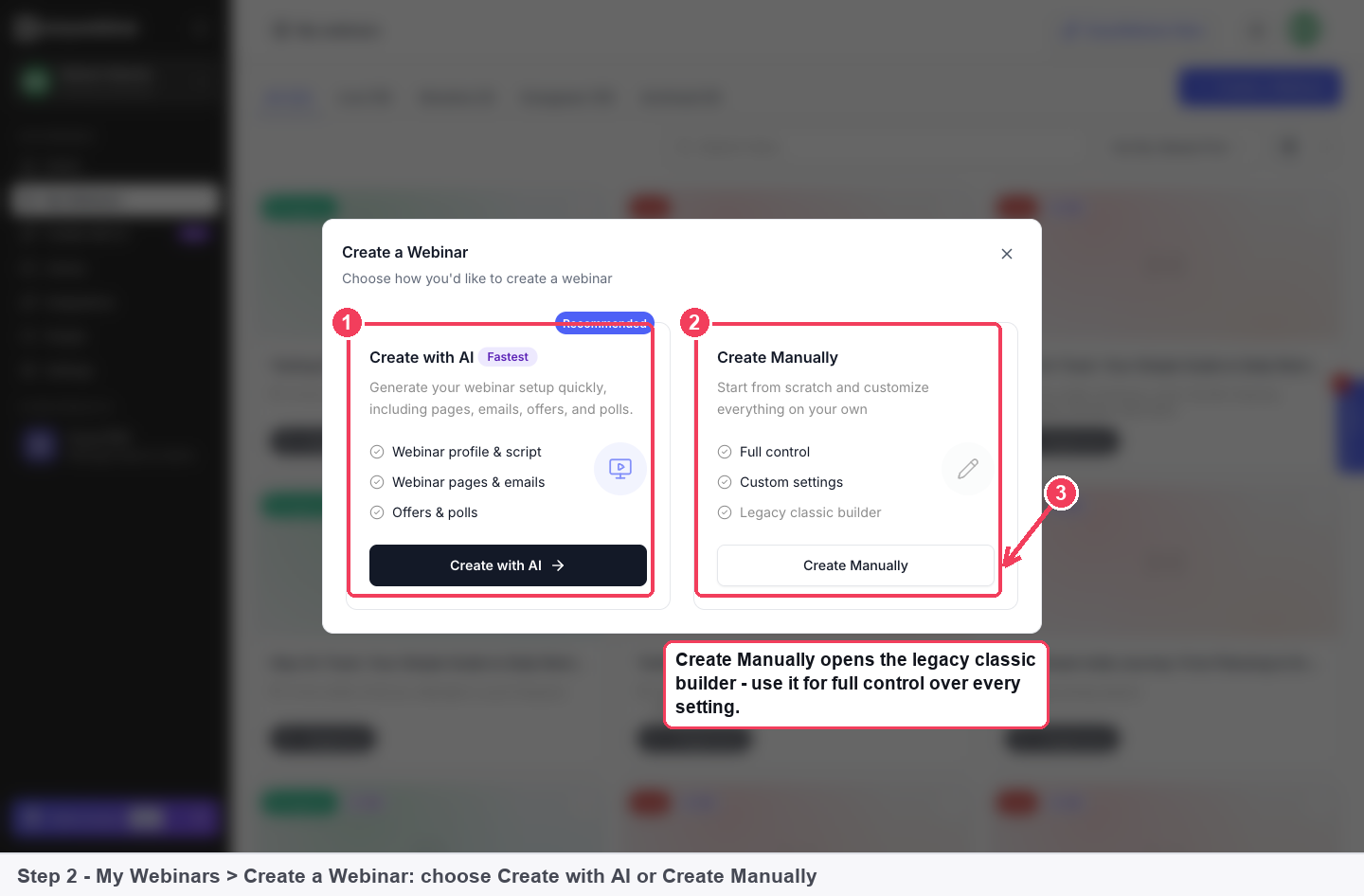
Two ways to create a webinar. Create with AI generates your pages, emails, offers and polls; Create Manually opens the four-step builder.
Step 2: Name your webinar and choose its type
The builder opens on Step 1 of 4: Build.
- In Webinar Name, type the title attendees will see.
- Under Webinar Type, choose a card. Live Webinar is selected by default.
- Optionally add Tags: type one and press Enter, or click a suggested tag (Business, Education, Webinar, Sales, Coaching).
- Click Continue to Schedule.
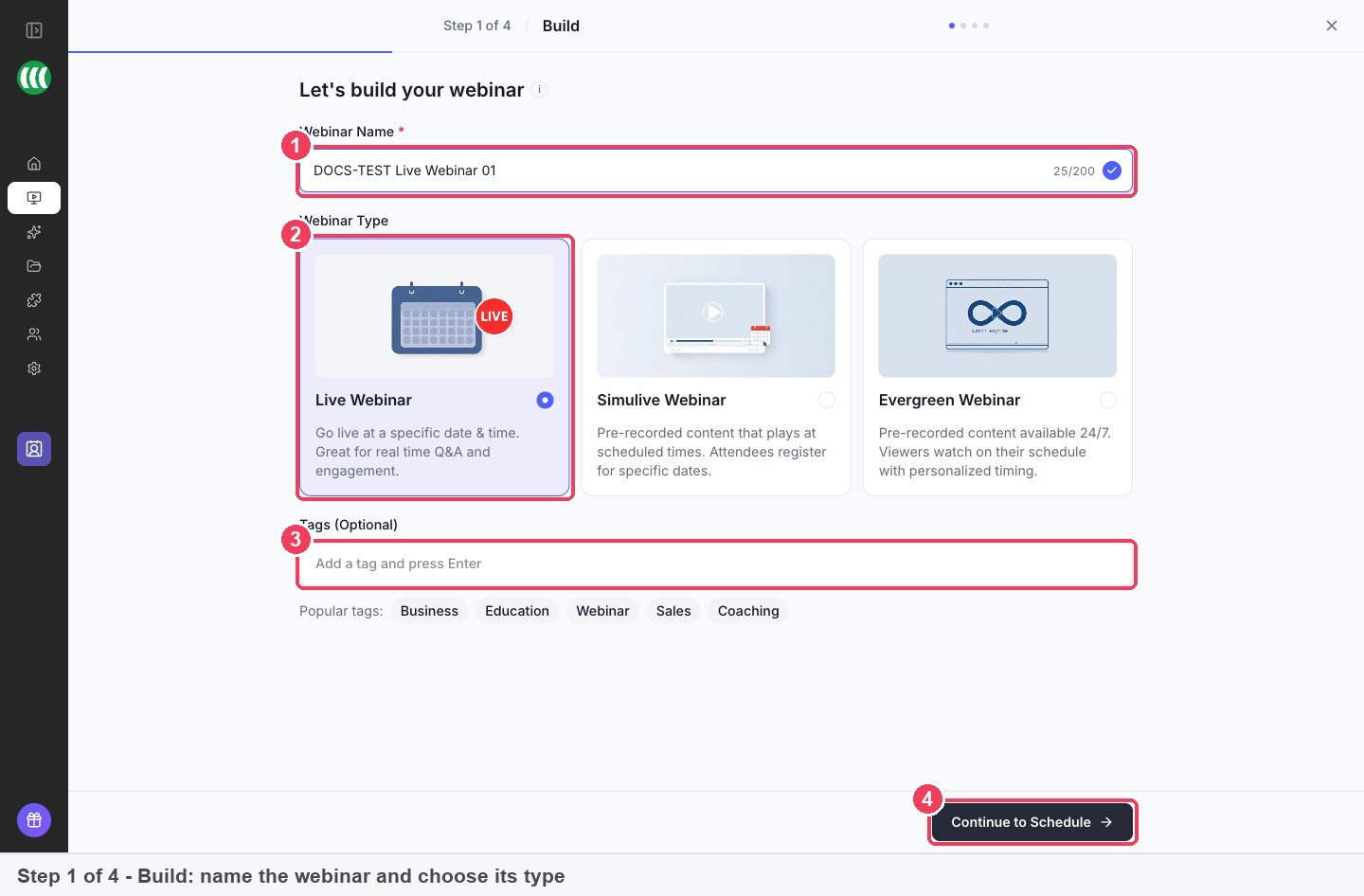
1 Webinar Name · 2 Webinar Type, Live selected by default · 3 Tags · 4 Continue.
Nothing happens when you click Continue?
The webinar name is empty. The builder won't move on until you enter one.
Step 3: Set your schedule
On Step 2 of 4: Schedule:
- Choose a Schedule Frequency: Specific Date, Daily or Weekly.
- Check the Timezone. It defaults to your account timezone. Your live session runs at the time you set, in this timezone.
- Under Available Sessions, set the date and time.
- Optional: click Add Session to offer the same webinar at more than one date or time.
- Under Schedule Preferences, choose how many upcoming sessions a registrant can pick from.
- Click Continue to Pricing.
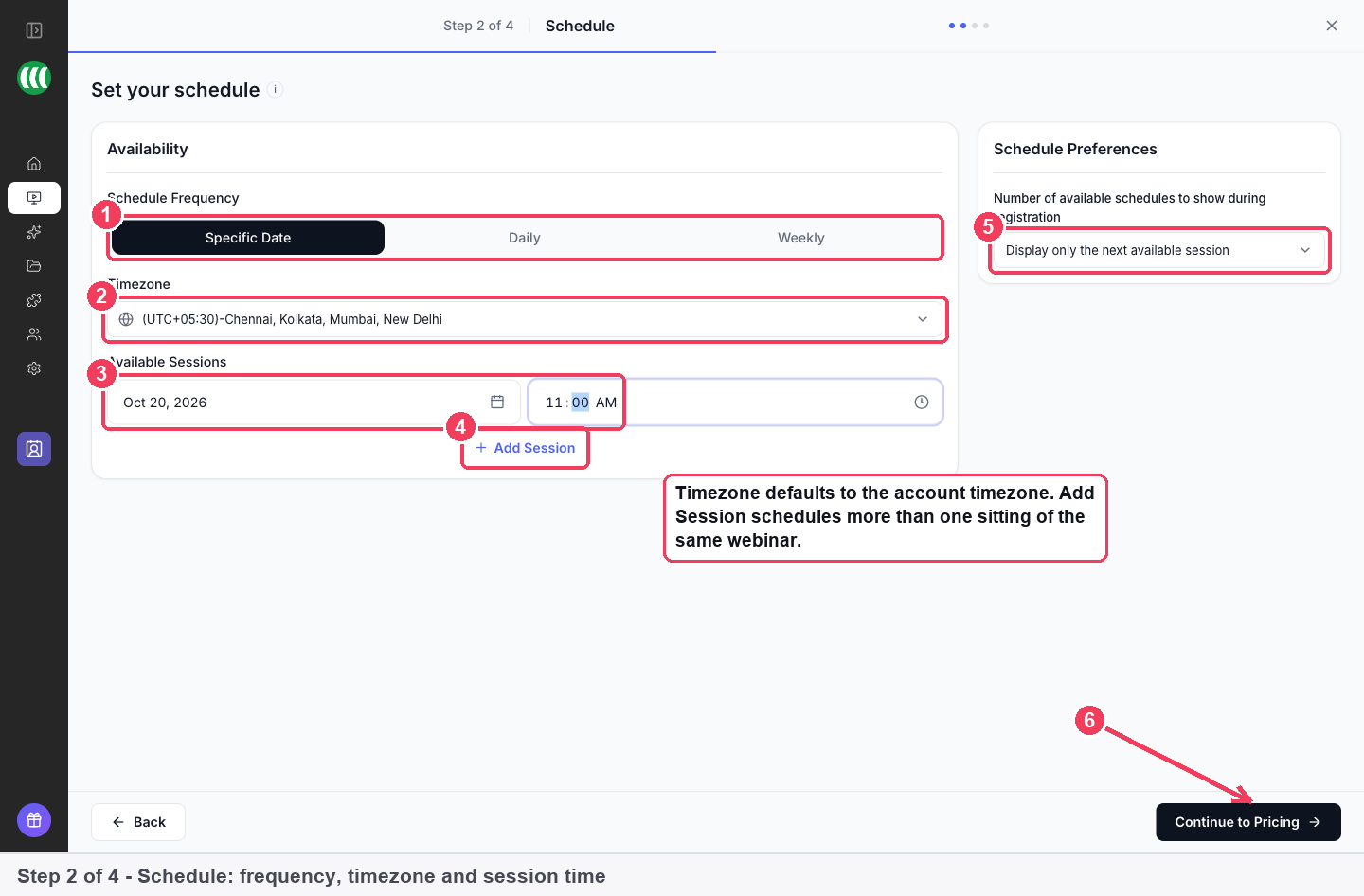
1 Frequency · 2 Timezone · 3 Session date and time · 4 Add Session · 5 Schedule Preferences · 6 Continue.
Timezone
A live webinar runs at one fixed time for everyone, in the timezone you set. Your registration page shows that time with its timezone. Choose the timezone you will broadcast in.
Local times
Only just-in-time sessions on evergreen webinars follow each attendee's own local time. Live and scheduled sessions always run in the webinar's timezone.
Past dates
You can't schedule a session in the past. Earlier dates are greyed out in the picker.
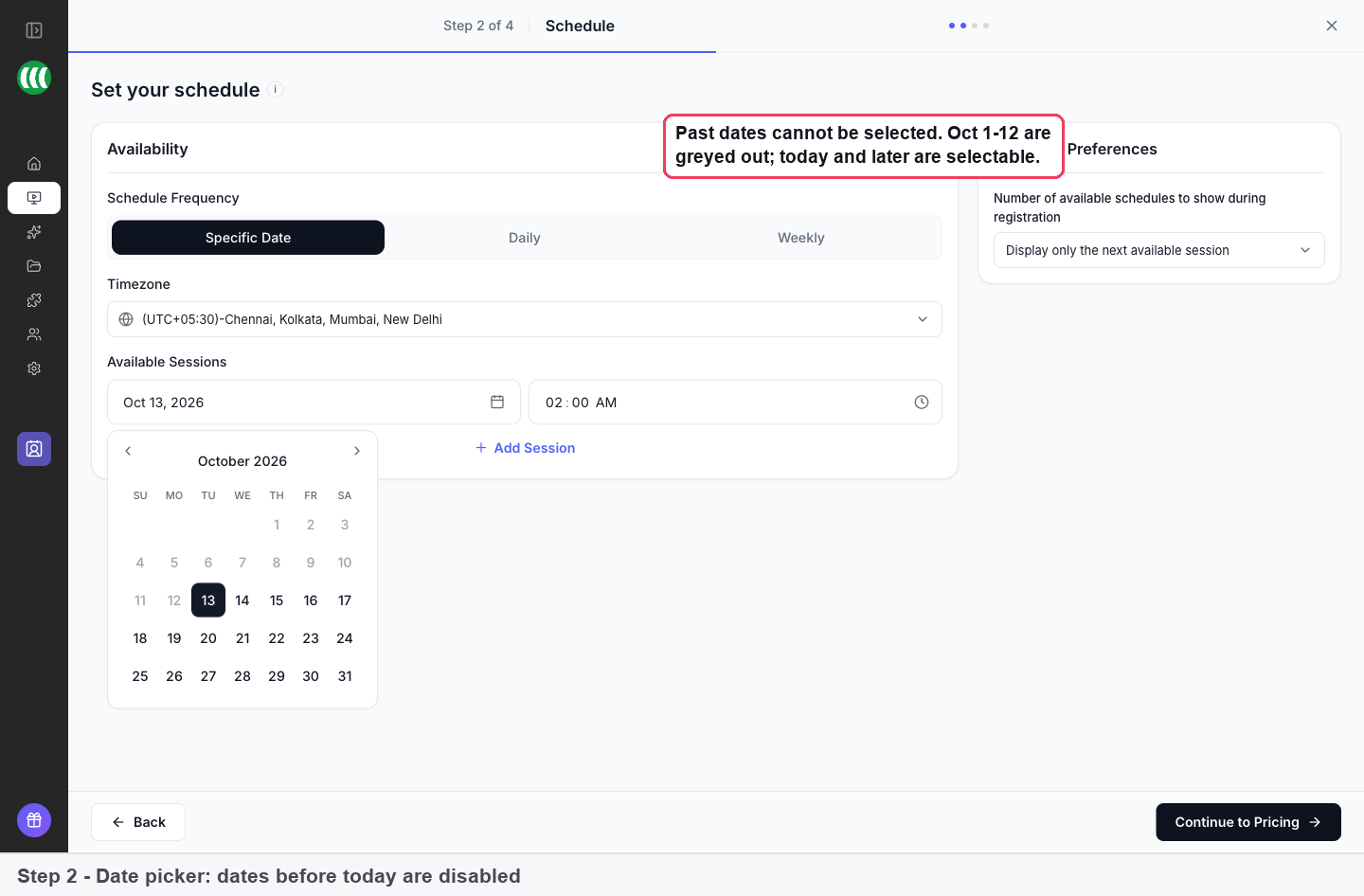
Run the same webinar every week
Choosing Weekly turns the single session into a recurring schedule and adds four controls:
| Control | What it does |
|---|---|
| Days of week | Which days the webinar runs, Monday to Sunday |
| Start Date and End Date (Optional) | When the recurrence begins and ends. Leave the end date as No end date to run it indefinitely |
| Session Time and Add Time | Run it more than once on the same day |
| Blackout Dates | Stop the webinar running on specific dates, such as holidays or time off |
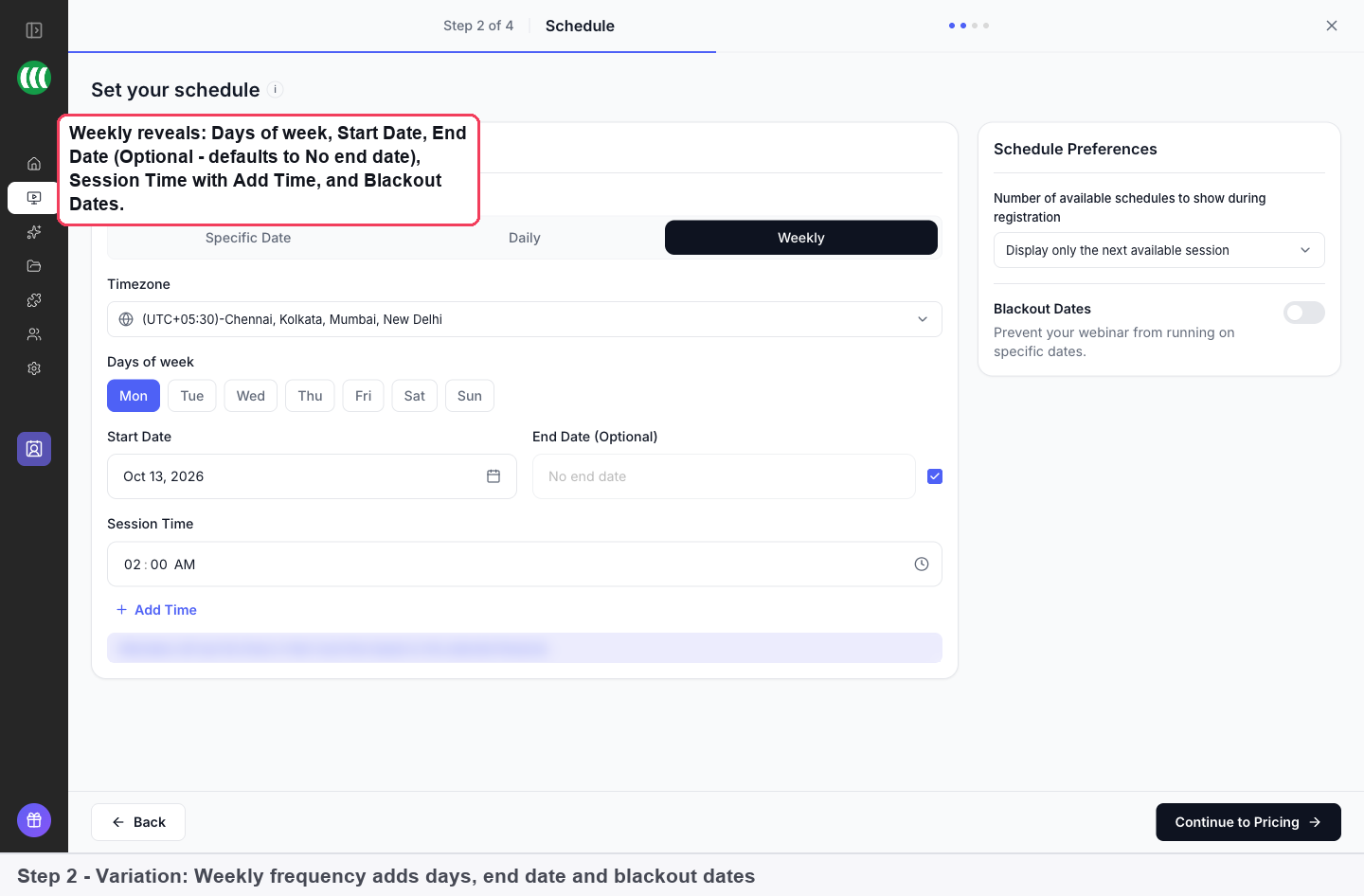
Blackout dates
A weekly webinar runs until you stop it. Use Blackout Dates to skip individual days without ending the series, or set an end date to stop it.
Which sessions registrants see
By default registrants see only the next available session. Change Schedule Preferences to let them choose from more upcoming sessions.
Step 4: Choose free or paid
On Step 3 of 4: Pricing, choose one:
- Free (selected by default): attendees register without paying.
- Paid: attendees pay to register. Requires a connected Stripe account.
Click Continue to Registration Template.
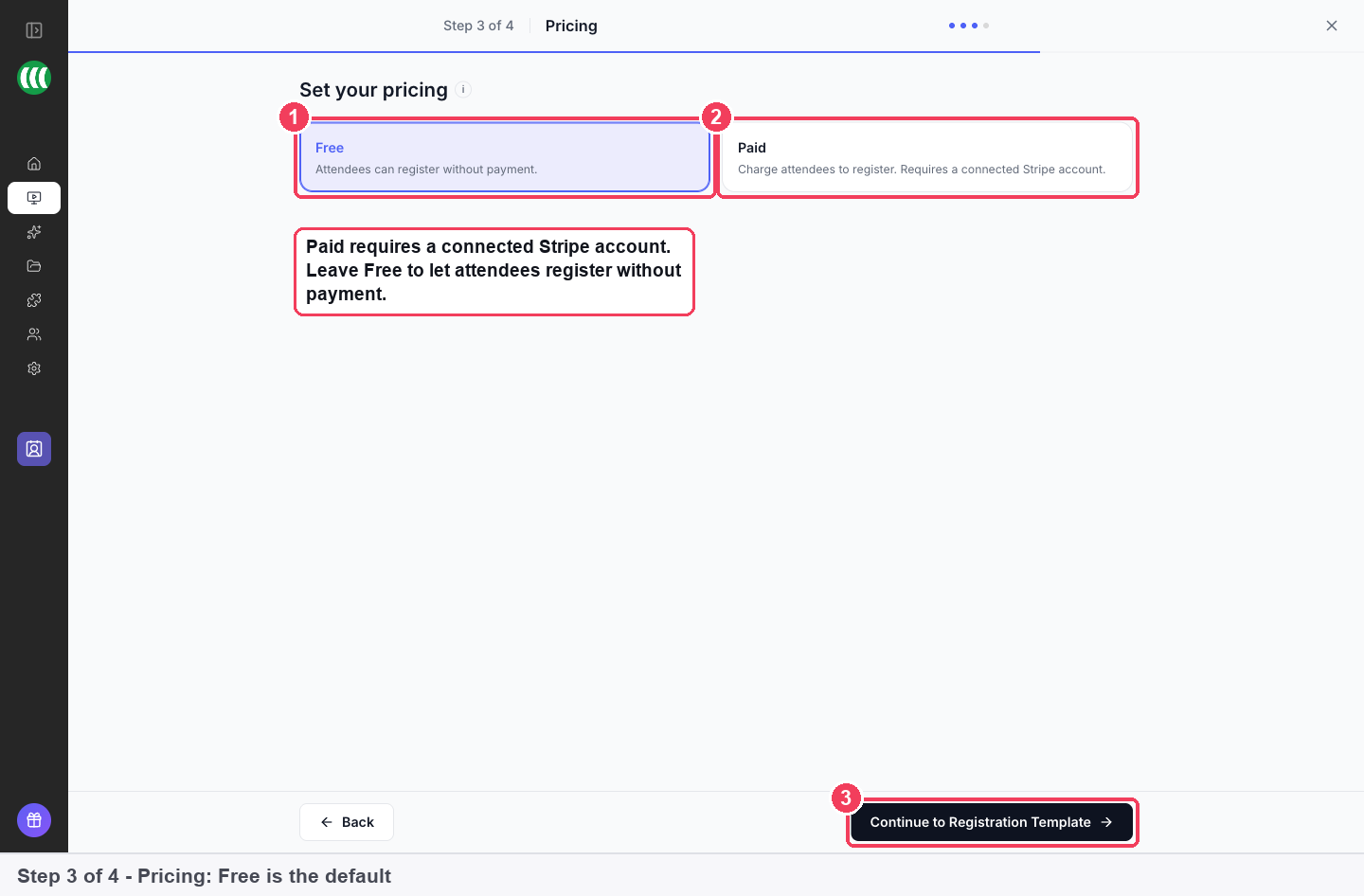
Charging for the webinar
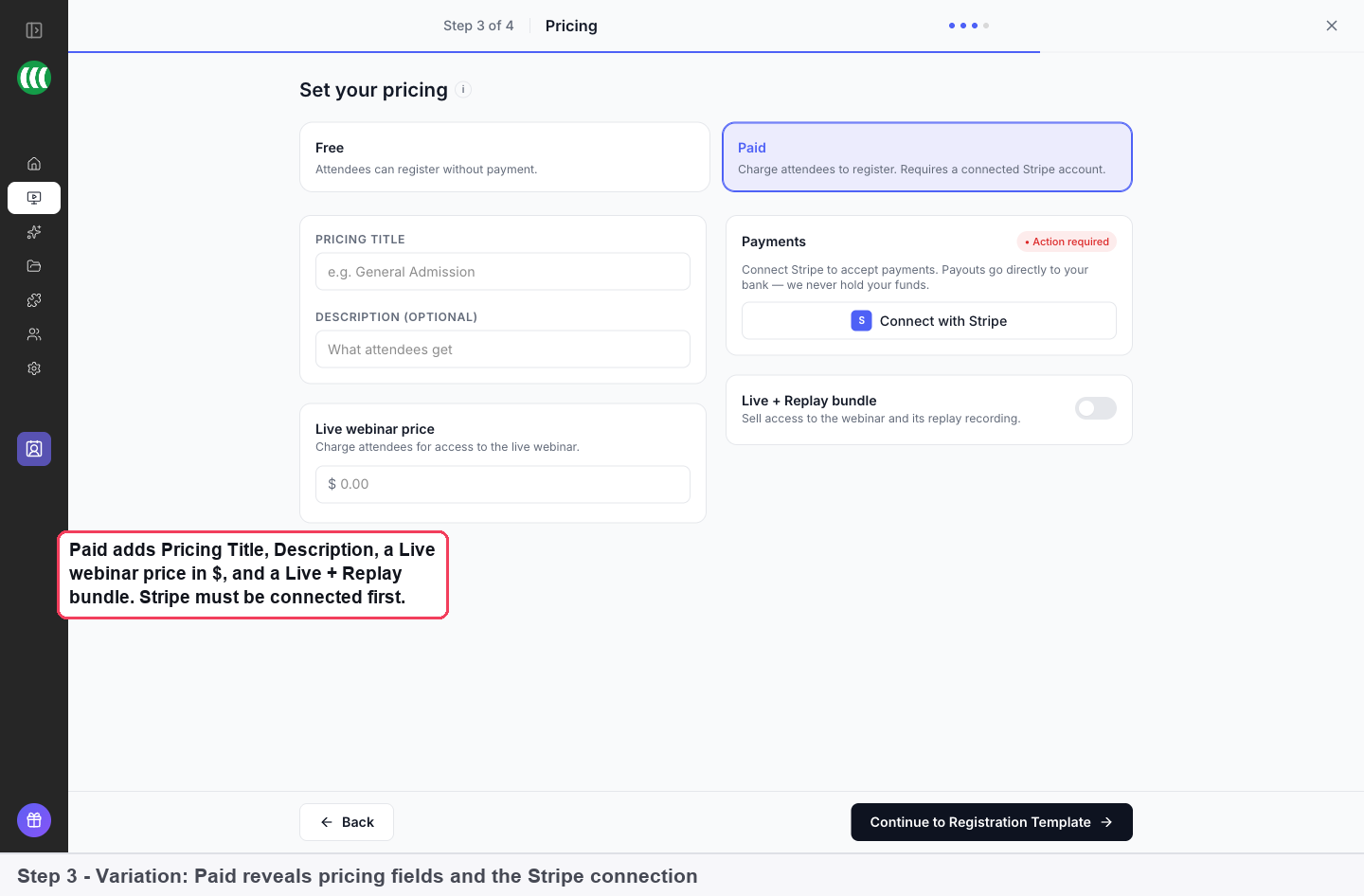
Selecting Paid shows:
- Pricing Title and an optional Description, shown to attendees at checkout
- Live webinar price, the amount each registrant pays
- Live + Replay bundle, to sell access to the webinar and its recording together
Attendees pay through a Stripe checkout, and the money goes straight to your Stripe account. If no account is connected, a Payments · Action required panel offers Connect with Stripe. You can switch back to Free any time before creating the webinar.
Once people pay, the webinar's Analytics tab shows what you've earned under Revenue, with a list of every transaction and its status.
Step 5: Choose a registration template
On Step 4 of 4: Registration Template:
- Filter by category: All Templates, Agency, Coach, Education, Health & Wellness, Lead Magnet, Marketing, or My Templates for ones you have saved.
- Click a template. Default Register Page is the simplest one-column option; Build Your Own starts from a blank page.
- Click Create Webinar.
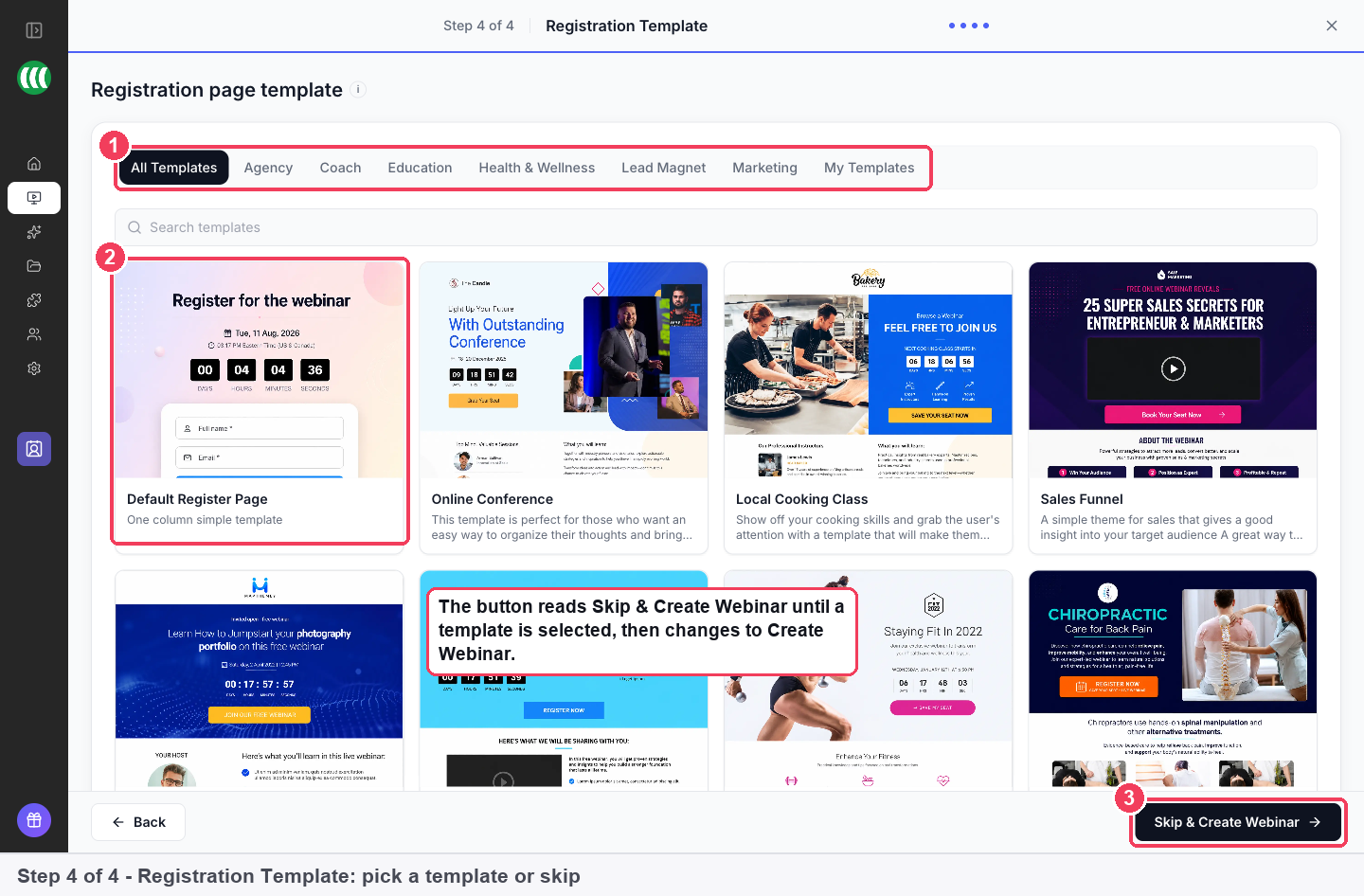
1 Category filters · 2 Template cards · 3 Create button.
You can skip this step. The button reads Skip & Create Webinar until you select a template, and you can choose one later.
Verify the result
The webinar is created and opens in the registration page builder, with your schedule applied and a live countdown to the session.
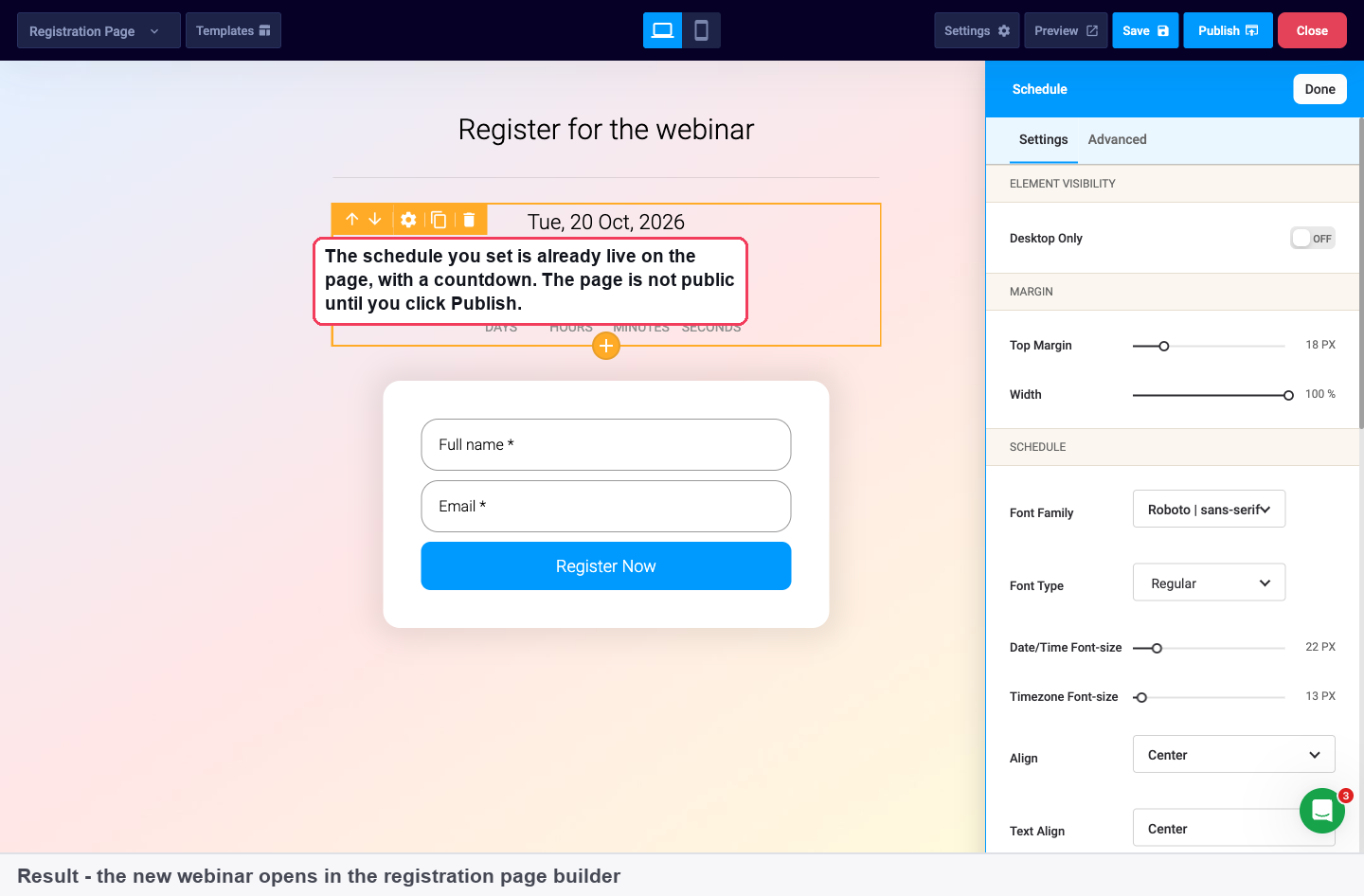
- The default form collects Full name and Email, both required. Use Add Custom Field to collect more on the form.
- Use the desktop and mobile toggle to check both layouts.
Not public yet
Creating the webinar does not publish it. Your registration page goes live only when you click Publish. Use Preview to check it and Save to keep a draft.
What a live webinar is
A live webinar is a session you present in real time. Attendees join at the scheduled moment, and chat and questions happen as they happen. Live is one of three webinar types; simulive and evergreen play a recording instead. The schedule you set here decides when registrants can attend, and the registration page is where they sign up for it.
Why scheduling a live webinar matters
What it's for
A live webinar suits sessions where your presence is the point: a launch, a workshop or a class with real questions. Creating it fixes the date, time and timezone that people sign up for.
How it helps
- Many sittings, one page. Add Session, Daily and Weekly keep repeat sessions under a single registration page.
- Holidays stay free. Blackout Dates skip chosen days without ending a weekly run.
- Payment at sign-up. With Paid selected, people complete a Stripe checkout before they are registered.
- No accidental launch. The registration page stays private until you click Publish.
What happens without it
Without a scheduled live session, your audience has no fixed moment to turn up. Promotion has no date to point at, so interest fades before anyone joins. You also lose the chance to answer questions while people are still deciding.
Why buyers care
It matters most to trainers, educators and sales teams whose value comes from talking with people in real time. The key moment is the week before a session, when people decide whether to register and keep the date free.
The EasyWebinar approach to live webinar scheduling
Take a typical case. A real-estate training company with three instructors runs a live exam review for about 80 trainee agents. It meets on Tuesday and Thursday evenings for the eight weeks before each licensing exam, and it pauses on public holidays.
A common approach is to set up a separate event for every evening, which can mean sixteen events per course. Each one may need its own sign-up link, so trainees often juggle a list of links. When a holiday moves a class, someone usually has to rebuild that night by hand.
The review is the same course with the same instructors every evening. What changes is only the calendar. So one webinar with a repeating schedule fits the course far better than sixteen separate ones, as long as the gaps can be marked.
EasyWebinar handles this as a single live webinar. The team picks Weekly, ticks Tuesday and Thursday, and sets the course dates as the Start Date and End Date (Optional). Holidays go in as Blackout Dates, and every trainee signs up on the same registration page.
The weekly controls are easy to spot. With Weekly selected, the schedule step shows Days of week, Session Time with Add Time, and Blackout Dates. How this scheduling stacks up against other live webinar tools is covered in How live webinars compare, below.
How live webinars work with other features
Registration page
The webinar opens straight into the registration page builder with your schedule applied. Edit the page, add form fields and publish it there. The registration embeds put the same form on your own site.
Reminder emails
Reminder timing is relative to the webinar, not a fixed clock time, so it follows a recurring schedule. Set reminders on the Notifications tab; see reminder emails for each session.
The Overview tab
After the webinar exists, its Overview tab holds the schedule. The options menu on Scheduling Options changes the whole schedule, and the menu on a session row acts on one sitting. Click Share for the Registration Page Link you promote, or use the sharing links guide.
Cloning
The type is fixed once the webinar exists. To reuse a live webinar as simulive or evergreen, clone it and choose the new type on the copy.
Engagement in the room
Live chat, polls and questions from attendees are set up on the webinar's tabs after you create it, ready for the session itself.
Who uses live webinars, and how
These are typical patterns, shown to illustrate how live scheduling fits different teams.
Training and education providers
A training provider runs the same class on set weekdays through a term. A Weekly schedule with an end date covers the term, and Blackout Dates cover the breaks.
B2B marketing teams
A marketing team presents a quarterly product briefing at one fixed time. It offers a second sitting with Add Session for prospects in other regions.
Consultants selling a masterclass
A consultant charges for a live masterclass by choosing Paid on the pricing step. Buyers complete a Stripe checkout before their registration goes through.
Coaches running open office hours
A coach holds free weekly office hours with No end date. Registrants see only the next session unless the coach changes Schedule Preferences.
How live webinars compare
EasyWebinar builds live, simulive and evergreen webinars from one create dialog. A live webinar can repeat on a Weekly schedule and charge at sign-up through a Stripe checkout. EasyWebinar is the only platform in this table that does all three.
Live webinar set-up, from each platform's public documentation:
| Platform | Live and recorded webinars in one product | Weekly recurring live sessions | Paid registration with built-in checkout |
|---|---|---|---|
| EasyWebinar | Yes | Yes | Yes |
| Demio | Yes | Yes | Via Zapier |
| Livestorm | Yes | Partly (one session per click) | Via another app |
| WebinarJam | Separate product (EverWebinar) | Yes | Third-party checkout |
| WebinarKit | Partly (depends on plan) | Yes | Yes (through Whop) |
Yes: documented and built in. Partly: documented with a limit, shown in brackets. Not in docs: not found in the vendor's public documentation.
Why EasyWebinar is the stronger choice for live webinar scheduling
- Charging is part of the builder. Choosing Paid in EasyWebinar sends registrants to a Stripe checkout. Demio's help centre says it has no native paid webinar feature and points to Zapier. See EasyWebinar vs Demio.
- A whole term in one schedule. EasyWebinar's Weekly option sets days, an end date and blackout days at once. In Livestorm, each Add session click adds one session a week later. See EasyWebinar vs Livestorm.
- Live and recorded in one account. EasyWebinar offers Live Webinar, Simulive Webinar and Evergreen Webinar in the same dialog. WebinarJam runs recorded webinars in its sister product, EverWebinar. See EasyWebinar vs WebinarJam and EverWebinar.
- No plan gate on the type. Every EasyWebinar plan includes this builder. WebinarKit's help centre says live and automated creation depend on your plan. See EasyWebinar vs WebinarKit.
Competitor details checked against each vendor's public documentation on 21 October 2026. Features and plans change, so confirm with the vendor before you decide.
Limits and things to know
- The type is fixed. Clone the webinar and choose another type on the copy.
- Choose Paid when you create the webinar. If you switch an existing free webinar to paid, its registration page keeps the free form.
- You can't schedule a session in the past.
- Registrant numbers depend on your plan. Attendee and registration limits differ between EasyWebinar's plans; the features on this page are available on all plans.
Schedule variations
- A live webinar runs at one fixed time in the timezone you set.
- A weekly webinar runs until you stop it, unless you set an end date.
- Registrants see the next session only unless you change the schedule preference.
Common questions
Can I run the same webinar at more than one time?
Yes. Click Add Session to add dates and times, or switch the frequency to Daily or Weekly.
Can I change the webinar type after creating it?
No. Clone the webinar and choose the type you want on the copy. This is also how you turn a live webinar into an evergreen one.
Do I have to be the account owner?
No. Any team member can create and schedule webinars.
Is my registration page live as soon as I create the webinar?
No. It becomes public only when you click Publish.
What's the difference between live, simulive and evergreen?
Live broadcasts in real time. Simulive plays pre-recorded content at scheduled times, with attendees registering for specific dates. Evergreen makes pre-recorded content available 24/7, with viewers watching on their own schedule.
How do I stop a recurring webinar from running on a holiday?
Use Blackout Dates on the schedule step to list the dates the webinar should skip.
What timezone do my attendees see?
The one you set for the webinar. A live session runs at one fixed time for everyone, and the registration page shows that time with its timezone.
Can I schedule a webinar in the past?
No. Past dates are disabled in the date picker.
Do I have to pick a registration template now?
No. The button reads Skip & Create Webinar when nothing is selected, and you can choose a template later.
How do I charge for a live webinar?
Choose Paid on the pricing step and connect a Stripe account. You can also sell a Live + Replay bundle that includes the recording.
Related
Pages for what comes after the webinar exists.
Next steps
- Run a live webinar: what to do in the room when your scheduled session starts.
- The webinar Overview tab: change the schedule for the whole webinar, or act on a single session, after it exists.
- Offers and the countdown timer: put a call to action in front of the room while you present.
- Connect a CRM and map your webinar data: send registrants into your CRM as they sign up.
- Webinar analytics: see registrations, attendance and revenue once sessions have run.
Webinars overview
The three webinar types, what every webinar is made of, and how registration, the room, follow-up and analytics fit together.
Create a simulive webinar
Set up a simulive webinar in EasyWebinar that plays a pre-recorded video at the dates and times you schedule, with a shared chat you can answer in while it plays.