
 Product documentation
On Demand (instant replay)
How On Demand works on EasyWebinar's evergreen webinars, letting registrants start watching straight away, how to label its button, and how it differs from the replay page.
- Applies to
- Evergreen webinars
- Status
- Live
- Verified
- Page type
- Feature
On Demand is an evergreen schedule setting that lets a registrant start watching your webinar straight away, with no session to wait for. EasyWebinar also calls it instant replay: registrants click a button, labelled Watch instant replay unless you change it, and the recording starts. It is a different thing from the replay page on the Replay tab, which shows the recording of a session that has already happened.
At a glance
| What it does | Lets registrants watch immediately instead of waiting for a session |
| Also called | Instant replay |
| Where it's set | The schedule step of an evergreen webinar |
| Webinar types | Evergreen |
| Button wording | Instant replay text; reads Watch instant replay by default |
| Combines with | Just-in-time Registration and Recurring Schedule on the same webinar |
| Not the same as | The replay page on the Replay tab |
What On Demand is
An evergreen webinar can offer three ways to watch. On Demand is the one with no wait at all: the registrant doesn't pick a session time, they start the recording when they're ready.
| Option | When the registrant watches |
|---|---|
| On Demand | Immediately |
| Just-in-time Registration | In a session starting a few minutes after they register |
| Recurring Schedule | At a set daily or weekly time |
Any combination can be switched on, and the registration page lists each enabled option as a choice.
On Demand and the replay page are different
The names overlap, so the two are easy to mix up.
| On Demand (instant replay) | Replay page | |
|---|---|---|
| What it plays | The evergreen webinar's recording, whenever a registrant chooses | The recording of a session that has already happened |
| Who it's for | People who want to watch now rather than wait for a session | People who missed a session and want to catch up |
| Where you set it | The schedule step of an evergreen webinar | The Replay tab of a webinar |
| What you configure | On or off, and the Instant replay text | Whether the page is on, how long it stays available, redirects and how the page looks |
A simple rule: if you want people to watch the moment they register, use On Demand on an evergreen webinar. If you want people who missed a session to catch up, use the replay page.
Why On Demand matters
What it's for
On Demand is for evergreen webinars where the content is the point, not the occasion. Think of training, product explainers and onboarding material. People want to get through these on their own timetable.
How it helps
- No waiting at all. A registrant who is ready now can watch now.
- It suits people short on time. Someone with twenty free minutes between meetings doesn't have to fit a session around them.
- It sits alongside scheduled options. Registrants who'd rather turn up for a session can still pick a just-in-time or recurring one.
- The button speaks your language. Instant replay text lets you word the button to match your page.
What happens without it
Without On Demand, every registrant has to wait for a session, even if only for a few minutes. Some content is meant to be watched the moment people find it. For that content, any wait is a chance for them to leave and not return.
Why buyers care
On Demand matters to teams using evergreen webinars for education and onboarding. It matters most when the audience is busy and the content is the reason they came. Those registrants get immediate access from the same page, recording and webinar setup.
The EasyWebinar approach to On Demand
Take a typical case. An HR software vendor sells leave and payroll tools to companies with 50 to 200 staff. Its marketing team of three records a 15-minute explainer on a change to holiday pay rules and links it from a monthly newsletter. The aim is to get HR managers to book a product demo afterwards.
A common approach is to run the explainer at set times, two or three a week. HR managers tend to read newsletters between interviews and payroll deadlines, though. A Thursday afternoon slot may not fit, and some may decide the topic can wait. For them, the newsletter click is probably wasted.
The explainer has no live element that needs everyone together. Its value is the content, so the timing matters only to the reader. When a manager has fifteen spare minutes now, that is the moment to watch.
EasyWebinar handles this on the schedule step of an evergreen webinar. The team switches on On Demand, and the registration page offers an instant start beside any other options. They change Instant replay text to wording such as "Start the explainer now". A Recurring Schedule can stay on for managers who prefer to book a time.
The screenshot under Set it up shows the Instant replay text field, which reads Watch instant replay until you change it. How other platforms offer viewing straight after registration is covered in How On Demand compares, below.
Set it up
On a new evergreen webinar
- On My Webinars, click Create a Webinar, then Create Manually.
- Name the webinar, choose Evergreen Webinar, and click Continue to Schedule.
- Switch on On Demand.
- In Instant replay text, keep Watch instant replay or type your own wording.
- Set any other options you want alongside it: Just-in-time Registration, Recurring Schedule, Availability and Schedule Preferences.
- Click Continue to Pricing and complete the remaining steps.
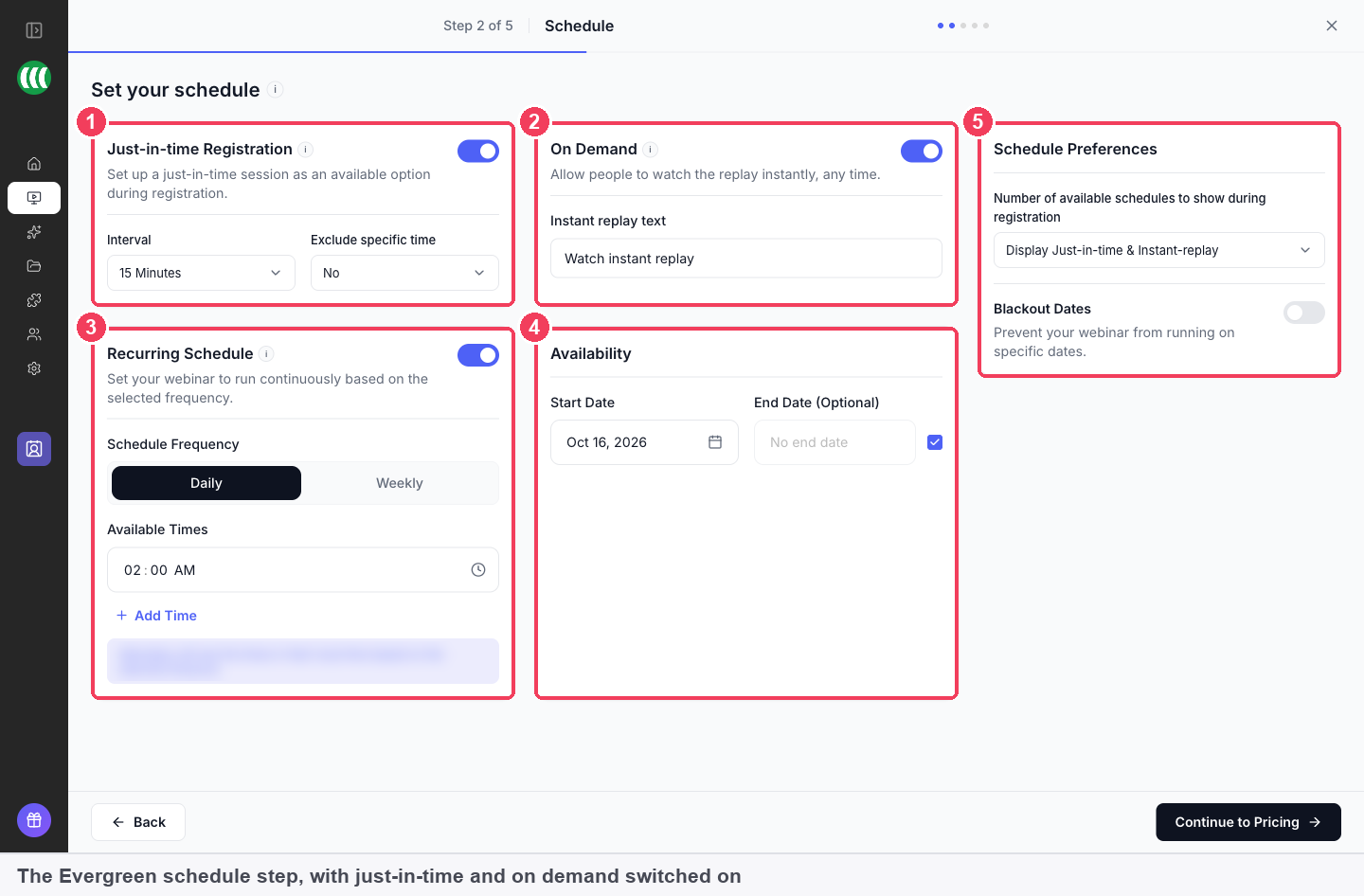
1 Just-in-time Registration · 2 On Demand · 3 Recurring Schedule · 4 Availability · 5 Schedule Preferences.
Pricing, video selection and templates are covered in Create an evergreen webinar.
On an existing evergreen webinar
On the webinar's Overview tab, the options menu on the Scheduling Options panel changes the schedule for the whole webinar. The same panel shows the frequency, start date, timezone and the preference you chose.
Settings
| Setting | What it controls |
|---|---|
| On Demand | Whether registrants can start watching straight away |
| Instant replay text | The wording on the button registrants click; Watch instant replay by default |
| Schedule Preferences | The choices registrants see; with just-in-time also on, it reads Display Just-in-time & Instant-replay |
Wording the button
The default Watch instant replay works, but the word "replay" can suggest a recording of something people missed. If your page sells the webinar as fresh content, wording that says what happens next, such as starting the training now, can read more naturally. Whatever you choose, keep it short enough to fit a button.
When to use On Demand, and when to leave it off
The deciding question is whether the webinar is valued for its content or for the occasion.
| Use On Demand when | Leave it off when |
|---|---|
| The content matters more than the sense of an event | You want the scheduled session to feel like something people turn up for |
With On Demand off, registrants still have just-in-time or recurring sessions if you've enabled them.
How On Demand works with other features
Just-in-time Registration
Just-in-time offers a session a few minutes away, in each attendee's local time. With both on, registrants choose between watching now and joining a session shortly. Just-in-time webinars covers the interval and timezone rules.
Recurring Schedule
A daily or weekly schedule can run alongside On Demand for registrants who want to book a time. Recurring sessions run in the webinar's timezone.
The replay page
The Replay tab controls a separate page for people who missed a session, with availability options of Always Available, Expire after days or Specific date, and an Experience of Webinar Replica or Custom Build. Those settings belong to the replay page, not to On Demand.
Polls, offers and chat
Chat, Q&A, polls, offers, emails and analytics work on evergreen webinars as they do everywhere else. Where viewers watch at different times, Chat Simulation on the Engagement tab keeps the chat from looking empty.
Emails
Confirmation, reminder and follow-up emails are set on the Notifications tab. Replay emails are set up there too, not on the Replay tab. The confirmation email is the first one registrants receive.
Plan usage
People watching evergreen sessions count towards the Automated attendees meter on the Plan tab.
Who uses On Demand, and how
These are typical patterns, shown to illustrate how the setting is used.
Customer success teams
A customer success team runs its product onboarding as an evergreen webinar with On Demand on. New customers register and start the walkthrough immediately, and the button reads Start onboarding instead of the default.
SaaS and product teams
A product team offers a recorded feature walkthrough with On Demand alongside just-in-time. Evaluators in a hurry watch straight away; others join a session a few minutes later.
Course creators
A creator offers a free training lesson on demand, so new subscribers can start it the moment they sign up. On a separate sales webinar, the creator leaves On Demand off so the session feels like an event people turn up for. This is one pattern in selling online courses with webinars.
Coaches and consultants
A consultant puts an explainer webinar on demand for prospects to watch before a first call, so the call can start from where the webinar left off.
How On Demand compares
EasyWebinar's On Demand puts a watch-now button on the same registration page as just-in-time sessions and set daily or weekly times. You also choose the button's wording with Instant replay text, and you run live webinars in the same product. EasyWebinar is the only platform in this table that does all four.
Instant viewing, from each platform's public documentation:
| Platform | Watch straight after registering | Instant viewing beside set daily or weekly times | Instant viewing beside just-in-time sessions | Live webinars in the same product |
|---|---|---|---|---|
| EasyWebinar | Yes | Yes | Yes | Yes |
| eWebinar | Yes | Yes | Yes | Pre-recorded only |
| WebinarJam and EverWebinar | Yes | Yes | Yes | Partly (separate WebinarJam product) |
| Demio | Yes | Yes | Not in docs | Yes |
| Livestorm | Yes | Partly (no sessions after on-demand registrants) | Not in docs | Yes |
| StealthSeminar | Yes (Dedicated Replay event type) | Partly (replay is yesterday's session) | Partly (replay is yesterday's session) | Partly (streamed from YouTube or Twitch) |
Yes: documented and built in. Partly: documented with a limit, shown in brackets. Not in docs: not found in the vendor's public documentation.
Why EasyWebinar is the stronger choice for On Demand
- Instant viewing that keeps your schedule. EasyWebinar runs On Demand beside a daily or weekly Recurring Schedule on one webinar. Livestorm's help centre says that once an on-demand registrant exists, you can't add more sessions. Compare EasyWebinar vs Livestorm.
- Now or in a few minutes. EasyWebinar offers On Demand and Just-in-time Registration on the same registration page. Demio documents on-demand sessions for automated events, with no just-in-time option. Compare EasyWebinar vs Demio.
- The full webinar, inside the same event. EasyWebinar's On Demand plays the webinar's own recording from the evergreen schedule. StealthSeminar's in-event choice, Watch Yesterday's Replay, plays the previous session, and fully on-demand viewing is its own event type. Compare EasyWebinar vs StealthSeminar.
- Live sessions in the same account. EasyWebinar runs live, simulive and evergreen webinars, with On Demand on the evergreen ones. eWebinar describes its webinars as running without anyone having to be there live. Compare EasyWebinar vs eWebinar.
Competitor details checked against each vendor's public documentation on 21 October 2026. Features and plans change, so confirm with the vendor before you decide.
Limits and things to know
- Evergreen only. On Demand is set on the evergreen schedule step. Live and simulive webinars don't have it.
- It isn't the replay page. Replay availability, deadlines, redirects and the replay page's look are set on the Replay tab for the replay page.
- The recording is the webinar's. An evergreen webinar plays the recording chosen on its video step; change it from the Webinar Video panel on the Content tab.
- The type is fixed. To offer On Demand for a live or simulive webinar, clone it as Evergreen.
Common questions
What does On Demand do?
It lets someone watch immediately, with no session to wait for.
Is On Demand the same as instant replay?
Yes. They're two names for the same evergreen setting.
What's the difference between instant replay and a replay?
A replay is the recording of a past session, on the Replay tab. Instant replay, or On Demand, lets someone watch an evergreen webinar straight away without waiting for a session.
Can I change the button text?
Yes. Edit Instant replay text on the schedule step. It reads Watch instant replay by default.
Can I offer On Demand and scheduled sessions together?
Yes. Turn on Just-in-time Registration, Recurring Schedule or both alongside it, and the registration page offers each as a choice.
Where do I turn On Demand on?
On the schedule step when you set up an evergreen webinar, not on the Replay tab.
Can a live or simulive webinar have On Demand?
No. It's an evergreen setting. Clone the webinar as Evergreen to use it.
I want people who missed a session to catch up. Is On Demand the right tool?
No. Use the replay page on the Replay tab for that.
Should every evergreen webinar have On Demand on?
Not necessarily. Turn it on when the content matters more than the event feeling, and leave it off when you want a scheduled session people turn up for.
Related
- Just-in-time webinars: the option for registrants happy to wait a few minutes for a session.
- Create an evergreen webinar: the schedule step where On Demand is switched on.
- Replay pages: the separate page for people who missed a session.
- Chat simulation: a chat for registrants who start watching at different times.
- Clone a webinar: how a live or simulive webinar gets On Demand viewing.
Just-in-time webinars
How Just-in-time Registration works on EasyWebinar's evergreen webinars, which interval to choose, how it handles each attendee's local time, and how to test it.
The webinar Overview tab
Use a webinar's Overview tab in EasyWebinar to read its live stats, change its schedule, manage individual sessions, set free or paid registration, add presenters and moderators, and reach its share links and room.