
 Product documentation
Paid webinars and paid registration
Charge people to register for a webinar in EasyWebinar, take payment through Stripe, sell a live-plus-replay bundle, and track every paid registration and transaction.
- Applies to
- Paid Webinars add-on · connected Stripe account · live, simulive and evergreen webinars
- Status
- Live
- Verified
- Page type
- Feature
A paid webinar asks people to pay before they are registered. In EasyWebinar you choose Paid when you create the webinar, set a price, and attendees pay through a Stripe checkout on their way to registering. The money goes straight to your own Stripe account, and every payment appears in the webinar's Overview and Analytics. Paid registration launched in March 2026.
At a glance
| What it does | Charges attendees to register for a webinar |
| Webinar types | Live, simulive and evergreen; each has the same Free or Paid pricing step |
| What you need | The Paid Webinars add-on and a connected Stripe account |
| Price options | One price, or a second Live + Replay bundle option with its own price |
| Currency | Set in US dollars; Stripe may show attendees outside the US their local currency |
| How attendees pay | Stripe checkout, by card, or Apple Pay or Link where available |
| Where the money goes | Directly to your Stripe account; EasyWebinar never holds your funds |
| Where you see results | Overview (registrants, revenue) and Analytics → Revenue (every transaction) |
| Available since | March 2026 |
What paid registration is
Paid registration makes payment part of signing up. Instead of a free form that registers someone straight away, the registration page shows your price, the Register Now button opens a checkout, and the person is registered only once payment succeeds.
It is different from selling an offer during a webinar:
| Paid registration | Selling an offer in the webinar | |
|---|---|---|
| What is sold | Access to the webinar itself | Something separate: a course, a programme, a call, a product |
| When payment happens | Before the session, at registration | During or after the session |
| Who pays | Everyone who attends | Only those who buy |
| Where it's set up | The Pricing step when you create the webinar | An offer on the CTAs tab |
| Where revenue shows | Analytics → Revenue → Paid Webinar | Analytics → Revenue → Paid Offer |
A webinar can do both: charge for entry and sell a follow-on offer inside. EasyWebinar reports the two separately under Revenue by Source.
Why paid webinars matter
What it's for
Paid registration is for webinars that are the product: workshops, masterclasses, paid trainings and ticketed seminars. People pay to attend, so the seat itself is what you sell.
How it helps
- The session earns in its own right. Every attendee has bought a seat, so the webinar brings in money before it starts.
- Payouts are yours. Payments land in your own Stripe account, and Stripe pays out to your bank on its usual schedule. EasyWebinar never holds your funds.
- The recording can be sold too. A Live + Replay bundle gives buyers a further choice that includes the recording, priced separately.
- Ticket income is kept apart. Revenue by Source separates paid registrations from offers sold in the room.
What happens without it
Without paid registration, the registration page signs up anyone for nothing. A workshop worth paying for becomes a free session. Its value then has to be won back later, through an offer that only some attendees buy.
Why buyers care
Paid registration matters most to educators, coaches and consultants whose sessions should earn money rather than cost it. It matters at the planning stage, when a session is designed to be sold rather than given away.
The EasyWebinar approach to paid webinars
Picture a typical case. A pricing consultant sells tickets to a live, two-hour masterclass for SaaS founders, with seats on sale three weeks ahead. Every founder who buys needs a seat and a join link before the day. Nobody who hasn't paid should get in.
A common approach is to sell tickets on a separate payment page, then add each buyer to the webinar's attendee list manually. The day before, someone checks the payment list against the sign-up list. A buyer missed in the copying never gets a join link, and the consultant finds out only when that founder emails at the start time.
If paying and registering happen in one step, there is nothing to copy. The seat is what the consultant sells, so buying it can create the registration. The list of buyers and the list of registrants then become the same list.
EasyWebinar makes checkout the final step of signing up. The consultant chooses Paid on the pricing step while creating the webinar, and Register Now on the registration page then opens a Stripe checkout. EasyWebinar registers a founder only once their payment goes through. It then sends them to the thank-you page, which shows their personal join link.
In the Revenue screenshot below, the Paid Webinar view splits registration payments into completed, pending and abandoned checkouts. A founder who closes the checkout without paying is counted under Checkout abandoned and is never added as a registrant. How other tools take payment is covered in How paid webinars compare, further down.
Before you begin
- Add the Paid Webinars add-on. It's listed under Settings → Plan → Add-ons as "Selling access to webinars, with checkout". Charging for a webinar needs it.
- Connect a Stripe account. Payments run through Stripe. You can connect it during the pricing step or from Integrations → Payment.
- Choose Paid when you create the webinar. The price block is added to your registration page at creation. See Choose Paid at creation below.
Set your price
Create a webinar as usual: My Webinars → Create a Webinar → Create Manually, name it and choose a type. On Step 3 of 4: Pricing, choose Paid.
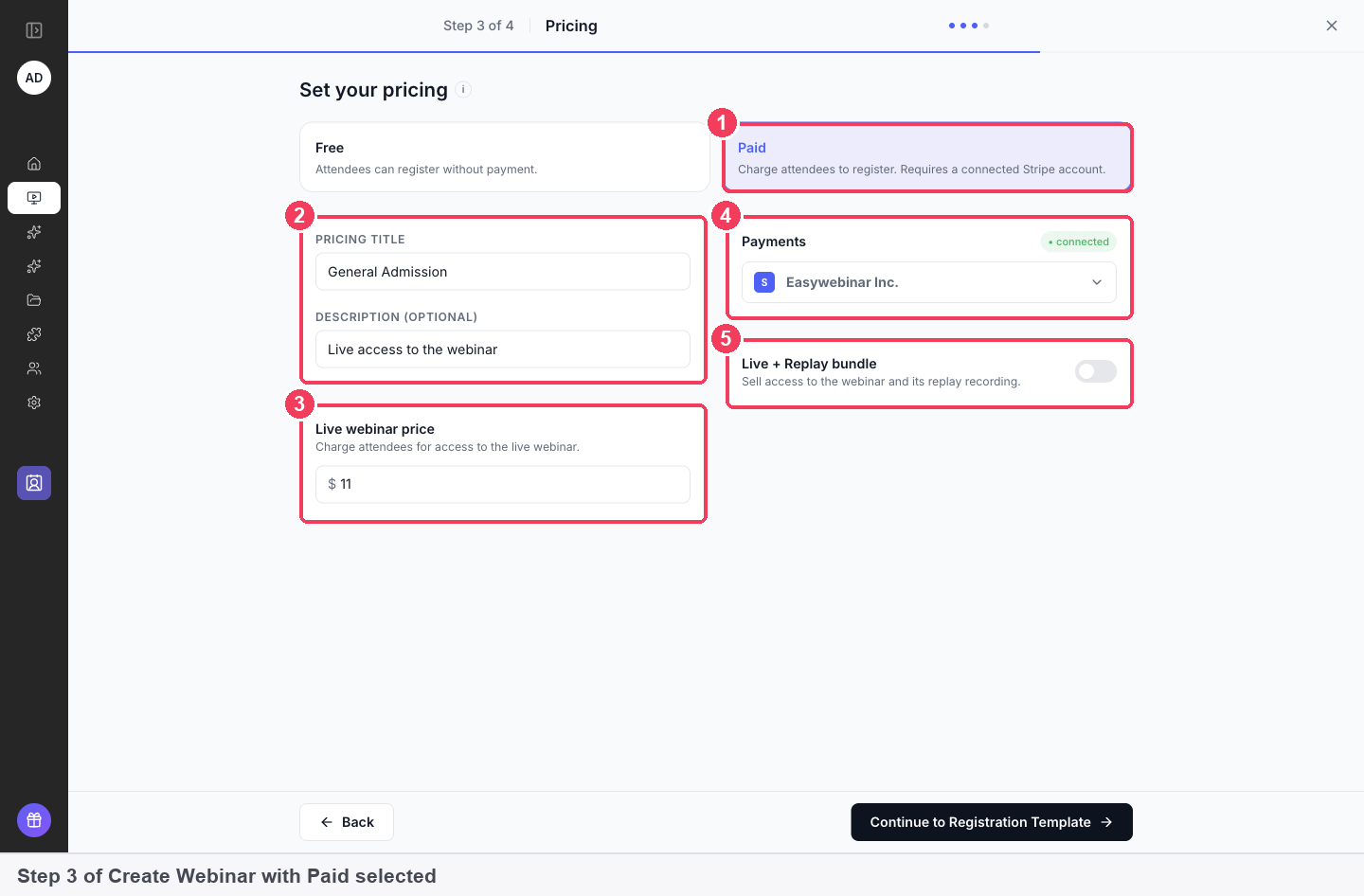
| Setting | What to do | |
|---|---|---|
| 1 | Paid | Charge attendees to register |
| 2 | Pricing title and description | What the attendee is buying, for example "General Admission". Both appear on your registration page and at checkout |
| 3 | Live webinar price | The price in US dollars |
| 4 | Payments | The Stripe account that receives the money. Shows connected once linked |
| 5 | Live + Replay bundle | Turn on to sell a second option that includes the replay recording, with its own price |
If Stripe isn't connected yet, a Payments · Action required panel appears with Connect with Stripe.
Continue to choose a registration template and click Create Webinar. The template you pick includes the price automatically. You can switch back to Free at any point before creating the webinar.
Pricing on simulive and evergreen webinars
Simulive and evergreen webinars have the same Free or Paid choice. On those types, the pricing step comes after the schedule and before Continue to Video Selection, where you pick the recording the sessions will play.
Sell the replay with a bundle
Turn on Live + Replay bundle to offer two choices on the registration page: the live webinar alone, or the webinar plus its recording, each at its own price. It suits people who want to attend but also keep the session to watch again, and people who can't make the live time.
If you sell replay access, set how long the replay stays open on the Replay tab: Always Available, Expire after days or a Specific date. Make sure the bundle's description matches that setting.
What attendees see
The registration page
The registration page shows the price above the form.
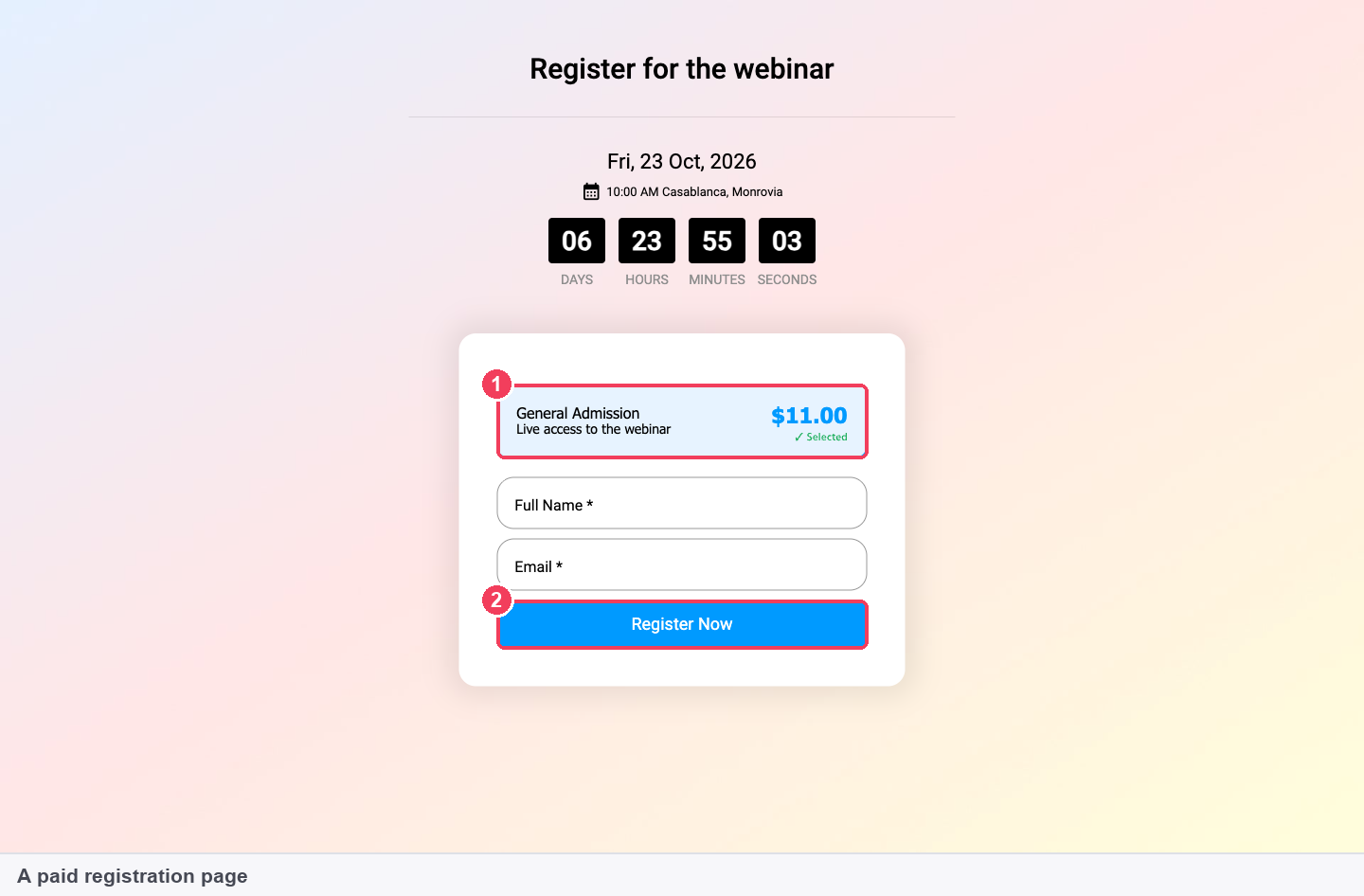
| Area | What it does | |
|---|---|---|
| 1 | Price option | The pricing title, description and price, selected by default. With a Live + Replay bundle there are two options to choose from |
| 2 | Register Now | Takes the attendee to checkout instead of registering them straight away |
Checkout
The attendee lands on a Stripe checkout page showing your business name and the webinar as the item. They can pay by card, or by Apple Pay or Link where available. Their email is carried over from the registration form, so they don't type it twice.
Attendees outside the US may be offered the price in their own currency alongside the dollar price. Stripe handles the conversion.
Confirmation and calendar invites
Once payment goes through, the attendee is registered and sent to your thank-you page.
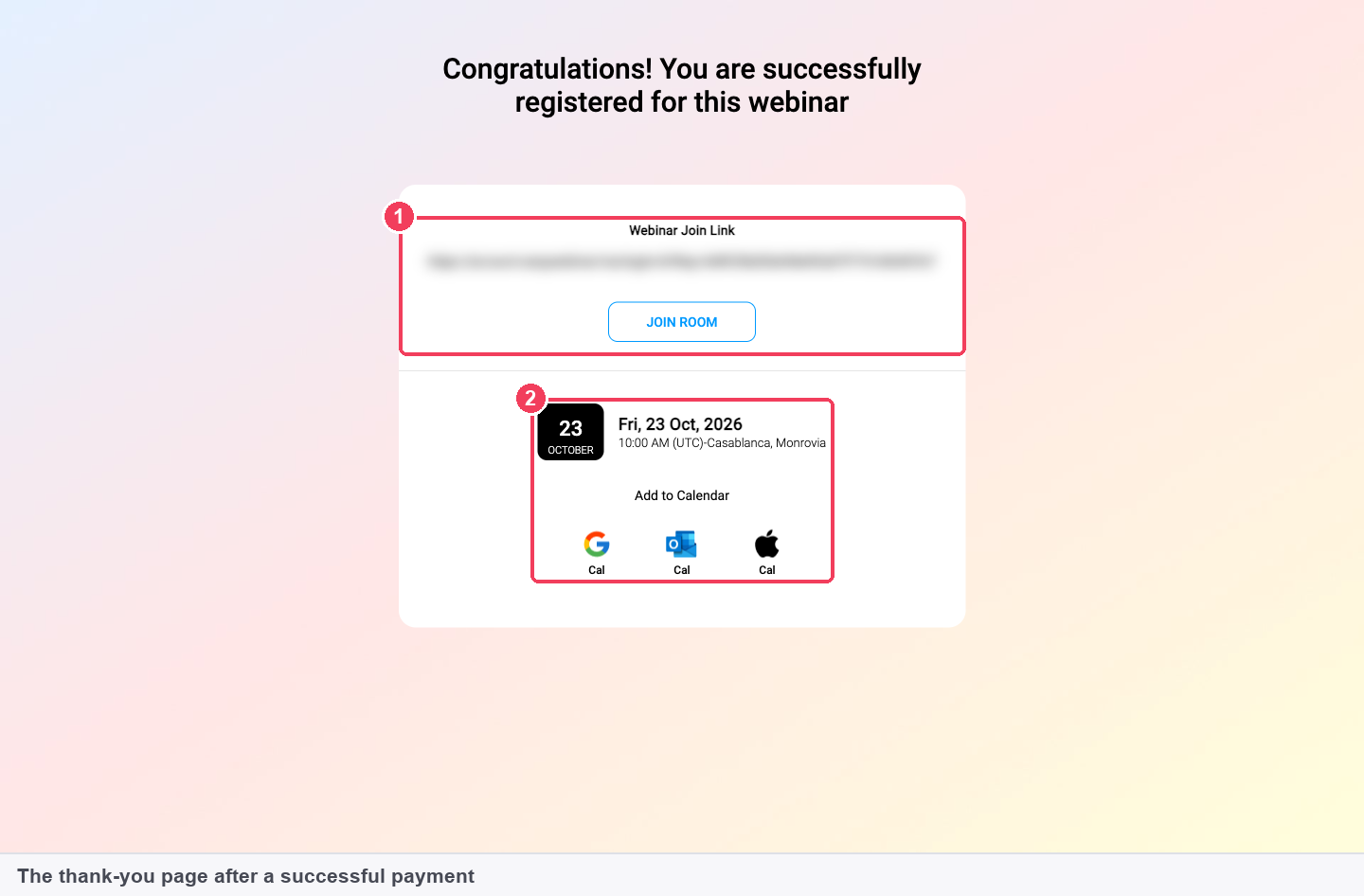
| Area | What it shows | |
|---|---|---|
| 1 | Webinar join link and Join Room | The attendee's personal link to the webinar |
| 2 | Date and Add to Calendar | The session they booked, with Google, Outlook and Apple calendar buttons |
They also receive your Registration Confirmation email, which carries their join link, and your reminders before the session.
See what you've earned
On the Overview tab
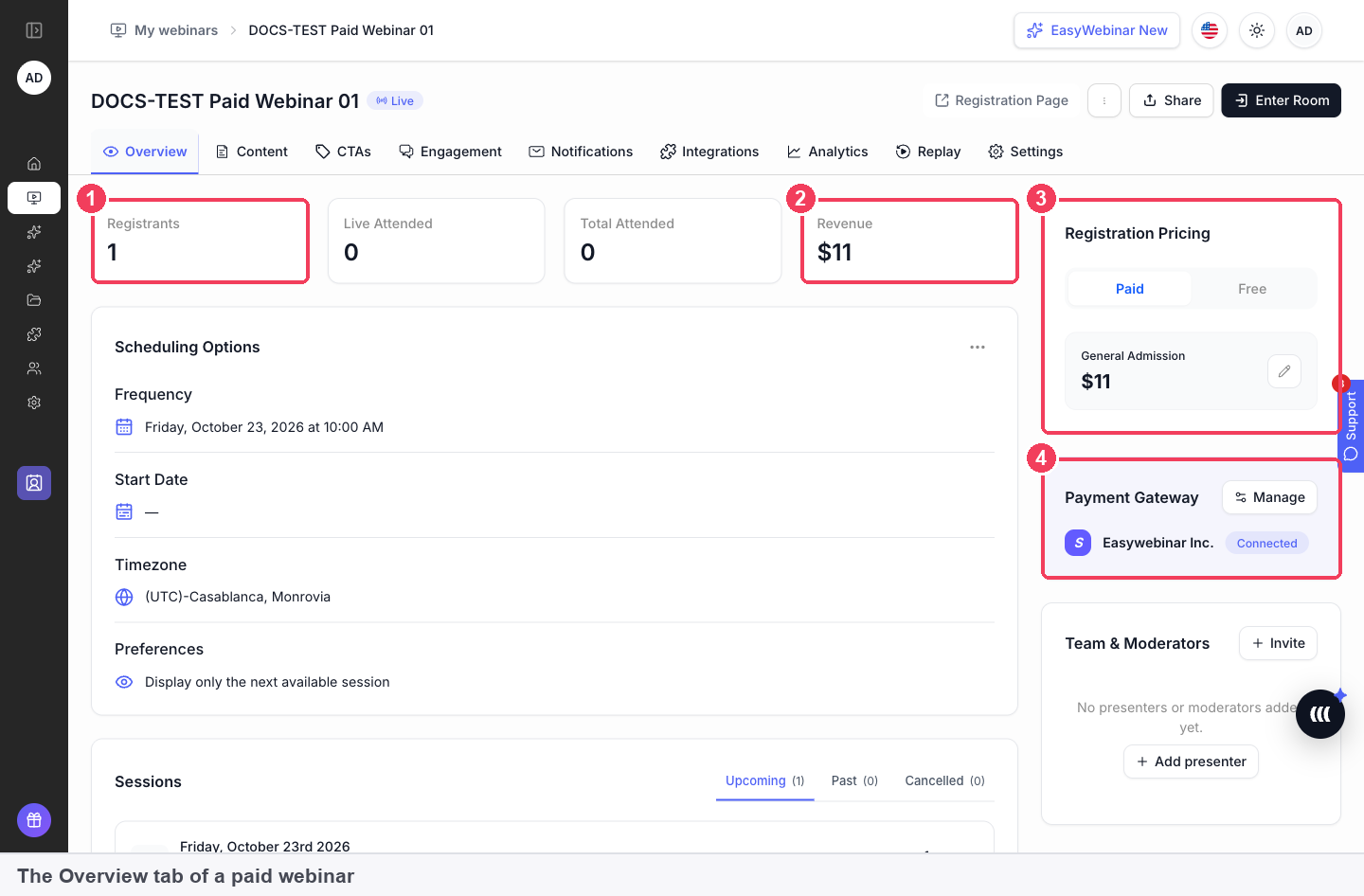
| Area | What it shows | |
|---|---|---|
| 1 | Registrants | Everyone who has registered and paid |
| 2 | Revenue | Total taken for this webinar |
| 3 | Registration Pricing | Your pricing title and price. The pencil edits them |
| 4 | Payment Gateway | The connected Stripe account. Manage opens your payment settings |
In Analytics
Open the webinar's Analytics tab, then Revenue.
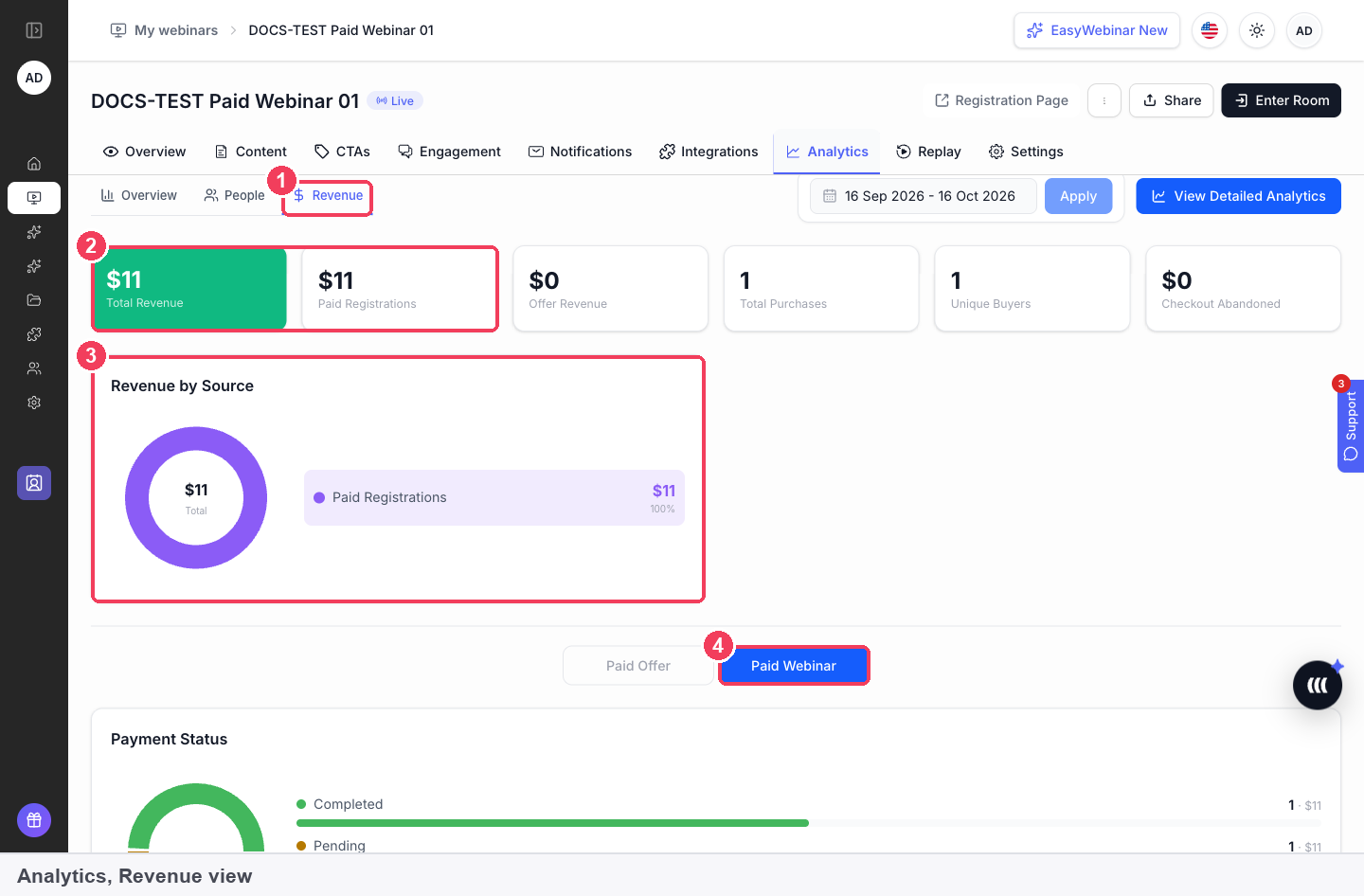
| Area | What it shows | |
|---|---|---|
| 1 | Revenue | The revenue view for this webinar |
| 2 | Total Revenue and Paid Registrations | Everything earned, and the part that came from registrations |
| 3 | Revenue by Source | The split between paid registrations and offers sold in the room |
| 4 | Paid Webinar | Switches the section below to registration payments: completed, pending and abandoned checkouts, and every transaction |
The transaction list shows each buyer's name, email, session, registration date, amount and status. You can search it and filter by status.
Transaction statuses
Each transaction shows one of these statuses: Pending, Processing, Success, Failed, Canceled, Refunded or Partially Refunded. An attendee is registered once their payment succeeds.
Abandoned checkouts
Checkout abandoned counts people who reached checkout but didn't pay. They aren't registered. It is a useful number to watch: a high count points to the price, the checkout step, or a mismatch between the registration page and what checkout shows.
How paid webinars work with other features
Offers inside a paid webinar
A paid webinar can still sell. Add offers on the CTAs tab, with an optional price and countdown timer, and offer sales are reported under Paid Offer, separately from registration revenue. Buyers of an offer receive the Paid Offer — Transaction Success email.
Replays
With the replay page set to Webinar Replica, the recording shows the same video, offers, polls and chat replay as the session. Replay availability is set on the Replay tab, and After the replay ends under Redirects can send viewers to your next offer.
Emails
Paid registrants get the same Registration Confirmation, Webinar Reminders and Webinar Follow-ups as everyone else, all set on the Notifications tab. Reminders are timed relative to the webinar, so they work for recurring and evergreen schedules too.
CRM and email tools
A connected CRM or email tool can tag paid registrants as they sign up (the Registered event), and tag what they did in the session, from Attended and Missed to Watched full and Clicked offer. Map the Webinar Join Link into a CRM field if you want to send reminders from your own system. See Connect a CRM and map your webinar data.
People view
People in the sidebar lists every registrant across your webinars. Filter by webinar, behaviour or source, then Export to work with a list of paid attendees elsewhere.
Create with AI
Webinars built with Create with AI have the same pricing step and behave like any other once created. Include who the webinar is for and what you are selling in your prompt so the pages and emails it writes fit a paid event, and read the generated copy before you publish, especially around price and what's included.
Who uses paid webinars, and how
These patterns show how paid registration fits different kinds of webinars.
Paid workshops and masterclasses
A coach or educator runs a live, ticketed workshop. The registration page sells a general admission ticket, the Live + Replay bundle sells the recording to people who can't attend live, and the confirmation page gives each buyer their join link and calendar buttons.
Course creators
A creator charges a small fee for a live training that previews a full course, then presents the course itself as an offer inside the session. Registration revenue and course sales appear separately under Revenue by Source. See selling online courses with webinars.
Evergreen paid trainings
A recorded training is sold on an evergreen schedule, so people pay and watch at a session time that suits them. The same pricing step applies, and every purchase lands in Analytics → Revenue.
Professional education
Educators in fields such as real estate, finance or wellness run paid seminars. Paid registration keeps the attendee list limited to people who paid, and the transaction list gives a record of every purchase.
Choose Paid at creation
Choose Paid when you create the webinar
The Overview tab has a Convert to paid button for free webinars. If you convert an existing free webinar to paid, its registration page keeps the free form, so people can still register without paying. Create a new webinar and choose Paid on the pricing step instead.
How paid webinars compare
EasyWebinar takes payment as part of sign-up: Register Now opens a Stripe checkout, and the person is registered once they've paid. It can also sell the replay at its own price, and it lists every payment against the webinar. EasyWebinar is the only platform in this table that does all three.
Paid registration features, from each platform's public documentation:
| Platform | Pay and register in one step | Replay access sold at its own price | Every payment listed against the webinar |
|---|---|---|---|
| EasyWebinar | Yes | Yes | Yes |
| Zoom (Zoom Events and Webinars Plus) | Yes | Complimentary with the ticket | Yes |
| WebinarJam and EverWebinar | Partly (form to fill after paying) | Not in docs | Partly (host-entered fee amount) |
| Livestorm | Partly (Pages & Hubs pages only) | Not in docs | Partly (Paid column per registrant) |
| WebinarNinja | Yes | Not in docs | Not in docs |
| Demio | Via Zapier | Not in docs | Not in docs |
| eWebinar | Third-party checkout | Not in docs | Not in docs |
Yes: documented and built in. Partly: documented with a limit, shown in brackets. Not in docs: not found in the vendor's public documentation.
Why EasyWebinar is the stronger choice for paid webinars
- One flow, no second form. EasyWebinar registers the buyer as soon as payment succeeds. WebinarJam and EverWebinar send buyers back to a registration form, and their PayPal guide warns that people aren't registered until they complete it. See EasyWebinar vs WebinarJam and EverWebinar.
- A priced replay option. EasyWebinar's Live + Replay bundle sells the recording as a second option with its own price. Zoom's replay access is complimentary viewing included with the ticket. WebinarNinja's help centre says multiple pricing levels aren't supported. See EasyWebinar vs Zoom and EasyWebinar vs WebinarNinja.
- Every payment in one list. EasyWebinar's Paid Webinar view lists each transaction with its status. Livestorm's help pages describe a Paid column per registrant, with no revenue total for the event. See EasyWebinar vs Livestorm.
- Native, not a workaround. Demio's help centre points to a Zapier workflow in place of a native paid webinar feature. EasyWebinar's paid registration is a step in creating the webinar. See EasyWebinar vs Demio.
Competitor details checked against each vendor's public documentation on 20 October 2026. Features and plans change, so confirm with the vendor before you decide.
Limits and things to know
- Prices are set in US dollars. Stripe may present a local-currency price to attendees outside the US.
- Stripe is the payment processor for paid registration.
- Payouts follow Stripe's schedule. EasyWebinar doesn't hold or pay out funds.
- An abandoned checkout isn't a registration. Only a successful payment registers someone.
- You can change the price later with the pencil on Registration Pricing in the Overview tab.
- Registration and offer revenue are reported separately, under Paid Webinar and Paid Offer.
Common questions
Which payment provider does EasyWebinar use for paid registration?
Stripe. Connect your Stripe account on the pricing step or from Integrations → Payment.
Do I need an add-on?
Yes. Charging for a webinar needs the Paid Webinars add-on as well as a connected Stripe account. If the paid option isn't behaving as expected, check Settings → Plan → Add-ons first.
When do I get the money?
Payments go straight to your Stripe account, and Stripe pays out to your bank on its usual schedule.
Can I sell access to the replay as well?
Yes. Turn on Live + Replay bundle on the pricing step and set a second price.
What currency are prices in?
You set the price in US dollars. Stripe may show attendees outside the US the price in their local currency.
How can attendees pay?
By card, or by Apple Pay or Link where available, on Stripe's checkout page.
Can I change the price later?
Yes. Use the pencil on Registration Pricing in the Overview tab.
Is someone registered if they close checkout without paying?
No. They appear under Checkout abandoned, not as a registrant.
Where can I see who has paid?
Analytics → Revenue → Paid Webinar lists every transaction with its status. The Overview tab shows the total registrants and revenue.
Can I charge for an evergreen or simulive webinar?
Yes. Both have the same Free or Paid pricing step when you create them.
Can I sell something else during a paid webinar?
Yes. Add an offer on the CTAs tab. Offer sales are reported under Paid Offer, separately from registration revenue.
What do attendees get after paying?
The thank-you page shows their personal join link, a Join Room button, the session date and Add to Calendar buttons for Google, Outlook and Apple. They also get your confirmation email.
Can I make a free webinar paid later?
The Overview tab has a Convert to paid button, but the registration page of a converted webinar keeps the free form. Create a new webinar and choose Paid on the pricing step instead.
Related
- The webinar Overview tab: see registrants and revenue, and edit the price with the pencil.
- Webinar analytics: every transaction, abandoned checkout and source of revenue.
- Countdown timers: add a deadline to an offer sold inside a paid webinar.
- Connect a CRM and map your webinar data: tag paid registrants and what they did in the session.
- Limits and defaults: where the Paid Webinars add-on sits among the other add-ons.
Webinar reminder emails
How EasyWebinar's Webinar Reminders work, how to time them relative to the session, how many to send, and how to tell from Analytics whether they are getting people to attend.
Video hosting
Host a webinar video on EasyWebinar with Local import, or play one from YouTube, Vimeo, Wistia or a direct MP4 link, with the formats, size limit, storage rules and duration setting for each route.