
 Product documentation
Webinars overview
The three webinar types, what every webinar is made of, and how registration, the room, follow-up and analytics fit together.
- Applies to
- All plans
- Status
- Live
- Verified
- Page type
- Product overview
The three webinar types
You choose a type when you create a webinar. The type can't be changed afterwards, so it is worth deciding first.
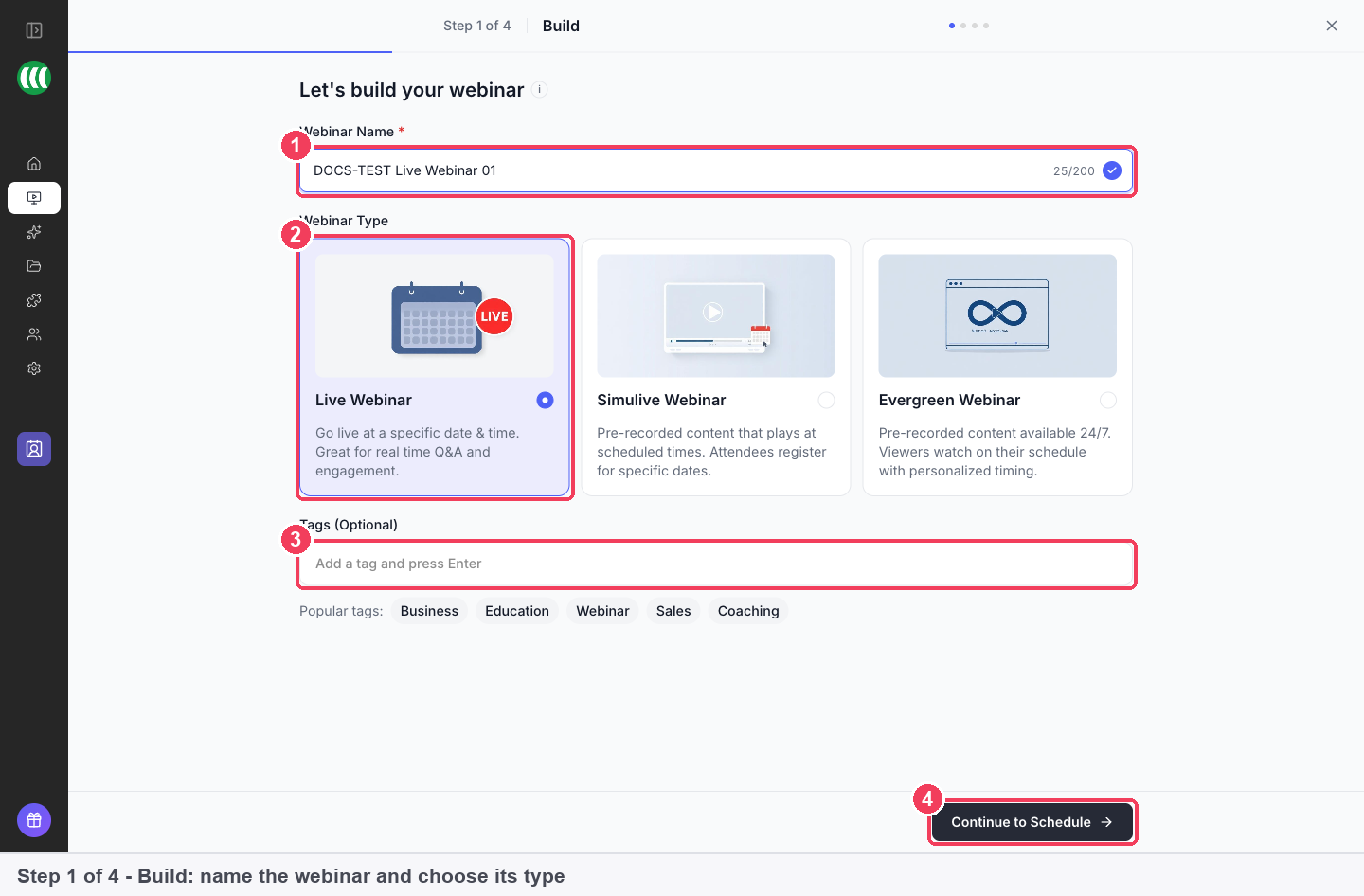
Live
You present in real time at a specific date and time. Chat and Q&A happen as they happen. Choose Live when people come for the interaction: a launch, a workshop, a session where you answer real questions.
Simulive
A recording plays at times you set, like a scheduled broadcast. Everyone in a session sees the same moment, so the chat still works as a shared room, and you can answer questions live while the recording plays.
Evergreen
A recording runs on a repeating schedule, and each registrant picks a time that suits them. Use it when the webinar is part of a funnel that should work whether or not you are available.
An evergreen schedule can offer just-in-time sessions, On Demand viewing and a recurring daily or weekly schedule. All three can run at once, and the registrant picks.
Which to choose
| If you want | Choose |
|---|---|
| To present in real time and answer questions as they come | Live |
| A polished recording, broadcast at set times, with you in the chat | Simulive |
| A session running continuously, with each registrant picking their own time | Evergreen |
| To run the same session weekly without presenting it again | Simulive or Evergreen |
| To record once and let it sell while you sleep | Evergreen |
Live and Simulive need you to pick dates. Evergreen takes care of scheduling for you. Simulive and Evergreen play a recording; Live does not need one.
Changing type
To turn a live webinar into an evergreen one, run it live first, then clone it and choose Evergreen on the copy. Cloning is the supported path because the type is fixed.
What every webinar is made of
All three types use the same pages, emails, polls, offers and analytics. Only the delivery differs. Each webinar has these tabs:
| Tab | What you do there |
|---|---|
| Overview | See registrants and revenue, share links, add presenters and moderators |
| Content | Edit the five webinar pages: registration, thank-you, waiting area, webinar and replay |
| CTAs | Create polls and offers |
| Engagement | Set up chat, Q&A and moderation |
| Notifications | Emails, SMS and WhatsApp messages to registrants |
| Integrations | Connect a CRM or email tool for this webinar |
| Analytics | Registrations, attendance, offers and revenue |
| Replay | How and for how long the recording is available |
| Settings | Webinar-level options such as showing the attendee list |
The webinar header also has Registration Page, Share and Enter Room.
The objects you work with
| Object | What it is |
|---|---|
| Webinar | Type, schedule, pricing, pages, emails and CTAs |
| Session | One sitting of a webinar: upcoming, past or cancelled |
| Registrant | A person registered for a session |
| Offer and poll | A CTA shown in the room |
| Transaction | A paid registration or offer purchase, with a status |
Webinars are archived, not deleted.
From registration to follow-up
- Someone registers on your registration page, paying first if the webinar is paid.
- They get confirmation and reminder emails from the Notifications tab.
- They join live, or watch the recording at their session time.
- You show polls and offers in the room.
- Attendance, offer clicks and revenue appear in Analytics, and can be sent to your CRM as tags.
Next steps
- Create and schedule a live webinar: set a one-time or recurring schedule and choose free or paid registration.
- Offers and the countdown timer: build the offers you sell during the webinar, with an optional countdown.
- Charge for webinar registration: take payment through Stripe when people register.