
 Product documentation
The webinar Overview tab
Use a webinar's Overview tab in EasyWebinar to read its live stats, change its schedule, manage individual sessions, set free or paid registration, add presenters and moderators, and reach its share links and room.
- Applies to
- Live, simulive and evergreen webinars
- Status
- Live
- Verified
- Page type
- How-to (multi-feature)
Every EasyWebinar webinar opens on its Overview tab. From this one screen you can see how the webinar is doing, check and change when it runs, act on a single session, switch between free and paid registration, add the people who present or moderate, and get to the share links and the room. This page walks through each panel in the order you'll usually need it. When you're done, you'll know where every webinar-level control on the Overview lives and what each number means.
At a glance
| Where it is | My Webinars → click a webinar. It opens on Overview |
| Webinar types | Live, simulive and evergreen; every webinar has one |
| Top actions | Registration Page, Share, Enter Room |
| Stats shown | Registrants, Live Attended, Total Attended, Revenue |
| Panels | Scheduling Options, Sessions, Registration Pricing, Team & Moderators |
| Session tabs | Upcoming, Past, Cancelled; evergreen webinars add Live |
| Other tabs on the webinar | Content, CTAs, Engagement, Notifications, Integrations, Analytics, Replay, Settings |
Before you begin
- Create the webinar first. The Overview tab belongs to a webinar that already exists. Start from Create and schedule a live webinar, Create a simulive webinar or Create an evergreen webinar.
- Expect zeros on a new webinar. The four stats stay at zero until registrations start.
- To charge for registration, have Stripe ready. Converting a webinar to paid needs a connected Stripe account. Read the warning about converting in Step 4 below before you use it.
- To go live, have a camera and microphone. Enter Room checks both before letting you in.
Open the Overview tab
- Click My Webinars in the sidebar.
- Click the webinar you want. It opens on Overview.
If you built the webinar with Create with AI, the flow ends here too: it drops you on the finished webinar's Overview, and the webinar carries an AI badge in My Webinars. From then on it behaves like one you built by hand.
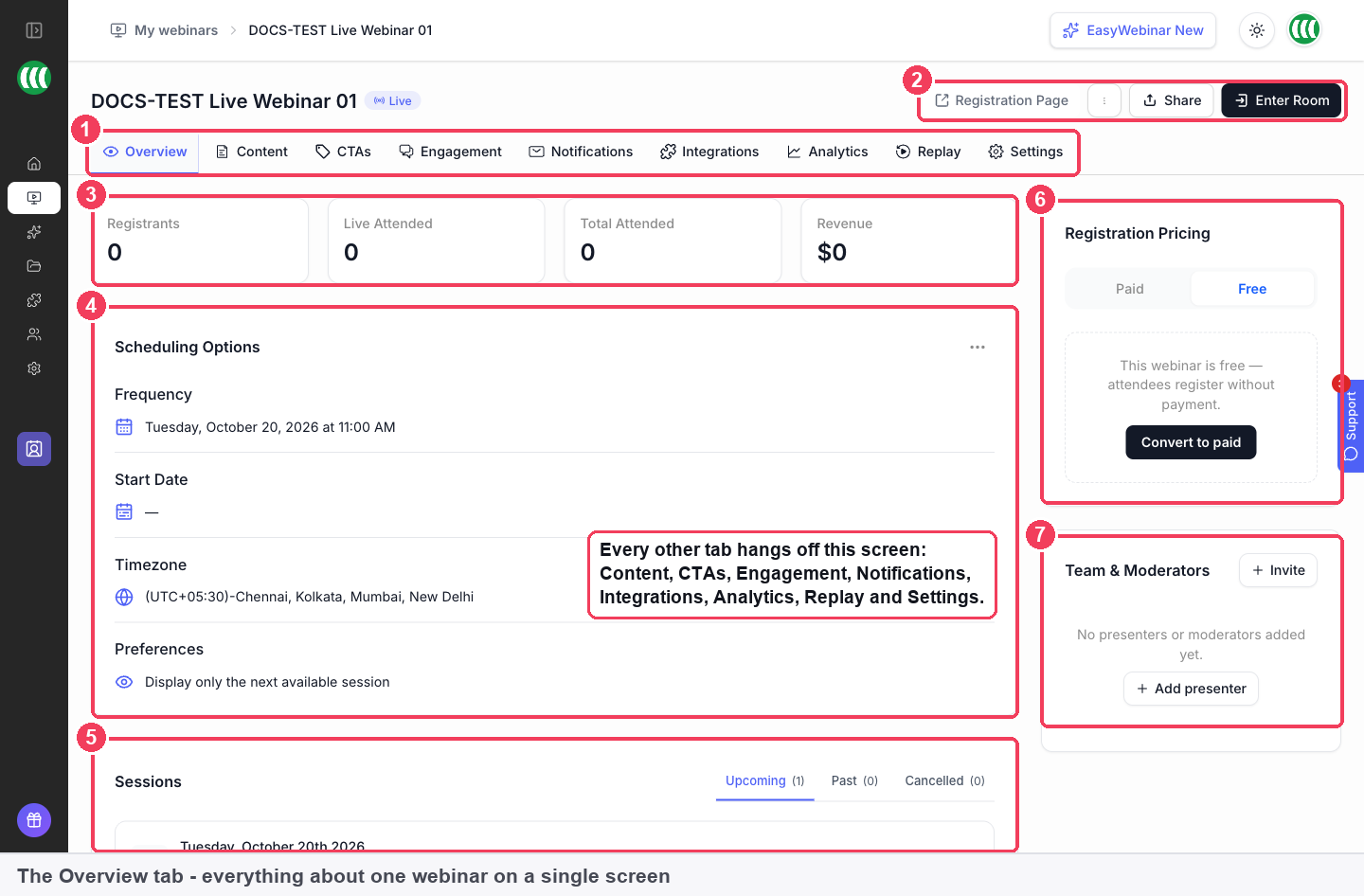
1 The nine tabs · 2 Top actions · 3 Live stats · 4 Scheduling Options · 5 Sessions · 6 Registration Pricing · 7 Team & Moderators.
| Area | What it does | |
|---|---|---|
| 1 | The nine tabs | Overview, Content, CTAs, Engagement, Notifications, Integrations, Analytics, Replay and Settings. Every setting on a webinar sits behind one of them |
| 2 | Top actions | Registration Page opens the live page, Share lists every link, Enter Room takes you into the webinar room |
| 3 | Live stats | Registrants, Live Attended, Total Attended and Revenue, updated as the webinar runs |
| 4 | Scheduling Options | Frequency, start date, timezone, and how many sessions registrants can choose from |
| 5 | Sessions | Each sitting of the webinar, split into Upcoming, Past and Cancelled |
| 6 | Registration Pricing | Free or Paid, with a Convert to paid button on free webinars |
| 7 | Team & Moderators | The presenters and moderators who can run the session |
Step 1: Read the four stats
The stat cards across the top tell you, at a glance, whether people are signing up and turning up.
| Stat | What it counts |
|---|---|
| Registrants | People who completed the registration form. On a paid webinar, everyone who has registered and paid |
| Live Attended | People who joined the live session |
| Total Attended | Live attendees plus replay viewers, so it is always the larger of the two attendance numbers |
| Revenue | Money taken through this webinar |
These are headline numbers. For the full picture, open the Analytics tab: it adds Visitors, Replay Watched and Missed, and splits Total Attended into Live only, Replay only and Both.
Step 2: Check or change the schedule
Scheduling Options summarises when the webinar runs:
| Line | What it shows |
|---|---|
| Frequency | The schedule frequency (Specific Date, Daily or Weekly) and its time |
| Start Date | When the schedule begins |
| Timezone | The timezone sessions run in |
| Preferences | How many upcoming sessions a registrant can pick from. The default is to display only the next available session |
To change the date, time or recurrence, open the options menu on the Scheduling Options panel. A change made here applies to the whole webinar, not to one sitting.
What changes on an evergreen webinar
On an evergreen webinar with just-in-time switched on, the timezone line reads Attendee's local timezone. That's because a just-in-time session starts shortly after each person registers, in their own local time.
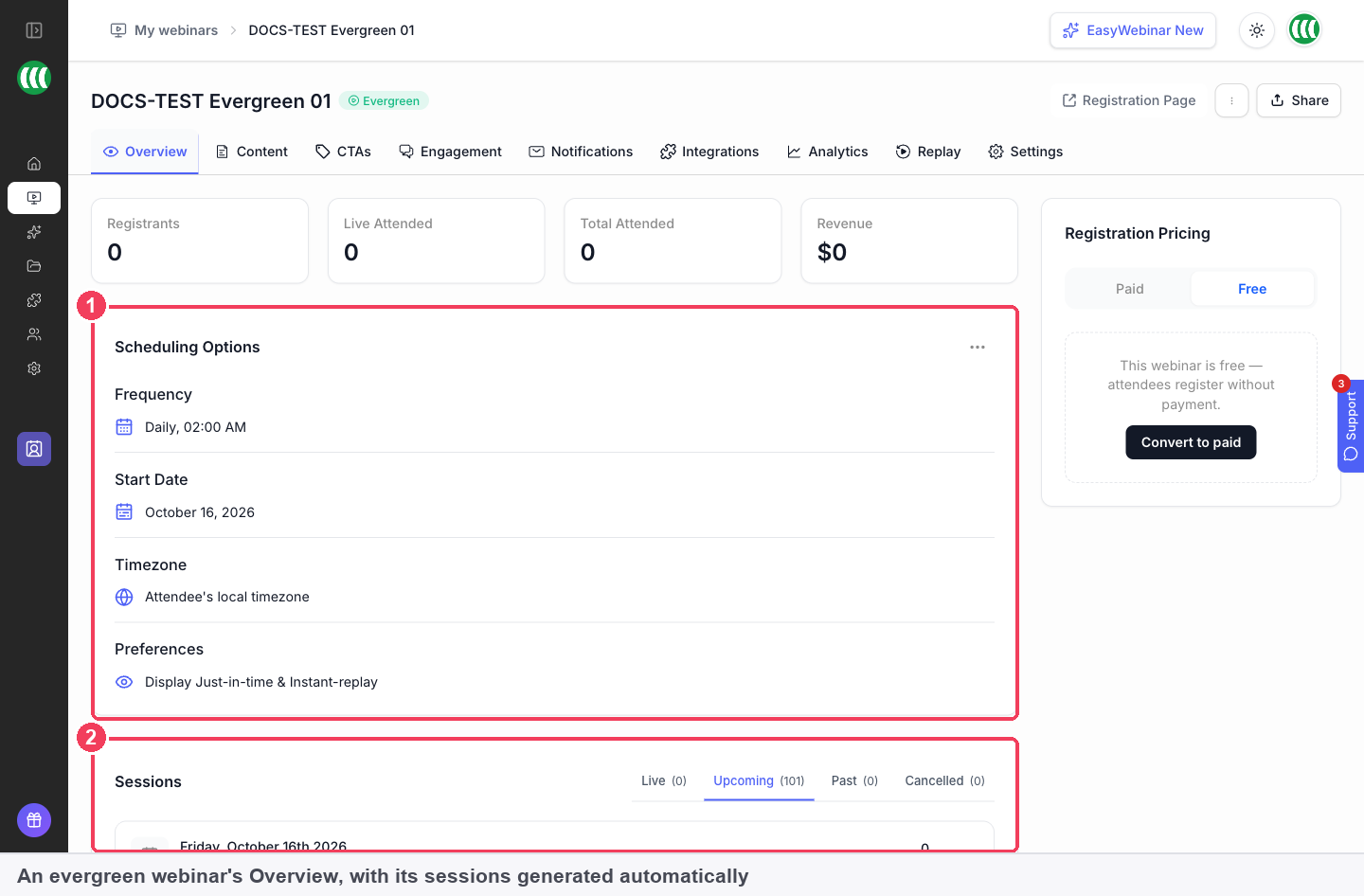
1 Scheduling Options · 2 Sessions, generated from the schedule.
Step 3: Manage individual sessions
The Sessions panel lists every sitting of the webinar under its own tab:
| Tab | What it holds |
|---|---|
| Upcoming | Sessions scheduled and not yet run |
| Past | Sessions already broadcast |
| Cancelled | Sessions that were called off, kept for the record |
| Live | Evergreen webinars only: sessions currently on air |
Each row shows the date, time, timezone and registration count for that sitting. A one-time webinar has a single upcoming session. A daily or weekly webinar fills the list from its recurrence, and a daily evergreen schedule generates a long run of upcoming sessions without you adding any.
To act on one sitting without touching the rest, use the options menu on that session's row. To change every sitting at once, go back to Scheduling Options.
Step 4: Set free or paid registration
Registration Pricing shows whether the webinar is Free or Paid.
- On a free webinar the panel reads This webinar is free — attendees register without payment, with a Convert to paid button.
- On a paid webinar the panel shows your pricing title and price, and the pencil edits them. A Payment Gateway panel shows the connected Stripe account, and Manage opens your payment settings.
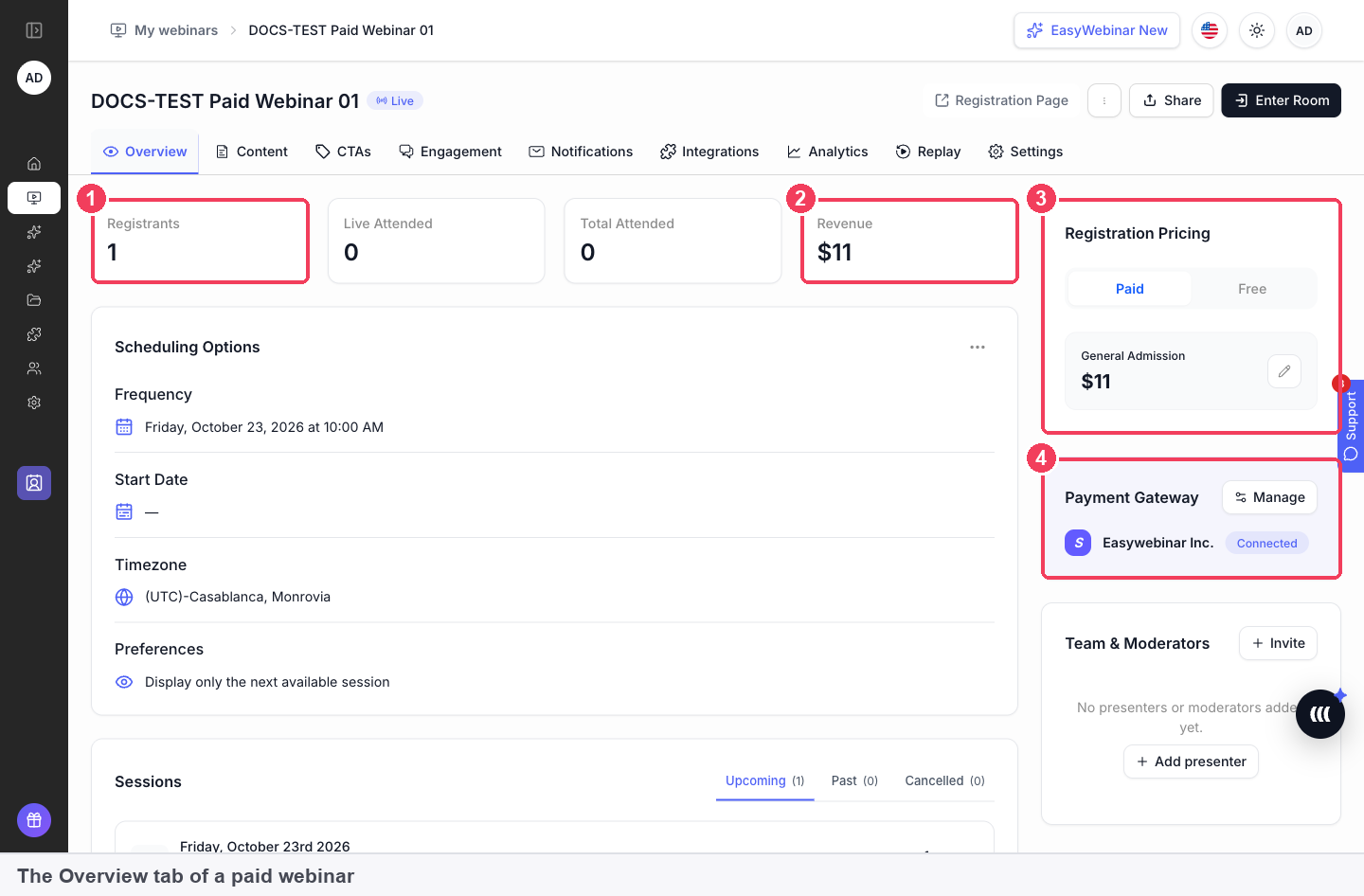
1 Registrants · 2 Revenue · 3 Registration Pricing · 4 Payment Gateway.
Choose Paid when you create the webinar
Converting needs a connected Stripe account. But when a free webinar is converted to paid after creation, its registration page keeps the free form, so people can still register without paying. If you want to charge, create a new webinar and choose Paid on the pricing step.
Step 5: Add presenters and moderators
Team & Moderators shows everyone who can run this webinar. On a new webinar it reads "No presenters or moderators added yet."
- Add presenter adds someone who appears on camera and presents.
- Invite sends an invitation to join the webinar team.
You don't have to add everyone here. The Share dialog has a Co-presenter Join Link and a Moderator Join Link for Live room, and a presenter or moderator can join with a link without having an EasyWebinar account at all.
Team members are a different thing
A team member is someone with their own login to your EasyWebinar account, added under Settings → Team as an Admin or a User. A presenter or moderator is someone running a specific webinar, added on that webinar's Overview tab. Add someone to the team when they work in EasyWebinar regularly; send a join link when they're a guest on one session.
Step 6: Share the webinar
Click Share to see the seven links the webinar generates, grouped under Share Links, Registration Widget and Share on social media, with a Shorten URL's toggle. The one to promote is the Registration Page Link. The co-presenter and moderator links let someone into the room in that role, so keep them private.
Registration Page, beside Share, opens the live registration page so you can see what visitors see.
Step 7: Enter the room
On a live webinar, Enter Room takes you into the webinar room.
- Click Enter Room.
- Check your camera, microphone and speakers and pick your devices.
- Click Continue to Green Room. The button stays greyed out until the room can see a working camera and microphone.
If another webinar is already on air, you'll see "You can only have one event live at a time." Join that one, or go live with the new one.
Entering a running session on a recorded webinar
A recorded webinar has no live room to enter. On an evergreen webinar, wait for a session to be running: the Sessions panel's Live tab shows it, marked Live now, with Enter room.
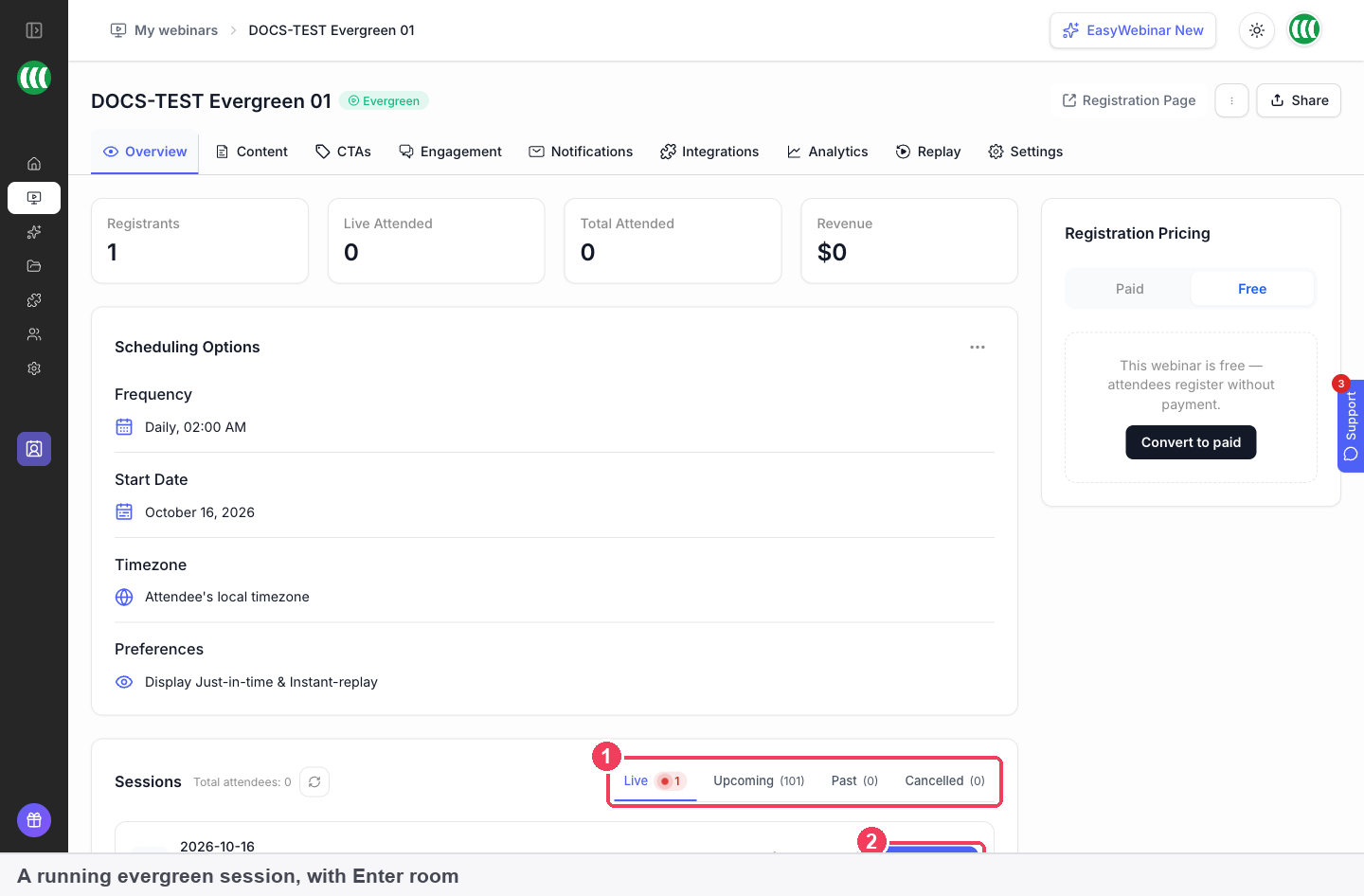
1 The Live tab, showing sessions currently on air · 2 Enter room, which opens the session.
Verify the result
- The schedule is right. Scheduling Options shows the frequency, start date and timezone you expect, and the Upcoming tab lists the sittings you meant to run.
- The pricing is right. Registration Pricing shows Free, or your pricing title, price and a connected Payment Gateway.
- The team is in place. Team & Moderators lists your presenters and moderators instead of "No presenters or moderators added yet."
- Registrations are counting. After a test registration, Registrants moves off zero and the session row's registration count goes up.
What the Overview tab is
The Overview tab is the first of nine tabs on every webinar, and the one each webinar opens on. It summarises the webinar rather than configuring its content: numbers at the top, then schedule, sessions, pricing and team.
Pages, emails, polls, offers and replays are set up on the other eight tabs. The Overview is where you check that those pieces add up to a webinar ready to run.
Why the Overview tab matters
What it's for
The Overview tab is the home screen for one webinar. It answers everyday questions without opening any of the other eight tabs. Is anyone registering, when does it run, what does it cost, who is presenting, and which link do you send?
How it helps
- One place to check before a session. Schedule, pricing, team and links sit side by side, so a last check takes seconds.
- Session-level control. You can act on one sitting from its row without rewriting the whole schedule.
- Numbers that update as you run. The stats change as the webinar runs, so you can watch registrations and attendance move.
- A straight route into the room. Enter Room is on the same screen as the stats, so going live doesn't mean hunting for a link.
What happens without it
Without a single summary screen, the basics of a webinar get scattered. The schedule lives in one place, pricing in another and the presenter list somewhere else. It becomes easy to promote the wrong date. A co-presenter may only get their link after messaging you to ask for it.
Why buyers care
The Overview matters most to teams running more than one webinar a month. Each webinar needs a quick status check and the right links for the right people. That need grows when guest speakers change from one session to the next.
The EasyWebinar approach to the Overview tab
Take a typical case. A regional wildlife charity has a fundraising team of three and around 900 monthly donors. Each month it runs a live 40-minute briefing for donors, with a guest speaker from its field team. The goal is to keep monthly givers engaged, so fewer cancel their gift.
A common way to manage this is a shared spreadsheet and a long email thread. The date sits in one place, the speaker's link in another and sign-up numbers in a third. It tends to work until a busy month. Then a guest may get the wrong link, or a called-off date may still be promoted.
The briefing itself rarely goes wrong. The risk sits in the handovers between people and tools before it starts. Fewer places to look means fewer chances to miss a detail.
EasyWebinar keeps those details on the webinar's Overview tab. Scheduling Options and Sessions show each month's sitting, and a sitting that is called off moves to Cancelled. The team copies the Co-presenter Join Link from Share for the guest, who joins without an EasyWebinar account. Registrants shows sign-ups on the same screen.
The screenshot under Open the Overview tab numbers seven areas, from the nine tabs to Team & Moderators. How other platforms handle guest links, registration links and session history is covered in How the Overview tab compares, below.
How the Overview tab works with other features
Registration page
The registration page is built on the Content tab and opened from the Registration Page button here. The Registrants stat counts people who complete its form.
Paid registration
On a paid webinar, Registrants counts everyone who has registered and paid, and Revenue is the total taken. Every transaction is listed under Analytics → Revenue → Paid Webinar.
Analytics
The four stats are a summary of what the Analytics tab shows in detail. A brand-new webinar shows zeros on both until registrations start.
Replays
Total Attended includes replay viewers, and the Attendee Replay link sits in the Share dialog. Replay availability and design are set on the Replay tab.
Cloning
The type of a webinar can't be changed after it's created. To run the same webinar as a different type, clone it from its card on My Webinars. The copy starts with no registrations.
Who uses the Overview tab, and how
These are typical patterns, shown to illustrate how the tab fits different teams.
Coaches and consultants
A coach runs a weekly live session. Before each one they open the Overview, check the Upcoming tab for the right date, glance at Registrants, and use Enter Room to get into the green room early.
Agencies
An agency runs webinars for clients, with the client's own speaker presenting. The account manager sends the speaker the Co-presenter Join Link from Share, so the speaker doesn't need an EasyWebinar login, and adds a colleague as moderator under Team & Moderators.
B2B marketing teams
A marketing team runs a webinar for a product launch. The Overview gives them the Registration Page Link to promote, and the gap between Registrants and Live Attended tells them, after the session, whether reminders did their job.
Course creators
A course creator runs an evergreen webinar every day. The Overview shows the generated run of upcoming sessions, and the Live tab lets them enter a session while it is running.
How the Overview tab compares
EasyWebinar's Overview gives each webinar private join links for guest presenters, a one-click registration link for known contacts and a Revenue figure. Sessions that are called off stay on their own Cancelled tab. EasyWebinar is the only platform in this table that does all four.
Webinar management features, from each platform's public documentation:
| Platform | Join links for guest presenters | One-click registration link | Revenue shown for the webinar | Cancelled sessions kept on their own list |
|---|---|---|---|---|
| EasyWebinar | Yes | Yes | Yes | Yes |
| WebinarJam and EverWebinar | Yes | Yes | Yes | Not in docs |
| WebinarKit | Yes | Yes | Yes | Not in docs |
| Demio | Yes (guest presenters and moderators) | Yes | Not in docs | Not in docs |
| Livestorm | Yes (unique speaker links) | Not in docs | Not in docs | Not in docs |
Yes: documented and built in. Partly: documented with a limit, shown in brackets. Not in docs: not found in the vendor's public documentation.
Why EasyWebinar is the stronger choice for the Overview tab
- Known contacts register in one click. EasyWebinar's One-Click Registration Link carries a contact's name and email in the URL. Livestorm's help centre documents sharing the registration page, with no one-click registration link. Compare EasyWebinar vs Livestorm.
- Revenue beside registrations. EasyWebinar's Overview shows Revenue next to Registrants and attendance. Demio's help centre doesn't document a revenue figure for a webinar. Compare EasyWebinar vs Demio.
- A record of called-off sessions. EasyWebinar keeps cancelled sittings on a Cancelled tab so the webinar's history stays intact. WebinarJam's help centre doesn't document a list of cancelled sessions. Compare EasyWebinar vs WebinarJam and EverWebinar.
Competitor details checked against each vendor's public documentation on 21 October 2026. Features and plans change, so confirm with the vendor before you decide.
Limits and things to know
- The webinar type is fixed. It can't be changed from the Overview or anywhere else after creation. Clone the webinar instead.
- Scheduling Options changes the whole webinar. For one sitting, use the options menu on that session's row.
- Cancelled sessions stay listed. They're kept under their own tab so the history of the webinar stays intact.
- Converting to paid doesn't add a price to the registration page. Choose Paid at creation instead.
- Presenter and moderator links are private. Anyone holding one can join your room in that role.
- Only one event can be live at a time. Entering a room while another webinar is on air shows a message saying so.
- A new webinar shows zeros across all four stats until registrations start.
Common questions
Where do I get the link to promote my webinar?
Click Share on the Overview tab and copy the Registration Page Link. That's the public one.
What's the difference between Live Attended and Total Attended?
Live Attended counts people who joined the live session. Total Attended adds replay viewers, so it's the larger number.
Where do I change the date or time?
Use the options menu on Scheduling Options. It changes the schedule for the whole webinar, not a single sitting.
How do I change just one session?
Use the options menu on that session's row in the Sessions panel.
Why does a cancelled session still show?
Cancelled sessions are kept under their own tab so the webinar's history stays intact.
How do I let a guest speaker into the room?
Send them the Co-presenter Join Link from Share, or add them under Team & Moderators. They don't need an EasyWebinar account to join with a link.
Can I make a free webinar paid from the Overview?
There's a Convert to paid button, but the registration page of a converted webinar keeps the free form. Create a new webinar and choose Paid on the pricing step instead.
How do I change the price of a paid webinar?
Use the pencil on Registration Pricing in the Overview tab.
Why are all the numbers zero?
A new webinar shows zeros across the board until registrations start.
Why can't I get into the room?
Continue to Green Room stays greyed out until the room can see a working camera and microphone. If you see "You can only have one event live at a time.", another webinar is already live. The camera not detected guide covers device problems.
Where is Enter Room on my evergreen webinar?
A recorded webinar has no live room to enter. When a session is running, it appears on the Live tab of the Sessions panel with Enter room.
Related
- Sharing links: who gets each link behind Share, and which to keep private.
- Registration page builder: edit and publish the page the Registration Page button opens.
- Paid webinars: set a price at creation, since a converted webinar keeps the free form.
- Webinar analytics: the full funnel behind the four headline stats.
- Run a live webinar: what happens after Enter Room and the device check.
- Team members: when to give someone a login instead of a join link.
On Demand (instant replay)
How On Demand works on EasyWebinar's evergreen webinars, letting registrants start watching straight away, how to label its button, and how it differs from the replay page.
Registration page builder
How EasyWebinar's drag-and-drop page builder creates and publishes a webinar's registration page, from picking a template and editing blocks to page-wide settings, AI-written pages and paid registration.