
 Product documentation
Countdown timers
How EasyWebinar's countdown timers work on offers and registration pages, why they matter for selling with webinars, and how to set them up honestly.
- Applies to
- Live, simulive and evergreen webinars
- Status
- Live
- Verified
- Page type
- Feature
EasyWebinar has two countdowns. An offer countdown sits on an offer card in the webinar room and shows how long that offer stays open. A registration-page countdown shows how long is left until the session starts. Both are built in, and neither needs a separate timer tool or embedded widget.
At a glance
| Offer countdown | Registration-page countdown | |
|---|---|---|
| Where it appears | On an offer card, in the webinar room | On the registration page, before people sign up |
| What it counts down to | The end of the offer | The start of the session |
| How you turn it on | Countdown timer switch in the offer editor | Countdown block in the page builder; already on the page when a new live webinar opens in the builder |
| Where you set it | Webinar → CTAs → an offer | Webinar → Content → Registration Page |
| Webinar types | Live, simulive and evergreen | Webinars with scheduled sessions |
What a countdown timer is
A countdown timer is a visible clock that shows the time remaining before something happens. In EasyWebinar it does one of two jobs:
- On an offer, it tells attendees how long they have to act on what you are selling: a course enrolment, a coaching call, a bonus, a programme.
- On a registration page, it tells visitors how soon the session begins, which turns "sometime" into "in two days".
The offer countdown lives inside the offer itself, so it travels wherever that offer is shown. The registration-page countdown is a block on the page, so you style and position it like any other part of the page.
Why countdown timers matter
What it's for
A countdown turns a deadline you would otherwise keep repeating ("the bonus closes when the session ends") into something every attendee can see. On a registration page, it makes the session feel like an event with a start time, not a page to come back to later.
How it helps
- A real deadline becomes visible. Attendees see how long an offer stays open without relying on what they heard.
- Deciding later stops being the easy choice. A visible time limit gives people a reason to act during the webinar.
- The start time counts down too. A countdown on the registration page gives a visitor a reason to register now rather than bookmark the page.
What happens without it
With no countdown, an offer's end point is easy to miss or forget. People who meant to buy are left unsure whether it is still open. Many wait, and in webinar selling, waiting often means not buying. A registration page with no visible start time gives visitors little reason to sign up today.
Why buyers care
Countdowns matter most to course creators, coaches and consultants whose offers really do end. That includes launch pricing, a closing enrolment window or a bonus for buying during the session. Their pitch rests on a clear reason to act, so the timer earns its place when the offer appears.
The EasyWebinar approach to countdown timers
Take a typical case. A business coach runs an evergreen webinar that plays twice a day and ends on an offer for a twelve-week coaching programme. Anyone who enrols before their session ends gets a bonus strategy call. The coach is rarely watching, and every session has a new audience.
A common approach is to record the deadline into the pitch, or to add a third-party timer to the sales page the offer links to. A recorded line such as "the bonus ends on Friday" is true for one week and wrong for every viewer after it. A timer set to one date can't follow sessions that start at different times. The coach ends up correcting timers, and some viewers are shown a deadline that has already passed.
An automated webinar has no presenter to announce the deadline at the right moment. Since each session plays without the coach, its deadline has to keep time without the coach as well. The timer therefore belongs on the offer, which every session's audience sees.
EasyWebinar builds the countdown into the offer card itself. On the CTAs tab, the coach opens the programme offer and switches on Countdown timer. The bonus goes in the Headline, so the card says what ends. Because the timer is part of the offer, it appears in every session that shows that offer. With the replay page set to Webinar Replica, the offer carries over to the replay too.
In the numbered editor screenshot further down, Countdown timer is item 2, after Offer Style and before Offer Price. It is a switch on each offer, so a free workbook offer can run with no timer while the programme offer keeps one. For other platforms' countdowns, see How countdown timers compare, below.
Set up an offer countdown
- Open your webinar and click the CTAs tab.
- Open an existing offer, or use + at the bottom of the list on the left to create one.
- Switch on Countdown timer.
- Fill in the rest of the offer: Offer Style (Text Offer or Image Offer), Offer Price (or switch on Free), the Headline and Sub Headline, and the Button text and URL.
- Check the preview in the centre of the editor. It shows the offer exactly as attendees will see it and updates as you type.
- Save.
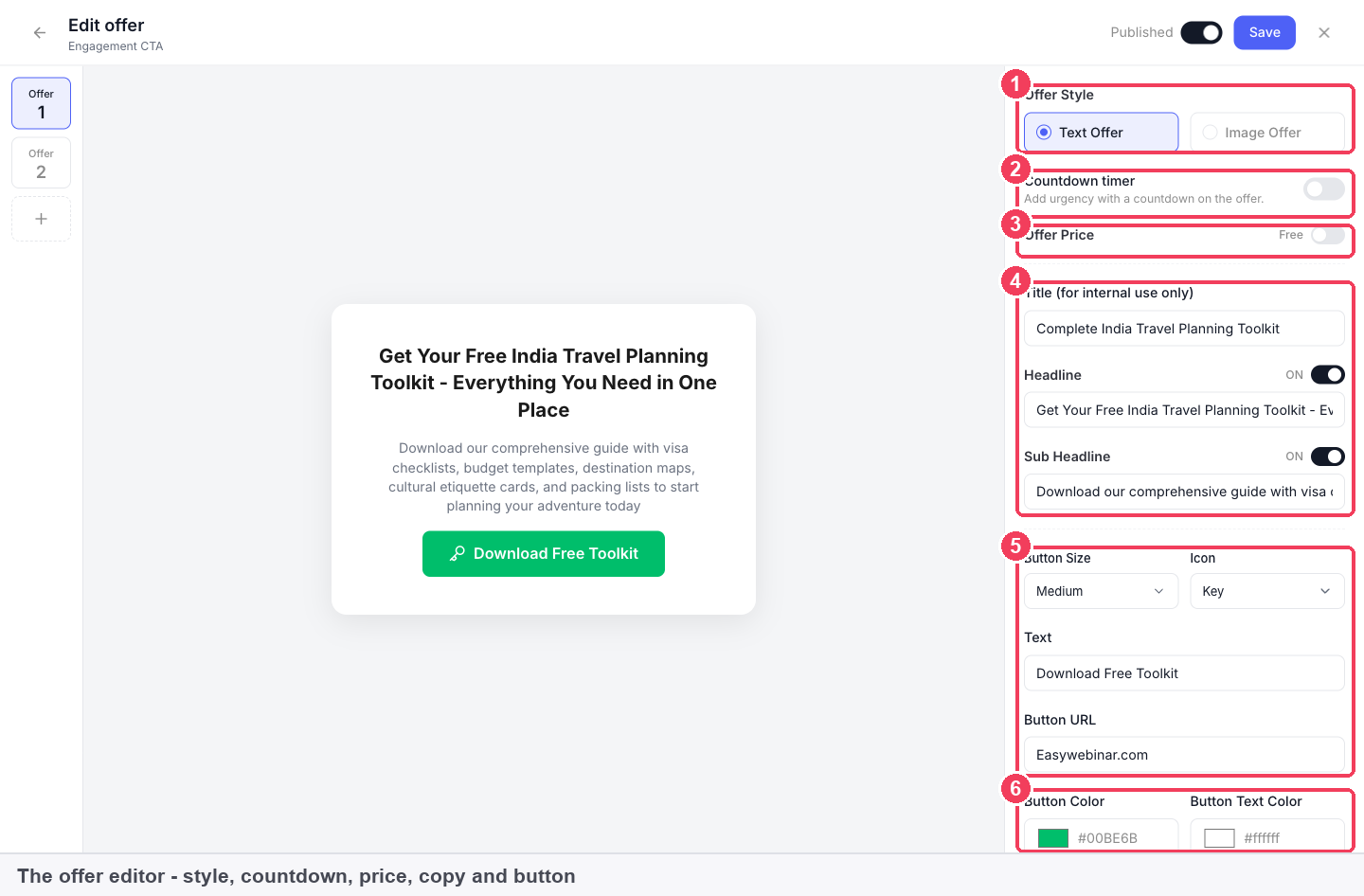
The offer editor: 1 Offer Style · 2 Countdown timer · 3 Offer Price · 4 Title, Headline and Sub Headline · 5 Button · 6 Colours.
Offer settings that work with the countdown
| Setting | What it does | Why it matters with a countdown |
|---|---|---|
| Offer Style | Text Offer or Image Offer | Choose the style that keeps the timer easy to see |
| Offer Price | A price, or Free | A countdown on a priced offer usually signals a price or bonus that ends |
| Headline and Sub Headline | What attendees read | Say what ends when the timer runs out, in plain words |
| Button text and URL | Where the click goes | Point it at the checkout or booking page for exactly this offer |
| Colours | Button and button text colour | Keep the button readable next to the timer |
The offer's Title is internal. Attendees never see it, so name it in a way that helps your team, for example "Course enrolment, launch week".
Save without showing it yet
You can build the offer, countdown included, before the webinar and hold it back:
- Turn the offer's toggle off in the CTAs list, or
- Set Published to off in the editor.
The offer stays ready but does not appear until you switch it on.
Set up the registration-page countdown
When you create a live webinar, the registration page builder opens with your schedule applied and a countdown to the session already running. On other webinar types, open the page in the builder to check for the countdown block.
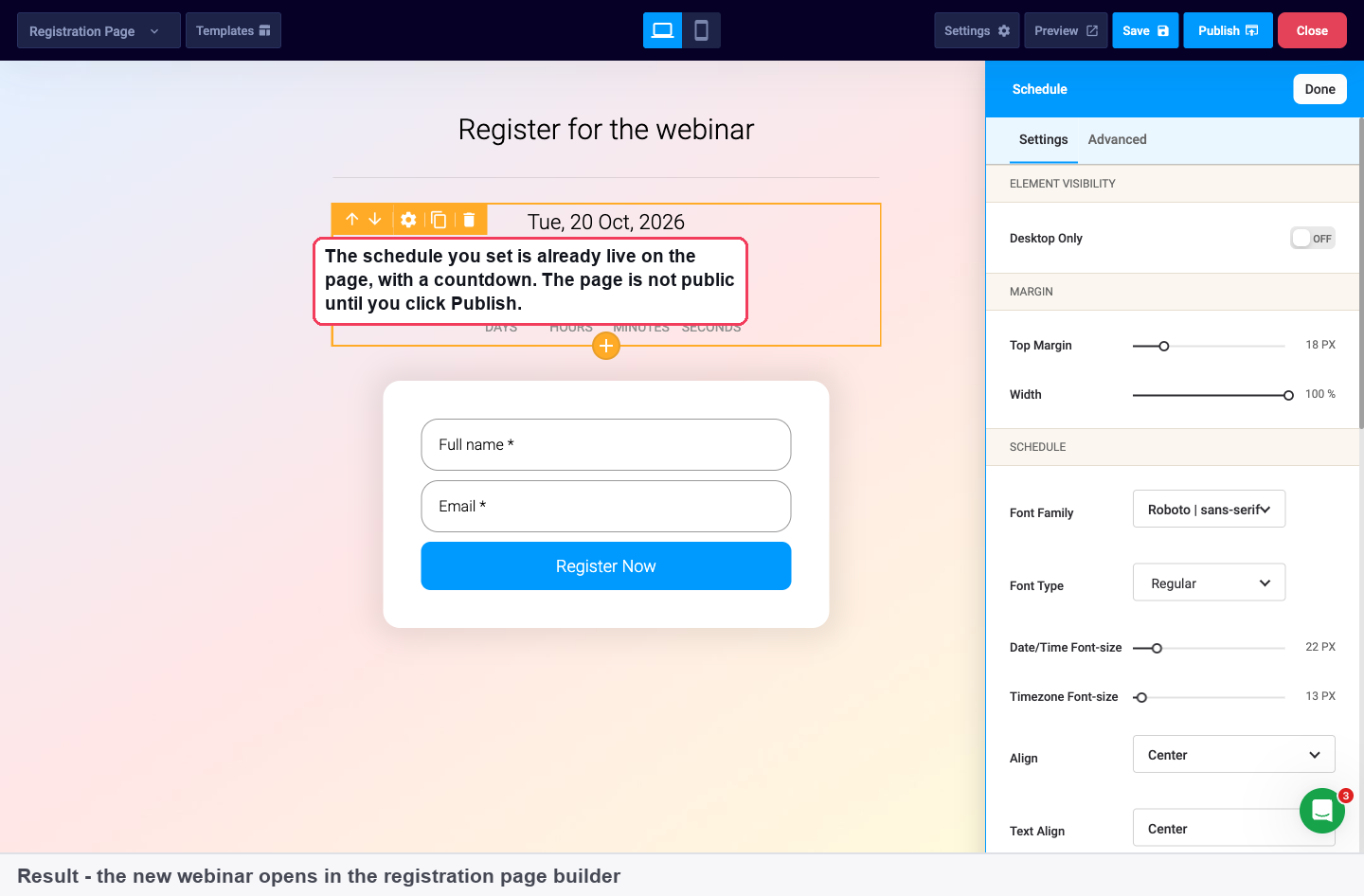
To change it:
- Open your webinar and click Content, then Edit on Registration Page.
- Click the countdown block on the canvas. An orange toolbar appears above it, and the settings panel on the right fills with its options.
- Adjust its settings across the Settings and Advanced tabs.
- Use the device toggle to check the mobile layout, then Preview, Save and Publish.
Countdown block settings
| Setting | What it controls |
|---|---|
| Visibility | Where the block shows, including a Desktop Only option |
| Margins and width | The block's spacing and size on the page |
| Fonts, sizes and alignment | How the date, time and timezone are styled |
Publish to make it public
Changes to the registration page, including the countdown, only reach visitors after you click Publish. Save keeps a draft.
Where attendees see countdowns
| Webinar type | Offer countdown | Registration-page countdown |
|---|---|---|
| Live | When you push the offer to the room from the Offers panel | Counts down to the scheduled session |
| Simulive | Offers work as they do on a live webinar | Counts down to the scheduled session |
| Evergreen | Offers work as they do on a live webinar | Check with Preview: just-in-time and on-demand sessions can start minutes after someone registers |
| Replay | Offers carry over when the replay page uses Webinar Replica | Not applicable |
On a live webinar you choose the moment to show the offer from the Offers panel in the room. Before you go live, Go Live reminds you to have offers and polls ready.
How countdowns work with other EasyWebinar features
Offers and checkout
The countdown is part of an offer, so everything about the offer still applies: its price, its button and where that button goes. Point the button at the checkout for exactly the offer the timer describes.
Replays and replay deadlines
With Webinar Replica, the replay page shows the same video, offers, polls and chat replay as the session, so your offers keep selling after the event. The replay itself can also have a deadline: Expire after days closes it a set number of days after the session, and Specific date closes it at a time you choose. A replay deadline and an offer deadline are separate settings; keep them consistent so attendees aren't told two different end times.
Create with AI
Create with AI writes offers for you. Its Direct Pitch positioning is "offer-focused, repeated CTAs, strong urgency", while Soft Pitch is education-focused with the offer at the end. Whichever you choose, the offers it creates are normal offers on the CTAs tab, so you can add a countdown to any of them.
Analytics
After the webinar, open Analytics. Offers Performance shows views, clicks and purchases for each offer with a click rate. Views to Clicks and Clicks to Purchases show where the offer loses people, and Revenue by Offer shows what each offer earned. Comparing an offer with and without a countdown across sessions is the clearest way to see what the timer is doing for you.
Follow-up and CRM tags
People who click an offer can be treated differently afterwards:
- Attendee Action Follow-ups on the Notifications tab send emails based on what someone did, including whether they clicked an offer.
- In a connected CRM, the Clicked offer event can apply a tag, for example
webinar-hot, so sales can follow up.
Who uses countdown timers, and how
These are typical patterns, shown to illustrate how the feature fits each kind of webinar.
Course creators
An evergreen webinar teaches the core idea of a course and ends with an enrolment offer. A countdown on the offer marks the window for an enrolment bonus. Because the webinar is automated, the timer carries the deadline for every session without the creator being there.
Coaches and consultants
A live masterclass ends with an offer to book a call. The countdown shows how long the booking link stays open after the session, and the registration-page countdown builds attendance in the days before.
Paid workshops and live events
For a paid workshop, the registration-page countdown shows how long is left to register before the session starts. Inside the workshop, a countdown on an offer can mark a follow-on programme available to attendees only.
Product and SaaS teams
A recorded product demo ends with an offer for a trial or a call with sales. A countdown is optional here; many teams use it only during launch periods.
Use countdowns honestly
A countdown persuades because people trust it. Keep that trust:
- Only use a countdown for a real deadline. The time shown should match what actually happens when it ends.
- Say what ends. Use the headline or sub headline to state what expires: the bonus, the price or the enrolment window.
- Keep deadlines consistent. Match the offer countdown, the replay deadline and what your follow-up emails say.
How countdown timers compare
EasyWebinar puts a countdown on the offer and another on the registration page itself. The offer countdown works the same way on live, simulive and evergreen webinars. EasyWebinar is the only platform in this table that does all three.
Countdown features, from each platform's public documentation:
| Platform | Countdown on the offer | Countdown on the registration page itself | Offer countdown on live and automated webinars |
|---|---|---|---|
| EasyWebinar | Yes | Yes | Yes |
| WebinarJam and EverWebinar | Yes | Separate holding page | Partly (two separate products) |
| Demio | Not in docs | Yes | Not in docs |
| eWebinar | Partly (one documented example) | Partly (widget on your own page) | Partly (recorded webinars only) |
| Livestorm | Not in docs | Separate waiting page | Not in docs |
Yes: documented and built in. Partly: documented with a limit, shown in brackets. Not in docs: not found in the vendor's public documentation.
Why EasyWebinar is the stronger choice for countdown timers
- A documented offer countdown. EasyWebinar's offer editor has a Countdown timer switch. Demio documents its Featured Actions, and Livestorm its in-room link promotion, without a countdown setting. See EasyWebinar vs Demio and EasyWebinar vs Livestorm.
- The countdown is on the registration page. EasyWebinar's countdown is a block on the page people sign up on. WebinarJam's help docs describe its countdown on a separate holding page for people who open the live link early. See EasyWebinar vs WebinarJam and EverWebinar.
- No widget to install elsewhere. eWebinar's countdown to the start comes from widgets you place on your own landing page. EasyWebinar's is a block in its own page builder. See EasyWebinar vs eWebinar.
- One product for live and automated offers. An EasyWebinar offer, countdown included, runs on every webinar type you create. WebinarJam handles live sessions and EverWebinar the automated ones, as two separate products. See EasyWebinar vs EverWebinar.
Competitor details checked against each vendor's public documentation on 20 October 2026. Features and plans change, so confirm with the vendor before you decide.
Limits and things to know
- The offer countdown is set per offer. Each offer has its own Countdown timer switch.
- Polls have no countdown setting. The Countdown timer switch is in the offer editor only.
- The registration-page countdown is a page block. It can be hidden on mobile with Desktop Only visibility, styled, or removed like any other block.
- Live-room timers are different. Once you go live, the room header shows LIVE with a timer of how long you have been broadcasting. That timer counts up and is separate from offer countdowns.
Common questions
Can I add a countdown to an offer?
Yes. Open the offer on the CTAs tab and switch on Countdown timer.
Does every offer need a countdown?
No. It's optional per offer. Use it when the offer genuinely ends or changes at a set time.
Can I add a countdown to a poll?
No. The countdown setting is in the offer editor; the poll editor has question, response options and Published.
Is there a countdown on my registration page?
On a new live webinar, yes: the registration page builder opens with a countdown to the session. On other types, check the page in the builder. You can restyle the block, hide it on mobile with Desktop Only, or remove it.
Will my offers, and their countdowns, show on the replay?
Offers carry over to the replay when the replay page uses Webinar Replica. Use Preview on the replay page to check it looks the way you want.
Can I prepare an offer with a countdown before the webinar?
Yes. Build it, then turn its toggle off in the CTAs list, or set Published to off, until you want it shown.
How do I know whether the countdown is helping?
Compare sessions in Analytics → Offers Performance: views, clicks, purchases and click rate. Clicks to Purchases tells you whether people who clicked went on to buy.
Does EasyWebinar write the offer for me?
It can. Create with AI generates offers with a title, headline, sub headline, button text and link, and you can add a countdown to any of them.
Do I need a separate countdown tool?
No. Both countdowns are built into EasyWebinar.
Related
- Offers: build the offer card that carries the countdown.
- Charge for webinar registration: paid workshops, where the registration-page countdown shows how long is left to register.
- Course creators: enrolment offers on automated webinars, with a bonus window.
- Create and schedule a live webinar: the schedule the registration-page countdown counts down to.
- Connect a CRM and map your webinar data: tag the people who clicked a timed offer.
Offers
Build offer cards on a webinar's CTAs tab with a headline, a button, an optional price and countdown, push them to the room, carry them onto the replay, and measure views, clicks, purchases and revenue.
Chat simulation
Fill the chat on a simulive or evergreen webinar with a conversation generated by AI from a cast of simulated attendees, or scripted by you in a timed CSV.