
 Product documentation
Webinar analytics
What the Analytics tab on an EasyWebinar webinar measures, from visitors and registrations to live attendance, replay views, offer performance and revenue, and how to read each number.
- Applies to
- Live, simulive and evergreen webinars
- Status
- Live
- Verified
- Page type
- Feature
Every EasyWebinar webinar has an Analytics tab that shows how many people reached each stage of that webinar and where the rest dropped away. It has three views: Overview for the funnel, engagement and offer numbers, People for the individuals behind those numbers, and Revenue for what the webinar earned. A date range at the top limits everything on the page to the period you choose.
At a glance
| Where to find it | Open a webinar → Analytics tab |
| Views | Overview, People and Revenue |
| Time period | A date range with Apply, covering everything on the page |
| Funnel metrics | Visitors, Registered, Live Attended, Replay Watched, Total Attended, Missed |
| Offer metrics | Offers Performance, Views to Clicks, Clicks to Purchases, Revenue by Offer |
| Engagement metrics | Chat message totals and Questions & Answers |
| Audience location | Registrations by country |
| Revenue | Total Revenue, Paid Registrations, Revenue by Source, and every transaction |
| Webinar types | Live, simulive and evergreen |
What webinar analytics is
The Analytics tab is the per-webinar report. It answers two questions: how many people got through each stage, from landing on the registration page to watching, and where the others stopped.
The Overview view is built around a funnel. People arrive at the registration page, some register, some of those attend live or watch the replay, and some never show up. Below the funnel sit the numbers for what happened during the session: chat, questions, and how your offers performed.
The People view lists who registered and who attended. The Revenue view breaks down what the webinar earned, separating paid registrations from offers sold in the room.
For a quick read without opening the tab, the webinar's Overview tab shows four live stats (Registrants, Live Attended, Total Attended and Revenue) that update as the webinar runs. See The Overview tab.
Why webinar analytics matters
What it's for
Analytics counts how far people get through a webinar, from the page they land on to the offer at the end. Each stage of the funnel is controlled by its own part of your setup. So a weak number tells you which part to work on: the page, the reminders, the talk, the offer or the checkout.
How it helps
- It locates the leak. Visitors to Registered measures your registration page. Registered to attended measures your reminder emails.
- It separates offer problems from checkout problems. Views to Clicks and Clicks to Purchases show where buyers drop out.
- It shows who to follow up. Missed is everyone who registered and never attended.
- It ties money to the webinar. Webinar revenue sits next to attendance, so you can see what each session earned.
What happens without it
Without per-stage numbers, a disappointing webinar is just disappointing. You can't tell whether few people saw the page, the page didn't convert, the reminders failed or the offer fell flat. So you end up changing everything at once. It's easy to rewrite a talk that was fine, when the real problem was that people never turned up.
Why buyers care
It matters most when a webinar carries a target. That might be sign-ups for a marketing team, enrolments for a course creator or paid seats for a workshop host. It earns its keep in the days after a session, when you choose what to change before promoting the next one.
The EasyWebinar approach to webinar analytics
Consider a typical case. A B2B marketing team runs a monthly webinar for prospects, and each session closes with an offer button to book a demo. Registrations rose this quarter, but demo bookings stayed flat. The team has to show where the extra registrants went.
A common approach is to rebuild the funnel from exports. Sign-ups come from the form tool, attendance from the meeting tool and bookings from the sales calendar, and someone lines them up in a spreadsheet. That can take days each month. Names may not match across three lists, and a person who watched live and then on the recording can be counted twice.
Every stage up to the demo button happens on the webinar platform: the page visit, the sign-up, the session, the recording and the click. A platform that runs all of those can count every stage for the same webinar, so nobody has to merge lists by hand.
EasyWebinar's Analytics tab does that count for each webinar. Its Overview view runs from Visitors and Registered through Live Attended and Replay Watched. Further down, Offers Performance reports each offer's views and clicks. For this team, that shows whether the extra registrants stopped before the session, during it, or at the demo button.
The counts are built to avoid double counting. Visitors counts unique IPs on the landing page. Total Attended counts each person once and files them under Live only, Replay only or Both. How other platforms report on a single webinar is covered in How webinar analytics compares, below.
Read your analytics
1. Open the tab and set the period
Open your webinar and click Analytics. It opens on Overview.
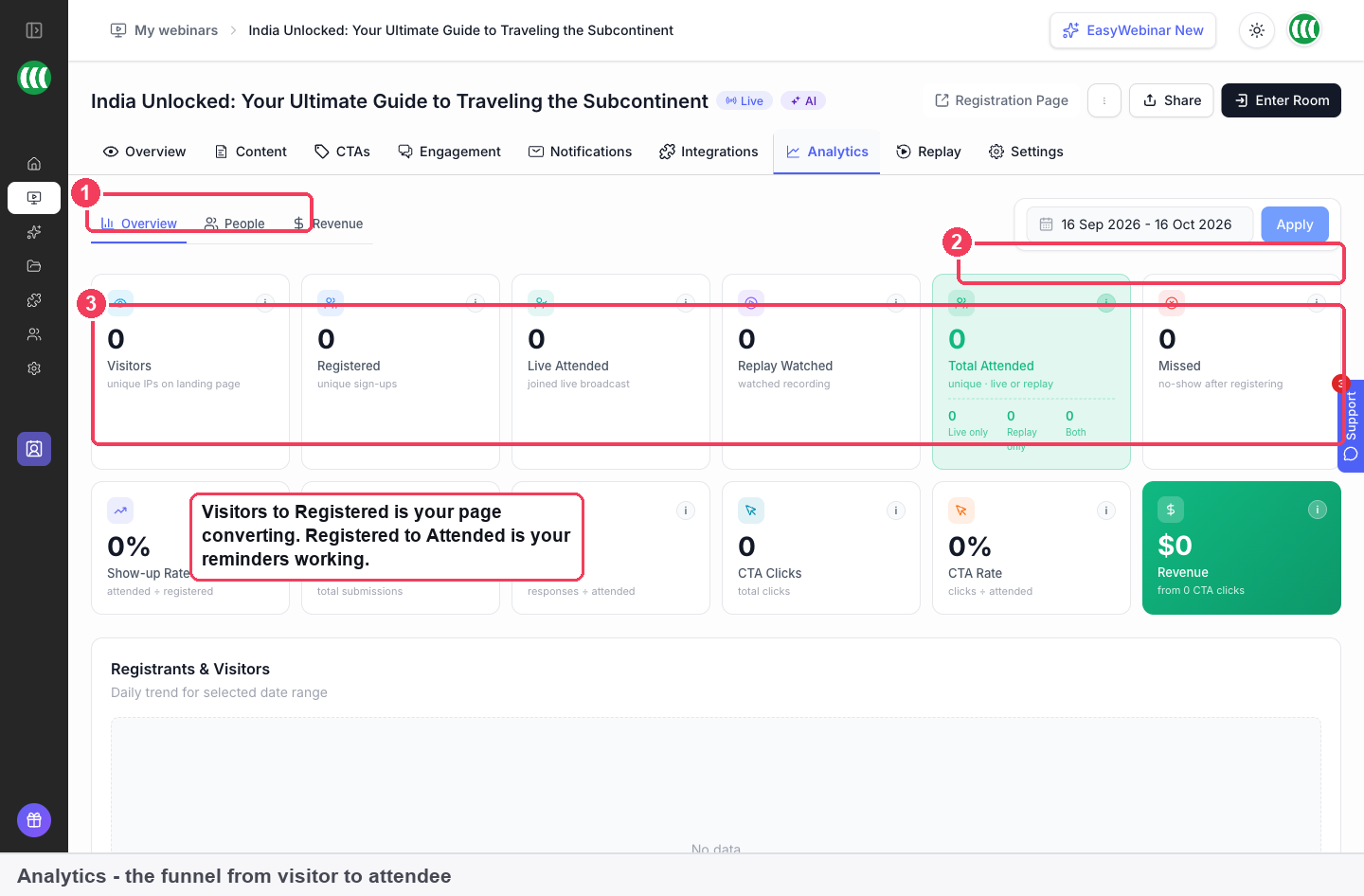
1 Overview, People and Revenue · 2 Date range and Apply · 3 Funnel metrics.
Set the date range and click Apply. The range applies to every number on the page, so if a webinar looks emptier than you expected, widen it first.
2. Read the funnel
| Metric | What it counts |
|---|---|
| Visitors | Unique IPs on your landing page |
| Registered | Unique sign-ups |
| Live Attended | People who joined the live broadcast |
| Replay Watched | People who watched the recording |
| Total Attended | Unique people, live or replay, split into Live only, Replay only and Both |
| Missed | Registered and never showed up |
Live Attended covers the broadcast only. Total Attended counts each person once whether they watched live, on replay or both, which is why it's the number to use when you ask how many people the webinar reached.
3. Find where people drop off
Two gaps tell you most of what you need:
| Gap | What it measures | If it's low, look at |
|---|---|---|
| Visitors to Registered | Your registration page | The headline, the form and the promise on the page |
| Registered to attended | Your reminders | Confirmation emails and reminders, not the content |
Missed is the group most worth contacting after a session. Send them the replay.
4. Check engagement and offers
Further down the Overview:
| Panel | What it shows |
|---|---|
| Offers Performance | Each offer's views, clicks and purchases, with a click rate |
| Views to Clicks and Clicks to Purchases | Where your offer loses people |
| Revenue by Offer | Total revenue and payment count, with a details link |
| Chat | Total messages, which you can filter by session |
| Questions & Answers | How many questions were asked and how many you answered |
| Registrations by country | Where your audience is |
Read Views to Clicks and Clicks to Purchases together. A low views-to-clicks rate means the offer itself isn't landing. A low clicks-to-purchases rate means people want the offer but your checkout or price is stopping them.
After a busy session, the Not Answered Rate on Q&A tells you how many questions you left behind. Those are worth answering in your follow-up email.
5. See the people behind the numbers
Switch to People to see who registered and who attended. For a full list across all your webinars, with columns such as watch percentage, offer clicked and lead score, plus filters and export, use People in the sidebar.
6. Check revenue
Switch to Revenue.
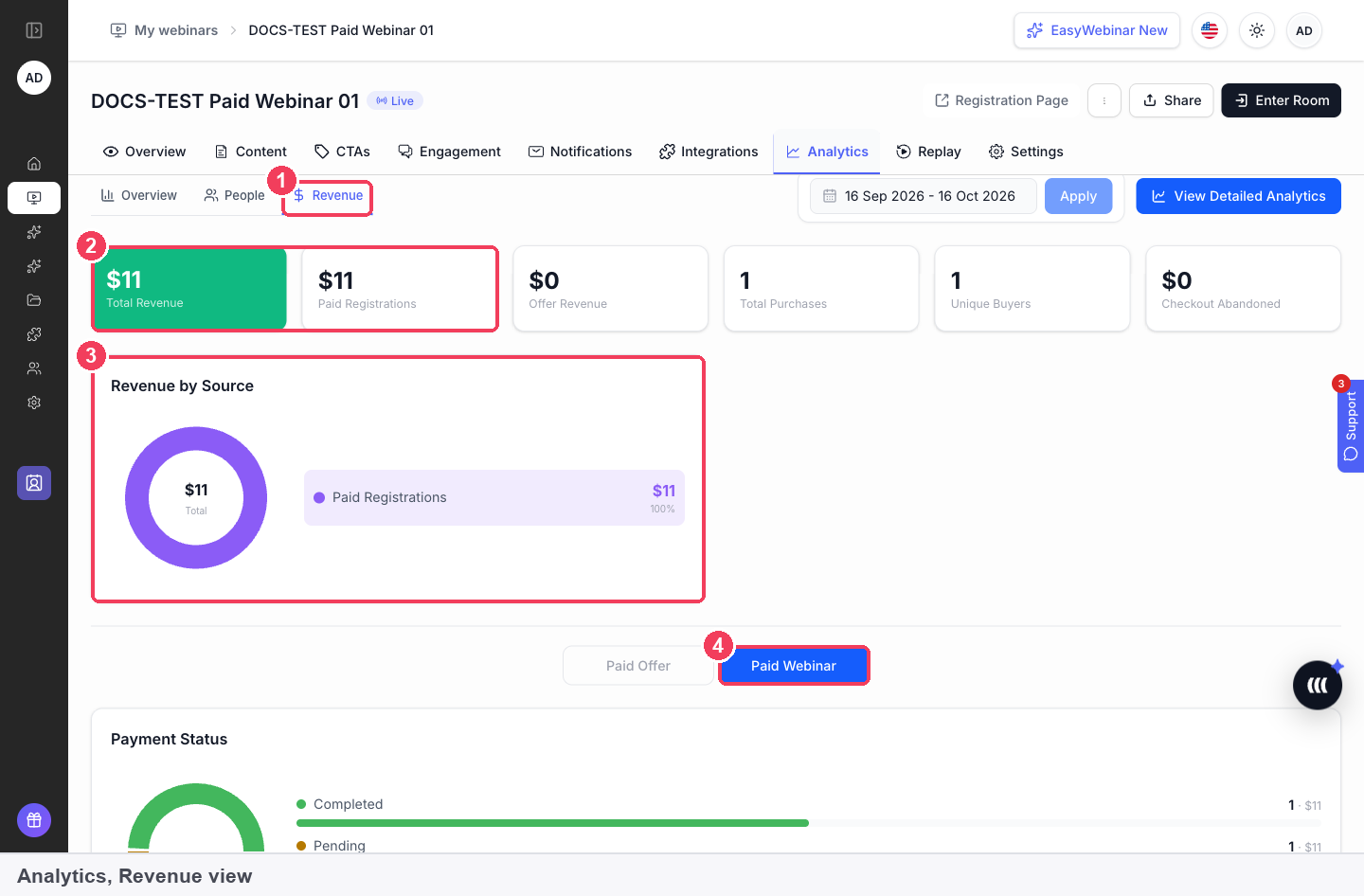
| Area | What it shows | |
|---|---|---|
| 1 | Revenue | The revenue view for this webinar |
| 2 | Total Revenue and Paid Registrations | Everything earned, and the part that came from registrations |
| 3 | Revenue by Source | The split between paid registrations and offers sold in the room |
| 4 | Paid Webinar | Switches the section below to registration payments: completed, pending and abandoned checkouts, and every transaction |
Offer sales appear under Paid Offer in the same view, so registration revenue and in-room sales are kept apart. The transaction list shows each buyer's name, email, session, registration date, amount and status, and you can search it and filter by status.
Transactions show one of these statuses: Pending, Processing, Success, Failed, Canceled, Refunded or Partially Refunded. Checkout abandoned counts people who reached checkout but didn't pay; they aren't registered. A webinar with no payments shows "No transactions yet."
What to do with each number
| What you see | What it usually means | Where to act |
|---|---|---|
| Few Visitors | Not enough promotion reaching the page | Your campaigns and the Registration Page Link |
| Low Visitors to Registered | The page isn't persuading | Registration page builder |
| Low Registered to attended | People forget or lose the link | Reminder emails |
| High Missed | A large audience still to reach | A follow-up to no-shows with the replay link |
| Low Views to Clicks | The offer isn't landing | The offer's headline, button and timing |
| Low Clicks to Purchases | Interest without purchase | Your checkout page or price |
| High Not Answered Rate | Questions left behind | Answer them in your follow-up |
How analytics works with other features
Follow-up emails
Webinar Follow-ups on the Notifications tab can go to everyone who registered, only attendees, or only no-shows, which matches the Missed number directly. Attendee Action Follow-ups send based on engagement and whether someone clicked an offer.
CRM and email tools
A connected CRM can tag people by the same behaviour Analytics counts: Registered, Attended, Missed, Watched replay, Watched full and Clicked offer, among others. That lets your sales or email system act on what the numbers show. See Connect a CRM and map your webinar data.
Offers and countdowns
Offers Performance reports on the offers you build on the CTAs tab. Comparing sessions is the clearest way to see whether a change, such as adding a countdown timer, helped.
Paid registration
For paid webinars, the Revenue view is where every registration payment and its status appear. See Paid webinars.
Replays
Replay Watched and the Replay only and Both splits only fill in if people can reach your recording. See Replay pages.
Who uses webinar analytics, and how
These are typical patterns, shown to illustrate how different teams read the same tab.
B2B marketing teams
A demand generation team runs a monthly webinar and tracks Visitors to Registered after every promotion change. When the rate drops, they test a new registration page headline before changing anything else.
Course creators
A creator selling a course through an evergreen webinar watches Offers Performance and Clicks to Purchases. A healthy click rate with few purchases sends them to the checkout page, not the presentation. See Course creators.
Coaches and consultants
A coach running paid workshops checks the Revenue view after each session, compares Paid Registrations with offer sales under Revenue by Source, and keeps an eye on Checkout abandoned.
SaaS and product teams
A product team running onboarding webinars cares most about Total Attended and Replay only, because many users catch up on the recording. A high Not Answered Rate tells them to go back through the questions and cover the gaps in their follow-up.
How webinar analytics compares
EasyWebinar's Analytics tab follows one webinar from page visits to offer sales and revenue. It reports each offer's purchases next to its views and clicks, and counts live and replay viewers without double counting. EasyWebinar is the only platform in this table that does all four.
Single-webinar reporting, from each platform's public help docs:
| Platform | Funnel from page visits to attendance | Each offer's views, clicks and purchases | Revenue split into registrations and offer sales | Live, replay and both, each person counted once |
|---|---|---|---|---|
| EasyWebinar | Yes | Yes | Yes | Yes |
| WebinarJam and EverWebinar | Yes | Partly (purchases via tracking codes) | Partly (sales via tracking codes) | Partly (live and replay shown separately) |
| Demio | Yes | Partly (clicks, no views or purchases) | Not in docs | Partly (separate replay summary) |
| Livestorm | Yes | Not in docs | Not in docs | Partly (replay viewers counted separately) |
| Zoom | Partly (visits via tracking links) | Partly (link clicks on Webinars Plus) | Not in docs | Partly (recording views on Webinars Plus) |
| ON24 | Yes | Partly (clicks, no purchases) | Not in docs | Yes |
| eWebinar | Yes | Partly (purchases via a pixel) | Partly (single total via pixel) | Partly (replay as a session type) |
Yes: documented and built in. Partly: documented with a limit, shown in brackets. Not in docs: not found in the vendor's public documentation.
Why EasyWebinar is the stronger choice for webinar analytics
- Offer results. EasyWebinar's Offers Performance shows views, clicks and purchases for each offer. Demio's Featured Action shows clicks and the share of attendees who clicked, and its docs describe no purchase tracking. See EasyWebinar vs Demio.
- Revenue next to attendance. EasyWebinar's Revenue view splits paid sign-ups from offers sold in the room. ON24's report docs show no revenue figure, and Livestorm's analytics docs show none either. See EasyWebinar vs ON24 and EasyWebinar vs Livestorm.
- Live and replay in one count. EasyWebinar's Total Attended shows unique people, split into Live only, Replay only and Both. WebinarJam shows live and replay data separately, and Zoom reports recording views on Webinars Plus. See EasyWebinar vs WebinarJam and EverWebinar and EasyWebinar vs Zoom.
- One date range for the whole tab. Set a date range, click Apply, and every number on EasyWebinar's tab follows it. WebinarJam filters by webinar, session and event, with no custom date range described.
Competitor details checked against each vendor's public documentation on 20 October 2026. Features and plans change, so confirm with the vendor before you decide.
Limits and things to know
- Analytics is per webinar. The People page in the sidebar is the one that spans every webinar.
- The date range covers the whole page. Widen it if numbers look low.
- A brand-new webinar shows zeros until registrations start.
- Visitors are unique IPs on your landing page.
- Replay views are counted separately from live attendance; someone who did both appears under Both.
- Registration and offer revenue are reported separately, under Paid Webinar and Paid Offer.
- An abandoned checkout isn't a registration.
Common questions
What's the difference between Live Attended and Total Attended?
Live Attended is the live broadcast only. Total Attended counts unique people who watched live or on replay.
How do I see how many people didn't turn up?
Use Missed: people who registered and never attended.
Why is everything showing zero?
Either the webinar hasn't run yet, or your date range doesn't cover the period when it did.
How do I know if my offer worked?
Check Offers Performance for views, clicks and purchases, and Revenue by Offer for what it earned.
Where do I see who registered?
In the People view on the Analytics tab, or in People in the sidebar for every webinar at once.
Can I see where my audience is?
Yes. Registrations by country is at the bottom of the Overview.
How do I see which questions I didn't answer?
Questions & Answers shows how many were asked and answered, and the Not Answered Rate shows how many you left behind.
Are registration payments and offer sales reported together?
No. Revenue by Source splits them, and the section below switches between Paid Webinar and Paid Offer.
What does Checkout abandoned mean?
People who reached the checkout for a paid webinar but didn't pay. They aren't registered.
Does replay viewing count as attendance?
It counts towards Total Attended. Live Attended counts the broadcast only.
Related
- The Overview tab's live stats: four of these numbers at a glance, updating while the webinar runs.
- Map webinar events to CRM tags: act on Missed, Attended and Clicked offer outside EasyWebinar.
- Questions and answers: the setting behind the Questions & Answers panel and its Not Answered Rate.
- Selling online courses: how a course creator reads these numbers across a launch.
The green room and backstage
How EasyWebinar's green room lets you prepare a live webinar with nothing broadcast, and how backstage holds co-presenters and moderators until you bring them on stage.
People
The People view in EasyWebinar lists every registrant and attendee across all your webinars, with watch percentage, offer clicks and lead score, and lets you filter by behaviour or campaign and export the result.