
 Product documentation
Questions and answers (Q&A)
Run a question queue in your webinar separately from chat, choose whether questions are public, private to hosts and moderators, or off, and check how many went unanswered.
- Applies to
- Live, simulive and evergreen webinars
- Status
- Live
- Verified
- Page type
- Feature
Q&A in EasyWebinar is a question queue that runs separately from chat. Attendees submit questions, and you and your moderators work through them in the room's Question panel, which splits them into Active and Answered. You decide on the webinar's Engagement tab whether questions are visible to everyone, visible only to hosts and moderators, or switched off. After the session, Analytics shows how many questions were asked and how many you answered.
At a glance
| What it is | A queue of attendee questions, separate from chat |
| Where you set it | Webinar → Engagement → Q&A |
| Options | Public Q&A, Private Q&A or Disable |
| When to set it | Before the webinar, as part of its setup |
| In the room | The Question panel on the side rail, split into Active and Answered |
| Who answers | Hosts and moderators; moderators join with the Moderator Join Link for Live room |
| After the session | Analytics → Questions & Answers: questions asked and answered, with a Not Answered Rate |
| Webinar types | Live, simulive and evergreen, set up the same way on each |
What Q&A is
Chat is conversation: greetings, reactions, side remarks, attendees talking to each other. Q&A is a list. Each entry is a question, and your job is to work through the list during or at the end of the session.
Keeping the two apart matters on any webinar with more than a handful of people. In a busy chat, a real question scrolls away under a stream of "hello from Leeds". In the Q&A queue, it waits until someone answers it.
You also choose who can see the queue:
- Public, so attendees can see what has already been asked.
- Private, so only hosts and moderators see the questions.
- Off, when the webinar shouldn't take questions at all.
Why Q&A matters
What it's for
Q&A gives attendees a dependable way to ask something and a reasonable expectation that the question will be seen. For the presenter, it turns scattered questions into a list that can be answered in order.
How it helps
- Questions don't get lost in chat. They sit in their own queue until they are answered.
- Public Q&A cuts repeats. When people can see a question has already been asked, you don't answer the same thing five times.
- Private Q&A keeps the room on track. One attendee's question doesn't set the agenda for everyone else, and you choose what to address on air.
- You can see what's left. The Active and Answered split in the room, and the Not Answered Rate afterwards, show what you didn't get to.
What happens without it
Without Q&A, attendees have no dedicated place to ask, so many keep their questions to themselves. Those who do ask get no sign that anyone saw the question. You close the session without knowing what the room still wanted to know, and on a selling webinar an unanswered objection often decides the sale.
Why buyers care
Q&A matters most to teams that run demos, trainings and sales webinars. They want to answer questions without losing control of the room. A sociable chat with a private question queue, plus a count of what went unanswered afterwards, gives them that control.
The EasyWebinar approach to Q&A
Take a typical case. A customer success team at a software company runs a live release briefing for its customers every quarter. Around 300 account admins attend, and many arrive with questions about their own setup. One product manager presents, while two success managers support the session.
A common approach is to take questions in the main chat and read a few out at the end. In a busy room, those questions sit between greetings and reactions, so the presenter scrolls back and still misses some. Questions about one customer's account are also on show to every other customer. Admins whose questions were missed often raise a support ticket the next day.
Questions and conversation do different jobs, so they don't need to share one stream. A greeting needs no reply, while a question needs an owner and a record of whether it was answered. Once questions have their own list, a second person can work through it while the presenter keeps going.
EasyWebinar gives questions their own queue, set on the webinar's Engagement tab. The team keeps chat on Everyone, so the room stays sociable, and sets Q&A to Private Q&A, so account questions reach only hosts and moderators. The two success managers join with the Moderator Join Link for Live room and answer from the Question panel while the product manager presents.
The Q&A screenshot under Set up Q&A shows the three options side by side: Public Q&A, Private Q&A and Disable. After the briefing, the Questions & Answers panel in Analytics shows how many questions were asked and how many were answered. How other platforms handle attendee questions is covered in How Q&A compares, below.
Set up Q&A
- Open your webinar and click the Engagement tab.
- Click Q&A.
- Choose one of the three options.
- Save your changes.
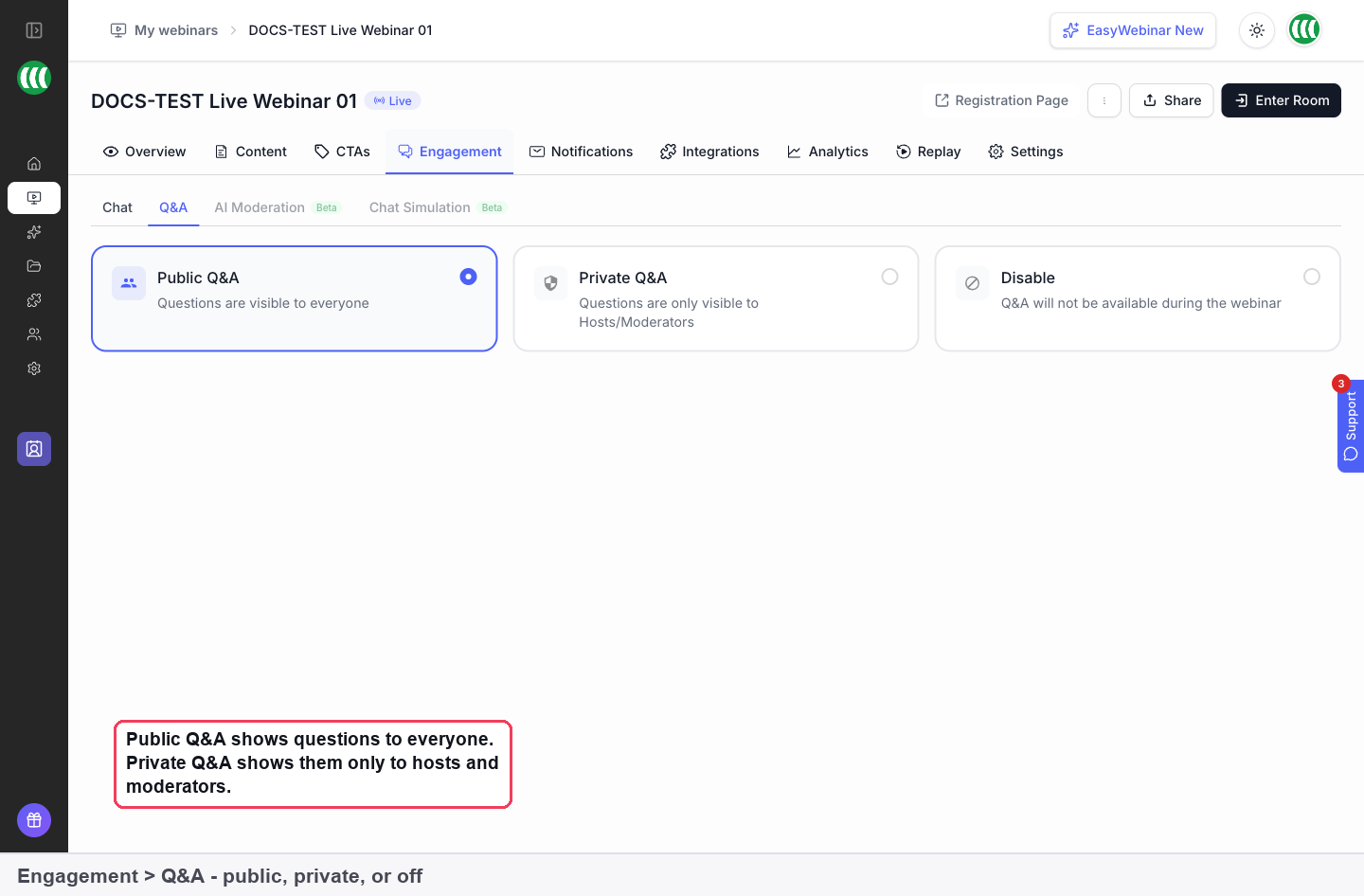
| Option | What happens |
|---|---|
| Public Q&A | Questions are visible to everyone |
| Private Q&A | Questions are visible only to hosts and moderators |
| Disable | Q&A isn't available during the webinar |
Public or private?
| Choose | When |
|---|---|
| Public Q&A | You want attendees to see what's already been asked, and you're happy for questions to be part of the shared experience |
| Private Q&A | You want control over what the room sees, or questions may be personal, commercial or off-topic |
| Disable | The session is a tightly controlled presentation with no questions taken |
Pair it with your chat setting
Q&A and chat are set side by side on the Engagement tab, and they work best chosen together.
| You want | Chat | Q&A |
|---|---|---|
| A lively public webinar | Everyone | Public Q&A |
| A sales session with private conversations | Hosts only | Private Q&A |
| A tightly controlled presentation | Hosts only | Disable |
| A large public webinar you can't moderate by hand | Everyone + AI Moderation | Private Q&A |
| An automated webinar that still feels busy | Everyone + Chat Simulation | Private Q&A |
Everyone for chat plus Private Q&A is a common setup: the room stays sociable, and questions reach you in an orderly queue.
Answer questions in the live room
When you enter the room, the side rail holds a Question panel. It is the Q&A queue, split into two lists:
| List | What it holds |
|---|---|
| Active | Questions still waiting for an answer |
| Answered | Questions you've dealt with |
Q&A moderation preferences sit in the room's Settings, under Preferences, alongside chat moderation and appearance.
A few habits that keep the queue under control:
- Keep an eye on Active during the session, not only at the end, so a quick answer doesn't wait half an hour.
- Group similar questions and answer them together on air.
- Leave time at the end to clear what's left in Active before you close.
Ending the session disconnects everyone and nobody can rejoin, so finish the questions you want to answer before you click End Session.
Bring in a moderator
On a large webinar, a moderator can work the queue while the presenter keeps presenting. Send them the Moderator Join Link for Live room from the webinar's Share dialog; it is the link for someone handling chat and questions. Keep it private, because anyone holding it can join in that role.
Q&A on recorded webinars
On a simulive webinar, chat and Q&A work normally. Everyone in a session sees the same moment of the video, and you and your moderators answer in real time while the recording plays.
On an evergreen webinar, Q&A is set up the same way on the Engagement tab. There is also a separate built-in contact form, the EW Contact Box, which sends submitted questions to an email address you choose. On a recorded webinar, attendees find it under Contact in the room, on its Question tab. It is a different thing from the Q&A queue: questions arrive by email rather than in the room's Question panel.
| Q&A queue | Contact box | |
|---|---|---|
| Where questions go | The room's Question panel | Email address to receive questions |
| Who sees them | Everyone or hosts and moderators, depending on your setting | Whoever reads that inbox |
| Works with chat off | Set separately from chat | Yes, even with No Chat |
How Q&A works with other features
Live chat
Chat and Q&A are separate controls on the same tab. Chat's Who can see messages setting and the Q&A option are chosen separately, so you can run a public chat with private questions.
AI Moderation (Beta)
The AI Moderator, in Beta, has a Q&A Moderation screen. With Suggest Answer it drafts an answer for you to approve before attendees see it; with Answer directly it answers without host approval. It doesn't replace a human moderator on a live webinar.
Analytics
The webinar's Analytics Overview includes a Questions & Answers panel showing how many questions were asked and how many you answered. The Not Answered Rate is a useful check after a busy session: it tells you how many questions you left behind.
Follow-up
Unanswered questions are a reason to follow up. Webinar Follow-ups on the Notifications tab can go to everyone who registered, only those who attended, or only no-shows.
Who uses Q&A, and how
These are typical patterns, to show how the setting changes with the kind of webinar.
SaaS and product teams
A live product demo runs Private Q&A, so prospects can ask about pricing or their own setup without the room seeing. A solutions engineer joins as moderator and works the Active list while the presenter demos.
Course creators
A creator teaching a free workshop uses Public Q&A. Attendees see that someone has already asked about prerequisites, and the creator answers the most common questions in a block before the enrolment offer.
Customer success teams
A monthly onboarding webinar runs as a simulive session. Q&A stays private, and the team answers setup questions in real time while the recording plays, then checks the Not Answered Rate afterwards.
B2B marketing teams
A panel discussion is tightly scripted, so Q&A is set to Disable and chat to Hosts only. Questions still reach the team privately, without interrupting the panel.
How Q&A compares
EasyWebinar keeps questions in their own queue, lets you make that queue public or private, and reports how many questions went unanswered. The same Q&A setting runs on live, simulive and evergreen webinars. EasyWebinar is the only platform in this table that does all four.
Q&A features, from each platform's public documentation:
| Platform | Question queue separate from chat | Public or private questions | Answered and unanswered counts in analytics | Same Q&A setting on live, simulive and evergreen |
|---|---|---|---|---|
| EasyWebinar | Yes | Yes | Yes | Yes |
| Livestorm | Yes | Yes | Question count | Partly (advised off for on-demand) |
| Demio | Partly (chat messages marked as questions) | Not in docs | Questions filter in chat analytics | Via chat on automated events |
| WebinarJam and EverWebinar | Partly (chat messages marked as questions) | Not in docs | Questions in session logs | Partly (two separate products) |
| eWebinar | Questions go through chat | Private chat only | Chat message counts | Automated only |
| StealthSeminar | Partly (questions sent by email) | Not in docs | Replied filter on emailed questions | Yes (by email) |
Yes: documented and built in. Partly: documented with a limit, shown in brackets. Not in docs: not found in the vendor's public documentation.
Why EasyWebinar is the stronger choice for Q&A
- Questions start in their own queue. EasyWebinar collects them in the room's Question panel. In Demio and WebinarJam, a question is a chat message that the host or a moderator marks as one. See EasyWebinar vs Demio and EasyWebinar vs WebinarJam and EverWebinar.
- A public chat with private questions. EasyWebinar sets chat and Q&A separately, so Everyone chat can run beside Private Q&A. eWebinar's help centre describes its chat as private, with questions answered through that chat. See EasyWebinar vs eWebinar.
- A count of the questions you missed. EasyWebinar's Analytics shows questions asked and answered, with a Not Answered Rate. Livestorm's analytics dashboard lists the number of questions. See EasyWebinar vs Livestorm.
- Questions stay in the webinar room. EasyWebinar's Q&A queue lives in the room on live, simulive and evergreen webinars. StealthSeminar's Q&A is a message box that sends each question to you by email. See EasyWebinar vs StealthSeminar.
Competitor details checked against each vendor's public documentation on 20 October 2026. Features and plans change, so confirm with the vendor before you decide.
Limits and things to know
- Set Q&A before the webinar. It's part of the webinar's setup rather than the live room.
- Private means hosts and moderators. Attendees don't see private questions.
- Disable removes Q&A for the whole session.
- The contact box is separate. Contact box questions go to an email address, not to the Question panel.
- Ending the session is final. End Session disconnects everyone and nobody can rejoin.
- The Not Answered Rate is after the fact. Use Active in the room to see what's waiting while you're live.
Common questions
How is Q&A different from chat?
Chat is a running conversation. Q&A collects questions in a list you work through, and with Private Q&A attendees don't see it.
Should questions be public or private?
Public if you want people to see what's already been asked. Private if you want control over what the room sees.
Who can see questions with Private Q&A?
Only hosts and moderators.
Can I turn Q&A off?
Yes. Choose Disable, and Q&A isn't available during the webinar.
Where do I see questions during the webinar?
In the Question panel on the room's side rail, split into Active and Answered.
Can someone else answer questions while I present?
Yes. Send them the Moderator Join Link for Live room from the Share dialog.
Can I change the Q&A setting once the webinar has started?
Choose it before the session. Q&A is set on the Engagement tab as part of the webinar's setup, not from the live room.
How do I know how many questions I missed?
Check the Questions & Answers panel in Analytics. The Not Answered Rate shows how many questions were left behind.
Does Q&A work on simulive webinars?
Yes. Chat and Q&A work normally, and you answer in real time while the recording plays.
Can the AI Moderator answer questions for me?
The AI Moderator is in Beta. In Suggest Answer mode it drafts answers for you to approve; in Answer directly mode it answers without approval.
Related
- Live chat: the chat setting you choose next to Q&A on the Engagement tab.
- Polls: ask the room a question of your own instead of waiting for theirs.
- Chat simulation: the busy automated room that pairs with Private Q&A.
- Run a live webinar: the Question panel alongside the rest of the room.
- Webinar analytics: questions asked, answered and the Not Answered Rate.
- Create a simulive webinar: answer questions live while a recording plays.
Live chat
Choose how attendees talk in your webinar room, from EasyWebinar's built-in chat to private host-only chat, an embedded third-party chat tool on recorded webinars, or no chat with a contact box.
Polls
Build polls on a webinar's CTAs tab, launch them to the room, have Create with AI write them from a goal, and see who answered in the People view.