
 Product documentation
Polls
Build polls on a webinar's CTAs tab, launch them to the room, have Create with AI write them from a goal, and see who answered in the People view.
- Applies to
- Live, simulive and evergreen webinars
- Status
- Live
- Verified
- Page type
- Feature
A poll in EasyWebinar is a question with a set of answers that you put in front of your audience during a webinar. You build polls on the webinar's CTAs tab, next to your offers, and show them in the room when you choose. During a live session, each poll goes out when you launch it from the room's Polls panel. Create with AI can also write a set of polls for you, built around what you want the polls to achieve.
At a glance
| What it is | A question plus response options, shown to attendees in the webinar room |
| Where you build it | Webinar → CTAs tab, alongside offers |
| What you set | Question, Response Options, and whether it's Published |
| How many | No practical limit; add as many as the session needs |
| Webinar types | Live, simulive and evergreen use the same polls |
| Showing it live | Polls panel in the live room; on a live webinar you launch polls manually |
| Written for you | Create with AI generates five polls from the goals you pick, for 1 credit |
| On the replay | Included on a Webinar Replica replay page |
| Who answered | The Polls column in People shows how many polls each person answered |
What a poll is
EasyWebinar groups the things you put in front of an audience under CTAs, and there are two kinds. An offer sells something. A poll asks something. Both appear in the room only when you decide to show them.
A poll has three parts:
- A question, the thing you are asking.
- Response options, the answers attendees choose from. You add or remove them freely.
- A published state, which decides whether the poll is live.
Every poll on a webinar sits in one list on the CTAs tab. Each one can be switched on or off from that list without being deleted, so a poll can wait in reserve until the point in the session where it fits.
Why polls matter
What it's for
A poll puts one question to the whole room, with a fixed set of answers. Everyone replies in the same format, so the results are easy to read at a glance. It also gives attendees something to do besides watch.
How it helps
- It breaks up a long talk. A question every so often turns a passive audience into a responsive one.
- It shows who is in the room. Ask about their situation and you learn who you are talking to while you can still adjust.
- It can point to buyers. A question such as "when are you planning to travel?" separates people close to a decision from people who are browsing.
- It feeds your follow-up. People records how many polls each person answered, next to watch time and offer clicks.
What happens without it
Skip polls and you present without knowing who is listening or what they need. Attention drifts through the long sections, and nobody is asked to do anything until the offer. After the session, attendance is the only record of who took part.
Why buyers care
Polls matter most to coaches, consultants and B2B marketing teams who follow up with attendees after the webinar. For them, an answer given just before the offer is an early sign of who is ready to talk. Course creators use polls in long teaching sessions, where steady engagement keeps people watching to the end.
The EasyWebinar approach to polls
Take a typical case. A small marketing agency runs a monthly live workshop on local search for owners of small businesses. About 150 people register, and the agency wants to know which of them are worth a call afterwards. The two partners present, and neither has time to watch the chat closely.
A common approach is to ask questions out loud and read the replies as they scroll past in the chat. A few confident attendees answer while most stay silent. Afterwards, the partners scroll back through the chat log, trying to remember who said what. The call list ends up built on guesses.
The questions the agency needs answered are the same every month. Only the audience changes. So the questions can be written once, with fixed answers, and kept with the webinar instead of being improvised on the day.
EasyWebinar keeps the agency's polls on the webinar's CTAs tab, beside its offer of a free audit. The partners run Create with AI with the goals "qualifying leads" and "segmenting for follow-up", then edit the five polls it writes. During the workshop, one partner launches each poll from the Polls panel when it fits the talk. After the session, People shows how many polls each attendee answered, next to Offer clicked.
The polls step lists seven goals, shown in the screenshot under Let AI write your polls, and returns five polls for 1 credit. Each poll comes with a short note on where it fits in the run of show. How other platforms handle polls is covered in How polls compare, below.
Find your polls
Open your webinar and click the CTAs tab.
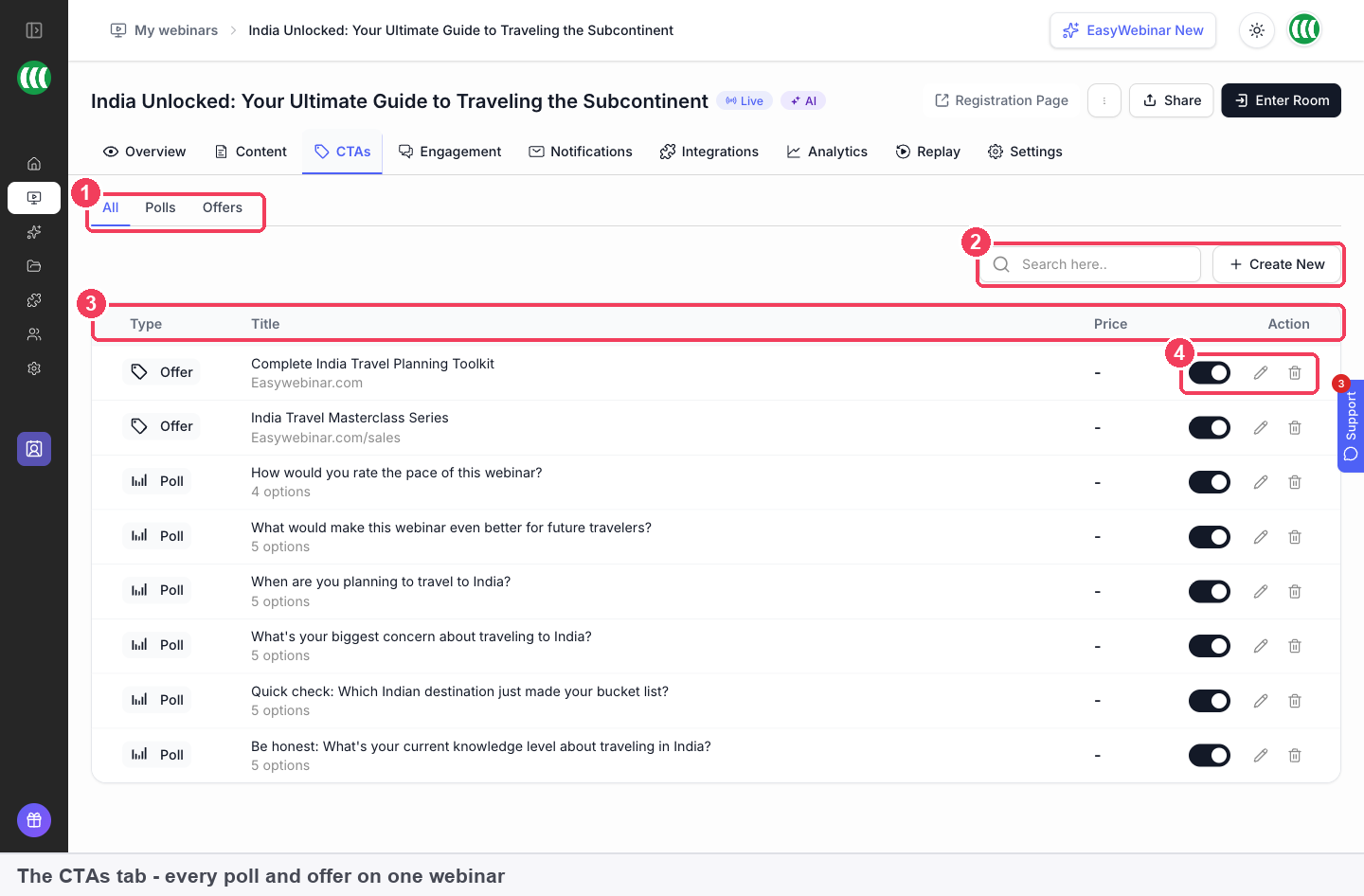
1 All · Polls · Offers filters · 2 Search · 3 The list of CTAs · 4 Row actions.
| Control | What it does | |
|---|---|---|
| 1 | All · Polls · Offers | Filters the list. Choose Polls to see only your polls |
| 2 | Search | Finds a CTA by name |
| 3 | The list | Type, title, price and actions for each CTA |
| 4 | Row actions | Toggle on or off, edit, delete |
Until you add a first poll or offer, the tab reads "No CTAs found".
Create a poll
- On the CTAs tab, open an existing poll.
- To start a new one, click + at the bottom of the poll list on the left.
- Type your Question.
- Fill in the Response Options. Click Add another option for each extra answer, and click the bin beside any option to remove it.
- Watch the preview in the middle of the screen. It shows the poll exactly as attendees will see it and changes as you type.
- Set Published to on if the poll should be live, then click Save.
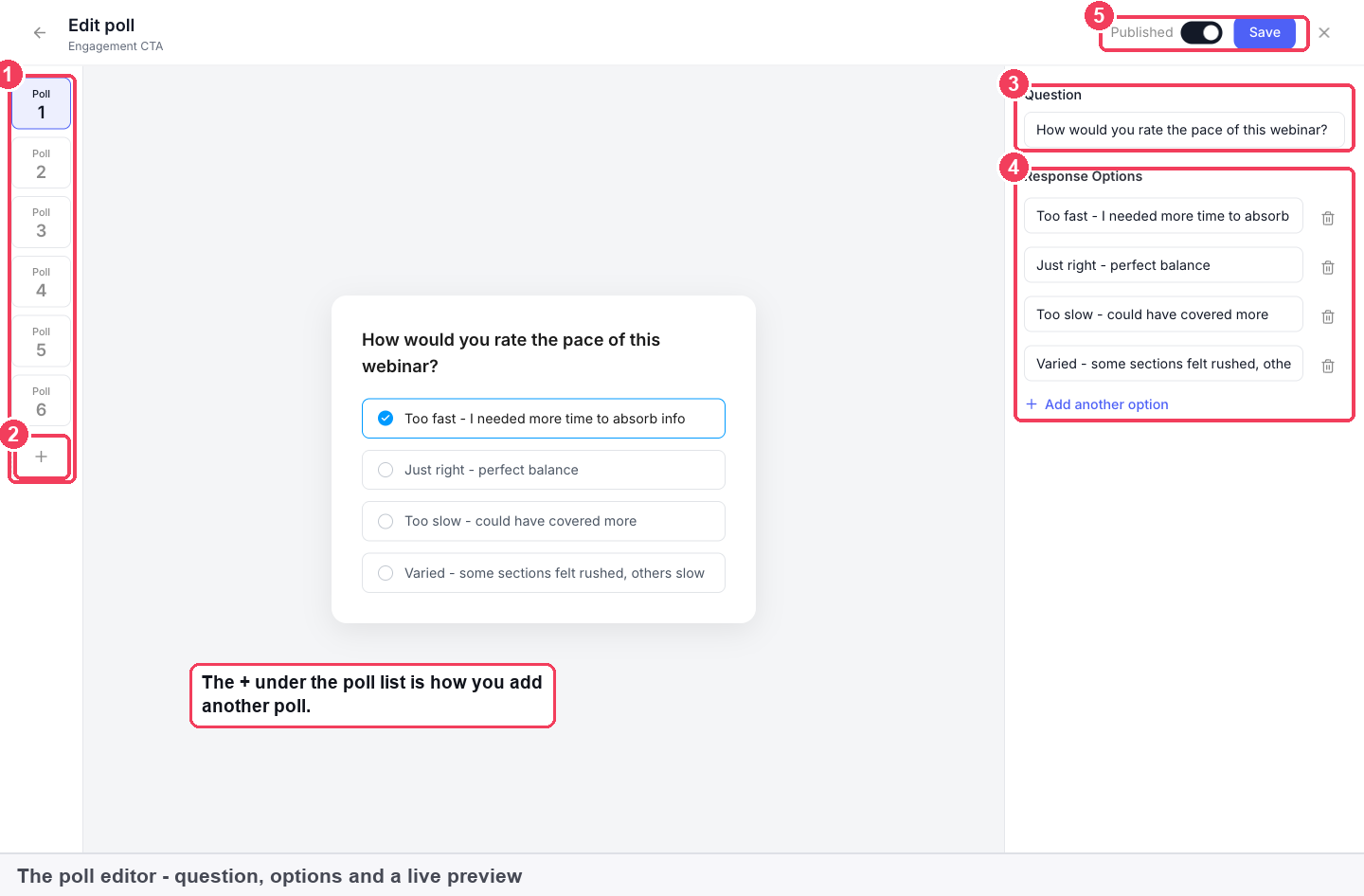
1 Poll list · 2 + · 3 Question · 4 Response Options · 5 Published · Save.
| Area | What it does | |
|---|---|---|
| 1 | Poll list | Every poll on this webinar |
| 2 | + | Adds another poll |
| 3 | Question | What you're asking |
| 4 | Response Options | The answers, with Add another option |
| 5 | Published · Save | Whether it's live, and saving your changes |
Write polls people will answer
The polls that get answered ask about the attendee, not about what they remember. A question about their situation, their plans or their biggest problem takes a second to answer and needs no right answer. A knowledge test feels like an exam, and people skip it.
Some practical habits:
- Keep options short and distinct, so each one can be read at a glance.
- Ask what you will use. If an answer won't change what you say next or who you follow up with, cut the question.
- Place buying-intent questions near the offer. Asking when someone plans to act, just before you present an offer, tells you how ready the room is.
Keep a poll in reserve
You can build every poll before the webinar and keep some hidden:
- Turn the poll's toggle off in the CTAs list, or
- Set Published to off in the poll editor.
The poll stays on the webinar, ready to switch on, and nothing is deleted.
Launch a poll during a live webinar
- Enter the room from the webinar's Overview with Enter Room.
- Open Polls on the side rail.
- Launch the poll you want at the moment it fits the presentation.
On a live webinar, polls don't appear on their own: you launch each one manually. When you click Go Live, the confirmation reminds you that offers and polls should be ready, so check your poll list in the green room first.
Let AI write your polls
Create with AI builds a webinar from a description, and polls are one of its five outputs. Script, Landing pages and Emails are selected by default; click the Polls chip to include polls in the build.
At the polls step, you aren't asked what questions to write. You are asked what the polls are for.
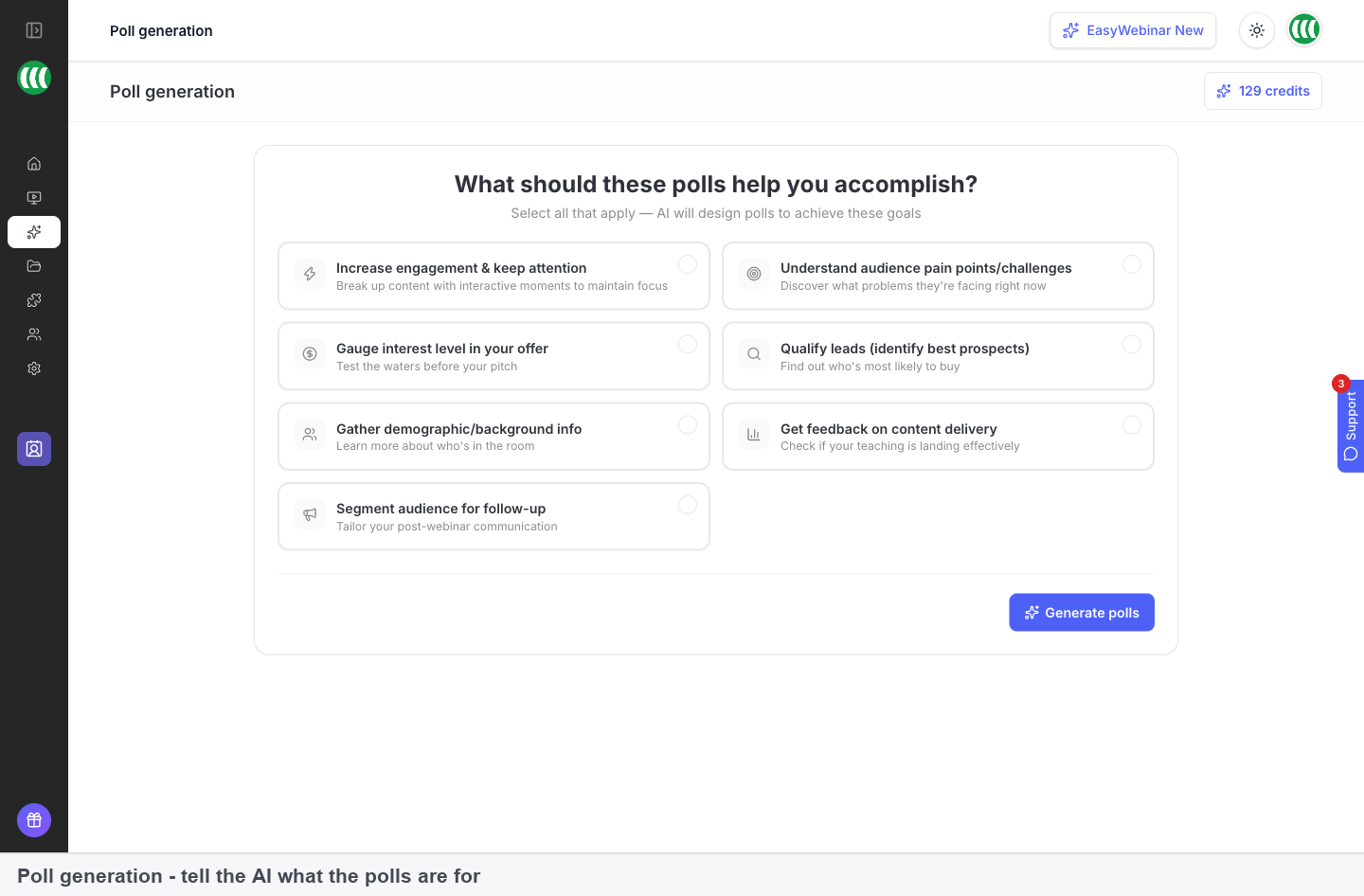
Pick any combination of these goals:
| Goal | What you learn |
|---|---|
| Increasing engagement | Keeps attention through the session |
| Understanding pain points | What problems the audience has right now |
| Gauging interest in your offer | How warm the room is before you pitch |
| Qualifying leads | Who is most likely to buy |
| Gathering background | Who is in the room |
| Getting feedback on delivery | Whether your teaching is landing |
| Segmenting for follow-up | How to tailor what you send afterwards |
Click Generate polls. You get five polls, each with its question, its options, and a short explanation of why it's there and where it fits in the run of show. The polls step costs 1 credit.
Generated polls land on the CTAs tab and are edited like any poll you wrote yourself. Read them against your script before the webinar.
How polls work with other features
Offers
Polls and offers share the CTAs tab, the same list controls and the same Published switch. A poll asked just before an offer can show you how ready the room is.
Replays
When the replay page uses Webinar Replica, the replay shows the same video, offers, polls and chat replay as the session. A Custom Build replay page is designed separately.
The People view
People in the sidebar has a Polls column showing how many polls each person answered, next to Watch percentage and Offer clicked. Use it to see who took part, not only who turned up.
Cloning
When you clone a webinar, polls are part of the Engagement group in the copy dialog, with offers and email notifications. Leave them ticked and they come across to the new webinar.
Simulive and evergreen webinars
Live, simulive and evergreen webinars all use the same pages, emails, polls, offers and analytics; only the delivery differs. You build polls for a recorded webinar on the same CTAs tab.
Who uses polls, and how
These are typical patterns, to show where polls fit in different kinds of webinars.
Course creators
A creator opens with a poll about the audience's experience level, then asks about their biggest obstacle halfway through. Just before the enrolment offer, a poll about timing shows how many people are ready to start now.
Coaches and consultants
A coach uses Create with AI with the goals "understanding pain points" and "qualifying leads", then edits the five generated polls into their own words. The polls run through the session and set up the call offer at the close.
SaaS and product teams
A product demo asks attendees which problem brought them, then shows the part of the product that solves it. After the session, the team filters People by webinar and looks at who answered polls and clicked the trial offer.
B2B marketing teams
A marketing team running a recurring educational webinar ends with a feedback poll on delivery, so each run tells the presenter whether the teaching is landing before the next session is planned.
How polls compare
EasyWebinar launches polls live, runs the same polls on recorded webinars, and can have AI write them from goals you pick. EasyWebinar is the only platform in this table that does all three.
Poll features, from each platform's public documentation:
| Platform | Launch polls in a live session | Polls on recorded webinars | AI writes the polls |
|---|---|---|---|
| EasyWebinar | Yes | Yes | Yes |
| eWebinar | Automated only | Yes | Yes (from the video transcript) |
| WebinarJam and EverWebinar | Yes | Partly (EverWebinar results preconfigured) | Not in docs |
| Demio | Yes | Yes | Not in docs |
| Livestorm | Yes | Not in docs | Not in docs |
| Zoom | Yes | Partly (Webinars Plus or Events licence) | Not in docs |
| WebinarKit | Yes | Yes | Not in docs |
Yes: documented and built in. Partly: documented with a limit, shown in brackets. Not in docs: not found in the vendor's public documentation.
Why EasyWebinar is the stronger choice for polls
- Polls written from your goals. EasyWebinar's polls step asks what the polls are for, then writes five polls with a note on where each fits. eWebinar's AI drafts interactions from the video transcript instead. See EasyWebinar vs eWebinar.
- One set of polls for every webinar type. EasyWebinar's live, simulive and evergreen webinars use the same polls. In EverWebinar, poll results are preconfigured, and no poll statistics come from attendee answers. See EasyWebinar vs WebinarJam and EverWebinar.
- Live and automated polls in one product. eWebinar runs automated webinars only, so there is no live poll to launch. Livestorm's help docs don't describe polls in automated events. See EasyWebinar vs Livestorm.
- Polls are part of the AI build. EasyWebinar's Create with AI can include polls alongside the script, pages and emails. The help docs of Demio, Zoom and WebinarKit don't describe AI that writes polls. See EasyWebinar vs Demio.
Competitor details checked against each vendor's public documentation on 20 October 2026. Features and plans change, so confirm with the vendor before you decide.
Limits and things to know
- Live webinars need manual launches. On a live webinar, each poll is launched from the Polls panel.
- Two switches control visibility. The row toggle in the CTAs list and the Published switch in the editor both decide whether a poll is live.
- No practical cap on numbers. Add as many polls as the session needs.
- Replays only carry polls with Webinar Replica. A Custom Build replay page is a separate design.
- AI polls use credits. Generating polls costs 1 credit within a Create with AI build.
- Polls have no countdown. The poll editor has a question, response options and Published; countdowns belong to offers.
Common questions
How do I add a poll?
Open the CTAs tab, open any poll, and click + at the bottom of the poll list on the left.
How many polls can I add to a webinar?
There's no practical limit. Add as many as the session needs.
Can I prepare polls before the webinar without showing them?
Yes. Turn the poll's toggle off in the CTAs list, or set Published to off in the editor.
How do I show a poll during a live webinar?
Open Polls on the side rail of the live room and launch it. On a live webinar polls are launched manually.
Can I see what attendees will see before the webinar?
Yes. The middle of the poll editor previews the poll exactly as attendees will see it, updating as you type.
How do I remove an answer option?
Click the bin beside the option in Response Options.
Will my polls appear on the replay?
They do when the replay page uses Webinar Replica, which copies the session's video, offers, polls and chat replay.
Can AI write my polls?
Yes. In Create with AI, include the Polls chip, choose what the polls should achieve, and click Generate polls. You get five, each with an explanation of where it fits.
Where can I see who answered polls?
In People, the Polls column shows how many polls each person answered.
Do my polls come across when I clone a webinar?
Yes, if Polls is ticked in the Engagement group when you clone.
What makes a good poll question?
One about the attendee rather than a test of knowledge. It's easier to answer, and it tells you something you can use.
Related
- Offers: the other kind of CTA, built in the same list as your polls.
- Live chat: the open conversation that runs alongside your polls.
- Questions and answers: the attendees' own questions, in a queue.
- Run a live webinar: the Polls panel among the room's other controls.
- Create with AI: the full build that writes polls alongside the script, pages, emails and offers.
- People: who answered your polls, next to watch time and offer clicks.
- Replay pages: keep polls on the recording with Webinar Replica.
Questions and answers (Q&A)
Run a question queue in your webinar separately from chat, choose whether questions are public, private to hosts and moderators, or off, and check how many went unanswered.
Offers
Build offer cards on a webinar's CTAs tab with a headline, a button, an optional price and countdown, push them to the room, carry them onto the replay, and measure views, clicks, purchases and revenue.