
 Product documentation
Webinar reminder emails
How EasyWebinar's Webinar Reminders work, how to time them relative to the session, how many to send, and how to tell from Analytics whether they are getting people to attend.
- Applies to
- Every webinar, including recurring and evergreen schedules · set per webinar on the Notifications tab
- Status
- Live
- Verified
- Page type
- Feature
Webinar Reminders are the emails EasyWebinar sends to registrants before the session starts. Each reminder has its own timing, set as a length of time before the webinar, so the same reminders work for a one-off session, a recurring schedule or an evergreen webinar. You can add as many as you need from the Notifications tab, and Analytics shows whether they are working: the gap between people who registered and people who attended is the reminders' job.
At a glance
| What it does | Emails registrants before the webinar starts |
| Who receives it | Registrants |
| How timing works | Set as time before the webinar, for example 1h 0m 0s before webinar |
| How many | As many as you add with Create New; three is a common pattern |
| Suggested pattern | A day before, an hour before and fifteen minutes before |
| Where you set it | Webinar → Notifications → Emails → Webinar Reminders |
| Schedules | Works for recurring and evergreen schedules, because timing is relative |
| Other channels | Reminder SMS and WhatsApp Reminder Message, both in Beta |
| How to measure it | Registered to attended in the webinar's Analytics |
What webinar reminders are
A reminder is an email in the Webinar Reminders group on the Notifications tab. It goes to people who registered, before the webinar starts, and its purpose is to turn a registration into an attendance.
What makes EasyWebinar's reminders work across webinar types is how their timing is set. A reminder isn't scheduled for a clock time like "Tuesday at 9am". It is set relative to the session, expressed as hours, minutes and seconds before the webinar, such as 0h 15m 0s before webinar. A daily recurring webinar or an evergreen webinar has many sessions, and relative timing is why the same reminders work across all of them.
Reminders sit between two other email groups. The Registration Confirmation goes out the moment someone signs up, and Webinar Follow-ups go out after the session. Reminders cover the time in between, which is when most registrants forget.
Why reminders matter
What it's for
Getting people to register is the easy part; getting them to turn up is what notifications are for. Reminders bring the date, the time and the way in back to each registrant. They land the day before, when people can still plan, and in the final minutes, when they need a nudge to click.
How it helps
- It brings the session back into view. A sign-up from days ago is easy to forget. A reminder an hour before puts it in front of the person again.
- The last reminder does most of the work. In EasyWebinar's guidance, the one fifteen minutes before matters most.
- It runs on every session by itself. Timing is relative, so nothing needs rescheduling when new sessions appear.
- It is measurable. Registered to attended in Analytics shows whether the reminders are working.
What happens without it
Without reminders, attendance depends on people remembering a session they booked days or weeks ago. Analytics shows the cost as a large Missed count: people who registered and never came. EasyWebinar reads a low registered-to-attended rate as a notification problem, not a content one.
Why buyers care
Every result that matters to the business, from offer clicks to booked calls, depends on people actually watching. That makes reminders matter most to teams that sell or book calls at the end of a session. It matters even more on automated webinars, where sessions run without anyone checking the emails.
The EasyWebinar approach to reminder emails
Take a typical case. A yoga teacher-training school runs a free evergreen info session for people thinking about its 200-hour course. The session plays several times a week, and people register from the school's Instagram. Most sign up on their phones, often days before the session they pick.
A common approach is to schedule reminder emails by hand for each session date. That may work for one session a month, but it gets hard with several a week. Gaps creep in, and some people may hear nothing between signing up and the start.
The reminders themselves don't change from one session to the next. What changes is the start time each one counts back from. A reminder set against the session, rather than the calendar, fits every session the schedule creates.
EasyWebinar sets each reminder as time before the webinar, on the Notifications tab. The school keeps three: a day, an hour and fifteen minutes before. Each one follows every session on the evergreen schedule. For the final nudge, the school adds a Reminder SMS, in Beta, because its audience reads texts quickly.
The screenshot under Find your reminders shows the Webinar Reminders group with reminders timed 15 minutes, 1 hour and 24 hours before the webinar. How other platforms set reminder timing and channels is covered in How reminder emails compare, below.
Set it up
Find your reminders
- Open your webinar and click the Notifications tab.
- Stay on the Emails channel and find the Webinar Reminders group.
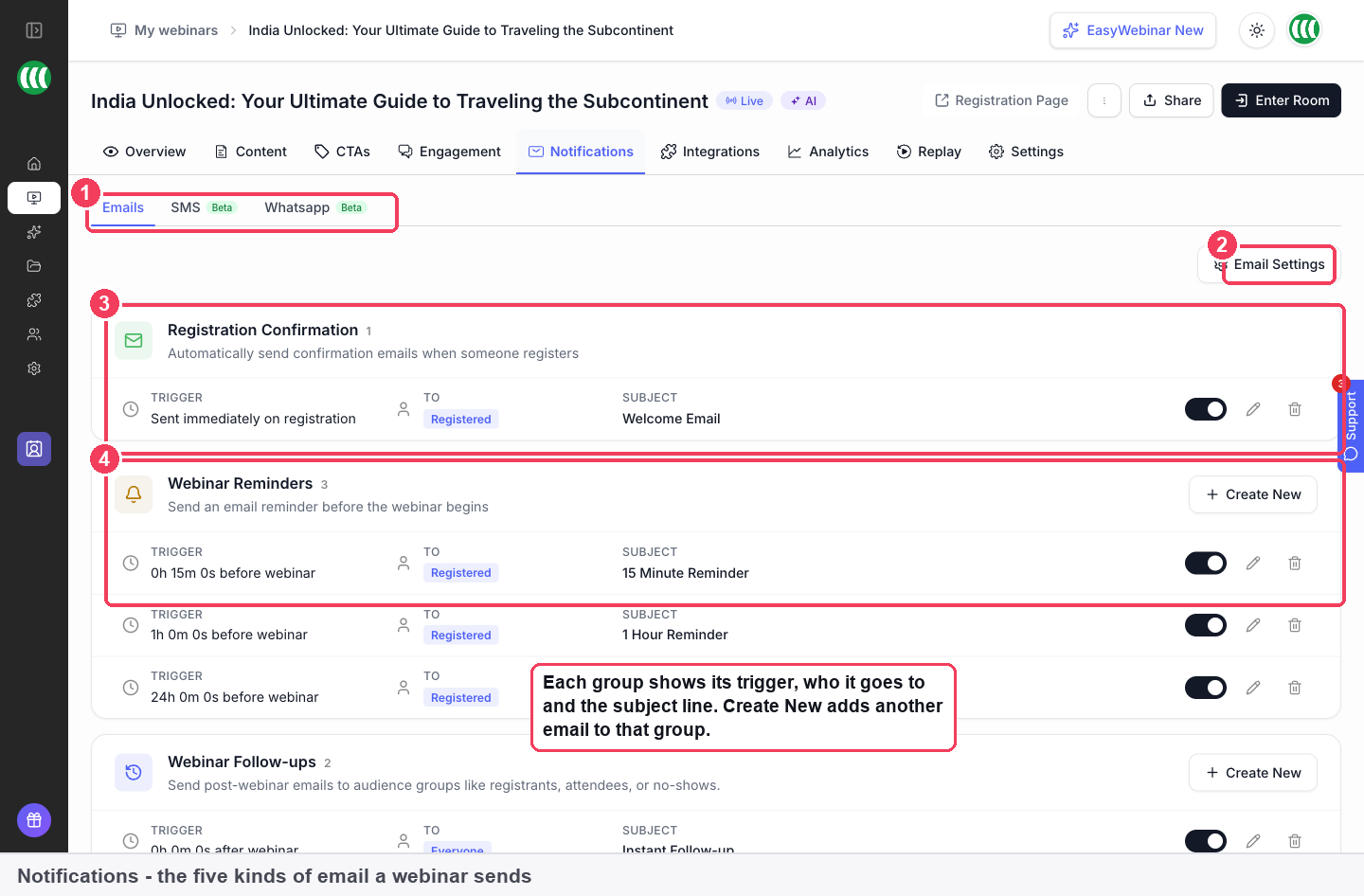
1 Channel tabs · 2 Email Settings · 3 An email group · 4 Create New.
Each entry shows its trigger, the audience it goes to, and its subject, so the group reads as a timeline of what registrants will receive.
Edit a reminder
- Open the reminder you want to change.
- Change its subject, content and timing.
- Set the timing as time before the webinar, in hours, minutes and seconds.
- Save your changes.
Add another reminder
- Click Create New in the Webinar Reminders group.
- Set its timing before the webinar.
- Write the subject and content.
A sensible schedule
| Reminder | Timing before the webinar | What it's for |
|---|---|---|
| A day before | One day before the session | Lets people plan their day around the session |
| An hour before | 1h 0m 0s before webinar | Brings the session back to mind while there's still time to prepare |
| Fifteen minutes before | 0h 15m 0s before webinar | The prompt to join now; the one that does most of the work |
Three is a sensible default. Webinars built with Create with AI arrive with exactly this pattern already drafted: Reminder — 1d, Reminder — 1h and Reminder — 15m, with merge tags already in place so dates, times and join links fill themselves in.
Check who the reminders come from
Reminders use the webinar's Email Settings: the Sender name registrants see and the Reply-to email where replies go. Set the sender to a name registrants will recognise from their confirmation.
Text and WhatsApp reminders (Beta)
Both Beta channels have a reminder of their own on the Notifications tab: Reminder SMS on the SMS tab and Reminder Message on the Whatsapp tab, each sent before the webinar starts. They work alongside email rather than replacing it, and suit the final reminder before a session, when an email may sit unread.
In short:
- They need a phone number. Add the Phone field to your registration form, or there is nobody to message.
- They come from an EasyWebinar number, not your own.
- You build them from templates grouped by tone, then edit the words.
- You can test first. Send Test SMS and Send Test Message send the selected template to your own number. Pick your country from the flag dropdown rather than typing a dialling code.
- Keep them short. A reminder needs the time and the link.
Pick whichever channel your audience actually uses. Sending both tends to irritate people.
How it works with other features
Registration confirmation
The confirmation starts the sequence and carries the join link; reminders bring the registrant back to it. Both are on the same tab and share the same sender settings.
Evergreen and just-in-time sessions
An evergreen webinar generates a long run of sessions from one schedule, and can add just-in-time sessions that start shortly after someone registers. Reminders are timed relative to the webinar rather than to a clock, which is why they work for recurring and evergreen schedules without being set session by session.
Analytics
The webinar's Analytics tab shows the funnel from Visitors to Registered, Live Attended, Total Attended and Missed. Two gaps tell you different things:
| Gap | What a low number means |
|---|---|
| Visitors to Registered | A registration page problem: the headline, the form, the promise |
| Registered to attended | A notification problem, not a content one |
Change your reminders, run the next session, and compare.
Follow-ups for people the reminders didn't reach
Missed counts people who registered and never showed up. Add a Webinar Follow-up with its audience set to no-shows and include the replay link. In People, filter by Behavior for no-shows to see exactly who they are, then Export the list if you need it elsewhere.
Reminders from your own CRM
If you would rather send reminders from your CRM or email tool, map the Webinar Join Link into one of its custom fields. Each contact then holds their own working link, which is what lets your system send the reminder instead of EasyWebinar.
Cloning
Email notifications can come across when you clone a webinar, so a reminder schedule you have tuned carries into the copy.
Who uses it, and how
These are typical patterns, shown to illustrate how reminders fit different kinds of webinar.
SaaS and product teams
A product team runs a weekly live demo. The three-reminder pattern goes out before every session without anyone touching it, and the team watches Registered to attended week by week to see whether a subject-line change made a difference.
Course creators
A creator's evergreen webinar runs daily. Because reminder timing is relative to the webinar, the same three emails serve the whole schedule. The creator adds a Beta Reminder SMS as the final nudge for an audience that reads texts faster than email. See selling online courses with webinars.
Customer success teams
A customer success team runs onboarding webinars for new customers. Their reminders restate what to have ready before the session, and the fifteen-minute reminder carries the link and nothing else.
B2B marketing teams
A marketing team already runs its nurture emails from its own system, so it maps the Webinar Join Link into a CRM field and sends one of the reminders from there, keeping EasyWebinar's reminders for the final hour.
How reminder emails compare
EasyWebinar lets you time each reminder in hours, minutes and seconds before the session. You can also add a reminder by text or by WhatsApp, both in Beta. EasyWebinar is the only platform in this table that does all three.
Reminder features, from each platform's public documentation:
| Platform | Reminder timing you choose | SMS reminder (Beta) | WhatsApp reminder (Beta) |
|---|---|---|---|
| EasyWebinar | Yes | Yes | Yes |
| WebinarJam and EverWebinar | Yes | Yes | Not in docs |
| WebinarKit | Partly (1 day and 30 minutes by default) | Yes | Not in docs |
| Livestorm | Partly (1 hour and 24 hours by default) | Not in docs | Not in docs |
| Zoom | Partly (1 hour, 1 day or 1 week) | Not in docs | Not in docs |
Yes: documented and built in. Partly: documented with a limit, shown in brackets. Not in docs: not found in the vendor's public documentation.
Why EasyWebinar is the stronger choice for reminder emails
- Timing to the minute. EasyWebinar takes timings such as 0h 15m 0s before webinar. Zoom's reminder email offers 1 hour, 1 day or 1 week before the start, as EasyWebinar vs Zoom shows.
- As many reminders as your schedule needs. EasyWebinar adds another reminder with Create New. Livestorm documents two reminders by default, one hour and 24 hours before, covered in EasyWebinar vs Livestorm.
- WhatsApp for the final nudge. EasyWebinar's Beta Reminder Message on the Whatsapp tab sends before the webinar starts. WebinarJam's reminders run by email, SMS or voice call, as EasyWebinar vs WebinarJam and EverWebinar sets out.
Competitor details checked against each vendor's public documentation on 21 October 2026. Features and plans change, so confirm with the vendor before you decide.
Limits and things to know
- Timing is relative to the webinar, not a fixed clock time. Set it in hours, minutes and seconds before the session.
- Reminders are set per webinar. Use cloning to carry a schedule to a new webinar.
- Reminders go to registrants. They are written once per webinar and sent to the people who registered for it.
- SMS and WhatsApp reminders are in Beta and only reach people who gave a phone number on your registration form.
- SMS and WhatsApp come from an EasyWebinar number, so replies don't reach your phone.
- Email stays the main channel. Text and WhatsApp reminders work alongside email, not instead of it.
Common questions
How many reminders should I send?
Three is a sensible default: a day before, an hour before, and fifteen minutes before. The last one does most of the work.
Can I add more than one reminder?
Yes. Click Create New in the Webinar Reminders group, and set the timing for each.
How is a reminder's timing set?
As time before the webinar, in hours, minutes and seconds, for example 1h 0m 0s before webinar.
Do reminders work on recurring and evergreen webinars?
Yes. Timing is relative to the webinar, not a fixed clock time, so it works for recurring and evergreen schedules.
Can I change what a reminder says?
Yes. Open the reminder to change its subject, content and timing.
How do I know if my reminders are working?
Compare Registered with attendance in the webinar's Analytics. A low registered-to-attended rate points to your notifications, not your content.
Can I send reminders by text or WhatsApp?
Both are in Beta. Reminder SMS and the WhatsApp Reminder Message send before the webinar starts, and both need the Phone field on your registration form.
Should I test a text or WhatsApp reminder first?
Yes. Send Test SMS and Send Test Message send the selected template to your own number so you see exactly what registrants receive.
Does a webinar built with AI include reminders?
Yes. Create with AI drafts reminders for a day, an hour and fifteen minutes before, with merge tags for dates, times and join links.
What about people who still didn't turn up?
Add a Webinar Follow-up with its audience set to no-shows and include the replay link.
Can I send reminders from my CRM instead?
Yes. Map the Webinar Join Link into a custom field in your CRM so each contact has their own working link.
Related
- Registration confirmation emails: the first email in the sequence, carrying the join link your reminders point back to.
- Webinar analytics: read Registered against attended to judge your reminders.
- Replay pages: the page to send no-shows the reminders didn't reach.
- Create an evergreen webinar: the schedule where relative timing saves the most work.
- Create a webinar with AI: starts you with the three-reminder pattern already drafted.
- Connect a CRM and map your webinar data: send reminders from your own system instead.
Registration confirmation emails
The email EasyWebinar sends the moment someone registers, carrying their join link, and the Email Settings that control the sender name, reply-to address and admin copies.
Paid webinars and paid registration
Charge people to register for a webinar in EasyWebinar, take payment through Stripe, sell a live-plus-replay bundle, and track every paid registration and transaction.