
 Product documentation
Clone a webinar
Copy an existing EasyWebinar webinar into a new one, choose its type and which pages, schedule, CTAs, emails and integration settings come with it, without touching the original.
- Applies to
- Live, simulive and evergreen webinars
- Status
- Live
- Verified
- Page type
- How-to (multi-feature)
Cloning makes a new webinar from one you've already built, so you don't set everything up again. In the Clone Webinar dialog you choose the type of the copy, give it a name, and tick what should come across: registration pages, schedule, replay settings, embed widgets, polls, offers, email notifications and integration settings. Because a webinar's type is fixed once it exists, cloning is also the only way to end up with the same webinar as a different type.
Expected result: a new, independent webinar of the type you picked, carrying the settings and assets you selected, with no registrants, and the original webinar exactly as it was.
At a glance
| Where | My Webinars → ⋮ on a webinar's card → Clone Webinar |
| Type of the copy | Live, Simulive or Evergreen; it doesn't have to match the original |
| Default name | The original's name followed by "(Copy)" |
| What can be copied | Registration pages, webinar schedule, replay settings, embed widgets, polls, offers, email notifications, integration settings |
| What never comes across | Registrants and attendees |
| Effect on the original | None |
| Removing an unwanted copy | Archive it; webinars are archived, not deleted |
Before you begin
- Know which type you want the copy to be. You choose it in the dialog, and it is fixed on the new webinar once created.
- Check you have a recording if the copy will be simulive or evergreen. Those types play a video. A live webinar's recording is in the Library if Auto Recording was on when it ran.
- Decide what to leave behind. Everything is ticked if you choose Select everything, but you can untick, for example, the emails if the copy needs new ones.
Step 1: Open the clone dialog
- Click My Webinars in the sidebar.
- Find the webinar to copy. The type filters (All, Live, Simulive, Evergreen, Archived) and search help with a long list.
- Click ⋮ on its card.
- Choose Clone Webinar.
Step 2: Choose the type of the copy
The top of the dialog sets out what you're copying from and what you're creating.
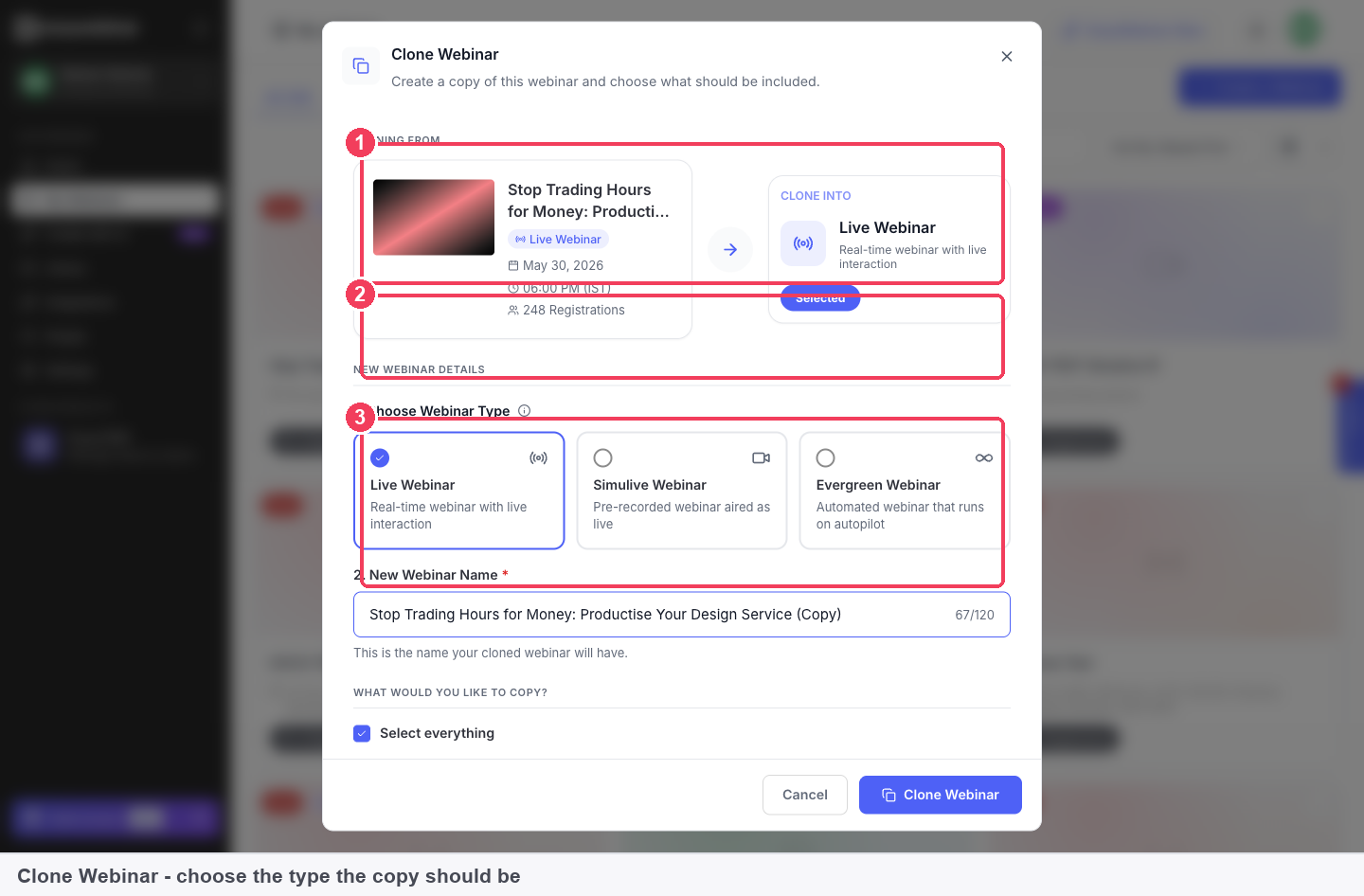
1 Cloning from · 2 Clone into · 3 Choose Webinar Type.
| Section | What it shows | |
|---|---|---|
| 1 | Cloning from | The original webinar, with its type, date and number of registrations |
| 2 | Clone into | The type the new webinar will be |
| 3 | Choose Webinar Type | The three types to pick from |
Pick the type for the copy:
| Choose | The copy becomes |
|---|---|
| Live Webinar | A webinar you present in real time |
| Simulive Webinar | A recording broadcast at the times you schedule |
| Evergreen Webinar | A recording on a continuous schedule that registrants pick from |
Choosing a different type from the original is allowed and is the main reason people clone. A live original can become simulive or evergreen, and an automated one can become live.
Step 3: Name the copy
New Webinar Name starts as the original's name with "(Copy)" on the end. Replace it with something you'll recognise in your webinar list, especially if both versions will run side by side.
Step 4: Choose what to copy
Under What would you like to copy?, tick Select everything to bring the lot, or choose item by item.
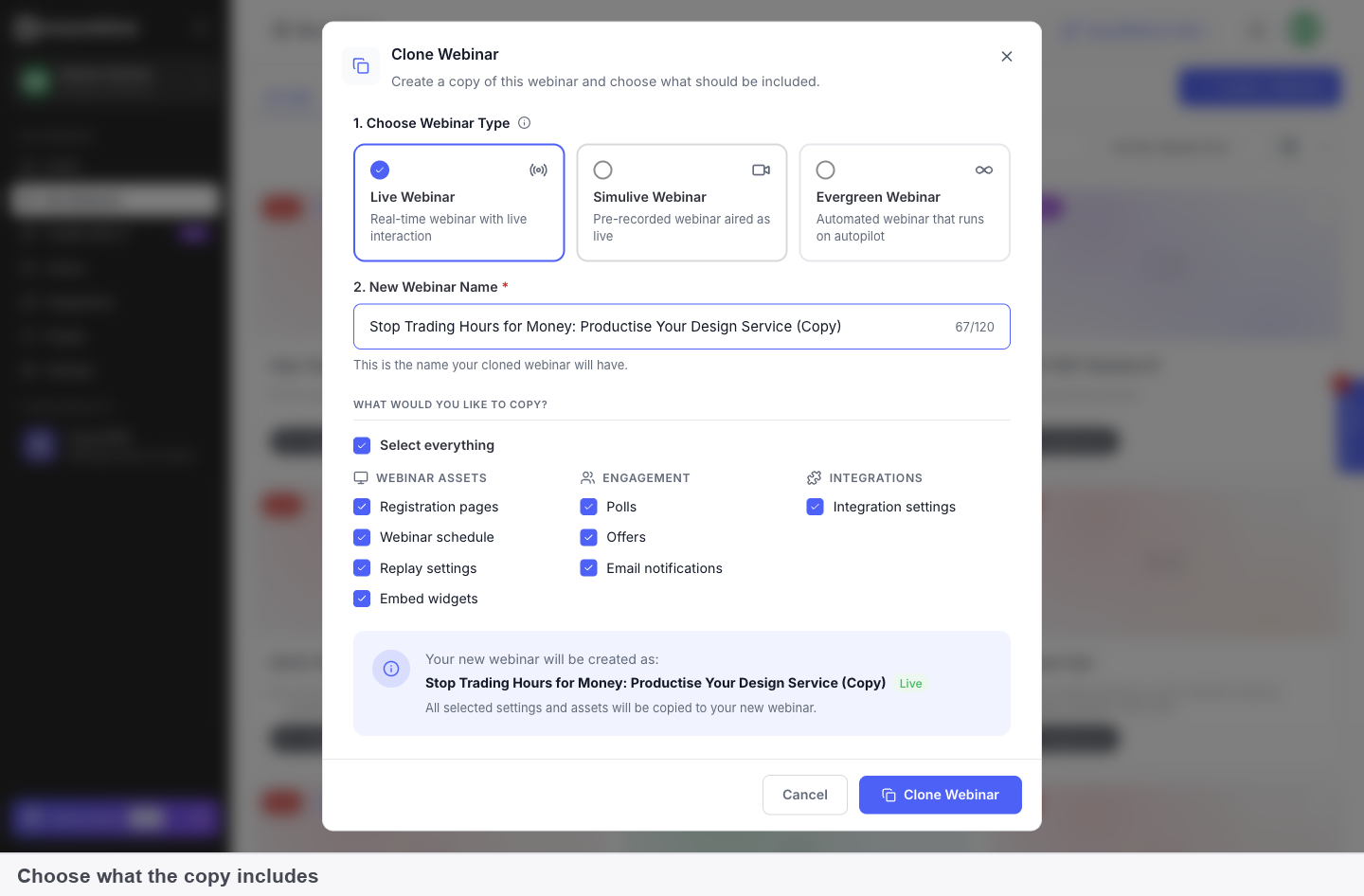
| Group | Items you can copy |
|---|---|
| Webinar assets | Registration pages · Webinar schedule · Replay settings · Embed widgets |
| Engagement | Polls · Offers · Email notifications |
| Integrations | Integration settings |
The panel at the bottom of the dialog repeats the new webinar's name and type before you commit. Read it once: it's the last chance to catch a wrong type, which can't be changed afterwards.
Step 5: Create the copy
Click Clone Webinar. The new webinar is created with the items you ticked, and the original stays exactly as it was.
Step 6: Finish a copy that changed type
A copy that keeps the original's type is ready to edit straight away. A copy that moves from live to simulive or evergreen needs one more thing: a recording to play.
- Open the new webinar and go to its Content tab.
- In the Webinar Video panel, choose the video. The recording of the original live session is in your library under Recordings, named after its webinar, with its duration and recording date.
- Open the Overview tab and check Scheduling Options. The options menu on that panel changes the schedule for the whole webinar. For what an evergreen schedule offers, see Create an evergreen webinar; for simulive, see Create a simulive webinar.
Live recordings reach the Library when Auto Recording is on in the live room's recording settings. If it was off for the original session, there will be no recording of it to use.
Verify the result
- In My Webinars, the copy appears with the new name and its type badge, and the count on the matching type tab goes up.
- On the copy's Overview tab, Registrants starts at zero.
- On the original, registrants, sessions and settings are unchanged.
- On the copy's tabs, the items you ticked are present: pages on Content, polls and offers on CTAs, emails on Notifications, and connections on Integrations.
What cloning is
Cloning copies a webinar's setup into a new, separate webinar. The copy can be edited on its own from then on; changes to one don't flow to the other. It covers the setup, not the history: registrants and attendees stay with the original, so the copy is a fresh webinar rather than a continuation.
Why cloning matters
What it's for
Cloning has three everyday uses:
- Changing the type. The type can't be edited on an existing webinar, so a copy of the right type is how you move between live, simulive and evergreen.
- Reusing a webinar that works. Pages, emails, polls and offers come across, so a new event doesn't start from blank.
- Testing a change safely. Try a different registration page or offer on a copy, leaving the webinar that's already running alone.
How it helps
- It saves the rebuild. Everything you've already written and designed can come with the copy.
- It's selective. You choose which assets come across, item by item.
- It protects what's live. The original isn't touched, so a working webinar keeps working while you experiment.
- It starts the copy clean. No registrants come across, so the new webinar's numbers are its own.
What happens without it
Without cloning, a new format means building the second version by hand. You recreate the registration page, rewrite the emails, re-enter polls and offers and reconnect integrations. Each step is a chance to introduce a difference you didn't intend.
Why buyers care
Teams that run webinars as a programme reuse what works. Copying a proven webinar, or moving it from live to automated, without a rebuild is what makes that practical.
The EasyWebinar approach to cloning
Take a typical case. A fitness coach who works alone runs a free live kick-off for her 30-day kettlebell challenge each month. About 120 people register, and each kick-off ends with an offer to join her paid coaching group.
A common approach is to rebuild the webinar every month, or to keep reusing one webinar and clear it out. Rebuilding can eat an evening of copying pages, emails and the offer by hand. Reusing one webinar tends to mix last month's sign-ups into this month's numbers.
The kick-off is the same each month apart from the date. She also wants a version that runs without her, for people who find her between challenges. Both needs call for copying the setup rather than redoing it.
EasyWebinar handles both with Clone Webinar. For each monthly kick-off, the coach clones the webinar as Live Webinar and leaves Registration pages, Offers and Email notifications ticked. For the in-between version, she clones it as Evergreen Webinar and picks her strongest kick-off recording on the copy's Content tab.
Each copy starts with no registrants, so every month's figures belong to that month, and the original stays untouched. The full list of items sits under What would you like to copy? in the dialog. How this compares with other platforms is covered in How cloning compares, below.
How cloning works with other features
Webinar types
Each type delivers content differently, but pages, emails, polls, offers and analytics are shared across all three. That's why a clone can carry those assets into a different type.
The Library and recordings
Simulive and evergreen copies play a video from the Library. Recordings of webinars you've already run appear under Recordings automatically when auto recording was on, ready to pick on the copy's Content tab. See The Library.
Registration pages and embeds
Ticking Registration pages and Embed widgets brings the original's pages and embed widgets across to the copy. Review them on the copy before promoting it, since the copy may now be a different type with a different schedule. See Registration page builder and Registration embeds.
Polls, offers and emails
Polls and Offers copy to the new webinar's CTAs tab, and Email notifications copy to its Notifications tab, if you leave them ticked. See Polls and Reminder emails.
Integrations
Integration settings carries the original's integration setup to the copy. Check the connections on the copy's Integrations tab before it goes live. See Connect a CRM and map your webinar data.
Replays
Replay settings brings the replay configuration from the original's Replay tab. See Replay pages.
Archiving
There is no Delete for webinars. If you don't need a copy, choose Archive from its card menu and it moves to the Archived tab.
Who uses cloning, and how
These are typical patterns, shown to illustrate how cloning is used.
Course creators
A creator runs a teaching webinar live a few times with recording on, then clones it as Evergreen, selects the recording of the strongest session on the copy, and sets an evergreen schedule. The live original stays as it was. See Selling online courses with webinars.
B2B marketing teams
A marketing team clones last quarter's webinar for a new topic. The registration page layout, reminder emails and integration settings come across, and the team rewrites the content rather than rebuilding the structure.
Agencies
An agency keeps a webinar it has refined over several events and clones it as the starting point for each new one, unticking anything that should be set up fresh.
Customer success teams
A customer success team that presents onboarding live clones the webinar as Simulive and chooses the live recording, so the session can run on a schedule while the team covers the chat.
How cloning compares
EasyWebinar lets you choose, item by item, what comes across to the copy. The webinar schedule can come with it, and so can the integration settings. EasyWebinar is the only platform in this table that does all three.
Cloning features, from each platform's public documentation:
| Platform | Choose items to copy | Schedule comes with the copy | Integration settings copied |
|---|---|---|---|
| EasyWebinar | Yes | Yes | Yes |
| Demio | Copies all Customize settings | Sessions not copied | Not in docs |
| StealthSeminar | Full copy only | Yes (full copy) | Yes (plugin setup) |
| eWebinar | Copies everything | Yes (everything copied) | Yes |
| Livestorm | Keeps event settings | Not in docs | Not in docs |
| WebinarNinja | Not in docs | Yes (then edit the dates) | Not in docs |
Yes: documented and built in. Partly: documented with a limit, shown in brackets. Not in docs: not found in the vendor's public documentation.
Why EasyWebinar is the stronger choice for cloning
- You pick what comes across. EasyWebinar lists eight items under What would you like to copy?, each one optional. StealthSeminar's help centre says its duplicate is a full copy of the original event. See EasyWebinar vs Stealth Seminar.
- The schedule can travel with it. Ticking Webinar schedule in EasyWebinar brings the sessions to the copy. Demio says none of the sessions are copied, which leaves a blank schedule. See EasyWebinar vs Demio.
- Integrations come along on request. EasyWebinar has an Integration settings item in the clone dialog. Livestorm's public docs show no copying of integrations. See EasyWebinar vs Livestorm.
- Less to redo after cloning. EasyWebinar can copy pages, polls, offers and emails in one pass. WebinarNinja's guide has you clone, then update the title, date and time. See EasyWebinar vs WebinarNinja.
Competitor details checked against each vendor's public documentation on 21 October 2026. Features and plans change, so confirm with the vendor before you decide.
Limits and things to know
- There is no in-place conversion. The type of an existing webinar can't be changed; only a copy can have a different type.
- Registrants and attendees stay with the original. A copy starts with no registrations.
- The copy's type is fixed once created. Check the summary at the bottom of the dialog before you click Clone Webinar.
- A recorded copy needs a video. Simulive and evergreen webinars play a recording, chosen on the Content tab.
- Recordings exist only if auto recording was on. A live session run with recording off leaves nothing in Library → Recordings.
- Copies are archived, not deleted.
Common questions
How do I change a webinar's type?
Clone it and choose the new type in the dialog. There's no way to convert a webinar in place.
Can I make a live webinar into an evergreen one?
Yes. Clone it with Evergreen as the type, then select the live session's recording on the copy's Content tab.
Do registrants come with the copy?
No. The copy starts with no registrations.
Does cloning change the original?
No. Cloning only creates something new.
Can I copy the pages but not the emails?
Yes. Untick Email notifications under What would you like to copy?
Do polls and offers come across?
Yes, if Polls and Offers are ticked.
What is the copy called?
It starts with the original's name plus "(Copy)". You can change it in the dialog.
How do I get rid of a copy I don't need?
Archive it from its card menu. Webinars are archived rather than deleted.
Where is the recording of my live webinar?
In Library → Recordings, if Auto Recording was on during the session.
Should I clone before testing changes on a running webinar?
Yes. Make your changes on a copy so the webinar that's already working stays untouched.
Related
- Create an evergreen webinar: the schedule options to set on a copy cloned as evergreen.
- Create a simulive webinar: what a copy cloned as simulive needs before its first session.
- Create and schedule a live webinar: building a webinar from scratch when there is nothing to copy.
- The Library: where the recording of a live original waits to be picked.
- The Overview tab: checking the copy's schedule and its empty registrant count.
- Selling online courses with webinars: the live-then-automate pattern that cloning makes possible.
Create an evergreen webinar
Build an evergreen webinar in EasyWebinar that plays a recording on a continuous schedule, with just-in-time sessions, On Demand viewing and recurring daily or weekly times your registrants choose from.
Just-in-time webinars
How Just-in-time Registration works on EasyWebinar's evergreen webinars, which interval to choose, how it handles each attendee's local time, and how to test it.