
 Product documentation
Custom registration fields
Add a phone field, your own custom questions, a GDPR consent checkbox and UTM campaign capture to an EasyWebinar registration form, and see where that data shows up afterwards.
- Applies to
- Live, simulive and evergreen webinars
- Status
- Live
- Verified
- Page type
- Feature
An EasyWebinar registration form starts with two required fields, Full name and Email. Select the form block in the page builder and you can add a Phone field, add your own custom fields, turn on a GDPR Compliance consent checkbox, and turn on UTM Params so each registration records the campaign that brought it in. What you collect then shows up in the People view and can be mapped into a connected CRM.
At a glance
| Where you set it | Webinar → Content → Edit on Registration Page → select the form block |
| Default fields | Full name and Email, both required |
| Extra fields | A Phone field, and your own custom fields with Add Custom Field |
| Consent | GDPR Compliance adds a consent checkbox you word yourself and can make mandatory |
| Campaign capture | UTM Params records the campaign behind each registration |
| Button | The submit button can be restyled |
| Where the data shows | People view (including the Phone column and the Source & UTM filter), Export, and CRM custom-field mapping |
| Webinar types | Live, simulive and evergreen; the form block is on every registration page |
What custom registration fields are
The registration form is a block on the registration page, like the countdown or a heading. Its settings decide what a person is asked when they sign up. Out of the box it asks for a name and an email address, both required.
The form block's settings add four things on top of that:
| Option | What it adds |
|---|---|
| Phone | A phone number field |
| Custom fields | Your own questions, for anything you need to ask |
| GDPR Compliance | A consent checkbox, with wording you write and an option to make ticking it mandatory |
| UTM Params | Campaign capture: each registration records which tagged link brought the person in |
You can also restyle the form's submit button from the same place.
Why custom fields matter
What it's for
Custom fields let the registration form collect what your follow-up actually needs. That might be a phone number for text reminders or a question about who is attending. It might also be consent, or the campaign each person came from.
How it helps
- It makes text reminders possible. SMS and WhatsApp reminders (both in Beta) go to the number someone gave you, so they depend on the Phone field.
- It tells you who registered, not just how many. A custom question gives you context before the session starts.
- It puts consent on the form. GDPR Compliance adds the checkbox with your own wording, so you don't need a separate consent step.
- It shows which campaign worked. With UTM Params on, you can filter registrants by Source & UTM in the People view.
- It feeds your CRM. The phone number can be mapped into a CRM field of your choice.
What happens without it
With only name and email, you know how many people registered but little else. You can't text anyone, and you can't tell which ad, email or post sent them. The registration count goes up, and the reason why is lost.
Why buyers care
For teams that run webinars to generate leads or sell, the registration form is where first-party data starts. It matters most to whoever follows up, in the first days after a session. That's when a role, a phone number or a campaign tag decides who hears from you first.
The EasyWebinar approach to custom fields
Take a typical case. A five-person cybersecurity consultancy runs a quarterly live briefing on ransomware readiness for IT managers at mid-sized firms. It wants each registrant's role and company size, so its two consultants follow up with the right people. It also needs consent before any marketing email goes out.
A common route is to collect the extra details in a separate form tool, then match those answers to the webinar's registrant list by hand. That can work for a small list. But the matching probably eats an afternoon each quarter, and consent records can end up split across two systems.
The person signing up is the person answering the questions. So it makes sense to ask everything in one form, at the moment they register. Then the answers, the consent and the campaign all stay on the same record.
EasyWebinar puts those options on the registration form block itself. EasyWebinar lets you add custom fields and a Phone field, turn on GDPR Compliance with your own wording, and turn on UTM Params. What people enter then shows up in the People view, ready to filter and export.
Select the form block in the page builder and look at the settings panel. GDPR Compliance and UTM Params sit there alongside the fields themselves. How that setup sits against other platforms is covered in How custom fields compare, below.
Set up the registration form
- Open your webinar and click the Content tab.
- Click Edit on the Registration Page card. The page opens in the builder.
- Click the form block on the canvas. An orange toolbar appears above it, and the settings panel on the right fills with the form's options across Settings and Advanced tabs.
- Add the Phone field if you'll want to text people or keep their number.
- Click Add Custom Field for each extra question you want to ask.
- Turn on GDPR Compliance if you ask for marketing consent. Write the consent wording, and choose whether ticking it is mandatory.
- Turn on UTM Params to record the campaign behind each registration.
- Restyle the submit button if it needs to match your page.
- Use the device toggle to check the form on mobile, then Preview, Save and Publish.
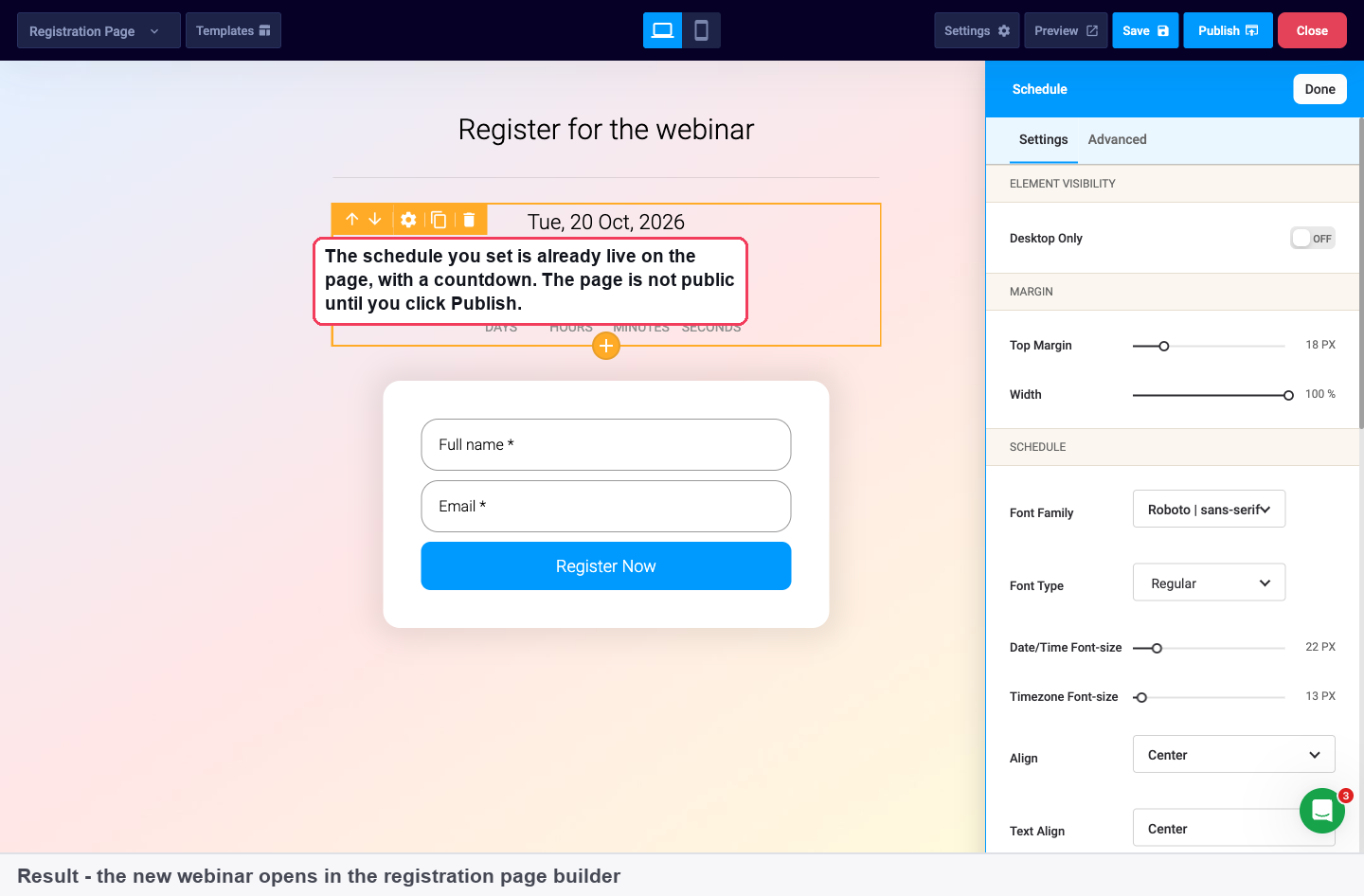
The default form, with Full name and Email, as it appears when a new webinar opens in the builder.
Publish the page
Form changes reach visitors only once the page is published. Save keeps a draft; Publish makes it public.
Capture campaigns with UTM Params
UTM Params is a switch on the form block. Once it's on, each registration records the campaign that brought it in.
- Turn on UTM Params on the form block and publish the page.
- Tag the links you share as you normally would, in ads, emails and posts.
- Open People in the sidebar, click Add Filter, and choose Source & UTM to see which campaign each registrant came from.
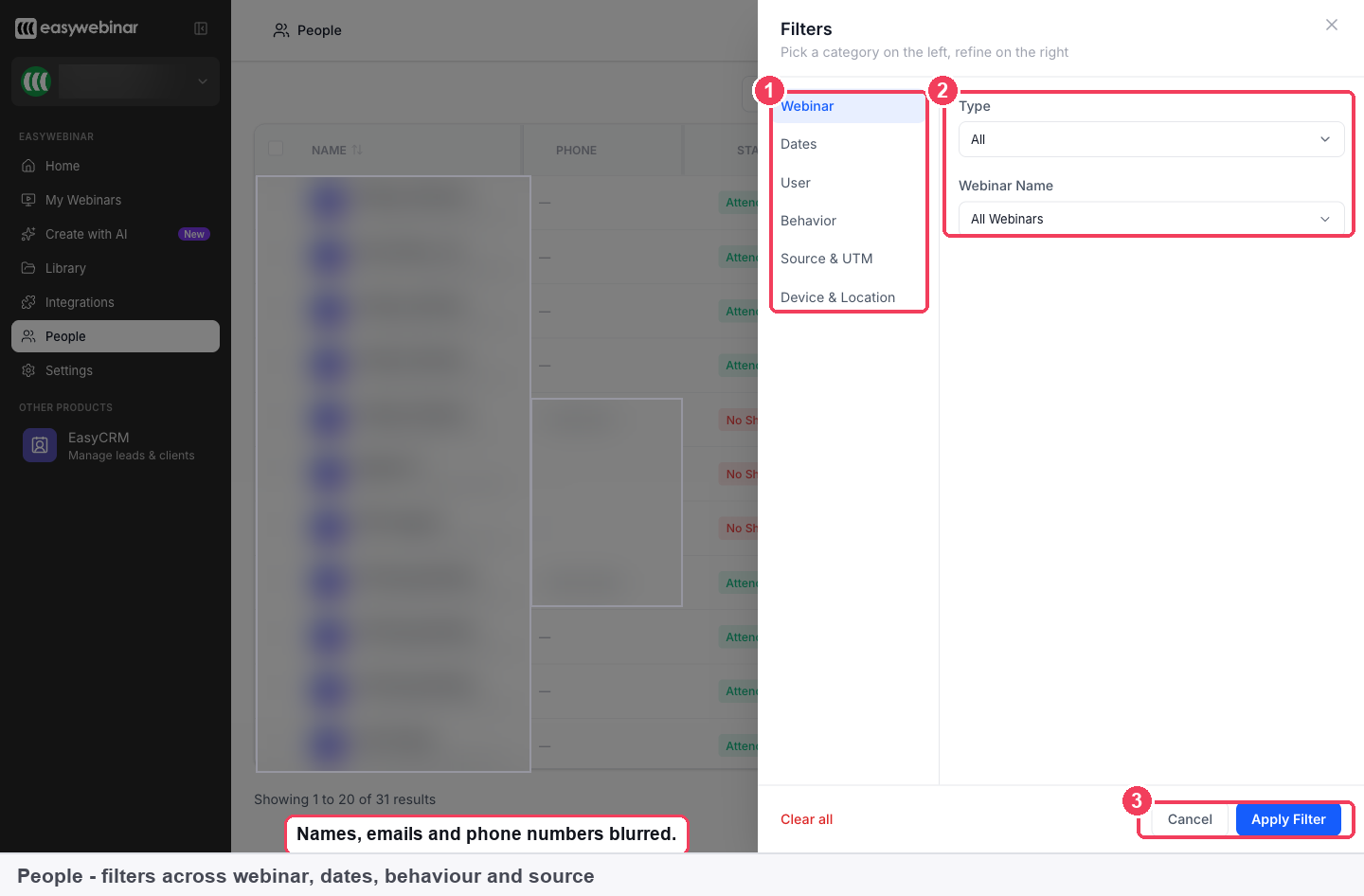
1 Categories · 2 Refinements · 3 Apply Filter.
Because People also shows who attended, this gives you campaign attribution against real attendance, not just clicks. If you also use ad pixels, they tell your ad platform what happened; UTM capture shows the same story inside EasyWebinar.
Ask for consent with GDPR Compliance
Turning on GDPR Compliance on the form block adds a consent checkbox to your form.
- Write the wording yourself. Say what the person is agreeing to, in your own words.
- Make it mandatory if you need to. You can require the box to be ticked before someone can register.
The checkbox is a form option. What it asks for, and how you use the data afterwards, is yours to decide.
Where the data goes
The People view
People in the sidebar lists every registrant and attendee across all your webinars, one row per person per webinar. Columns include Name and email, Phone (if you collected it), the webinar and its type, the session, and when they registered. Use Columns to choose what appears.
| To find | Use |
|---|---|
| Who came from a campaign | Add Filter → Source & UTM (needs UTM capture on the form) |
| Registrants for one webinar | Add Filter → Webinar |
| A list to work with elsewhere | Filter first, then Export |
Export downloads the filtered list.
Your CRM
A connected CRM or email tool has a Custom fields tab that sends webinar details into your CRM's own fields. The data it lists is:
| Webinar data | What it's for |
|---|---|
| Webinar Title | Which webinar this contact came from |
| Webinar Join Link | The attendee's personal join link |
| Webinar Join Short Link | A shortened version |
| Webinar Replay Link | Their replay link |
| Webinar Replay Short Link | A shortened version |
| Phone Number | Their phone, if collected |
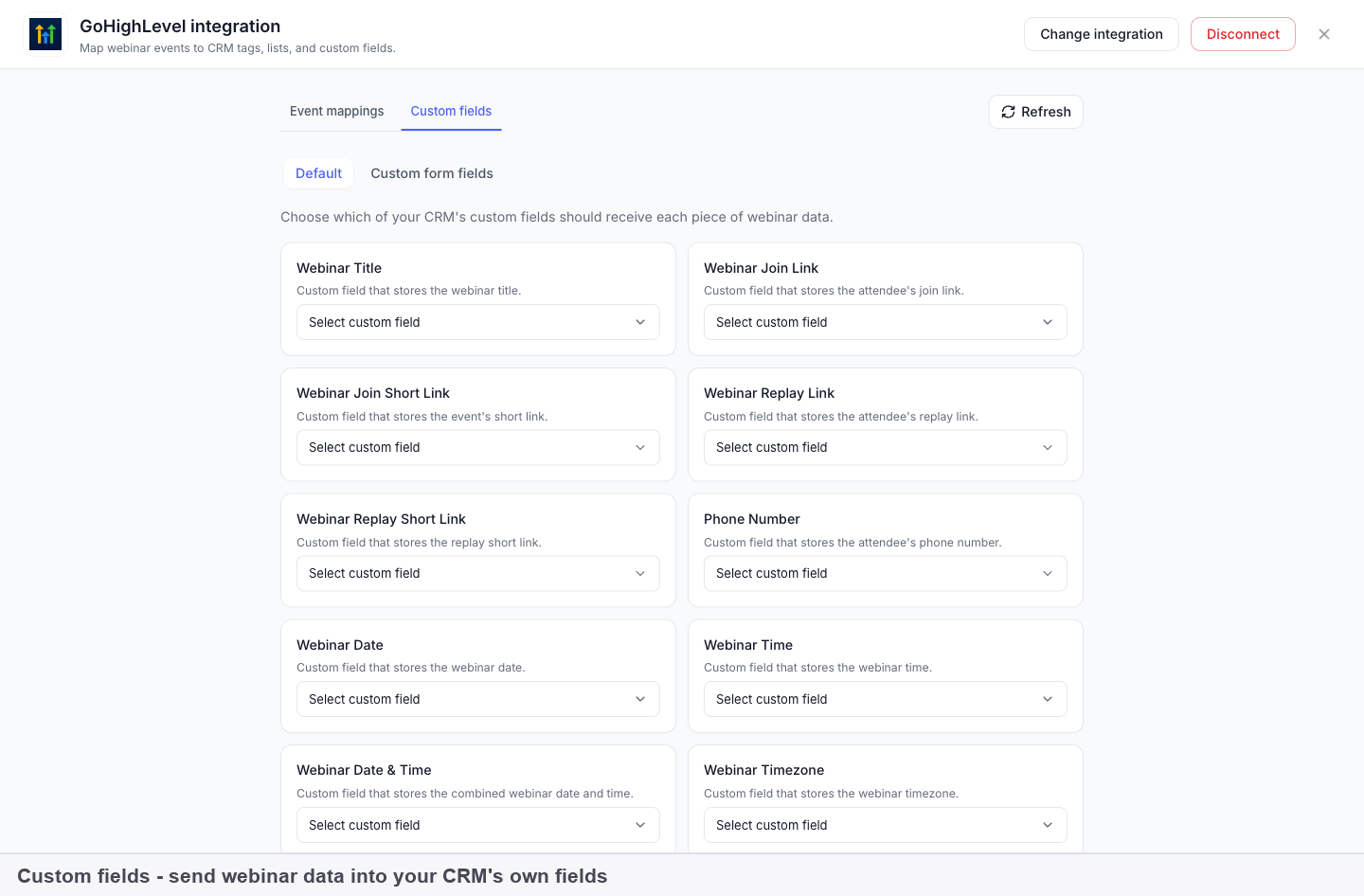
Pick the matching CRM field beside each item. The field must already exist in your CRM; after creating one there, click Refresh. Integrations are set per webinar.
Text reminders (Beta)
SMS and WhatsApp notifications, both in Beta, are set on the Notifications tab and go to the phone number from your registration form. Without the Phone field on the form, there's nobody to message. Reminder emails cover the email side.
How custom fields work with other features
The page builder
The form is one block on the registration page. Everything else on the page, from the template to the countdown and page-wide settings, is covered in Registration page builder.
Tracking pixels
UTM capture and ad pixels answer different questions. Pixels go in Tracking Code on the webinar's Settings tab and report to your ad platform. UTM Params keeps the campaign with the registrant inside EasyWebinar.
Analytics
The webinar's Analytics tab counts visitors and registrations. The People view's Source & UTM filter shows which campaign produced attendees, not just registrations.
Cloning
Cloning a webinar can copy its registration pages, so a form you've set up once can carry into the copy.
Who uses custom fields, and how
These are typical patterns, shown to illustrate how the form options fit different kinds of webinar.
Course creators
A course creator adds a custom field asking for the student's current level, so the pitch at the end can speak to beginners and advanced students differently. UTM Params shows which posts and emails filled the session.
B2B marketing teams
A marketing team runs paid ads to a webinar. It turns on UTM Params, tags each ad, and filters People by Source & UTM after the session to compare campaigns by who actually attended. The phone number is mapped into the CRM so sales has it.
Coaches and consultants
A coach adds the Phone field so the final reminder can go by text (Beta), and turns on GDPR Compliance with a mandatory checkbox agreeing to follow-up emails.
Agencies
An agency running webinars for clients sets the consent wording to each client's own policy and exports the filtered registrant list for the client after each session.
How custom fields compare
EasyWebinar keeps your own questions, a consent checkbox and campaign capture together on one form block. Its Phone field also feeds SMS reminders (Beta), sent from an EasyWebinar number. EasyWebinar is the only platform in this table that does all four.
Registration form features, from each platform's public documentation:
| Platform | Your own questions on the form | Consent checkbox on the form | Campaign (UTM) capture per registrant | SMS reminders to the form's phone number (Beta) |
|---|---|---|---|---|
| EasyWebinar | Yes | Yes | Yes | Yes |
| Demio | Yes | Partly (account setting adds a default) | Yes | Partly (through a Zapier workaround) |
| WebinarJam | Yes | Yes (terms agreement checkbox) | Yes | Partly (needs your own Twilio account) |
| eWebinar | Yes | Yes | Partly (captured through widgets) | Partly (through a Twilio integration) |
| Livestorm | Yes | Yes (custom consents) | Yes | Not in docs |
| StealthSeminar | Yes | Partly (one setting for all forms) | Yes | Yes |
Yes: documented and built in. Partly: documented with a limit, shown in brackets. Not in docs: not found in the vendor's public documentation.
Why EasyWebinar is the stronger choice for custom fields
- Consent is set on the form you're editing. EasyWebinar's GDPR Compliance switch sits on the form block, with your own wording. Demio adds a default GDPR checkbox through an account setting. See EasyWebinar vs Demio.
- Consent can differ from one webinar to the next. StealthSeminar's GDPR option shows one consent checkbox on all its registration forms. Compare EasyWebinar vs StealthSeminar.
- Campaign capture is a switch on the hosted form. EasyWebinar's UTM Params records the campaign behind each registration, while eWebinar describes UTM capture as a job for its widgets. More in EasyWebinar vs eWebinar.
- Text reminders need no SMS account of your own. EasyWebinar's SMS reminders (Beta) come from an EasyWebinar number, while WebinarJam asks you to connect your own Twilio account. Read EasyWebinar vs WebinarJam.
Competitor details checked against each vendor's public documentation on 21 October 2026. Features and plans change, so confirm with the vendor before you decide.
Limits and things to know
- Full name and Email come first, both required. Phone, custom fields, consent and UTM capture are options you add.
- UTM filtering needs UTM capture. The Source & UTM filter depends on UTM Params being on in your registration form.
- CRM fields must exist first. Create the field in your CRM, then click Refresh before mapping.
- Text reminders depend on the Phone field. SMS and WhatsApp are in Beta.
- Nothing changes for visitors until you publish.
Common questions
What does the registration form ask by default?
Full name and Email, both required.
Can I collect a phone number?
Yes. Select the form block in the page builder and add the Phone field.
Can I add my own questions?
Yes. Use Add Custom Field on the form block for anything you need to ask.
How do I ask for marketing consent?
Turn on GDPR Compliance on the form block. You write the consent wording and can make ticking it mandatory.
How do I see which campaign a registrant came from?
Turn on UTM Params on the form, tag your links, then filter People by Source & UTM.
Why is my Source & UTM filter empty?
UTM filtering needs UTM capture turned on in the registration form. Turn on UTM Params and tag the links you share.
Can I send the phone number to my CRM?
Yes. On the integration's Custom fields tab, map Phone Number to a field in your CRM.
Why can't I send text reminders?
SMS and WhatsApp (both Beta) go to the phone number from the registration form. Add the Phone field first.
Can I export what people entered?
Yes. Filter the People view, then Export the list.
Do I need to publish after changing the form?
Yes. Save keeps a draft; the change reaches visitors once you click Publish.
Related
- Registration page builder: the rest of the page around the form block, and how to publish it.
- Connect a CRM and map your webinar data: send the phone number and join links into your CRM's own fields.
- Registration embeds: put this same form on your own site.
- Course creators: where the registration form fits in a full course launch.
Registration page builder
How EasyWebinar's drag-and-drop page builder creates and publishes a webinar's registration page, from picking a template and editing blocks to page-wide settings, AI-written pages and paid registration.
Registration embeds
Put an EasyWebinar registration form on your own website with the Registration Widget embed code, and decide when to use the widget instead of the registration page link.