
 Product documentation
Registration page builder
How EasyWebinar's drag-and-drop page builder creates and publishes a webinar's registration page, from picking a template and editing blocks to page-wide settings, AI-written pages and paid registration.
- Applies to
- Live, simulive and evergreen webinars
- Status
- Live
- Verified
- Page type
- Feature
The registration page is the page people see before they sign up, and the link you promote. EasyWebinar builds it in a drag-and-drop page builder that already carries your webinar's date, time and timezone, with a countdown and a name-and-email form in place. You choose a template, edit blocks on a canvas, check the mobile layout, and click Publish to make the page public. The same builder edits the webinar's other four pages.
At a glance
| Where you edit it | Webinar → Content → Edit on Registration Page. A new webinar also opens straight into it |
| Starting point | A template chosen at creation, or Build Your Own for a blank page |
| Template categories | All Templates, Agency, Coach, Education, Health & Wellness, Lead Magnet, Marketing, My Templates |
| Already on the page | The webinar date, time and timezone, a countdown, and a form with Full name and Email |
| Page-wide settings | Page Background, Typography, Tracking Code, SEO Options, Social Sharing (Open Graph), Custom CSS |
| Device check | A device toggle switches the canvas between desktop and mobile |
| Going public | Save keeps a draft; Publish makes the page public |
| AI option | Create with AI writes the registration, thank-you and waiting-area pages from your script |
What the registration page builder is
Every webinar has five pages that its audience moves through: Registration Page, Thank you Page, Waiting Area, Webinar Page and Replay Page. All five open in the same builder, and all five already know when your webinar runs.
The registration page matters most because it carries your signups. It's built from blocks, such as the date and countdown block and the form block, plus whatever else the template includes. You select a block on the canvas to change it, add new blocks underneath, and set page-wide options such as fonts, background and tracking from the top bar.
Each page has a working default, so you don't have to design any of them. If you only have time for two, make them the registration page and the replay page.
Why the registration page builder matters
What it's for
The registration page turns interest into a registrant. It says what the webinar is and when it runs, then asks for the details you need. After that, it hands each person on to the thank-you page.
How it helps
- It starts filled in. The schedule and countdown are applied when the webinar is created, so the page works before you touch it.
- You edit what you see. Changes happen on the canvas, with a settings panel for the block you select.
- You can check the phone layout. The device toggle shows the mobile version without leaving the builder.
- It can carry your tracking. Pixels and analytics scripts go on the page from the builder's settings.
- Drafts stay private. Save keeps your work, and visitors see nothing new until you Publish.
What happens without it
Without a registration page, people have nowhere to sign up. Your posts and emails create interest, but that interest never becomes a name on your list. You also lose the first number in your funnel: how many people saw the invitation and said yes.
Why buyers care
The registration page decides how much of your promotion becomes an audience. It matters most to whoever pays for the traffic, in the weeks before a session. That's when a page that matches your brand and shows which campaign drove each signup earns its keep.
The EasyWebinar approach to the registration page builder
Take a typical case. A wedding photography educator runs a free live workshop on posing couples each month, with one assistant helping her. Each workshop feeds a small paid mentoring group, and her goal is about 150 signups from Instagram and her email list.
A common route is to design the page in a separate landing page tool, then connect its form to the webinar platform. Each month, someone retypes the new date on the page. That can work. But each handoff is a place where a form breaks or an old date slips out. The cost likely shows up only as fewer signups.
The page and the webinar describe the same event. So it makes sense for the page to read the schedule from the webinar, not from a copy someone keeps in step. When the date lives in one place, the page and the session can't disagree.
EasyWebinar builds the registration page inside the webinar itself. EasyWebinar fills in the date, time, timezone and a countdown when the webinar is created. It also puts a name and email form in place. EasyWebinar keeps templates you've saved under My Templates, so each month's workshop can start from her own styled design.
Open the template step of the create flow. Next to Education, Coach and the other categories, the filter row includes My Templates. How that setup sits against other platforms is covered in How the registration page builder compares, below.
Choose a template
You pick the registration page's look on Step 4 of 4 — Registration Template when you create a webinar manually.
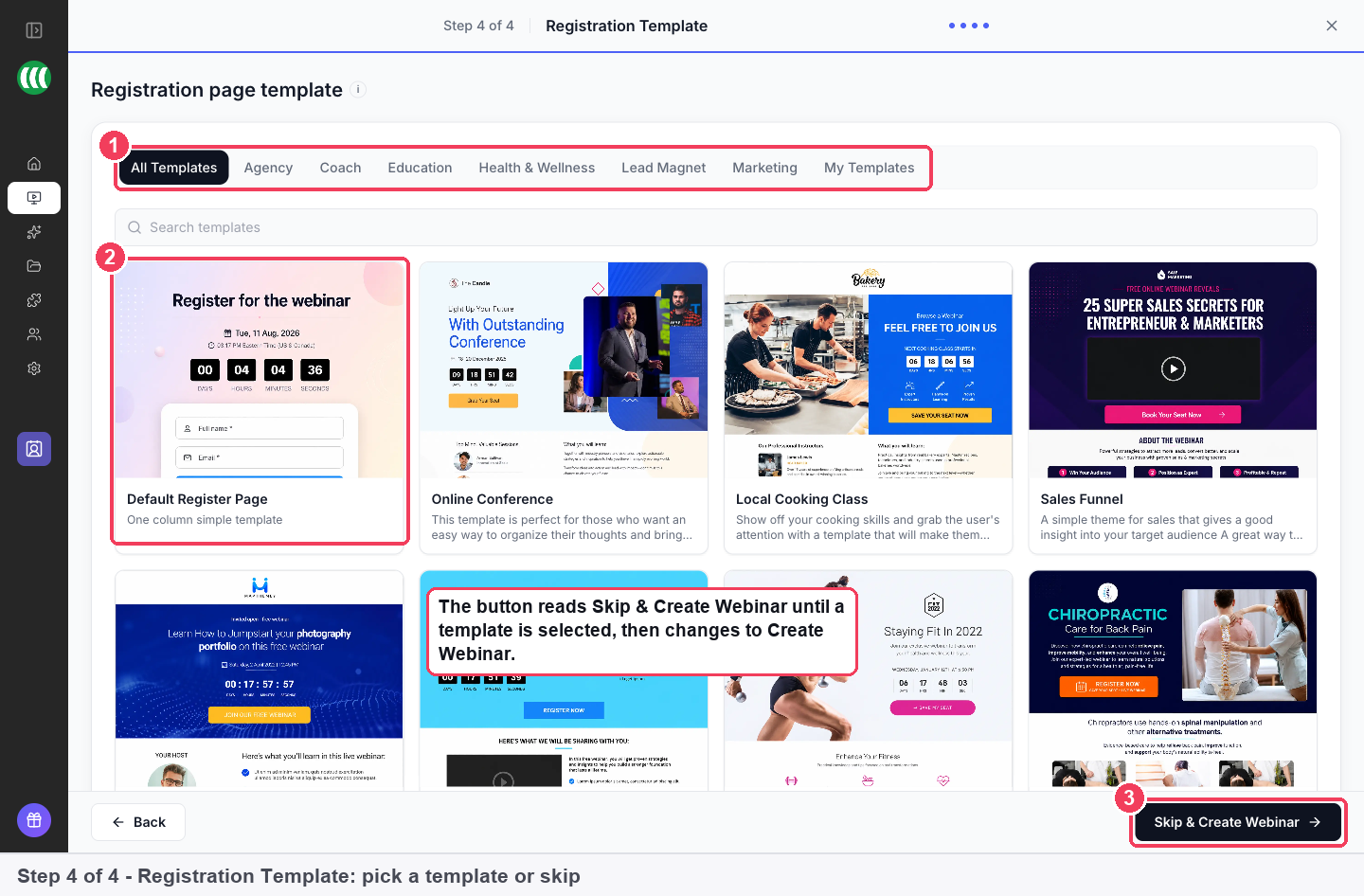
1 Category filters · 2 Template cards · 3 The create button.
- Filter by category: All Templates, Agency, Coach, Education, Health & Wellness, Lead Magnet or Marketing. My Templates holds templates you've saved yourself.
- Click a template. Default Register Page is the simplest one-column option; Build Your Own starts from a blank page.
- Click Create Webinar.
You can skip this step: until you select a template, the button reads Skip & Create Webinar, and you can choose a template later.
On a paid webinar, the template you pick includes the price automatically.
Change the template later
Inside the builder, Templates in the top bar swaps the design for a different one. Templates are chosen per page, so each of the five pages can use a different one. Changing a template replaces that page's layout, so settle on one before you do detailed editing.
Open the builder
When you create a webinar, it opens straight into the registration page builder with your schedule applied and a live countdown to the session. To come back later:
- Open your webinar and click the Content tab.
- Click Edit on the Registration Page card.
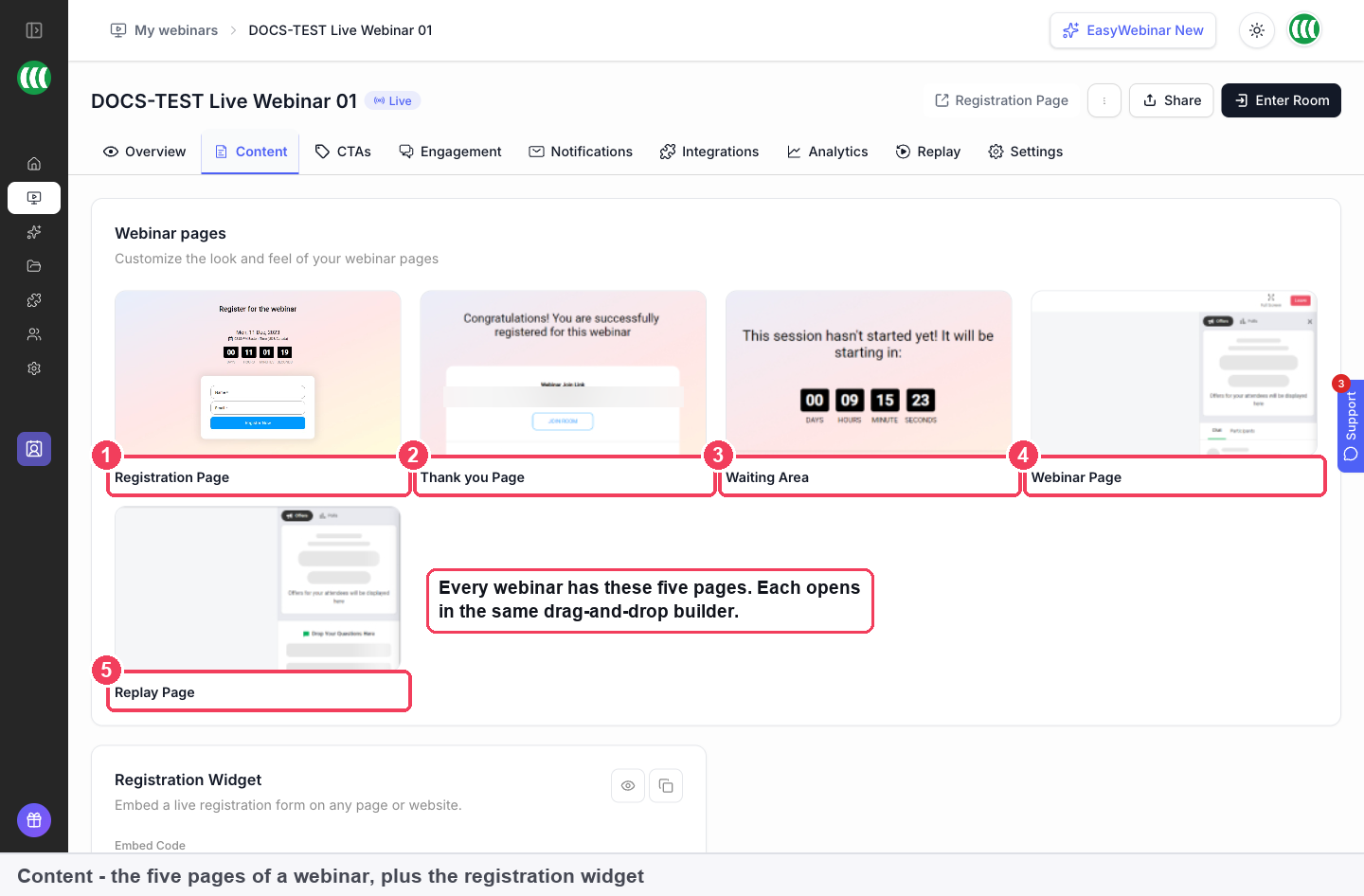
1 Registration Page · 2 Thank you Page · 3 Waiting Area · 4 Webinar Page · 5 Replay Page.
The builder controls
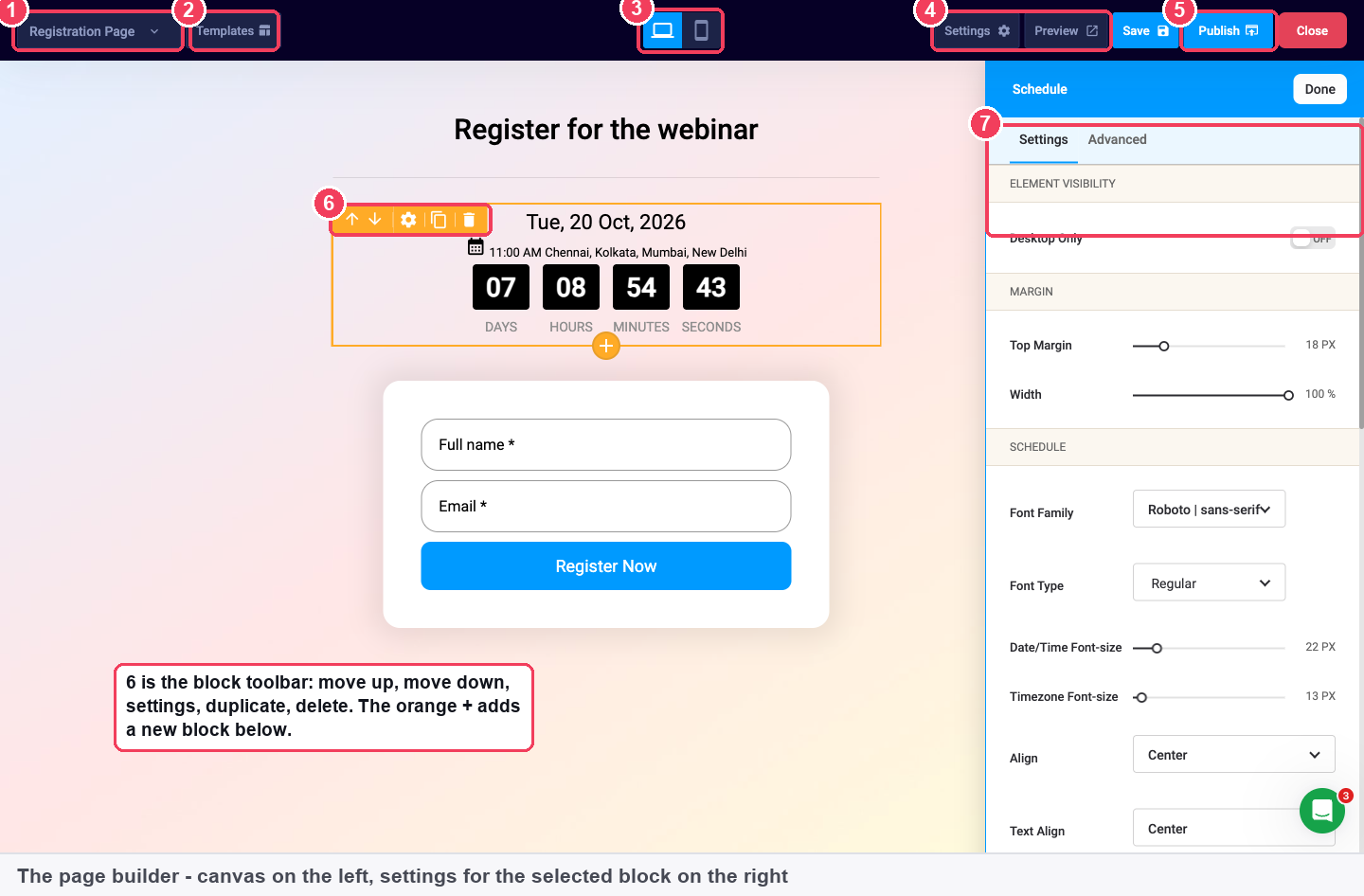
| Control | What it does | |
|---|---|---|
| 1 | Page switcher | Moves between all five pages without leaving the builder |
| 2 | Templates | Swaps the design for a different template |
| 3 | Device toggle | Switches the canvas between desktop and mobile |
| 4 | Settings · Preview | Settings for the whole page; Preview opens it in a new tab |
| 5 | Save · Publish | Save keeps a draft, Publish makes it public |
| 6 | Block toolbar | Move up, move down, settings, duplicate, delete |
| 7 | Settings panel | Everything about the block you've selected |
Edit blocks
- Click any block on the canvas. An orange toolbar appears above it, and the right-hand panel fills with that block's settings.
- Change what you need across the panel's Settings and Advanced tabs.
- Use the toolbar to move the block up or down, duplicate it or delete it.
- To add a block, use the orange + below an existing block. The new one goes underneath.
The countdown block
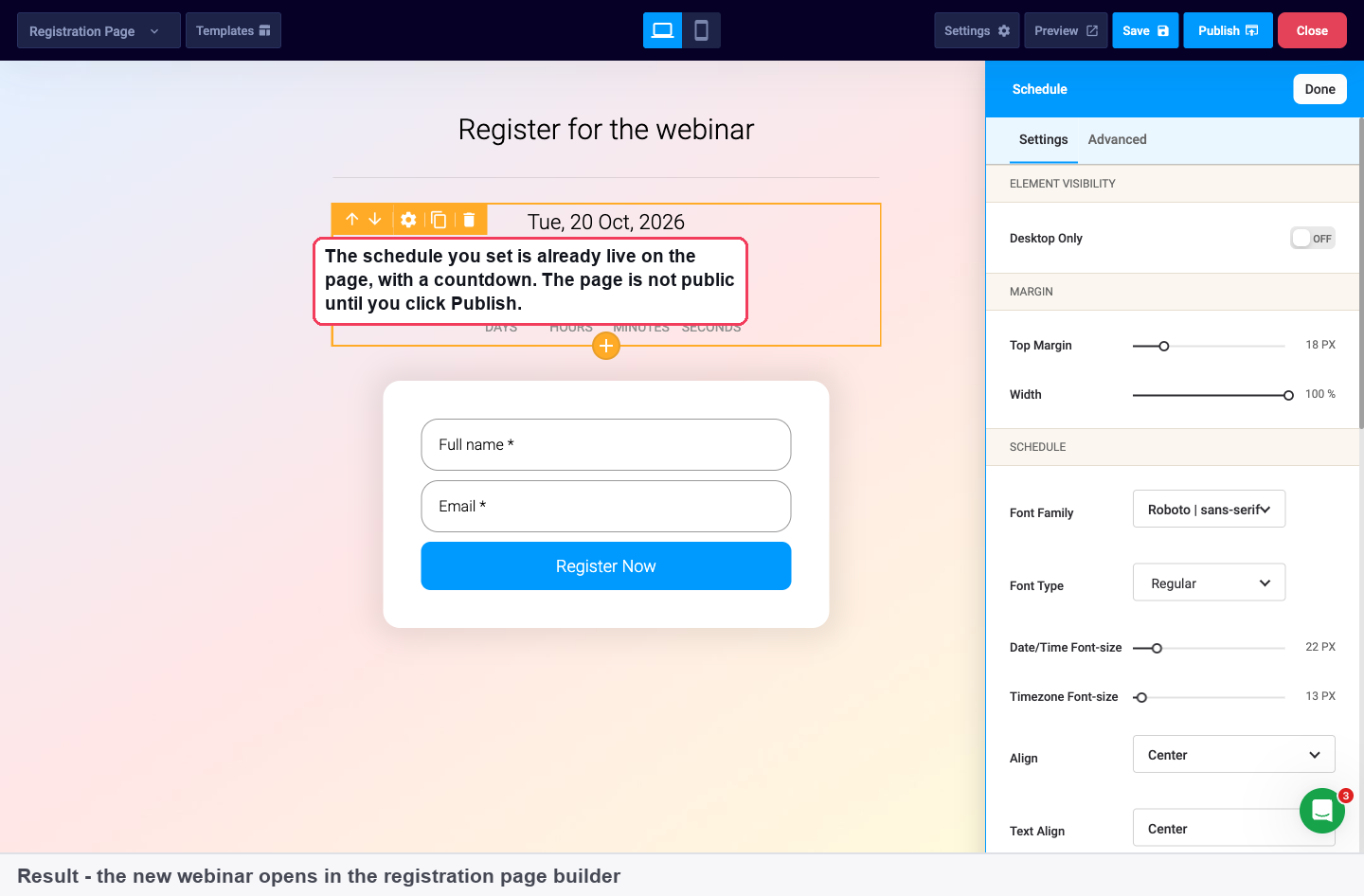
New registration pages show the date, time and timezone with a countdown to the session. Selecting that block gives you its visibility (including a Desktop Only option), its margins and width, and the fonts, sizes and alignment for the date, time and timezone.
The form block
The form starts with Full name and Email, both required. Selecting the form block lets you add a Phone field and your own custom fields, turn on GDPR Compliance and UTM Params, and restyle the submit button. Each of these is covered under Custom fields, consent and UTM capture below.
Page settings
Settings in the builder's top bar applies to the whole page rather than one block.
| Setting | What it covers |
|---|---|
| Page Background | Background colour or image, and how it fills the page |
| Typography | The page's default fonts |
| Tracking Code | Scripts you want running on the page, like analytics or ad pixels |
| SEO Options | The title and description search engines show |
| Social Sharing (Open Graph) | How the page looks when someone shares the link |
| Custom CSS | Your own styling, for anything the controls don't reach |
The tracking, SEO, social and CSS areas also appear on the webinar's Settings tab, where they cover every page at once. Set them there to cover the whole webinar, or here for one page.
Preview, save and publish
- Use the device toggle to check the mobile layout. Most of your registrations will come from phones.
- Click Preview to open the real page in a new tab.
- Click Save to keep your work as a draft.
- Click Publish to make it public.
Saving isn't publishing
Your registration link doesn't work until the page is published. Creating the webinar doesn't make it public either. Each of the five pages has its own Publish button.
Let AI write the pages
Create with AI can build your pages as part of a full webinar. After it writes the script, the pages step asks you to choose AI picks for you, which auto-selects a template, or Choose manually to browse.
The AI then writes your registration page, thank-you page and waiting area, using the script as source material: headline, what you'll learn, instructor bio and the rest. The pages open in an editor with Edit, Preview, SEO and Scripts tabs, and a desktop and mobile view. Treat the output as a strong first draft; afterwards, pages open in the normal builder.
| Credits for landing pages | 10, out of about 23 for a full build |
| Generate only pages? | Possible: turn off the chips you don't want before generating |
| Before publishing | Read the copy, especially around pricing and what's included |
Registration pages on paid webinars
When you choose Paid at creation, the registration page shows the price above the form. The price option (pricing title, description and price) is selected by default, and Register Now takes the attendee to checkout instead of registering them straight away.
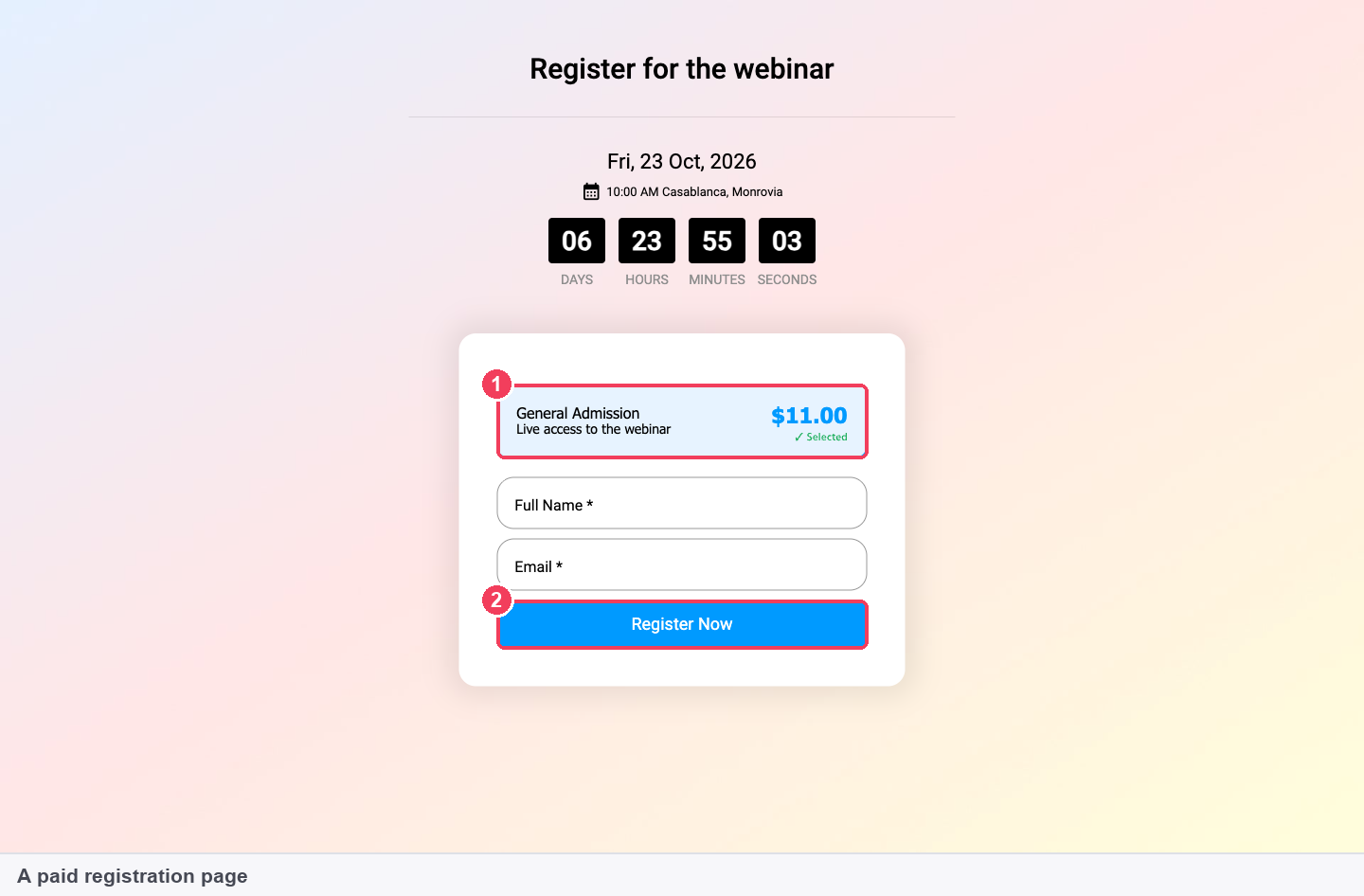
1 Price option · 2 Register Now.
The price block is added only when Paid is chosen at creation. A free webinar converted to paid afterwards keeps the free form, so choose Paid at creation if you want to charge.
How the builder works with other features
Custom fields, consent and UTM capture
The form block is where you collect more than name and email.
Embedding the form on your own site
The Registration Widget on the Content tab gives you embed code to put the form on your own page instead of sending people to the EasyWebinar page.
Share links
The Registration Page Link in the Share dialog is the published page's address, and the Registration Page button on the webinar header opens the live page.
Tracking pixels
On the webinar's Settings → Tracking Code sub-tab, you pick a page and paste code into Header Code, Body Code or Footer Code. Tracking code is set per page. The registration page tells your ad platform who was interested; the thank-you page, which only loads after someone registers, is the reliable conversion signal.
Your domain and branding
Your registration page lives on your subdomain, ending in .easywebinar.live, set in your profile. The C-Name add-on, with a CNAME record at your DNS provider, puts the pages on your own domain. The White Label add-on removes EasyWebinar branding. Changing your subdomain changes your existing links, so set it before you promote anything.
Language and date format
Webinar Language, Date Display Language, Date Format and Time Format on the webinar's Settings tab control how the webinar reads to attendees. Set them before you promote, so the registration page and emails match. EasyWebinar doesn't translate your own copy; the page says whatever you wrote.
Analytics
On the Analytics tab, Visitors counts unique IPs on your landing page and Registered counts unique sign-ups. A low Visitors to Registered rate points at the page itself: the headline, the form, the promise.
Cloning
Clone Webinar can copy registration pages into a new webinar. To try a different registration page on a webinar that's already running, clone it and change the copy.
Who uses the registration page builder, and how
These are typical patterns, shown to illustrate how the builder fits different kinds of webinar.
Course creators
A course creator starts from an Education template and saves their styled version to My Templates, so every launch looks consistent. They add a field asking for the student's current level and turn on UTM capture to see which posts drive signups.
Agencies
An agency builds registration pages for several clients. It works from the Agency or Marketing templates, applies each client's fonts and background in Settings, and pastes the client's pixel into Tracking Code so the client's ad account sees the traffic.
SaaS and product teams
A product team runs a recurring demo webinar. It lets Create with AI draft the registration page from the demo script, edits the headline and bio, and checks the page on mobile before publishing.
Small businesses and solo operators
A solo operator picks Default Register Page, changes the headline and background, and publishes. Every page has a working default, so the thank-you and replay pages can wait.
How the registration page builder compares
EasyWebinar's builder starts you from a ready-made template, can have AI write the page copy from your script, and puts a countdown on the registration page itself. EasyWebinar is the only platform in this table that does all three.
Registration page features, from each platform's public documentation:
| Platform | Ready-made page templates | AI writes the page copy | Countdown on the registration page |
|---|---|---|---|
| EasyWebinar | Yes | Yes | Yes |
| Demio | Yes (Accent, Gradient, Background Image) | Not in docs | Yes (top of the form) |
| WebinarJam | Yes | Not in docs | Partly (on a separate countdown page) |
| eWebinar | Yes | Yes | Partly (widgets on your own page) |
| Livestorm | Partly (Detailed and Light layouts) | Not in docs | Partly (waiting page, before the event) |
| StealthSeminar | Yes | Not in docs | Partly (as an embeddable widget) |
| WebinarKit | Yes | Yes | Partly (thank-you page embeds) |
Yes: documented and built in. Partly: documented with a limit, shown in brackets. Not in docs: not found in the vendor's public documentation.
Why EasyWebinar is the stronger choice for registration pages
- The countdown sits on the page you promote. EasyWebinar adds it to every new registration page, while WebinarJam shows its start countdown on a separate holding page. See EasyWebinar vs WebinarJam.
- AI drafts the whole set of pages. Create with AI writes the registration, thank-you and waiting-area pages from your script, while Demio's public docs describe no AI page writing. Compare EasyWebinar vs Demio.
- Templates come sorted by business type. EasyWebinar sorts templates by business type, while Livestorm applies one set of design settings to its Detailed and Light pages. More in EasyWebinar vs Livestorm.
- The countdown is native, not a widget. EasyWebinar builds it into the page, while eWebinar delivers its countdown through widgets on your own landing page. Read EasyWebinar vs eWebinar.
Competitor details checked against each vendor's public documentation on 21 October 2026. Features and plans change, so confirm with the vendor before you decide.
Limits and things to know
- Publishing is per page. Each of the five pages has its own Publish button, and the registration link only works once its page is published.
- Templates are per page, and switching replaces the layout. Choose before detailed editing.
- Page settings in the builder apply to one page. The same areas on the webinar's Settings tab cover every page, and nothing there applies until you click Save Changes.
- The price block is added at creation. Converting a free webinar to paid later doesn't add it.
- AI-written copy needs a read. Check pricing and what's included before publishing.
- Your subdomain is in every link. Changing it later breaks links you've already shared.
Common questions
Why isn't my registration link working?
The page needs to be published. Open it in the builder and click Publish. Saving alone isn't enough.
Do I have to customise all five pages?
No. Every page works out of the box. Most people only style the registration page.
Can I use a different template on each page?
Yes, templates are chosen per page. Changing one replaces that page's layout.
Do I have to pick a template when I create the webinar?
No. The button reads Skip & Create Webinar when nothing is selected, and you can choose later.
How do I start from a blank page?
Choose Build Your Own on the template step.
How do I see what the page looks like on a phone?
Use the device toggle (the phone icon in the middle of the top bar), then Preview to see the real page.
Can I add my Facebook Pixel or Google Analytics?
Yes. Use Tracking Code in the builder's Settings for this page, or the Tracking Code sub-tab on the webinar's Settings tab.
Can I control how the page looks when shared?
Yes, with Social Sharing (Open Graph) in the page settings.
Can AI write my registration page?
Yes. Create with AI writes the registration, thank-you and waiting-area pages from your script. Landing pages use 10 credits.
Will EasyWebinar translate my page?
No. Webinar Language changes the interface language attendees see; your own copy stays as you wrote it.
Can my registration page run on my own domain?
Yes, with the C-Name add-on and a CNAME record at your DNS provider.
Related
- Custom registration fields: phone, your own questions, consent and UTM capture on the form block.
- Registration embeds: put the same form on your own site with the Registration Widget.
- Sharing links: the link that only works once this page is published.
- Countdown timers: the countdown block every new registration page starts with.
- Paid webinars: why the price block appears only when Paid is chosen at creation.
- Create with AI: the full build that writes these pages from your script.
- The Overview tab: where the Registration Page button opens the live page.
The webinar Overview tab
Use a webinar's Overview tab in EasyWebinar to read its live stats, change its schedule, manage individual sessions, set free or paid registration, add presenters and moderators, and reach its share links and room.
Custom registration fields
Add a phone field, your own custom questions, a GDPR consent checkbox and UTM campaign capture to an EasyWebinar registration form, and see where that data shows up afterwards.