
 Product documentation
Connect a CRM and map your webinar data
Connect one of EasyWebinar's 14 CRM and email integrations, tag contacts by what they did, and send webinar details into your CRM's own fields.
- Applies to
- All plans · any team member · set per webinar
- Status
- Live
- Verified
- Page type
- How-to guide
Connect your CRM or email platform to a webinar, then tag each contact by what they actually did: attended, missed, watched the replay, left early or clicked your offer. You can also push details such as each person's join link into your CRM's own fields. When you finish, the integration shows as connected on your webinar, with event mappings that tag contacts and custom fields that receive webinar data.
At a glance
| Where you set it | Webinar → Integrations tab |
| Integrations | 14 CRM and email tools, including EasyWebinar's own EasyCRM |
| Scope | Per webinar; each webinar can feed a different list |
| Event mappings | 11 events, from Registered to Clicked offer, each applying a tag |
| Custom fields | 6 pieces of webinar data, including the Webinar Join Link |
| Prepare in your CRM | The tags and custom fields you want to use |
| When cloning | Tick Integration settings to copy them to the new webinar |
Before you begin
- Create your tags in the CRM first, then select them in EasyWebinar.
- Custom fields must exist in your CRM before you can map to them.
- Have your login for that service ready. You sign in to it during setup.
- Integrations are set per webinar, so connecting one doesn't connect the rest. Different webinars can feed different lists.
Supported integrations
| GoHighLevel | Mailchimp | Constant Contact |
| Keap | Ontraport | iContact |
| AWeber | HubSpot | InfluencerSoft |
| Kit (ConvertKit) | ActiveCampaign | EasyCRM |
| GetResponse | Drip |
EasyCRM is EasyWebinar's own CRM and connects the same way. The full list, with what each connection is for, is on the integrations overview.
Connect an integration
- Open your webinar and click the Integrations tab.
- Find your tool under Available integrations and click Connect.
- Sign in to that service and allow access.
It moves up to Connected apps, marked Ready to use.
Map events to tags
Click your connected integration to open its settings. The first tab is Event mappings: "Map webinar events to CRM tags, lists, and custom fields."
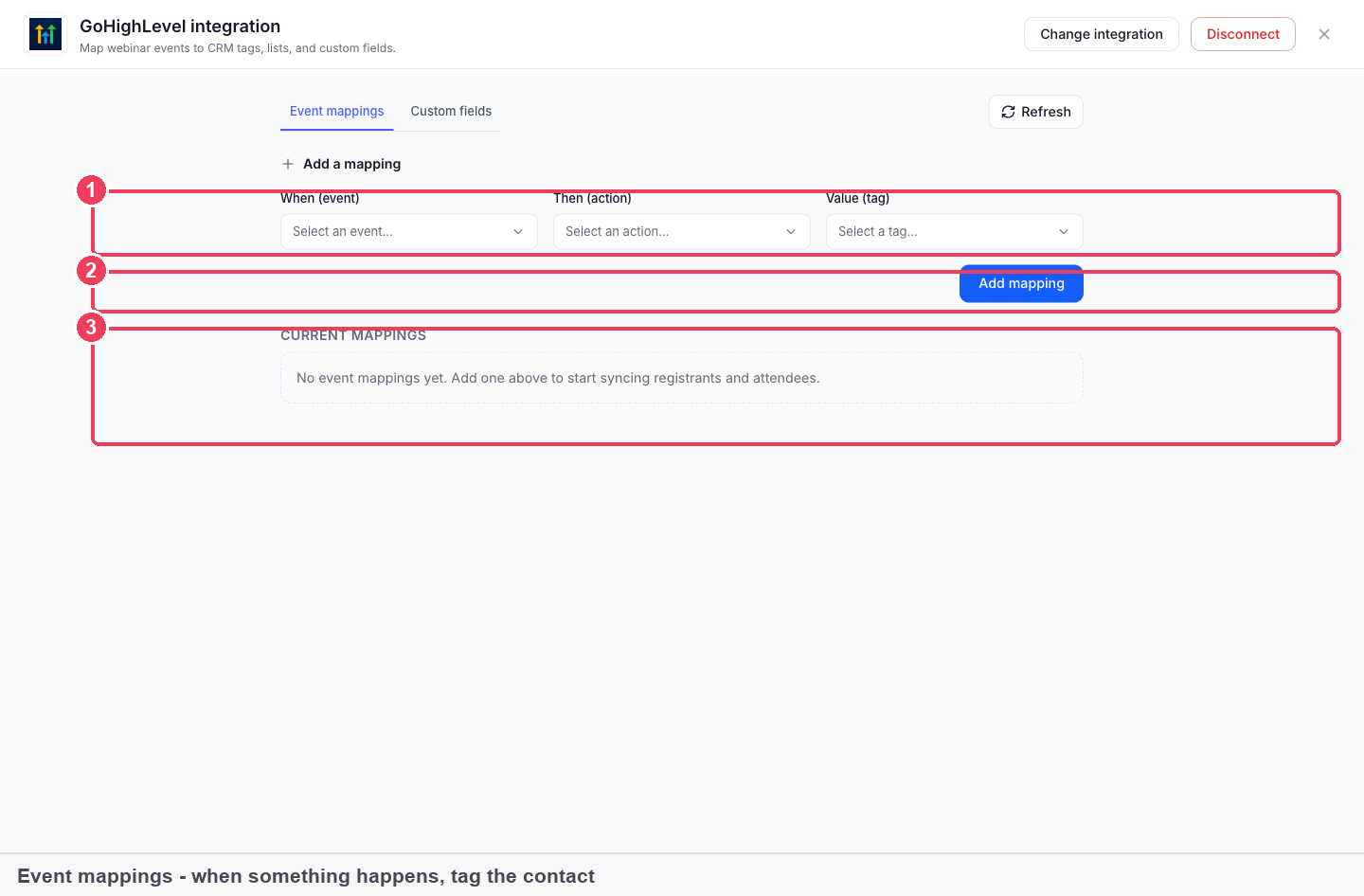
| Control | What it does | |
|---|---|---|
| 1 | Event mappings / Custom fields | The two halves of the integration |
| 2 | Add a mapping | Builds a new rule |
| 3 | Current mappings | Rules already running |
A mapping is three choices: When (the event) → Then (the action) → Value (the tag). Pick each one and click Add mapping.
The events you can trigger on
| Event | Fires when someone |
|---|---|
| Registered | Signs up |
| Attended | Joins the session |
| Missed | Registers and never shows |
| Watched replay | Views the recording |
| Didn't watch replay | Never views it |
| Joined webinar after | Arrives later than a point you set |
| Left webinar before | Leaves before a point you set |
| Left early | Leaves before the end |
| Stayed on webinar at least | Stays a minimum length of time |
| Watched full | Watches the whole thing |
| Clicked offer | Clicks your offer |
A starting set of tags
"Registered" is a weak signal; Watched full and Clicked offer are strong ones. Tag them separately so your sales team works the right people first:
- Registered →
webinar-registered - Missed →
webinar-no-show, and trigger your replay sequence - Watched full →
webinar-engaged - Clicked offer →
webinar-hot, and notify sales
Map custom fields
The Custom fields tab sends webinar details into your CRM's own fields: "Choose which of your CRM's custom fields should receive each piece of webinar data."
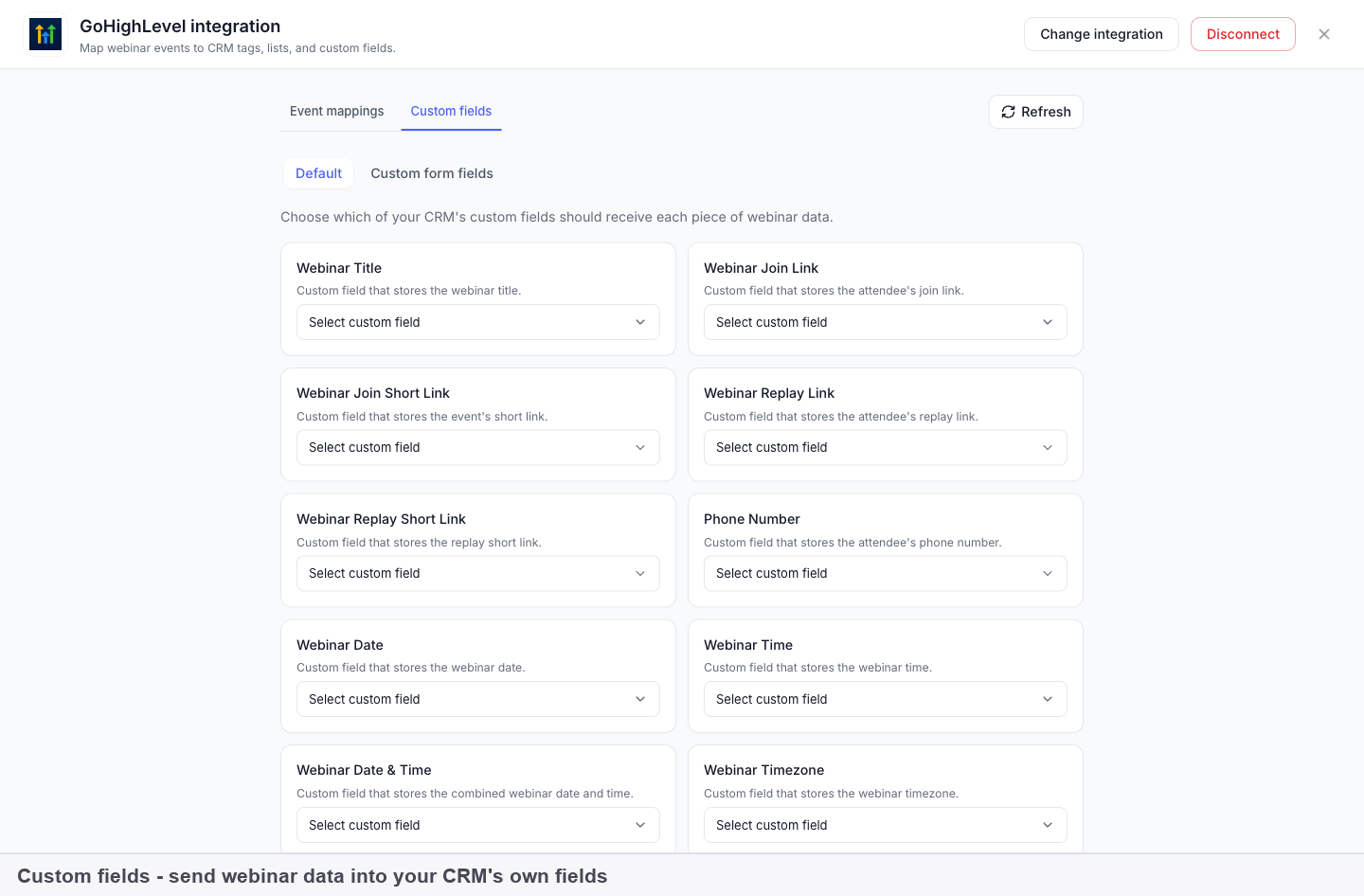
| Webinar data | What it's for |
|---|---|
| Webinar Title | Which webinar this contact came from |
| Webinar Join Link | The attendee's personal join link |
| Webinar Join Short Link | A shortened version |
| Webinar Replay Link | Their replay page link |
| Webinar Replay Short Link | A shortened version |
| Phone Number | Their phone, if your registration form collects it |
Pick the matching CRM field beside each one. Refresh pulls in fields you have just created in the CRM.
Send reminders from your CRM
Mapping the join link lets you send reminders from your CRM instead of EasyWebinar's own reminder emails, because each contact gets their own working link.
Verify the result
- The integration shows under Connected apps as Ready to use.
- Your rules appear under Current mappings.
- Register a test contact and check the tag and fields arrive in your CRM.
Change or disconnect
Change integration swaps the connected tool. Disconnect removes it from the webinar.
What a CRM integration is
An integration links one webinar to a CRM or email tool you already use. It has two halves. Event mappings apply a tag when someone does something, such as attending or missing the session. Custom fields copy webinar details, such as the title and each person's join link, into fields on the contact.
Registrants and attendees are separate events, so the integration can tell someone who only signed up from someone who turned up. Everything is set on the webinar itself, not across your whole account.
Why CRM mapping matters
What it's for
CRM mapping brings your registrants and attendees into the system you already work in, without exporting anything. Each contact arrives with a tag that says what they did, so your next step can depend on it.
How it helps
- Follow-up matches behaviour. A no-show can start a replay sequence, while an offer click goes to sales.
- Strong signals stand out. Watched full and Clicked offer sit apart from a plain registration.
- Your CRM sends the reminders. A mapped join link gives each contact their own working link.
- Each webinar feeds its own list. Integrations are set per webinar.
What happens without it
Everyone on the list gets the same follow-up, whether they watched to the end or never turned up. Interested people wait in a spreadsheet while the moment passes. Sales has no way to tell a casual sign-up from someone who clicked the offer.
Why buyers care
It matters to teams whose pipeline already lives in a CRM. A webinar only counts there once its people show up in that CRM, tagged in a way that sales and marketing automation can act on. That is the point of tracking webinar leads in your CRM.
The EasyWebinar approach to CRM mapping
Consider a typical case. A two-person revenue operations team at a payroll software company owns the HubSpot instance. Marketing runs a quarterly live briefing on payroll compliance for finance managers, and around 400 people register. The goal is to route engaged attendees to sales development reps within a day.
A common workaround is to download the attendee list after each session, clean it up and import it into HubSpot. That tends to take a day or two, and the file usually holds only names and whether people attended. Reps then call everyone in the same order, and the warmest leads may cool while they wait.
The briefing itself doesn't need to change. What changes is how much of each person's session reaches the CRM, and how fast. An attendee who stayed to the end is a different lead from one who left after ten minutes, and the CRM should know that.
EasyWebinar connects HubSpot on the webinar's Integrations tab. The team maps Watched full to an engaged tag that alerts the reps, and Missed to a no-show tag for the replay sequence. On the Custom fields tab they map Webinar Join Link, so HubSpot can send its own reminders with each person's link.
The events table under Map events to tags lists all eleven triggers, including Left early and Stayed on webinar at least. How other platforms tag behaviour and send webinar data to a CRM is covered in How CRM mapping compares, below.
How it works with other features
Registration fields
The Phone Number field only has something to send if your registration form collected it. Select the form block in the page builder and add the Phone field; custom registration fields covers the other fields you can add.
The People view
People is every registrant and attendee across all your webinars in one table, and you can filter it by behaviour and source and export the list. It is a quick way to check who should have received a tag, or to follow up with people outside your CRM rules.
Cloning
When you clone a webinar, Integration settings is one of the groups you can copy. Tick it to bring this webinar's integration settings across to the copy.
EasyCRM
You don't need EasyCRM to run webinars. It's for managing the people your webinars produce. Registrants reach it by connecting EasyCRM as an integration on a webinar, as on this page, or with Import from EasyWebinar on its Leads screen.
Streaming
The Social media category on the Integrations tab is separate from CRMs. To broadcast a webinar to YouTube or LinkedIn while it runs, use EasyCast, under Integrations in the sidebar.
Who uses CRM mapping, and how
These are typical patterns, showing how different teams set their mappings up.
Revenue operations teams
A RevOps team maps Clicked offer and Watched full to separate tags, so lead routing in the CRM can treat them as different signals. The Webinar Title field records which webinar each contact came from.
Marketing teams
A marketing team maps Missed and Didn't watch replay to tags that start a replay sequence. People who still haven't watched get a second nudge from the email tool the team already uses.
Course creators
A creator selling a course through webinars tags Clicked offer and keeps those contacts out of the general nurture sequence. That stops buyers who are close to purchase from getting beginner emails.
Teams running several webinars
A team running one webinar per product line connects each webinar to its own list. When they launch a new live session from an existing one, cloning with Integration settings ticked keeps the mappings.
How CRM mapping compares
EasyWebinar tags contacts by what they did in the session, sends each person's join link into a CRM field, and offers its own CRM, EasyCRM, that connects the same way. EasyWebinar is the only platform in this table that does all three.
CRM features, from each platform's public documentation:
| Platform | Tags by what attendees did | Join link sent to a CRM field | Own CRM in the same product |
|---|---|---|---|
| EasyWebinar | Yes | Yes | Yes |
| Demio | Yes (segment by behaviour) | Yes (Unique Join Link) | Not in docs |
| Livestorm | Partly (registrant and attendee data) | Yes (connection link) | Not in docs |
| WebinarJam and EverWebinar | Yes (attended, missed, left early) | Yes (live room link) | Not in docs |
| eWebinar | Yes (trigger-based tags) | Yes (join links) | Not in docs |
Yes: documented and built in. Partly: documented with a limit, shown in brackets. Not in docs: not found in the vendor's public documentation.
Why EasyWebinar is the stronger choice for CRM mapping
- A CRM in the same product. EasyCRM is EasyWebinar's own CRM and connects to a webinar like any other integration. Demio's integration guide has you connect an outside account in your User settings, and no Demio CRM is documented. See EasyWebinar vs Demio.
- Tags for how long people stayed. EasyWebinar's Stayed on webinar at least and Watched full each apply their own tag. Livestorm's HubSpot article describes sending registrant and attendee data to HubSpot. See EasyWebinar vs Livestorm.
- Tags without a separate tool. EasyWebinar's When, Then and Value choices tag contacts directly from the webinar. eWebinar's CRM guide also covers connecting products it doesn't integrate with directly through Zapier. See EasyWebinar vs eWebinar.
- Points in the session you choose. EasyWebinar's Joined webinar after and Left webinar before let you set the point in the session. WebinarJam's trigger examples include leaving early, evaluated after the session concludes. See EasyWebinar vs WebinarJam and EverWebinar.
Competitor details checked against each vendor's public documentation on 21 October 2026. Features and plans change, so confirm with the vendor before you decide.
Limits and things to know
- Integrations are per webinar. Connecting one doesn't connect the rest, and different webinars can feed different lists.
- Connecting needs an account with that service, and you sign in to it during setup.
- Tags and custom fields must exist in your CRM first. Use Refresh after adding a field.
- There are 14 integrations, including EasyWebinar's own EasyCRM.
- EasyCRM is a plan add-on, switched on from the Add-ons tab under Settings → Manage Plan.
Common questions
Can I tag no-shows?
Yes, with the Missed event.
How many events can I tag on?
Eleven, from Registered to Clicked offer. Each mapping applies the tag you choose when its event fires.
My CRM field isn't in the list.
Create it in your CRM, then click Refresh.
What if my tool isn't one of the 14?
Check whether it accepts data from one of the listed platforms, or use EasyCRM.
Do I have to connect every webinar separately?
Yes, integrations are set per webinar. Cloning a webinar with Integration settings ticked brings those settings across to the copy.
Can different webinars feed different lists?
Yes. Because each webinar has its own integration settings, each one can send people to a different list.
Will it sync people who registered but didn't attend?
Yes. Registrants and attendees sync as separate events, so you can treat no-shows differently.
Can I send the join link to my CRM?
Yes. Map Webinar Join Link to one of your custom fields on the Custom fields tab.
Do I need EasyCRM to run webinars?
No. EasyCRM is for managing the people your webinars produce. Connect the CRM you already use instead if you prefer.
Can I stream my webinar to YouTube or LinkedIn from here?
Not from this tab. Use EasyCast, a separate item under Integrations in the sidebar.
Related pages
- Offers and the countdown timer: the offers behind the Clicked offer event.
- Limits and defaults: the per-webinar integration rule alongside other account limits.
- Webinar analytics: compare attendance and offer clicks with what reached your CRM.
- Team members and roles: give the colleagues who manage your integrations their own login.
- Automate follow-ups with CRM tools: ideas for the sequences your tags can trigger.
Selling online courses with webinars
How course creators use EasyWebinar to sell a course through a webinar, live or automated, from building the webinar to following up and measuring sales.
Team members and roles
Give colleagues their own EasyWebinar login, choose Admin or User, and understand how team members differ from presenters, moderators and client workspaces.