
 Product documentation
Just-in-time webinars
How Just-in-time Registration works on EasyWebinar's evergreen webinars, which interval to choose, how it handles each attendee's local time, and how to test it.
- Applies to
- Evergreen webinars
- Status
- Live
- Verified
- Page type
- Feature
Just-in-time Registration is an evergreen schedule option that offers each visitor a session starting a few minutes after they register, rather than at a fixed future time. You choose how often these sessions come round, from every 2 minutes to every hour. Each just-in-time session runs in the attendee's own local time, so someone who finds your registration page can be watching shortly afterwards.
At a glance
| What it does | Offers a session starting shortly after someone registers |
| Where it's set | The schedule step of an evergreen webinar |
| Webinar types | Evergreen |
| Interval options | 2, 15, 30, 45 or 60 minutes |
| Keeping hours clear | Exclude specific time |
| Timezone | Each attendee's local time; the Overview shows Attendee's local timezone |
| Combines with | On Demand and Recurring Schedule on the same webinar |
| Also called | JIT |
What just-in-time is
A conventional webinar session sits at a time you chose in advance. A just-in-time session is generated around the person registering: EasyWebinar offers them a session that begins shortly, on a cycle set by the Interval.
Someone who arrives at your page at 2:07 can be watching by 2:15, instead of waiting until tomorrow. The recording is the same one your other evergreen sessions play; only the start time changes.
Just-in-time is one of three ways an evergreen webinar can be watched:
| Option | When the registrant watches | Timezone |
|---|---|---|
| Just-in-time Registration | A few minutes after registering | The attendee's local time |
| On Demand | Immediately, with no session | Not tied to a session time |
| Recurring Schedule | At set daily or weekly times | The webinar's timezone |
You can run all three together, and the registration page offers each as a choice.
Why just-in-time matters
What it's for
Just-in-time is for evergreen webinars that sit inside a funnel. A visitor reaches your registration page from an ad, an email or a demo button on your website. They are interested now, so the next session should be minutes away.
How it helps
- No long wait. A session is always a few minutes away, so nobody has to plan a return visit.
- Interest is still fresh. The person has just chosen to watch, and a short Interval lets them do it while that holds.
- Each attendee's own clock. Sessions follow the attendee's local time, so you don't have to pick slots region by region.
- A real start time. Unlike On Demand, there is still a session to turn up for, which keeps an event feel.
What happens without it
With only set daily or weekly times, someone who arrives just after a session starts must wait for the next slot. That slot can be hours or a day away. The gap between interest and watching is where people disappear. Many who close the tab meaning to return never do.
Why buyers care
Just-in-time matters most to teams whose visitors arrive all day, from paid ads or a busy website. It matters when you judge an evergreen webinar by how many registrants watch, not only by how many sign up.
The EasyWebinar approach to just-in-time
Take a typical case. A small skincare brand sells online with a team of four, and most new visitors arrive from social ads. It has made a 20-minute recorded webinar that walks through a morning and evening routine. The goal is to turn ad clicks into first orders.
A common setup is one fixed showing each evening, so the team can promote a single time. That probably suits people who plan ahead. Shoppers who click an ad at lunchtime, though, may face a wait of several hours. Many are likely to forget, and the ad spend that brought them is partly wasted.
The routine itself is not the problem. What matters is the time between the click and the first minute of the video. Ad traffic arrives all day and from more than one country, so any single fixed time is wrong for most visitors.
EasyWebinar handles this on the schedule step of an evergreen webinar. The brand switches on Just-in-time Registration and picks a 15-minute Interval, so a session is never far away. Exclude specific time keeps chosen hours clear, and each session runs in the shopper's own local time. On Demand can sit alongside it for anyone who wants to start straight away.
The screenshot under Set it up shows the Just-in-time Registration switch at the top of the schedule step, above On Demand and Recurring Schedule. How other platforms schedule sessions that start soon after registration is covered in How just-in-time compares, below.
Set it up
On a new evergreen webinar
- On My Webinars, click Create a Webinar, then Create Manually.
- Name the webinar, choose Evergreen Webinar and click Continue to Schedule.
- Switch on Just-in-time Registration.
- Choose an Interval: 2, 15, 30, 45 or 60 minutes.
- Set Exclude specific time if there are hours when no session should start.
- Set up any other options you want alongside it: On Demand, Recurring Schedule, Availability and Schedule Preferences.
- Click Continue to Pricing and finish the remaining steps.
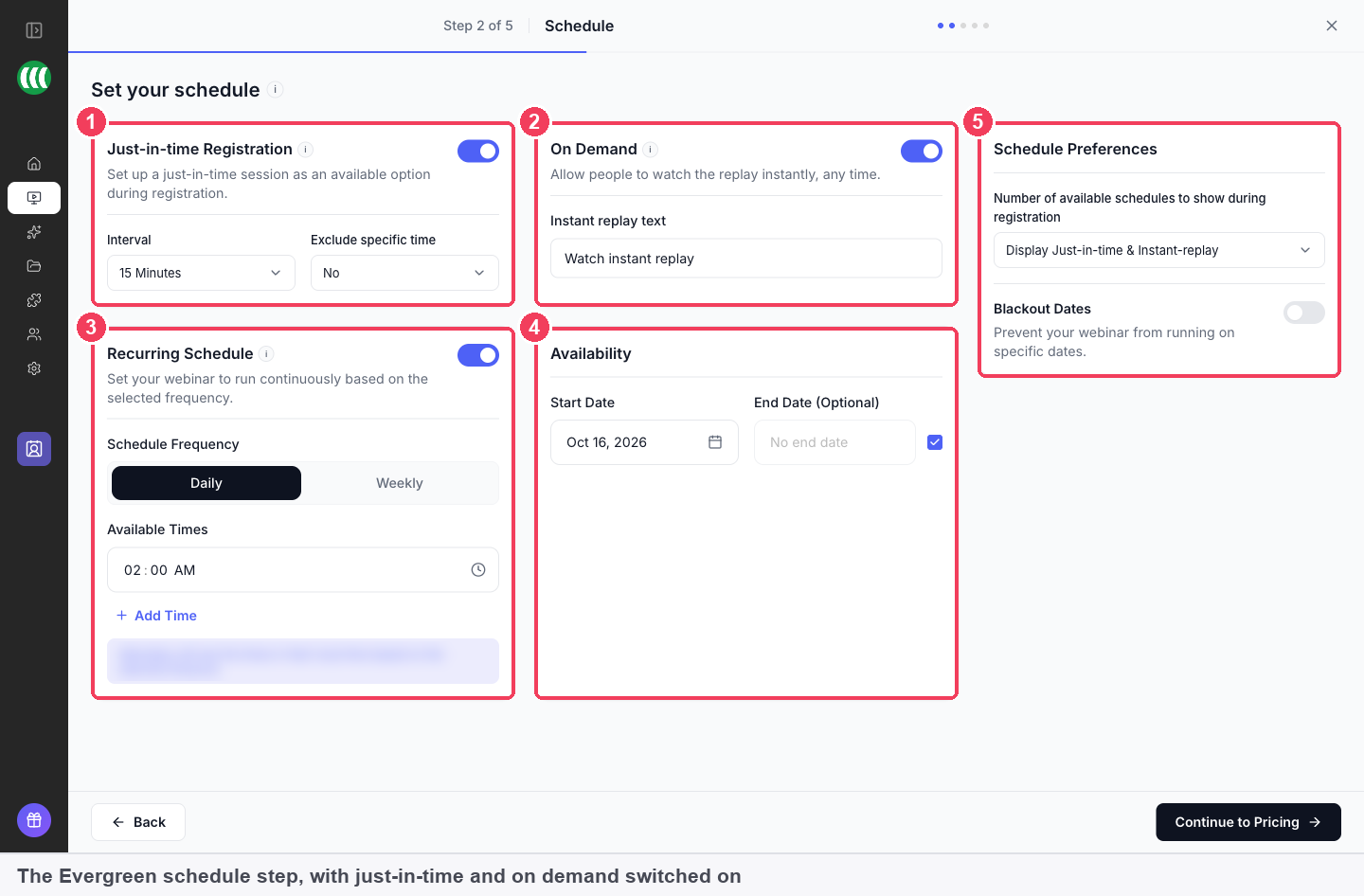
1 Just-in-time Registration · 2 On Demand · 3 Recurring Schedule · 4 Availability · 5 Schedule Preferences.
The full walkthrough, including pricing, video selection and templates, is in Create an evergreen webinar.
On an existing evergreen webinar
Open the webinar's Overview tab and use the options menu on the Scheduling Options panel. That menu changes the schedule for the whole webinar rather than for a single session.
Settings
| Setting | Options | What it controls |
|---|---|---|
| Just-in-time Registration | On or off | Whether the registration page offers a session starting shortly |
| Interval | 2, 15, 30, 45 or 60 minutes | How often just-in-time sessions come round |
| Exclude specific time | Hours you want kept clear | Hours kept free of just-in-time sessions |
| Schedule Preferences | Depends on what's enabled | How many choices registrants see; with On Demand also on, it reads Display Just-in-time & Instant-replay |
Choosing an interval
Shorter intervals mean less waiting. The interval sets how often a new just-in-time session comes round, so it also sets the longest a new registrant waits.
Two minutes is also the setting to use when you want to check the webinar yourself, because a session starts almost as soon as you register. The steps are in Test a just-in-time session, below.
Timezones: who sees which time
Just-in-time is the only kind of session in EasyWebinar that follows each attendee's own local time. Everything else runs in the webinar's timezone:
| Session | Runs in |
|---|---|
| Just-in-time sessions on evergreen webinars | The attendee's local time |
| Recurring daily or weekly evergreen sessions | The webinar's timezone |
| Simulive sessions | The webinar's timezone |
| Live sessions | The webinar's timezone |
When just-in-time is on, the Scheduling Options panel on the Overview tab shows the timezone as Attendee's local timezone.
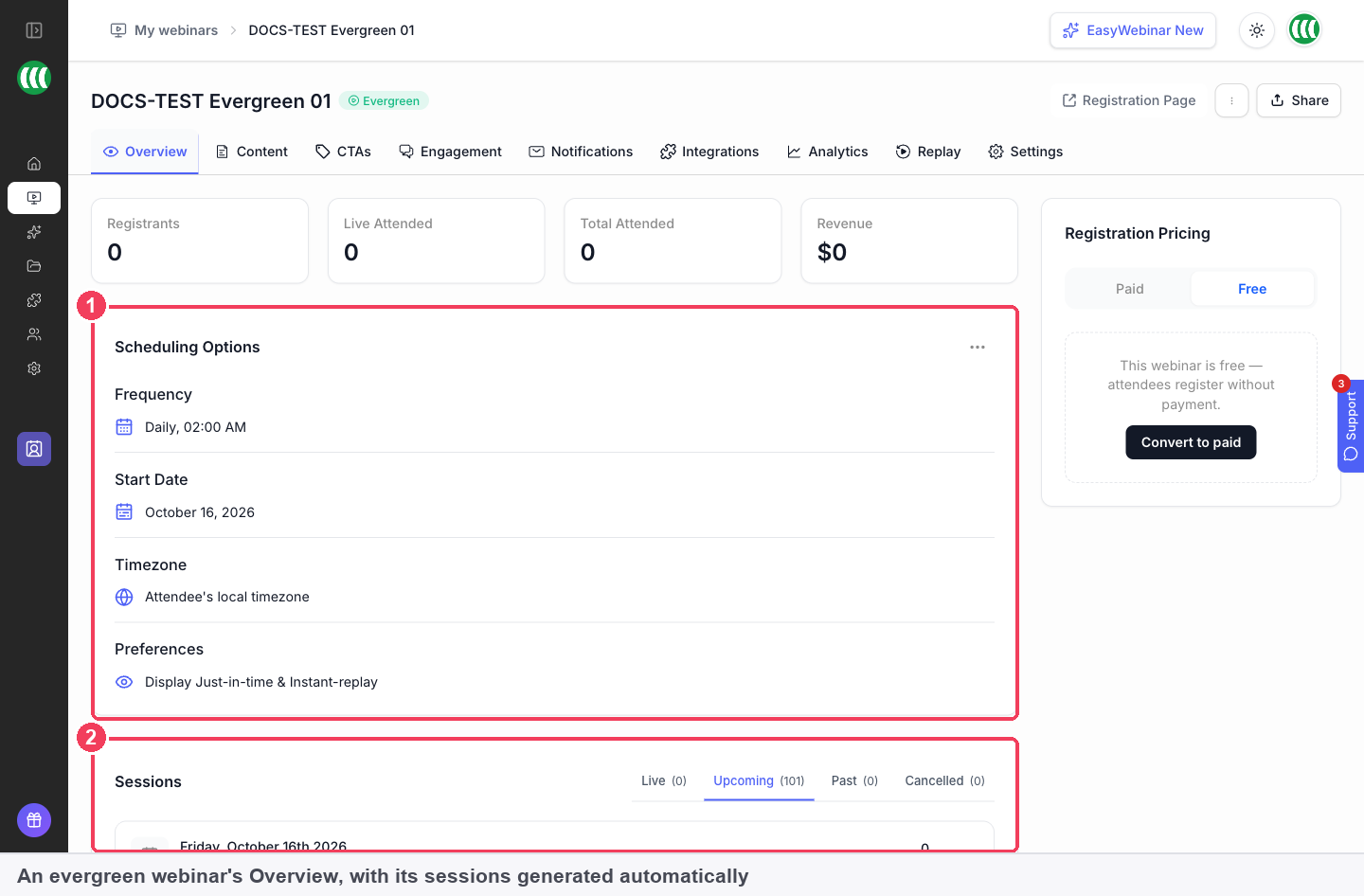
1 Scheduling Options · 2 Sessions.
The schedule step's timezone message
On the schedule step, EasyWebinar shows a message saying attendees will see times in their local time based on the selected timezone. On an evergreen webinar, that's true of just-in-time sessions only. Recurring daily and weekly sessions run at the times you set in the webinar's timezone.
Test a just-in-time session
A recorded webinar has no live room for you to enter, so you check it by joining a running session. The quickest way to get one is to register yourself.
- Set the Interval to 2 minutes, the shortest option.
- Open your registration page link and register as an attendee.
- On the webinar's Overview, open the Live tab in the Sessions panel. A session on air appears there marked Live now, with Enter room.
- Join as an attendee to see what your audience sees.
Set the interval back to your chosen value once you're done.
How just-in-time works with other features
On Demand
On Demand lets registrants watch immediately, with no session at all. Pair it with just-in-time and registrants choose between "now" and "in a few minutes". The On Demand (instant replay) option has its own page.
Recurring Schedule
A daily or weekly Recurring Schedule can run alongside just-in-time, for registrants who prefer to book a set time. Those sessions use the webinar's timezone.
Sessions on the Overview tab
Evergreen webinars have a Live tab in the Sessions panel, alongside Upcoming, Past and Cancelled, showing sessions currently on air. The webinar Overview tab explains the rest of that screen.
Chat Simulation
Just-in-time attendees arrive at different moments, so there's no shared conversation to join. Chat Simulation on the Engagement tab fills the chat with an AI-generated or CSV-scripted conversation timed against the video. Chat simulation covers both methods.
AI Moderator (Beta)
The AI Moderator, in Beta, answers attendee questions from documents you upload and keeps the chat civil. On an automated webinar running at 3am, it can answer a question that would otherwise wait for someone on your team.
Emails and reminders
Reminders on the Notifications tab are timed relative to the webinar, not to a fixed clock time, so they work with evergreen schedules. Set them up in reminder emails and confirmation emails.
Analytics and People
Polls, offers and analytics behave as on any webinar. In People, filter by Webinar → Evergreen to compare your automated funnel with your live sessions. The People view lists every registrant.
Plan usage
People watching evergreen sessions, including just-in-time ones, count towards the Automated attendees meter on the Plan tab.
Who uses just-in-time, and how
These are typical patterns, shown to illustrate how the setting is used.
SaaS and product teams
A product team links its "watch the demo" button to an evergreen registration page with just-in-time on a short interval. A visitor registers and is watching the recorded demo within minutes, in their own local time.
Course creators
A creator's teaching webinar runs on just-in-time alongside a daily recurring time. New visitors from ads take the next just-in-time session; people who'd rather plan ahead book the daily slot. This pattern is part of selling online courses with webinars.
Small businesses and solo operators
A solo consultant can't keep a calendar of live sessions. A just-in-time evergreen webinar means an enquiry from the website can be watching the consultant's explainer within minutes, with Exclude specific time keeping chosen hours clear.
Customer success teams
A customer success team sends new customers to an onboarding webinar with just-in-time sessions, so each customer starts onboarding in their own timezone shortly after signing up.
How just-in-time compares
EasyWebinar puts just-in-time sessions, instant viewing and set daily or weekly times on one evergreen webinar. It also keeps chosen hours free of just-in-time sessions with Exclude specific time, and runs live webinars in the same product. EasyWebinar is the only platform in this table that does all four.
Just-in-time scheduling, from each platform's public documentation:
| Platform | Just-in-time sessions | Just-in-time, instant viewing and set times together | Hours kept free of just-in-time sessions | Live webinars in the same product |
|---|---|---|---|---|
| EasyWebinar | Yes | Yes | Yes | Yes |
| eWebinar | Yes | Yes | Yes (hours of operation) | Pre-recorded only |
| WebinarJam and EverWebinar | Yes | Yes | Yes (hides night-time sessions) | Partly (separate WebinarJam product) |
| StealthSeminar | Yes | Partly (replay is yesterday's session) | Yes (allowed time window) | Partly (streamed from YouTube or Twitch) |
| WebinarKit | Yes | Yes | Not in docs | Yes |
| Demio | Not in docs | Not in docs | Not in docs | Yes |
| Livestorm | Not in docs | Not in docs | Not in docs | Yes |
Yes: documented and built in. Partly: documented with a limit, shown in brackets. Not in docs: not found in the vendor's public documentation.
Why EasyWebinar is the stronger choice for just-in-time
- A session minutes away. EasyWebinar's Just-in-time Registration offers a session starting shortly after someone registers. Demio's help centre and product pages don't document a just-in-time option. Compare EasyWebinar vs Demio.
- Watch now, soon or at a set time. EasyWebinar's On Demand starts the recording straight away, beside just-in-time and set times. StealthSeminar's instant choice, Watch Yesterday's Replay, plays the previous session. Compare EasyWebinar vs StealthSeminar.
- Quiet hours you choose. Exclude specific time keeps chosen hours free of just-in-time sessions. WebinarKit's help centre covers just-in-time labels and spacing, with no hour exclusion documented. Compare EasyWebinar vs WebinarKit.
- Evergreen sessions that start soon. EasyWebinar adds just-in-time to the evergreen schedule step. Livestorm's on-demand and automation pages don't document just-in-time sessions. Compare EasyWebinar vs Livestorm.
Competitor details checked against each vendor's public documentation on 21 October 2026. Features and plans change, so confirm with the vendor before you decide.
Limits and things to know
- Evergreen only. Just-in-time is part of the evergreen schedule step. Live and simulive webinars use dated sessions in the webinar's timezone.
- Fixed interval choices. 2, 15, 30, 45 or 60 minutes.
- Local time applies to just-in-time sessions only. Other sessions on the same webinar use the webinar's timezone.
- The schedule step's timezone message is broader than the behaviour. Rely on the table above, not the in-app message.
- The type is fixed. To use just-in-time with a webinar that is currently live or simulive, clone it as Evergreen.
Common questions
What is a just-in-time webinar?
A session that starts a few minutes after someone registers, instead of at a fixed future time. In EasyWebinar it's an option on evergreen webinars.
How often do just-in-time sessions start?
As often as you set with Interval: every 2, 15, 30, 45 or 60 minutes.
What's the shortest interval?
Two minutes.
Do attendees see just-in-time sessions in their own timezone?
Yes. Just-in-time sessions start shortly after each person registers, in their own local time.
Do my daily and weekly sessions follow local time too?
No. Recurring sessions run at the times you set, in the webinar's timezone.
Can I stop just-in-time sessions at certain hours?
Yes. Use Exclude specific time to keep those hours clear.
Can I offer just-in-time and instant viewing together?
Yes. Turn on On Demand as well; Schedule Preferences then reads Display Just-in-time & Instant-replay.
Can I use just-in-time on a live or simulive webinar?
No. It's an evergreen option. Clone the webinar as Evergreen to use it.
How do I check it's working?
Set the interval to 2 minutes, register on your own page, and watch for the session on the Live tab of the Sessions panel.
Is just-in-time the same as JIT?
Yes. JIT is the common short name for Just-in-time Registration.
Related
- Create an evergreen webinar: the full setup that just-in-time is one step of.
- On Demand: the option for registrants who want to watch now rather than in a few minutes.
- Chat simulation: a chat for attendees who each arrive at a different moment.
- The Overview tab: where the Live tab shows a just-in-time session on air.
- Clone a webinar: how a live or simulive webinar gets just-in-time sessions.
- Limits and defaults: the interval options and other evergreen settings in one place.
Clone a webinar
Copy an existing EasyWebinar webinar into a new one, choose its type and which pages, schedule, CTAs, emails and integration settings come with it, without touching the original.
On Demand (instant replay)
How On Demand works on EasyWebinar's evergreen webinars, letting registrants start watching straight away, how to label its button, and how it differs from the replay page.