
 Product documentation
Registration embeds
Put an EasyWebinar registration form on your own website with the Registration Widget embed code, and decide when to use the widget instead of the registration page link.
- Applies to
- Live, simulive and evergreen webinars
- Status
- Live
- Verified
- Page type
- Feature
The Registration Widget lets people register for your webinar without leaving your own website. On the webinar's Content tab you copy its Embed Code and paste it into your page wherever the form should appear: a landing page, a blog post, a sidebar. The same snippet is in the Share dialog, and View & Customize lets you change how the widget looks before you copy it.
At a glance
| What it does | Puts the webinar's registration form directly on your own site |
| Where to get it | Webinar → Content → Registration Widget → Embed Code; also Share → Registration Widget |
| Change its look | View & Customize, before you copy the code |
| Where it goes | Anywhere on your page the form should appear |
| Good places for it | A landing page, a blog post, a sidebar |
| Use the page link instead when | You want EasyWebinar's page to do the selling, or you're sharing in email or on social |
| Cloning | Embed widgets is one of the assets you can copy into a cloned webinar |
What a registration embed is
Every webinar has a registration page hosted by EasyWebinar, and a Registration Page Link that sends people to it. The Registration Widget is the other route: instead of sending visitors to EasyWebinar, you bring the form to them, on a page you already control.
| Registration Widget | Registration Page Link | |
|---|---|---|
| Where people register | On your own site, in the form you've embedded | On EasyWebinar's registration page |
| What you share | Nothing: people find the form where you placed it | A link |
| Suits | Landing pages, blog posts, sidebars | Email, social posts, and pages where EasyWebinar's page does the selling |
| Where you get it | Content tab or Share dialog, as Embed Code | Share dialog, as Registration Page Link |
Both register people for the same webinar.
Why registration embeds matter
What it's for
The widget is for keeping people on your site. If a visitor is already reading your page, the shortest path to a registration is a form right there, not a link to somewhere new.
How it helps
- One less step. Visitors register where they are instead of clicking through to another page.
- Your page stays in charge. The content around the form is yours: your blog post, your landing page, your sidebar.
- It's the same snippet everywhere. Copy it once from the Content tab or the Share dialog and paste it into any page.
- It travels with clones. When you clone a webinar, you can bring its embed widgets along.
What happens without it
Without an embed, every visitor on your own site has to follow a link to the EasyWebinar page to register. Each extra click is a chance for someone to get distracted and leave. The page that persuaded them, such as the article they were reading, is left behind.
Why buyers care
Teams that already run websites and blogs want registration to sit inside the content that brings in traffic. It matters most to whoever owns the website, at the point a webinar is announced. That's when a form that drops into an existing page saves building a new one.
The EasyWebinar approach to registration embeds
Take a typical case. A dental practice group with six clinics runs a free monthly live webinar on clear aligners for prospective patients. Its marketing coordinator works alone, and the group's aligner treatment page already draws steady visitors. The goal is for those readers to sign up without leaving that page.
A common route is a "Register here" button on the treatment page that sends visitors to a separate webinar page. That works. But each click away is a chance to lose a reader, and the page that persuaded them gets left behind. The cost probably shows up as fewer signups than the page's traffic suggests.
The reader has already been convinced on the treatment page. So the form belongs there, next to the content that did the convincing, rather than one click away on another site.
EasyWebinar gives each webinar a Registration Widget on its Content tab. EasyWebinar lets you change the widget's look with View & Customize, then copy its Embed Code and paste it wherever the form should appear. The same snippet sits in the Share dialog, next to the webinar's links.
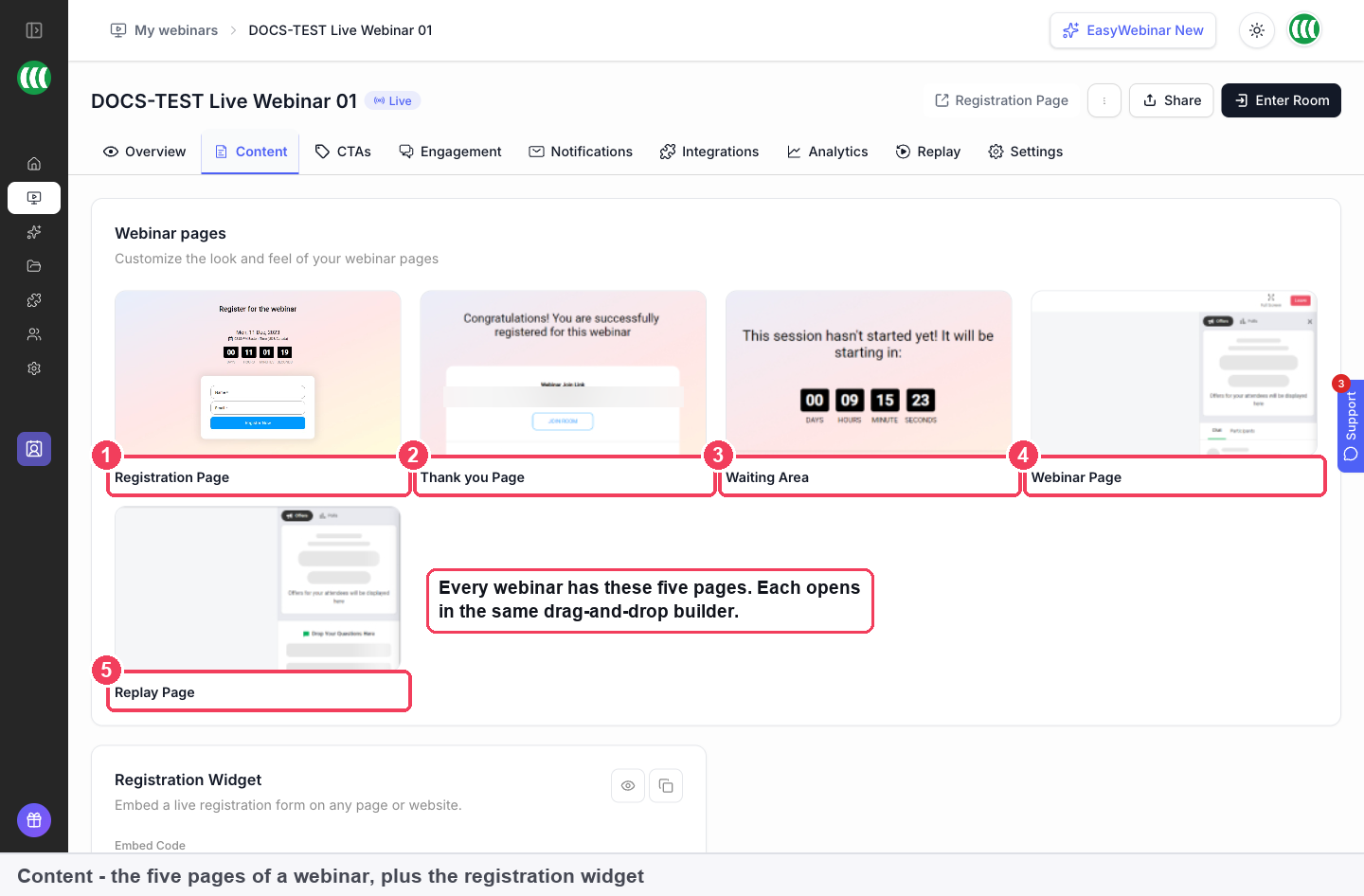
Open the Content tab and scroll below the five page cards. The Registration Widget section shows View & Customize and the Embed Code together. How that sits against other platforms is covered in How registration embeds compare, below.
Get the embed code
From the Content tab
- Open your webinar and click the Content tab.
- Scroll to Registration Widget, below the five webinar pages.
- If you want to change how the form looks, click View & Customize first.
- Copy the Embed Code.
From the Share dialog
- On the webinar's Overview, click Share.
- Choose Registration Widget in the dialog.
- Copy the snippet.
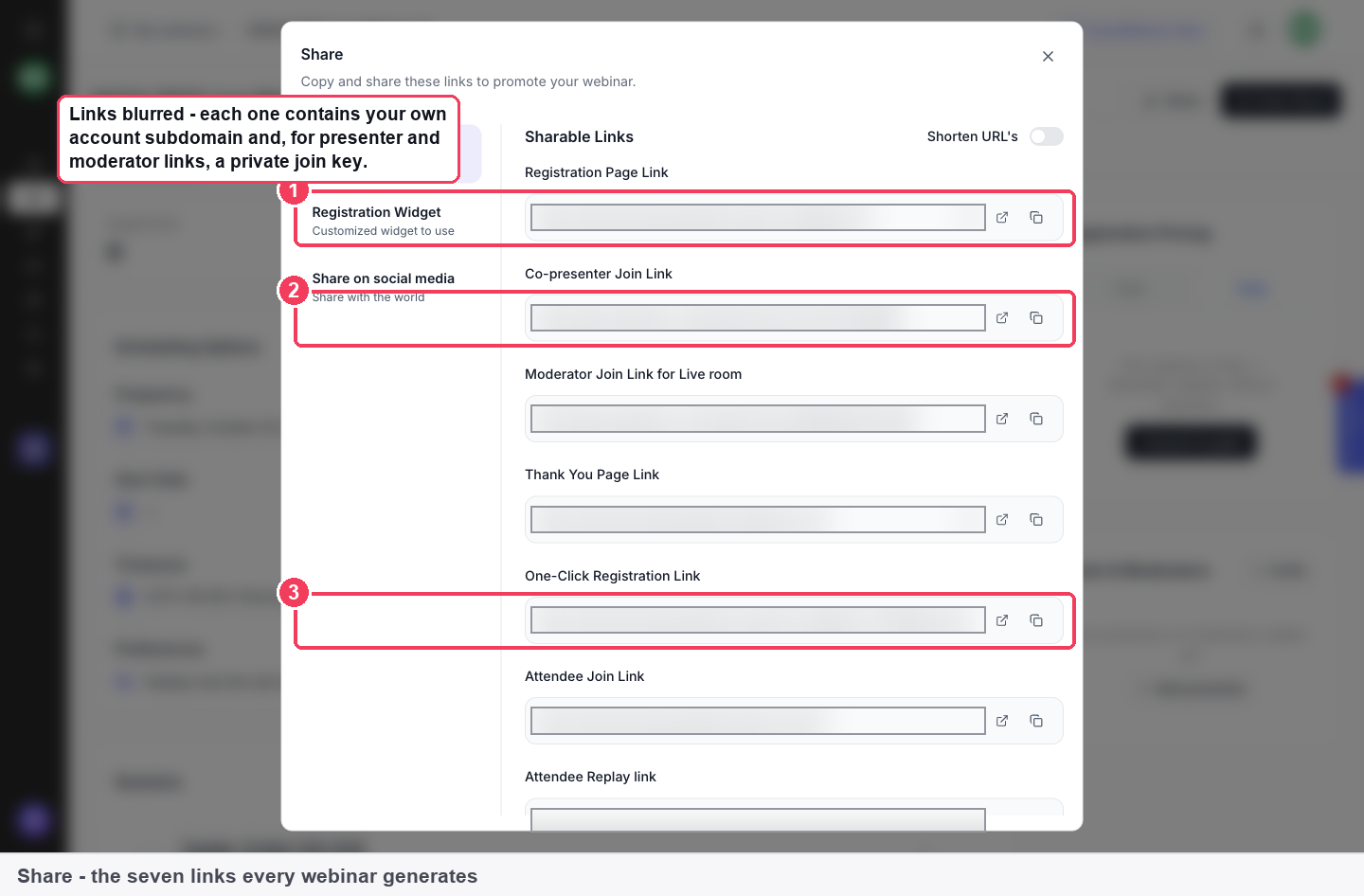
1 Registration Widget · 2 Share on social media · 3 One-Click Registration Link.
It's the same snippet in both places, so use whichever screen you're on.
Add it to your site
- Open the page on your site where people should register.
- Paste the embed code wherever the form should appear.
- Publish the page on your site.
- Register once yourself through the embedded form.
- Check the webinar's Overview: the Registrants stat counts people who completed the registration form, so your test registration should show there.
Widget or link: which to use
| Situation | Use |
|---|---|
| Someone is already reading your landing page or blog post | The widget |
| You want a form in your site's sidebar | The widget |
| You're sending an email to your list | The Registration Page Link |
| You're posting on social media | The Registration Page Link, or Share on social media in the Share dialog |
| You want EasyWebinar's page, with its design and countdown, to do the selling | The Registration Page Link |
| You're emailing contacts you already have details for | The One-Click Registration Link |
You don't have to choose one. You can use the widget on your own site and the link everywhere else.
How registration embeds work with other features
The registration page
The registration page is still where your webinar's full pitch lives: the design, the countdown, the copy. Build and publish it in the page builder even if most registrations come through the widget, because the link and the page are what you'll use in email and on social.
Share links
The Share dialog groups every way to share a webinar: Share Links, Registration Widget and Share on social media.
Confirmation emails
Registration Confirmation is sent immediately after someone registers, and it carries their join link.
The People view
People in the sidebar lists every registrant across your webinars. After your test registration, find yourself there to confirm the details came through.
Cloning
The Clone Webinar dialog lists Embed widgets under Webinar assets, alongside registration pages, the webinar schedule and replay settings. Leave it ticked to copy the widget into the new webinar.
Who uses registration embeds, and how
These are typical patterns, shown to illustrate how the widget fits different kinds of sites.
B2B marketing teams
A marketing team writes a blog post on the webinar's topic and embeds the registration form at the end, so readers who reach the bottom can sign up on the spot. The Registration Page Link goes into the newsletter and paid social.
SaaS and product teams
A product team runs a monthly product webinar and keeps the widget in the sidebar of its help centre or product blog, so customers looking for help can register for the next session without leaving.
Coaches and consultants
A coach's website has a "Free masterclass" page. The registration widget sits on that page, under the coach's own story, so the page they already designed does the persuading.
Agencies
An agency builds a client's landing page in the client's site builder and pastes the widget in, so the page stays on the client's domain and in the client's design.
How registration embeds compare
EasyWebinar lets you style the Registration Widget inside the app before you copy it, with no code to edit. The Share dialog holds a one-click registration link, and Clone Webinar can copy the widget into a new webinar. EasyWebinar is the only platform in this table that does all four.
Registration embed features, from each platform's public documentation:
| Platform | Registration form you embed on your site | Change the widget's look in the app | One-click registration link | Widget copied when you clone the webinar |
|---|---|---|---|---|
| EasyWebinar | Yes | Yes | Yes | Yes |
| Demio | Yes | Partly (Styled or Unstyled versions) | Partly (through CRM integrations) | Not in docs |
| WebinarJam | Yes (four embed formats) | Partly (style parameters in the code) | Partly (generated through the API) | Not in docs |
| eWebinar | Yes | Yes | Yes (into on-demand sessions) | Not in docs |
| Livestorm | Yes (form or whole page) | Partly (inherits the page's branding) | Not in docs | Not in docs |
| StealthSeminar | Yes | Partly (your own CSS) | Not in docs | Partly (contact support before duplicating) |
| WebinarKit | Yes | Yes (drag and drop embed builder) | Yes | Not in docs |
Yes: documented and built in. Partly: documented with a limit, shown in brackets. Not in docs: not found in the vendor's public documentation.
Why EasyWebinar is the stronger choice for registration embeds
- You style the widget, not the code. EasyWebinar's View & Customize changes the widget's look before you copy it. WebinarJam puts style parameters inside the embed code itself. See EasyWebinar vs WebinarJam.
- No CSS needed. StealthSeminar styles its embedded widgets through CSS selectors you write. Compare EasyWebinar vs StealthSeminar.
- The one-click link sits beside the widget. EasyWebinar's Share dialog holds both, while Demio describes one-click links as part of its CRM integrations. More in EasyWebinar vs Demio.
- The widget has its own look. Livestorm's form embed inherits the page's branding, while EasyWebinar's widget is customised on its own. Read EasyWebinar vs Livestorm.
Competitor details checked against each vendor's public documentation on 21 October 2026. Features and plans change, so confirm with the vendor before you decide.
Limits and things to know
- The widget is a form, not the whole page. When you want EasyWebinar's page to do the selling, send the registration page link instead.
- Customise first. Use View & Customize to change how the widget looks before you copy the code.
- Copy the code from the right webinar. The Registration Widget sits on each webinar's own Content tab.
- Test it after pasting. Register once and check Registrants on the Overview before you send traffic to the page.
Common questions
Can I put the registration form on my own website?
Yes. Copy the Embed Code from Registration Widget on the Content tab and paste it into your page.
Where else can I find the embed code?
In the Share dialog, under Registration Widget. It's the same snippet.
Can I change how the widget looks?
Yes. Click View & Customize before you copy the code.
Where should I paste it?
Wherever the form should appear on your page: a landing page, a blog post or a sidebar.
Should I use the widget or the registration page link?
Use the widget when you want people to register without leaving your site. Use the link when you want EasyWebinar's page to do the selling, or when you're sharing in email or on social.
How do I check the widget is working?
Register once through it, then look at Registrants on the webinar's Overview and find yourself in People.
Does cloning a webinar copy its widget?
It can. Embed widgets is one of the assets listed under Webinar assets in the clone dialog.
Do I still need a registration page if I use the widget?
Yes, for anywhere you share a link, such as email and social posts. The Registration Page Link only works once the page is published.
Related
- Registration page builder: the page your link still needs for email and social.
- Sharing links: the Registration Page Link and One-Click Registration Link that sit beside the widget.
- Custom registration fields: the fields and consent checkbox the form asks for.
- The Overview tab: where Registrants confirms your test registration.
- Clone a webinar: carry Embed widgets into a copy of this webinar.
Custom registration fields
Add a phone field, your own custom questions, a GDPR consent checkbox and UTM campaign capture to an EasyWebinar registration form, and see where that data shows up afterwards.
Sharing links
The seven links in an EasyWebinar webinar's Share dialog, from the registration page link you promote to the one-click registration, attendee, co-presenter, moderator and replay links, and who each one is for.