
 Product documentation
Live chat
Choose how attendees talk in your webinar room, from EasyWebinar's built-in chat to private host-only chat, an embedded third-party chat tool on recorded webinars, or no chat with a contact box.
- Applies to
- Live, simulive and evergreen webinars (third-party chat on simulive and evergreen only)
- Status
- Live
- Verified
- Page type
- Feature
Live chat is the panel in the webinar room where attendees post messages while the webinar runs. In EasyWebinar you set it up on the webinar's Engagement tab before the session: built-in chat or no chat, and whether attendees see each other's messages or only talk privately to your team. On simulive and evergreen webinars you can also embed an external chat tool instead. During the session, your team reads and answers messages from the Chat panel in the room.
At a glance
| Where you set it | Webinar → Engagement → Chat |
| Chat modes | Easywebinar Chat or No Chat; recorded webinars also offer Third party |
| Who sees messages | Everyone (recommended) or Hosts only |
| When to set it | Before the webinar; these are setup controls, not live-room controls |
| In the room | The Chat panel on the side rail, with Global Chat and Admin Chats |
| With chat off | Attendees can still reach you through the contact box |
| Moderators | Join through the Moderator Join Link for Live room to handle chat and questions |
| After the session | Analytics shows total chat messages, filterable by session |
| On the replay | Webinar Replica replay pages include the chat replay |
What live chat is
Chat is open conversation in the room, running alongside your video. It is separate from Q&A, which is a queue of questions you work through and can keep out of sight.
Two settings shape the chat:
- The chat mode decides whether there is a chat panel, and whose chat it is: EasyWebinar's built-in panel, an external tool embedded in the room, or none.
- Who can see messages decides whether the chat is a shared room or a set of private conversations with your team. It applies to everything attendees post.
How chat behaves also depends on the webinar type. On a live or simulive webinar, everyone in a session is watching the same moment, so the chat works as one shared room. On an evergreen webinar, attendees arrive at different times, so a genuinely shared live chat isn't possible.
Why live chat matters
What it's for
Chat lets attendees respond as you present: say hello, react, ask, and talk to each other. It is how a presenter knows the room is listening, and on a simulive webinar it is how you stay present while your recording plays.
How it helps
- The room feels alive. With Everyone selected, attendees see each other's messages and can reply to each other.
- Attendees help each other. In a public chat, people often answer each other's questions before you get to them.
- You can make it private. Hosts only turns chat into one-to-one conversations with your team when attendees shouldn't see each other.
- You stay reachable without chat. Choose No Chat and attendees can still contact you through the contact box.
- It fits an existing tool. On recorded webinars, Third party keeps conversations in the chat tool your team already uses.
What happens without it
Without chat, attendees have no way to speak during the session, and the presenter has no way to tell whether the message is landing. Questions go unasked while the moment passes. For a selling webinar, that is where doubts that could have been answered in a sentence turn into "not now".
Why buyers care
Buyers want control over the room: open for community-style sessions, private for sales conversations, off for tightly run presentations. They also want chat to work on recorded webinars, either by answering live during a simulive broadcast or by connecting the tool they already use.
The EasyWebinar approach to live chat
Take a typical case. A financial planning firm runs a monthly live webinar for people within a few years of retirement. Around 120 people attend, and many want to ask about their own pension or savings. One planner presents, and a colleague supports the session.
A common approach is to leave a public chat open and hope people keep personal details out of it. In practice, attendees tend to hold back on money questions when strangers can read them. The chat fills with greetings while the real questions stay unasked, and interest may cool before anyone follows up.
The topic doesn't have to change for people to speak up. What changes is who can read the message. When a question goes only to the firm, an attendee can ask it in plain words. The colleague can reply while the planner keeps presenting.
EasyWebinar sets this on the webinar's Engagement tab before the session. The firm keeps Easywebinar Chat and sets Who can see messages to Hosts only. Each attendee then talks privately to the team, and nobody sees anyone else. The colleague joins with the Moderator Join Link for Live room and answers from the Chat panel in the room.
The screenshot under Set up chat shows both Who can see messages options, Everyone and Hosts only, beside the chat mode. How other platforms handle who sees attendee messages is covered in How live chat compares, below.
Set up chat
- Open your webinar and click the Engagement tab.
- Stay on Chat, the first of the four sections (Chat, Q&A, AI Moderation and Chat Simulation).
- Choose the chat mode.
- Choose Who can see messages.
- Save your changes.
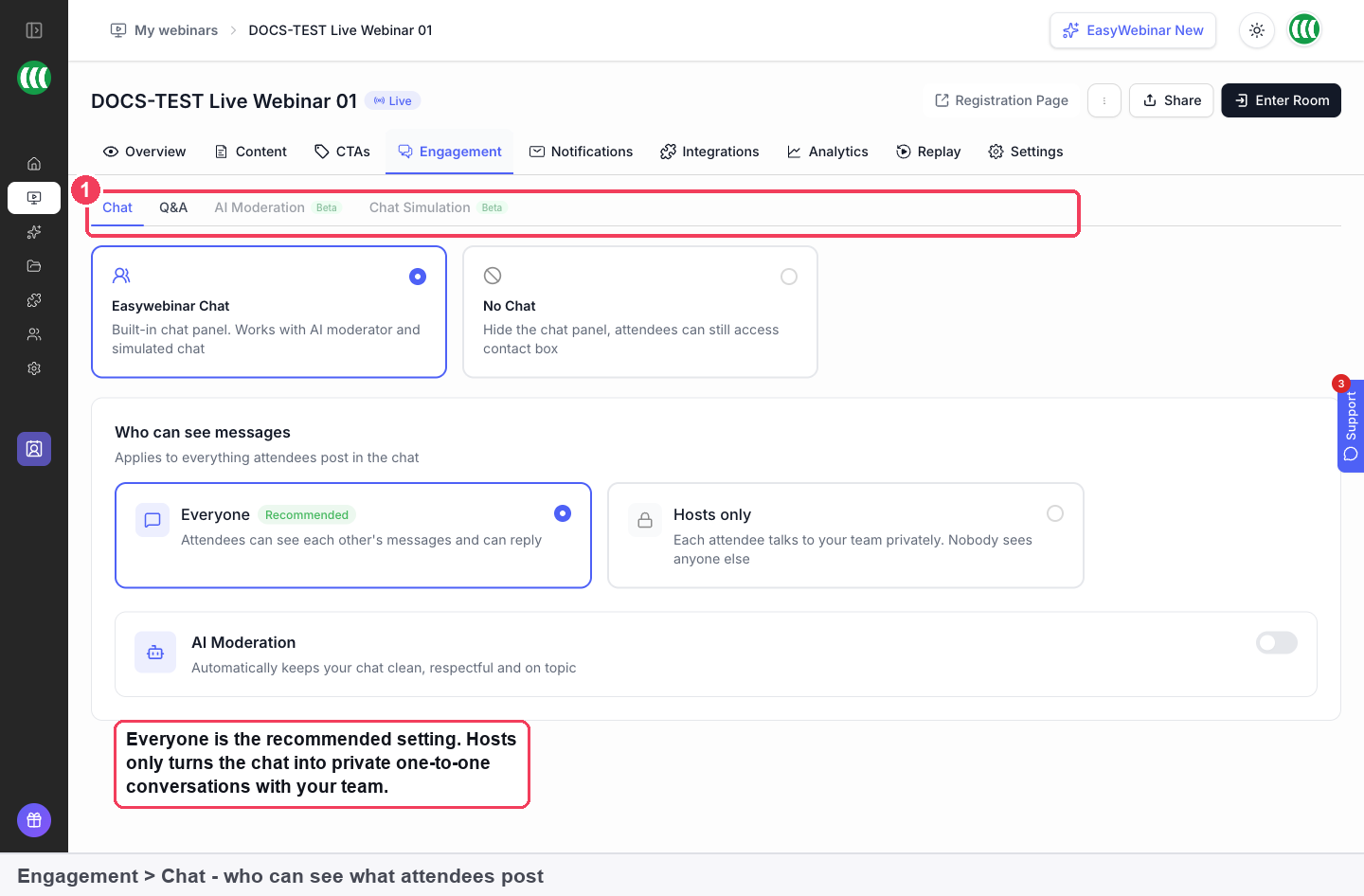
Choose the chat mode
| Option | What it does |
|---|---|
| Easywebinar Chat | The built-in chat panel, alongside your video. Works with AI moderation and simulated chat |
| No Chat | Hides the panel. Attendees can still reach you through the contact box |
| Third party | Simulive and evergreen only. Embeds an external chat tool in place of the built-in panel |
Choose who can see messages
| Option | What happens |
|---|---|
| Everyone | Attendees see each other's messages and can reply to each other |
| Hosts only | Each attendee talks privately to your team. Nobody sees anyone else |
Everyone is the recommended setting and suits most webinars. Pick Hosts only for:
- Sales sessions where attendees shouldn't see each other.
- Sensitive topics where people won't speak openly in public.
- Small audiences, where a quiet public chat looks worse than private conversations.
Match chat to the webinar you're running
| You want | Chat | Q&A |
|---|---|---|
| A lively public webinar | Everyone | Public |
| A sales session with private conversations | Hosts only | Private |
| A tightly controlled presentation | Hosts only | Disable |
| An automated webinar that still feels busy | Everyone + Chat Simulation | Private |
Use the chat in the live room
Once you enter the room, the Chat panel sits on the side rail with People, Offers, Polls, Question, Design and Theme. It holds messages from attendees, split into Global Chat and Admin Chats.
Chat moderation preferences sit in the room's Settings, under Preferences, alongside Q&A moderation and appearance.
Two separate controls decide what attendees can do:
- Whether they can talk: chat, set on the Engagement tab.
- Whether they can see each other: the attendee list, set with Show Attendees on the webinar's Settings tab.
Set both before you go live rather than in the middle of a session.
Bring in a moderator
On a busy webinar, one presenter can't watch the chat and present at the same time. The webinar's Share dialog includes a Moderator Join Link for Live room, which lets a moderator join to handle chat and questions. Treat it as private: anyone holding it can join the room in that role.
Chat on simulive and evergreen webinars
Simulive: answer while the recording plays
A simulive webinar plays a recording at times you set, and everyone in a session sees the same moment of the video. That makes a shared chat possible. Set chat up on the Engagement tab as you would for a live webinar, and you and your moderators answer in real time while the recording plays. Being in the chat is most of what simulive gives you over evergreen.
Evergreen: simulate the room
On an evergreen webinar, a real shared chat isn't possible because attendees arrive at different times. Chat Simulation plays back a conversation, either generated by AI or scripted by you in a CSV, so the room doesn't look empty. It needs Easywebinar Chat.
Embed a third-party chat tool
On simulive and evergreen webinars you can replace the built-in panel with a chat tool you already use, such as Chatroll, Intercom or anything that gives you an embed snippet.
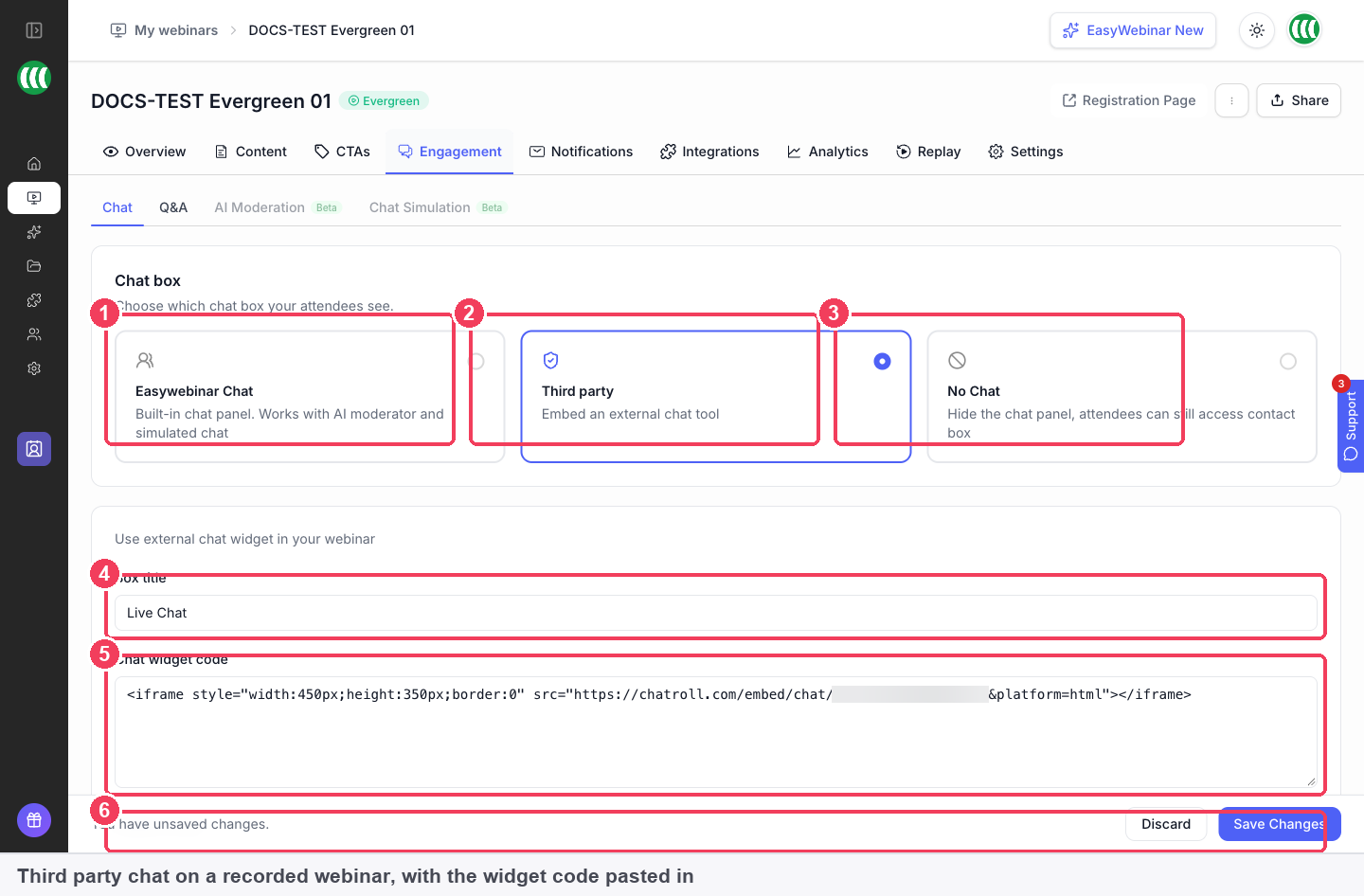
- On Engagement → Chat, choose Third party.
- Give the box a Box title. Attendees see it above the widget, so a plain label such as "Live Chat" or "Ask the team" works better than the tool's name.
- Paste your Chat widget code: an
<iframe>or script snippet, exactly as your chat provider gives it to you. - Set Display timing. Always visible keeps the box open throughout.
- Save.
Messages then go to your chat tool, not to EasyWebinar, and you read and answer them from that tool's own dashboard.
To check it, join a running session as an attendee, not as an admin. The widget sits under Contact in the right-hand rail, on its Chat tab. In the admin view the side panel shows your own host tools instead.
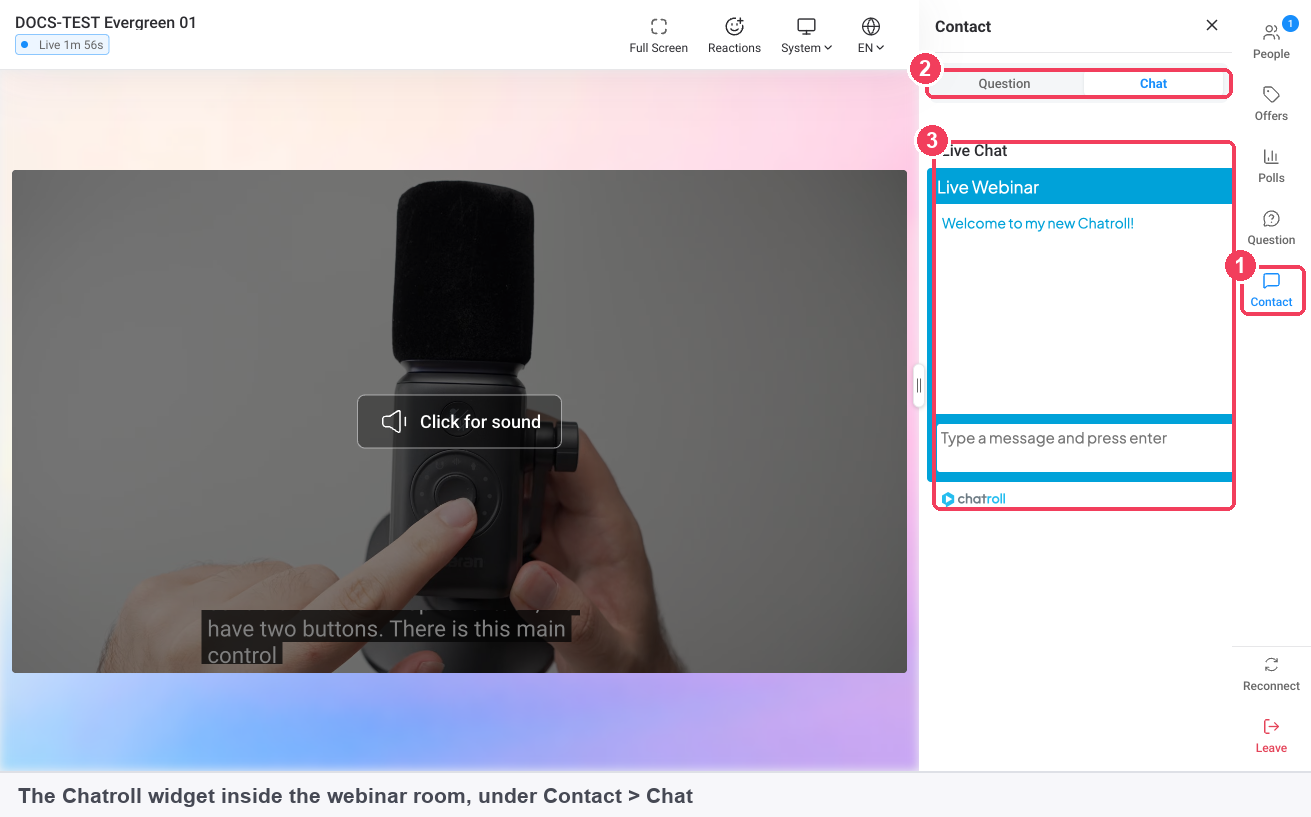
Third party replaces the built-in chat
AI Moderation and simulated chat only work with Easywebinar Chat. If you want either of them, don't choose Third party.
Turn chat off but stay reachable
The EW Contact Box is a built-in question and contact form for attendees, and it works even when chat is off. No Chat plus a pinned contact box suits a presentation you don't want interrupted but still want questions from.
| Setting | What it does |
|---|---|
| Pin in the room | Keeps the box open instead of tucked behind a button |
| Box title | The heading attendees see |
| Email address to receive questions | Where submitted questions are sent |
| Display timing | When the box appears |
Use an email address someone actually monitors, or the questions go nowhere.
How live chat works with other features
Questions and answers
Chat is conversation; Q&A is a list of questions. A common setup is Everyone for chat with Private Q&A: the room stays sociable while questions arrive in an orderly queue.
AI Moderation (Beta)
AI Moderation, in Beta, can answer attendee questions from documents you upload and keep the chat civil. It works with the built-in chat only, and it doesn't replace a human moderator on a live session. It is switched on from the Chat screen once set up in the AI Moderation section.
Analytics
After the session, the webinar's Analytics tab has a Chat panel showing total messages, which you can filter by session.
Replays
A replay page set to Webinar Replica shows the same video, offers, polls and chat replay as the session.
Who uses live chat, and how
These are typical patterns, showing how different teams set the chat up.
Coaches and consultants
A coach running a live masterclass leaves chat on Everyone so attendees can introduce themselves and react, and uses Private Q&A to collect questions for the end. A moderator joins on the moderator link to keep up with the chat.
SaaS and product teams
A sales-led demo uses Hosts only, so prospects from different companies can ask about pricing or their setup without the rest of the room seeing. Each conversation stays between that attendee and the team.
Customer success teams
An onboarding session runs as a simulive webinar. The recording does the teaching, and the customer success team sits in the chat answering setup questions live while it plays.
Agencies
An agency that already handles conversations in an external chat tool runs a client's evergreen webinar with Third party chat, so messages land in the tool its team watches every day.
How live chat compares
EasyWebinar lets you choose whether attendees see each other's messages, embed your own chat tool on recorded webinars, and keep a contact form open with chat switched off. EasyWebinar is the only platform in this table that does all three.
Chat features, from each platform's public documentation:
| Platform | Everyone or hosts-only chat | Embed your own chat tool | Contact form with chat off |
|---|---|---|---|
| EasyWebinar | Yes | Yes | Yes |
| Demio | Yes (Public or Private) | Not in docs | Not in docs |
| Livestorm | Partly (public chat only) | Not in docs | Not in docs |
| eWebinar | Partly (private chat only) | Yes | Yes (Email form option) |
| WebinarJam and EverWebinar | Yes (public, private or both) | Not in docs | Not in docs |
Yes: documented and built in. Partly: documented with a limit, shown in brackets. Not in docs: not found in the vendor's public documentation.
Why EasyWebinar is the stronger choice for live chat
- A shared room or private conversations. EasyWebinar's Who can see messages offers Everyone or Hosts only. Livestorm's help centre says an enabled chat is public, so everyone in the room sees the messages. See EasyWebinar vs Livestorm.
- A chat that can be open to the room. With Everyone, attendees see and reply to each other. eWebinar's help centre describes its chat as private, not public. See EasyWebinar vs eWebinar.
- Your own chat tool in the room. EasyWebinar's Third party option takes your provider's embed snippet on simulive and evergreen webinars. Demio's help centre doesn't document embedding a third-party chat tool. See EasyWebinar vs Demio.
- Reachable with chat off. EasyWebinar's EW Contact Box works with No Chat and sends questions to an email address you choose. WebinarJam's control panel article covers chat visibility, with no contact form documented. See EasyWebinar vs WebinarJam and EverWebinar.
Competitor details checked against each vendor's public documentation on 21 October 2026. Features and plans change, so confirm with the vendor before you decide.
Limits and things to know
- Set chat before the webinar. Chat settings are part of the webinar's setup, not the live room.
- Third party is for recorded webinars only. A live webinar offers Easywebinar Chat or No Chat.
- Third-party messages stay in your tool. EasyWebinar doesn't receive them, so reply from the tool's own dashboard.
- Embedded widgets show to attendees. Join as an attendee to see one; the admin view shows host tools.
- AI Moderation and Chat Simulation need Easywebinar Chat.
- Who can see messages applies to everything attendees post.
- The attendee list is a separate setting. Show Attendees is on the Settings tab.
Common questions
Can I stop attendees from seeing each other's messages?
Yes. Set Who can see messages to Hosts only. Each attendee then talks privately to your team.
Can I turn chat off completely?
Yes. Choose No Chat. Attendees can still reach you through the contact box.
What's the difference between chat and Q&A?
Chat is open conversation. Q&A is a queue of questions you answer in order, and you can hide it from attendees.
Can I change chat settings during the webinar?
Set them beforehand. These controls are part of the webinar's setup rather than the live room.
Can I chat with attendees on a simulive webinar?
Yes. The recording plays while you and your moderators answer in the chat live.
Why don't I see the Third party option?
You're on a live webinar. Third-party chat is only available on simulive and evergreen webinars.
Where do messages from an embedded chat widget go?
Into your chat tool, not EasyWebinar. You read and moderate them there.
Can I use AI Moderation with an external chat tool?
No. AI Moderation, which is in Beta, works with the built-in chat only.
How do I stop attendees chatting to each other?
On the Engagement tab, set chat to Hosts only, or choose No Chat.
Where do contact box questions go?
To the address set in Email address to receive questions.
How many chat messages did my webinar get?
Open Analytics. The Chat panel shows total messages, filterable by session.
Related
- Questions and answers: the question queue you set beside chat on the same tab.
- Chat simulation: fill the chat on an evergreen webinar, where a shared chat isn't possible.
- Polls: the other way to hear from the room, including people who never type.
- Run a live webinar: where the Chat panel sits among the room's other tools.
- Create a simulive webinar: the recorded format where you can still answer in the chat live.
- Create an evergreen webinar: the recorded format that offers Third party chat and Chat Simulation.
- Webinar analytics: the Chat message totals after the session.
Sharing links
The seven links in an EasyWebinar webinar's Share dialog, from the registration page link you promote to the one-click registration, attendee, co-presenter, moderator and replay links, and who each one is for.
Questions and answers (Q&A)
Run a question queue in your webinar separately from chat, choose whether questions are public, private to hosts and moderators, or off, and check how many went unanswered.