
 Product documentation
Offers
Build offer cards on a webinar's CTAs tab with a headline, a button, an optional price and countdown, push them to the room, carry them onto the replay, and measure views, clicks, purchases and revenue.
- Applies to
- Live, simulive and evergreen webinars
- Status
- Live
- Verified
- Page type
- Feature
An offer in EasyWebinar is a card with a headline and a button that you show to attendees during a webinar. The button sends people wherever the next step is: a checkout, a booking page or a sales page. You build offers on the webinar's CTAs tab, with an optional price and an optional countdown, then push them to the room when you make your pitch. Afterwards, Analytics shows how many people saw, clicked and bought each offer, and what it earned.
At a glance
| What it is | A card with a headline, a sub headline and a button, shown in the webinar room |
| Where you build it | Webinar → CTAs tab, alongside polls |
| Styles | Text Offer or Image Offer |
| Price | Set an Offer Price, or switch Free on |
| Countdown | Optional Countdown timer on the offer card |
| Required | A Button URL; saving without one shows "Button link is required" |
| Showing it | Offers panel in the live room, where you push an offer to the room |
| On the replay | Carried over when the replay page uses Webinar Replica |
| Written for you | Create with AI generates offers from a positioning and category, for 1 credit |
| Results | Offers Performance, Views to Clicks, Clicks to Purchases and Revenue by Offer |
| Follow-up | Attendee Action Follow-ups, the Paid Offer — Transaction Success email and the Clicked offer CRM event |
What an offer is
The CTAs tab holds two kinds of call to action. A poll asks your audience something. An offer asks them to do something: buy, book, enrol, download.
Each offer has:
- The card attendees see: a headline and sub headline, as a text offer or an image offer.
- A button, with its own size, icon, text, colours and the URL it opens.
- An optional price, or a Free setting.
- An optional countdown, shown on the card.
- An internal title, which only your team sees.
An offer is not the same as charging for the webinar itself. Paid registration sells access to the session before it starts; an offer sells something separate, during or after it. EasyWebinar reports the two separately.
Why offers matter
What it's for
An offer turns your pitch into something attendees can act on. It puts one button on screen at the moment you ask, pointing at the exact next step. Nobody has to remember a web address or hunt for it later.
How it helps
- Action is one click away. Attendees click while their interest is high, without leaving the room to look for a link.
- The pitch keeps working on the replay. With a Webinar Replica replay, the same offer appears on the recording.
- Recorded sessions still sell. On simulive and evergreen webinars the card carries the pitch, and a countdown can carry the deadline.
- You can see where it loses people. Separate counts for views, clicks and purchases show whether to fix the offer or the checkout.
What happens without it
Without an offer card, the call to action is only what the presenter says. People who arrive late miss it, and anyone watching a recording hears it once and moves on. Interest goes unrecorded, so you can't tell who came close to buying.
Why buyers care
Offers matter most to teams whose webinars have to pay for themselves, such as course creators, coaches, training companies and product teams. They matter most in launch weeks and on automated webinars, where the card does the selling while nobody is presenting.
The EasyWebinar approach to offers
Take a typical case. A software-training company with four instructors runs a monthly live webinar on passing a cloud architect exam. About 250 IT professionals attend. The session ends by selling a certification bundle of three practice courses and an exam voucher.
A common approach is for the instructor to read out a checkout link near the end and paste it into chat. In practice, that link tends to scroll away within a minute, and people who joined late may never see it. The company may also struggle to tell whether weak sales came from the bundle or from the checkout.
The buying decision hasn't changed, but the moment it happens matters more. Attendees decide while the instructor is still talking, so the next step needs to sit on screen right then. It also helps to count each step between seeing the bundle and paying for it.
EasyWebinar handles this with an offer card built on the webinar's CTAs tab. The company writes a headline for the bundle, sets its Offer Price and switches on Countdown timer. The instructor pushes the card from the room's Offers panel during the pitch. Afterwards, Offers Performance shows the bundle's views, clicks and purchases.
The offer editor screenshot under Create an offer shows Countdown timer, Offer Price and the Button settings side by side. How other platforms handle offer countdowns and offer reporting is covered in How offers compare, below.
Find your offers
Open your webinar and click CTAs.
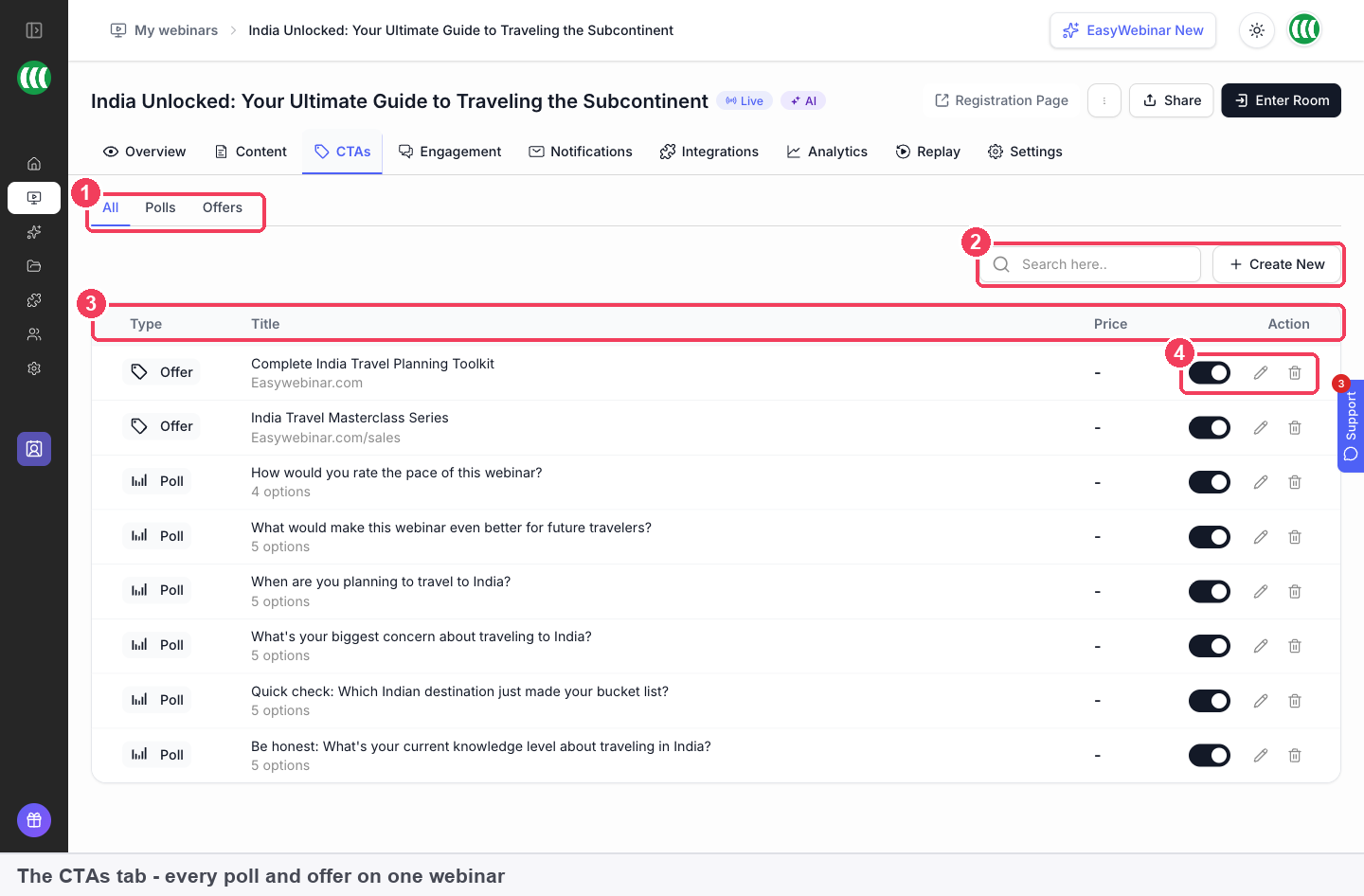
1 All · Polls · Offers · 2 Search · 3 The list · 4 Row actions.
| Control | What it does | |
|---|---|---|
| 1 | All · Polls · Offers | Filters the list. Choose Offers to see only offers |
| 2 | Search | Finds a CTA by name |
| 3 | The list | Type, title, price and actions for each CTA |
| 4 | Row actions | Toggle on or off, edit, delete |
A webinar with no polls or offers yet shows "No CTAs found".
Create an offer
- On the CTAs tab, open an existing offer.
- To add a new one, click + at the bottom of the offer list on the left.
- Choose the Offer Style: Text Offer or Image Offer.
- Decide whether to switch on Countdown timer.
- Set an Offer Price, or switch Free on.
- Give the offer an internal Title, then write the Headline and Sub Headline.
- Set up the Button: size, icon, text and Button URL.
- Choose the button colour and button text colour.
- Check the preview in the centre of the editor, which shows the offer as attendees will see it and updates as you type.
- Set Published, then save.
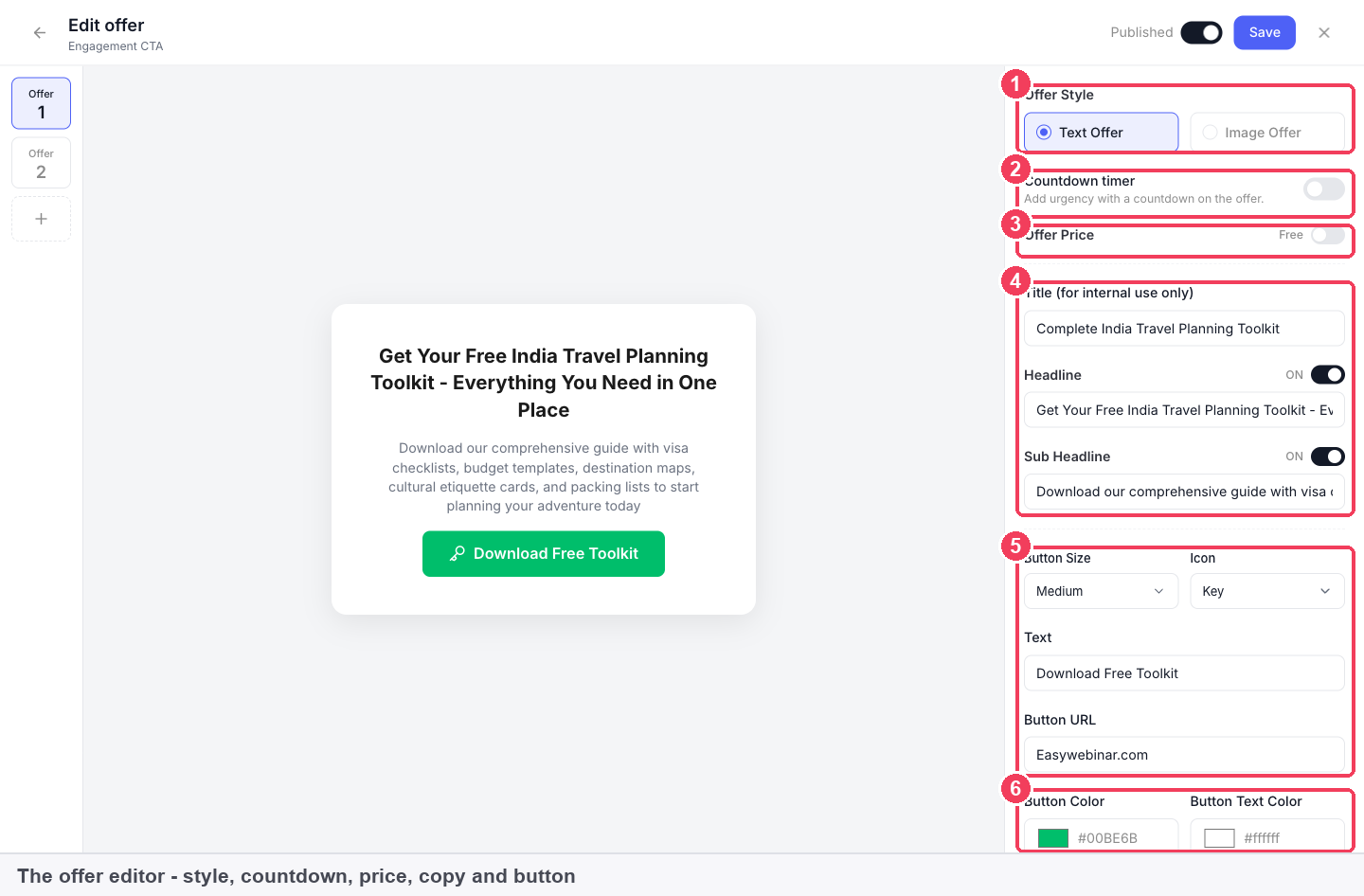
1 Offer Style · 2 Countdown timer · 3 Offer Price · 4 Title, Headline, Sub Headline · 5 Button · 6 Colours.
| Setting | What it does | |
|---|---|---|
| 1 | Offer Style | Text Offer or Image Offer |
| 2 | Countdown timer | Adds a countdown to the offer card |
| 3 | Offer Price | A price, or switch Free on |
| 4 | Title, Headline, Sub Headline | The title is internal; the headline and sub headline are what attendees read |
| 5 | Button | Size, icon, text and the URL it opens |
| 6 | Colours | Button and button text colour |
Write the card
The headline and sub headline do the selling, so give each a job:
- Headline: what the attendee gets, in their terms.
- Sub headline: the detail that removes doubt, such as what's included, who it's for or when it closes.
- Title: a name your team will recognise in the CTAs list, since attendees never see it.
Make the button specific
Button URL is where attendees land when they click: your checkout, booking page or sales page. Write the button Text to match what happens next. "Download Free Toolkit" tells people what they'll get; "Click here" tells them nothing.
Every offer needs a button link
Saving an offer without a button URL shows "Button link is required", and that applies to paid offers too. If any field is invalid when you save, the editor shows "Please fix the highlighted fields before saving."
Add a deadline
Switch on Countdown timer to put a countdown on the offer card. It's a single toggle, set on each offer separately. Use it when the offer really does close or change at a set time, and say in the sub headline what ends.
Keep an offer ready but hidden
You can build offers well before the webinar and keep them out of sight:
- Switch off the toggle on the offer's row in the CTAs list, or
- Turn the editor's Published switch off.
Nothing is deleted. Switch it back on when you want it live.
Let AI write your offers
Create with AI builds a webinar from a description, and offers are one of its five outputs. Script, Landing pages and Emails are selected by default; click the Offers chip to include offers.
At the offers step, start with positioning.
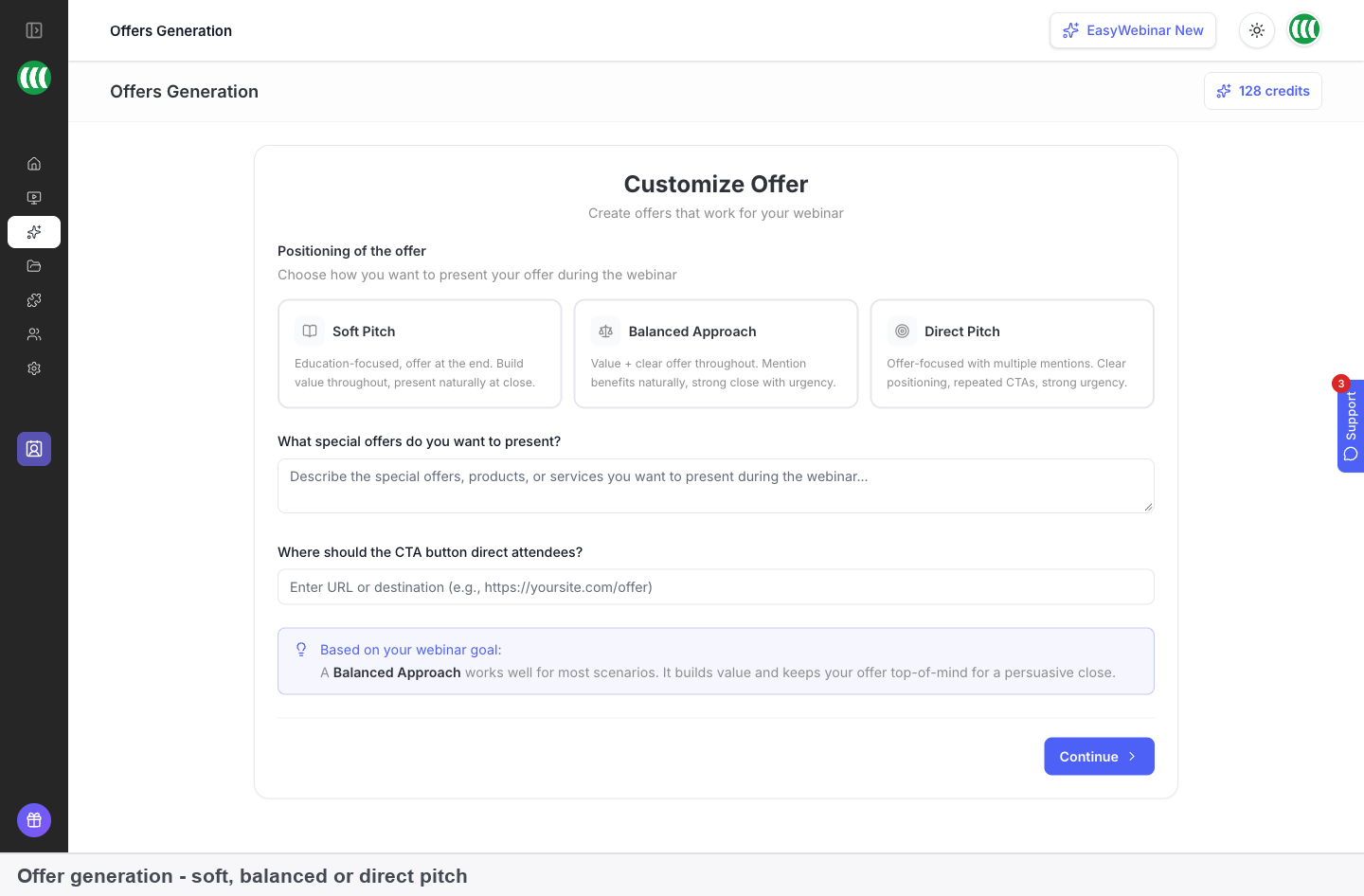
| Approach | What it does |
|---|---|
| Soft Pitch | Education-focused, offer at the end |
| Balanced Approach | Value plus a clear offer throughout, strong close |
| Direct Pitch | Offer-focused, repeated CTAs, strong urgency |
Then describe what you're selling and where the button should send people. Pick a category (online course, coaching programme, membership, digital product or service package) and click Generate Offers. You get complete offers, each with a title, headline, sub-headline, button text and link. Tick the offers you want to keep, then click Save and continue. The offers step costs 1 credit.
Generated offers appear on the CTAs tab and are edited like any other. Read the copy before you publish, particularly anything about price and what's included.
Show an offer during the webinar
In the live room, the side rail has an Offers panel. Open it and push the offer to the room when you reach your pitch. When you click Go Live, the confirmation reminds you that offers and polls should be ready, so check them in the green room before you start.
Live, simulive and evergreen webinars all use the same offers; only the delivery differs.
Send people to the offer when the session ends
The webinar's Settings tab has an End of Session URL, which is empty by default. Point it at your offer or booking page so attendees aren't left sitting on a finished webinar. Expired Session does the same for anyone arriving at a link that has expired.
Offers on the replay
The replay page has two looks, set on the Replay tab:
| Option | What happens to your offers |
|---|---|
| Webinar Replica | A duplicate of your live webinar, with the same video, offers, polls and chat replay, so the replay sells the way the session did |
| Custom Build | A page you design yourself, with its own layout, CTAs and branding, for when the replay needs a different pitch |
Two more replay settings support an offer:
- How long the replay stays up: Always Available, Expire after days or Specific date. A replay that closes gives the offer a matching deadline.
- After the replay ends, under Redirects, sends viewers on to your offer or booking page once the recording finishes.
Measure your offers
Open the webinar's Analytics tab. Further down the Overview:
| Panel | What it shows |
|---|---|
| Offers Performance | Offers, views, clicks and purchases, with a click rate |
| Views to Clicks and Clicks to Purchases | Where your offer loses people |
| Revenue by Offer | Total revenue and payment count, with a details link |
The two ratios point at different fixes:
| If this is low | What it means | Where to look |
|---|---|---|
| Views to Clicks | The offer itself isn't landing | The headline, the sub headline, the timing of the pitch |
| Clicks to Purchases | The offer works but the checkout or pricing doesn't | The checkout page, the price, how well the card matches the checkout |
The Revenue view splits earnings under Revenue by Source, separating paid registrations from offers sold in the room. Offer sales show under Paid Offer.
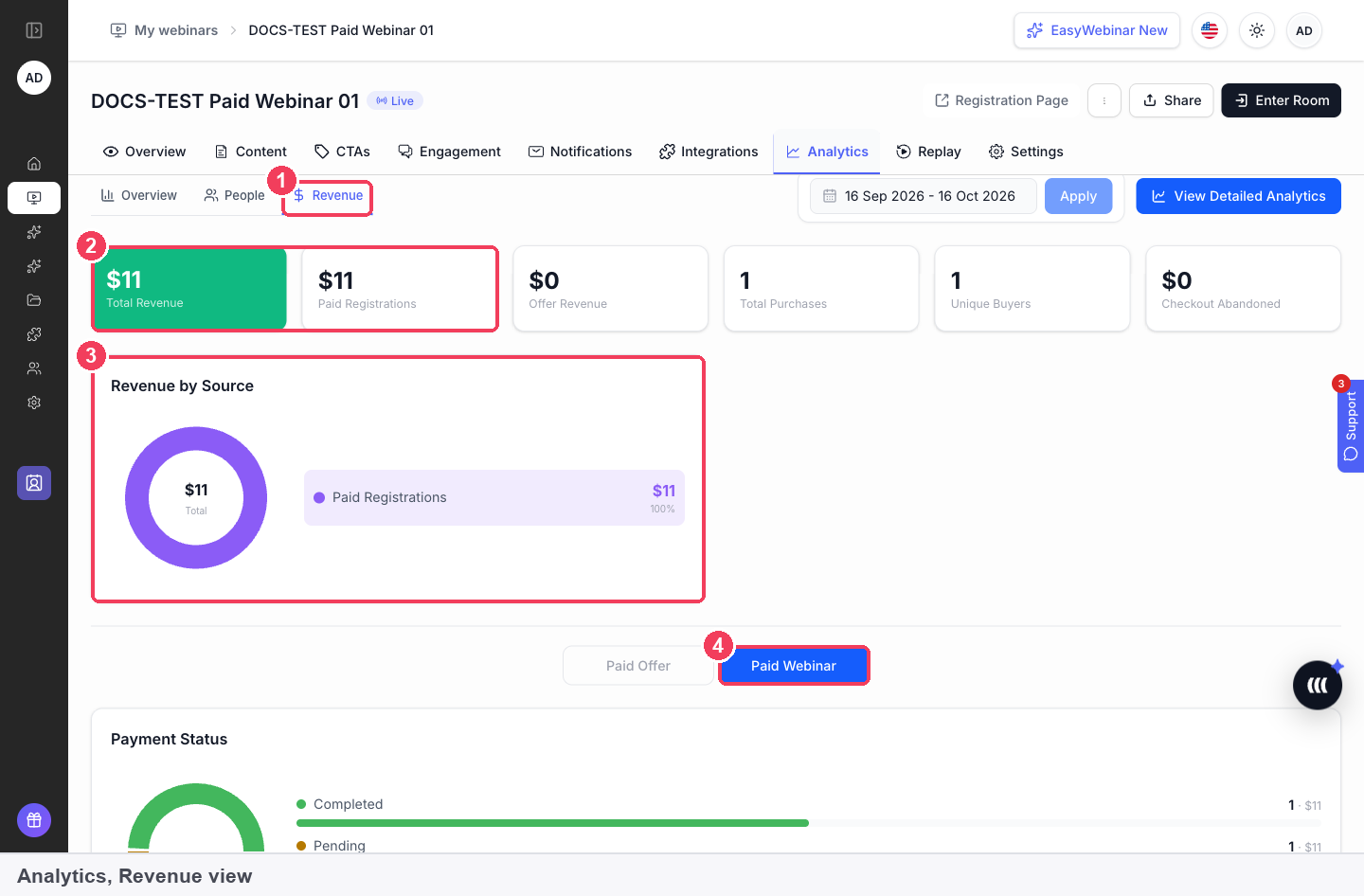
The date range at the top of Analytics applies to everything on the page, so widen it if an offer looks emptier than expected.
How offers work with other features
Follow-up emails
Two email groups on the Notifications tab relate to offers:
- Attendee Action Follow-ups send based on what someone did, including whether they clicked an offer. They let you treat someone who clicked and didn't buy differently from someone who left after five minutes.
- Paid Offer — Transaction Success is sent after a successful purchase, as a receipt-style confirmation.
CRM and email tools
A connected CRM can act on the Clicked offer event, which fires when someone clicks your offer. A sensible mapping is a webinar-hot tag plus a notification to sales.
The People view
People has an Offer clicked column, and the Behavior filter can combine high watch time with offer clicks to find people who were interested and didn't buy. Export the filtered list to work with it elsewhere.
Paid webinars
A webinar can charge for registration and still sell offers inside. Registration payments are reported under Paid Webinar and offer sales under Paid Offer.
Cloning
When you clone a webinar, offers are in the Engagement group of the copy dialog, with polls and email notifications. To try a new offer on a webinar that's already running, clone it and change the copy.
Who uses offers, and how
These are typical patterns, showing how offers fit different selling webinars.
Course creators
An evergreen webinar teaches one core idea and closes with an enrolment offer pointing at the course checkout on the creator's course platform. A countdown marks a bonus window, and a Webinar Replica replay keeps the offer working for people who watch later.
Coaches and consultants
A live masterclass ends with a free offer whose button opens a booking page for a call. Attendee Action Follow-ups reach people who clicked but didn't book.
SaaS and product teams
A recorded demo carries an offer for a trial, with the button pointing at the sign-up page. The team watches Views to Clicks across sessions to judge whether the demo builds enough interest.
Agencies
An agency building a client's webinar uses Create with AI with Balanced Approach to draft offers, edits them into the client's voice, and maps Clicked offer to a tag in the client's CRM.
How offers compare
EasyWebinar puts a countdown on the offer card itself and reports views, clicks and purchases for every offer. The same offers run on live, simulive and evergreen webinars in one product. EasyWebinar is the only platform in this table that does all three.
Offer features, from each platform's public documentation:
| Platform | Countdown on the offer card | Views, clicks and purchases per offer | Same offers on live and automated webinars |
|---|---|---|---|
| EasyWebinar | Yes | Yes | Yes |
| WebinarJam and EverWebinar | Yes (Apply urgency) | Partly (purchases via tracking codes) | Partly (two separate products) |
| Demio | Not in docs | Partly (click counts only) | Yes |
| eWebinar | Partly (shown in one example) | Partly (one conversion event per webinar) | Partly (recorded webinars only) |
| Kajabi | Not in docs | Not in docs | Partly (webinar runs on another host) |
Yes: documented and built in. Partly: documented with a limit, shown in brackets. Not in docs: not found in the vendor's public documentation.
Why EasyWebinar is the stronger choice for offers
- A deadline on the card itself. EasyWebinar's Countdown timer is one toggle on each offer. Demio's help centre documents no countdown setting for its Featured Action call to action. More detail in EasyWebinar vs Demio.
- Clicks and purchases in one report. Offers Performance lists views, clicks and purchases for each offer. WebinarJam records sales through two tracking codes that you place on your own pages. More detail in EasyWebinar vs WebinarJam and EverWebinar.
- Every offer measured. EasyWebinar reports each offer separately under Revenue by Offer. eWebinar's help centre says only one conversion event can be tracked per eWebinar. More detail in EasyWebinar vs eWebinar.
- The offer inside the webinar room. EasyWebinar pushes the card to attendees from the room's Offers panel. Kajabi's webinar funnel can run on any webinar host, such as Zoom, linked into the funnel. More detail in EasyWebinar vs Kajabi.
Competitor details checked against each vendor's public documentation on 21 October 2026. Features and plans change, so confirm with the vendor before you decide.
Limits and things to know
- A button URL is required on every offer, paid offers included.
- The title is internal. Attendees see the headline and sub headline.
- The countdown is per offer. Polls have no countdown setting.
- Two switches control visibility: the toggle in the CTAs list and Published in the editor.
- Replays carry offers only with Webinar Replica. A Custom Build replay page has its own CTAs.
- Offer revenue and registration revenue are reported separately, under Paid Offer and Paid Webinar.
- AI offers use credits: 1 credit for the offers step.
Common questions
How do I add an offer?
Open the CTAs tab, open any offer, and click + at the bottom of the list on the left.
What's the difference between a poll and an offer?
A poll asks a question. An offer sells something, with a headline, a button and an optional price.
Can I use an image instead of text?
Yes. Choose Image Offer under Offer Style.
Does an offer have to have a price?
No. Switch Free on under Offer Price, for example for a download or a booking link.
Why won't my offer save?
If the button has no URL, the editor shows "Button link is required". Any other invalid field shows "Please fix the highlighted fields before saving."
Can an offer show a countdown?
Yes. Turn on the Countdown timer toggle when you edit the offer.
Can I prepare an offer without showing it yet?
Yes. Turn its toggle off in the list, or set Published to off in the editor.
How do I show the offer during a live webinar?
Open Offers on the side rail of the live room and push it to the room.
Will my offers show on the replay?
Yes, if the replay page is set to Webinar Replica.
Where do I see how an offer performed?
On the Analytics Overview. Offers Performance gives views, clicks and purchases with a click rate, and Revenue by Offer gives total revenue and payment count.
Can I follow up with people who clicked but didn't buy?
Yes. Use Attendee Action Follow-ups, tag them with the Clicked offer event in your CRM, or filter People by offer clicks and export the list.
Can AI write my offers?
Yes. In Create with AI, include the Offers chip, choose a positioning and category, and click Generate Offers.
Related
- Countdown timers: the deadline you can put on any offer card.
- Polls: the other kind of CTA, often asked just before the pitch.
- Paid webinars: charging for registration, reported apart from offer sales.
- Replay pages: keep offers selling on the recording with Webinar Replica.
- Webinar analytics: views, clicks, purchases and revenue for each offer.
- Connect a CRM and map your webinar data: tag the people who clicked an offer.
- Course creators: an enrolment offer from build to follow-up.
Polls
Build polls on a webinar's CTAs tab, launch them to the room, have Create with AI write them from a goal, and see who answered in the People view.
Countdown timers
How EasyWebinar's countdown timers work on offers and registration pages, why they matter for selling with webinars, and how to set them up honestly.