
 Product documentation
Create a simulive webinar
Set up a simulive webinar in EasyWebinar that plays a pre-recorded video at the dates and times you schedule, with a shared chat you can answer in while it plays.
- Applies to
- Simulive webinars
- Status
- Live
- Verified
- Page type
- How-to (multi-feature)
A simulive webinar plays a recording at the dates and times you schedule. Everyone in a session reaches the same point of the video at the same moment, so the chat behaves like one shared room, and you or your moderators can answer questions while the recording runs. Creating one takes five steps in the manual builder: name and type, schedule, pricing, video selection and registration template.
Expected result: a simulive webinar with its schedule, pricing and recording in place, listed on the Simulive tab of My Webinars, with a Webinar Video panel on its Content tab.
At a glance
| What it is | A pre-recorded video broadcast at times you set, watched together by everyone in that session |
| Builder steps | Five: name and type, schedule, pricing, video selection, registration template |
| Schedule options | A specific date, or a daily or weekly schedule, set the same way as a live webinar |
| Session times | Run at the times you set, in the webinar's timezone |
| Where the video comes from | Uploaded and hosted by EasyWebinar, or imported from YouTube, Vimeo, Wistia or a direct MP4 link |
| Upload format | MP4, up to 4 GB |
| Chat and Q&A | Work as on a live webinar; you answer in real time while the recording plays |
| Swapping the video later | Webinar Video panel on the Content tab |
| Changing the type later | Not possible; clone the webinar and pick another type on the copy |
Before you begin
- Have a recording. A simulive webinar plays a video, so you need one in your library or ready to add. You can add it during setup without leaving the builder.
- Decide where the video will live. Uploading it means EasyWebinar hosts it for you. Importing a link means it stays on YouTube, Vimeo or Wistia. See Which video source to use, below.
- Pick your session times and timezone. Sessions play at the times you set, in one timezone, so choose times that suit the audience you are targeting.
- Charging for it? Paid registration runs through Stripe. Leave pricing on Free if you aren't charging. See Paid webinars.
- Be sure about the type. The type is fixed once the webinar exists. If you later want an evergreen or live version, you clone it.
Step 1: Open the create dialog
- In the left sidebar, click My Webinars.
- Click Create a Webinar.
- Choose Create Manually.
If you'd rather have the script, pages, emails, polls and offers written for you, choose Create with AI and set Type to Simulive before generating. You still pick the video afterwards. See Create with AI.
Step 2: Name it and choose Simulive
- Type a Webinar Name. The builder won't move on while the name is empty.
- Under Webinar Type, choose Simulive Webinar. The card describes it as pre-recorded content that plays at scheduled times, with attendees registering for specific dates.
- Optionally add Tags.
- Click Continue to Schedule.
Choosing Simulive gives the builder a fifth step. A live webinar has four; the extra one is Video Selection, where you choose the recording.
Step 3: Set the schedule
The schedule step works the same way it does for a live webinar.
- Choose a Schedule Frequency: Specific Date, Daily or Weekly.
- Check the Timezone. It starts on your account timezone, and every session plays at its set time in this timezone.
- Under Available Sessions, set the date and time. Use Add Session to offer more than one sitting.
- Under Schedule Preferences, choose how many upcoming sessions registrants can choose from. By default they see only the next available one.
- Click Continue to Pricing.
Choosing Weekly adds Days of week, a Start Date and End Date (Optional), Session Time with Add Time, and Blackout Dates for days the webinar should skip. Past dates are greyed out in the date picker. For a walkthrough of every schedule control with screenshots, see Create and schedule a live webinar.
Simulive sessions use the webinar's timezone
The schedule step shows a message saying attendees will see times in their local time. For simulive sessions that isn't how they run: they play at the times you set, in the webinar's timezone. Only just-in-time sessions on evergreen webinars follow each attendee's local time.
Step 4: Choose free or paid
- Choose Free or Paid.
- Click Continue to Video Selection.
Paid charges attendees to register and needs a connected Stripe account. On simulive, pricing comes before video selection, so you set the price before you choose the recording.
Step 5: Choose the recording
This is the step that makes the webinar simulive. Whatever you pick here is what plays in every session.
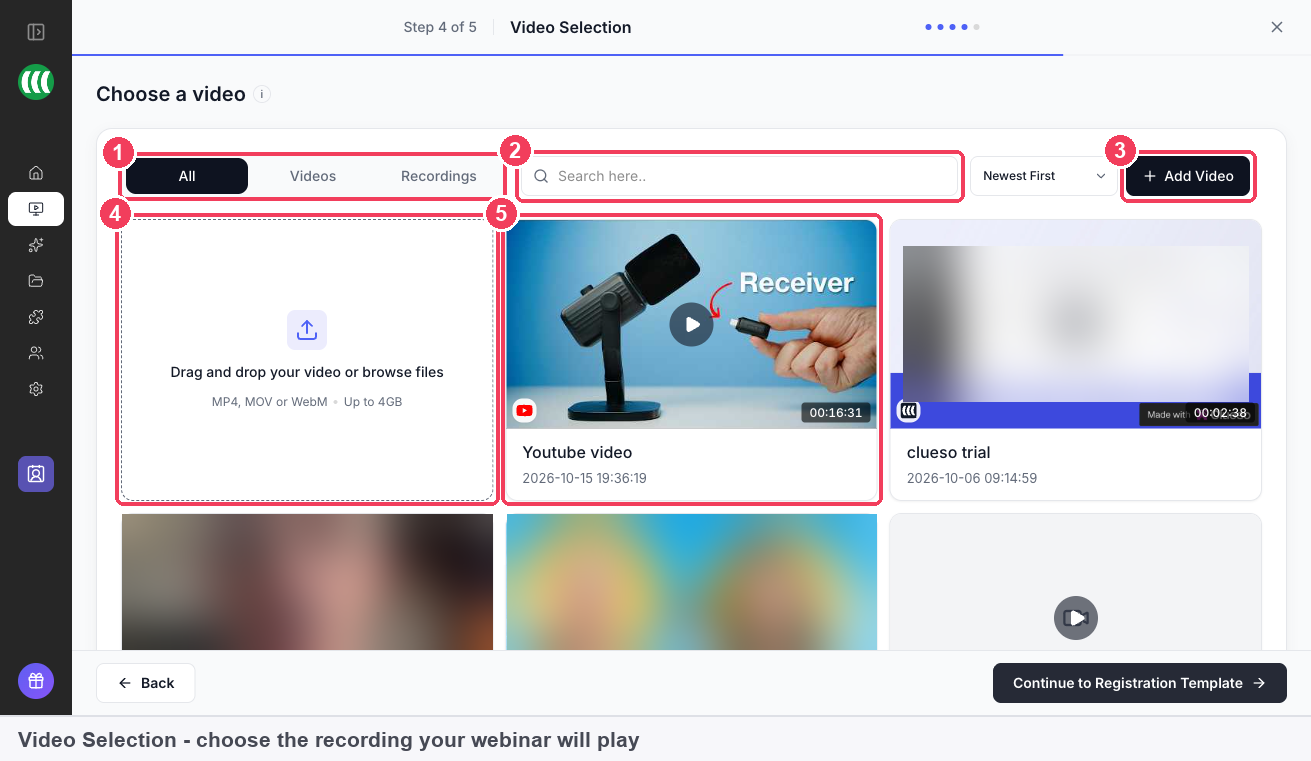
1 All · Videos · Recordings · 2 Search and sort · 3 Add Video · 4 Drag and drop · 5 Your library.
| Control | What it does | |
|---|---|---|
| 1 | All · Videos · Recordings | Switches between videos you uploaded or imported and recordings of webinars you have already run |
| 2 | Search and sort | Finds a video by its name |
| 3 | Add Video | Adds a new video without leaving the builder |
| 4 | Drag and drop | Uploads a file you drop onto the page |
| 5 | Your library | Click a video to select it |
- Click the video you want.
- Click Continue to Registration Template.
The Recordings filter is where earlier webinars show up. If you ran a session live with recording on, its recording can become the content of this simulive webinar.
If the video isn't in your library yet
Add Video opens two routes:
- Local import uploads a file from your computer, and EasyWebinar stores and serves it. No YouTube or Vimeo account is involved.
- Import from URL plays a video already on YouTube, Vimeo, Wistia or a direct MP4 link. You enter the link and the video's length.
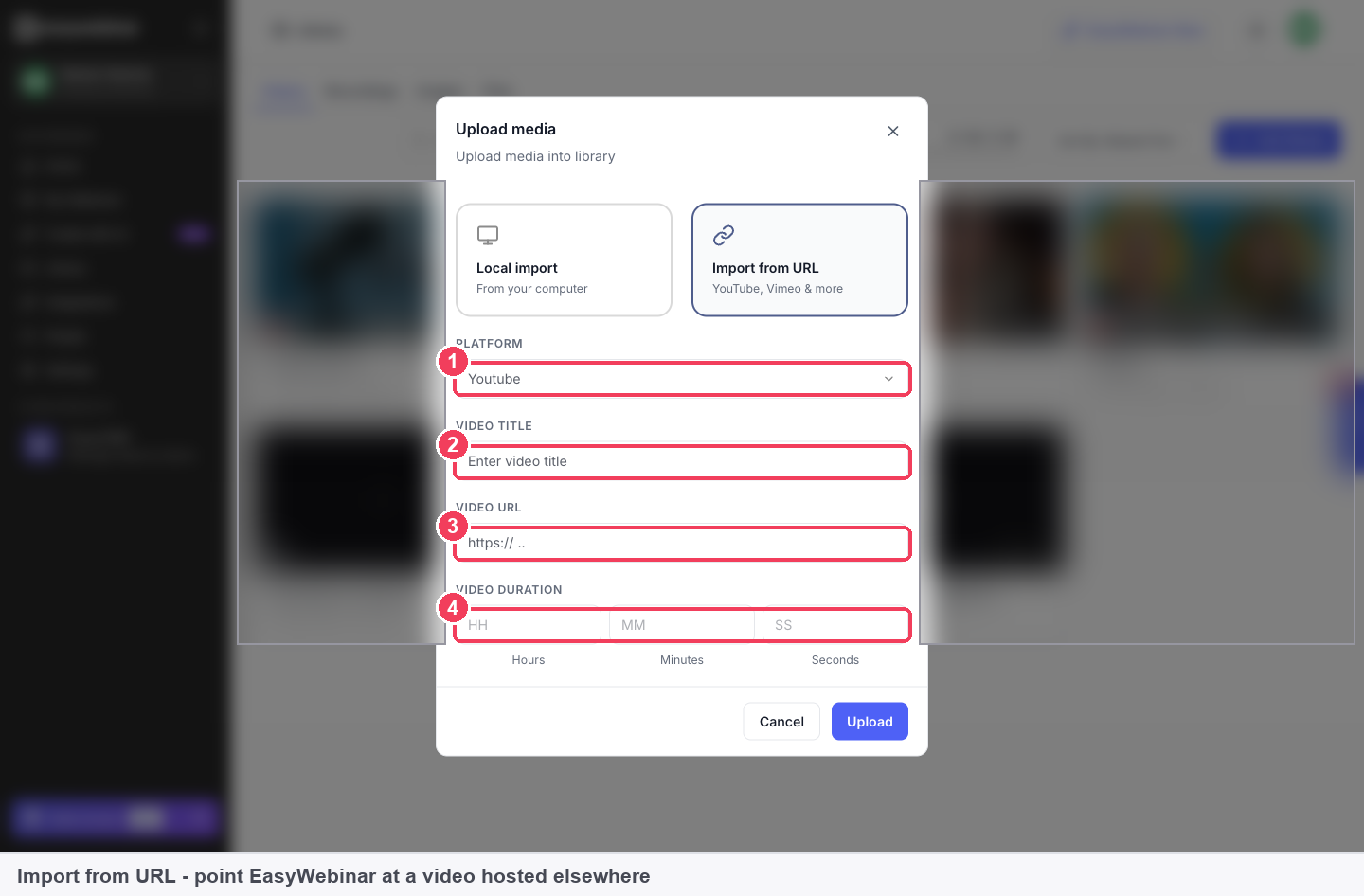
1 Platform · 2 Video title · 3 Video URL · 4 Video duration.
Either way, the video is saved to your library and can be reused on other webinars. For the full upload and import walkthrough, see Video hosting.
Enter an imported video's duration accurately
EasyWebinar reads the length of an uploaded file itself, but not of a linked one. It uses the duration to schedule sessions and to know when the webinar ends, so a wrong figure can cut the video short or leave attendees waiting after it has finished.
Which video source to use
| Upload (Local import) | Link (Import from URL) | |
|---|---|---|
| Who hosts it | EasyWebinar | YouTube, Vimeo, Wistia or the MP4 link's host |
| Storage | Counts towards your account allowance | Uses none |
| What you provide | The file: MP4, up to 4 GB | The link and the length |
| Suits | A recording you don't want published anywhere else | A video that is already online |
A video on YouTube stays discoverable there unless you've unlisted it, which is a reason to upload a recording you'd rather keep to registrants.
Step 6: Pick a registration template
Pick a registration template for the page people sign up on, or click Skip & Create Webinar to choose one later.
Your registration page can then be edited in the drag-and-drop builder. It doesn't go public until you click Publish. See Registration page builder.
Verify the result
- In My Webinars, the webinar sits under the Simulive tab and its card carries a type badge, the next session's date, time and timezone, and the registrant count.
- On the Overview tab, the Sessions panel lists each sitting under Upcoming, Past and Cancelled. A daily or weekly schedule fills the list from its recurrence. See The Overview tab.
- On the Content tab, a Webinar Video panel shows the recording you chose. Live webinars don't have this panel.
- On the registration page, check the session times and publish the page before you share the link.
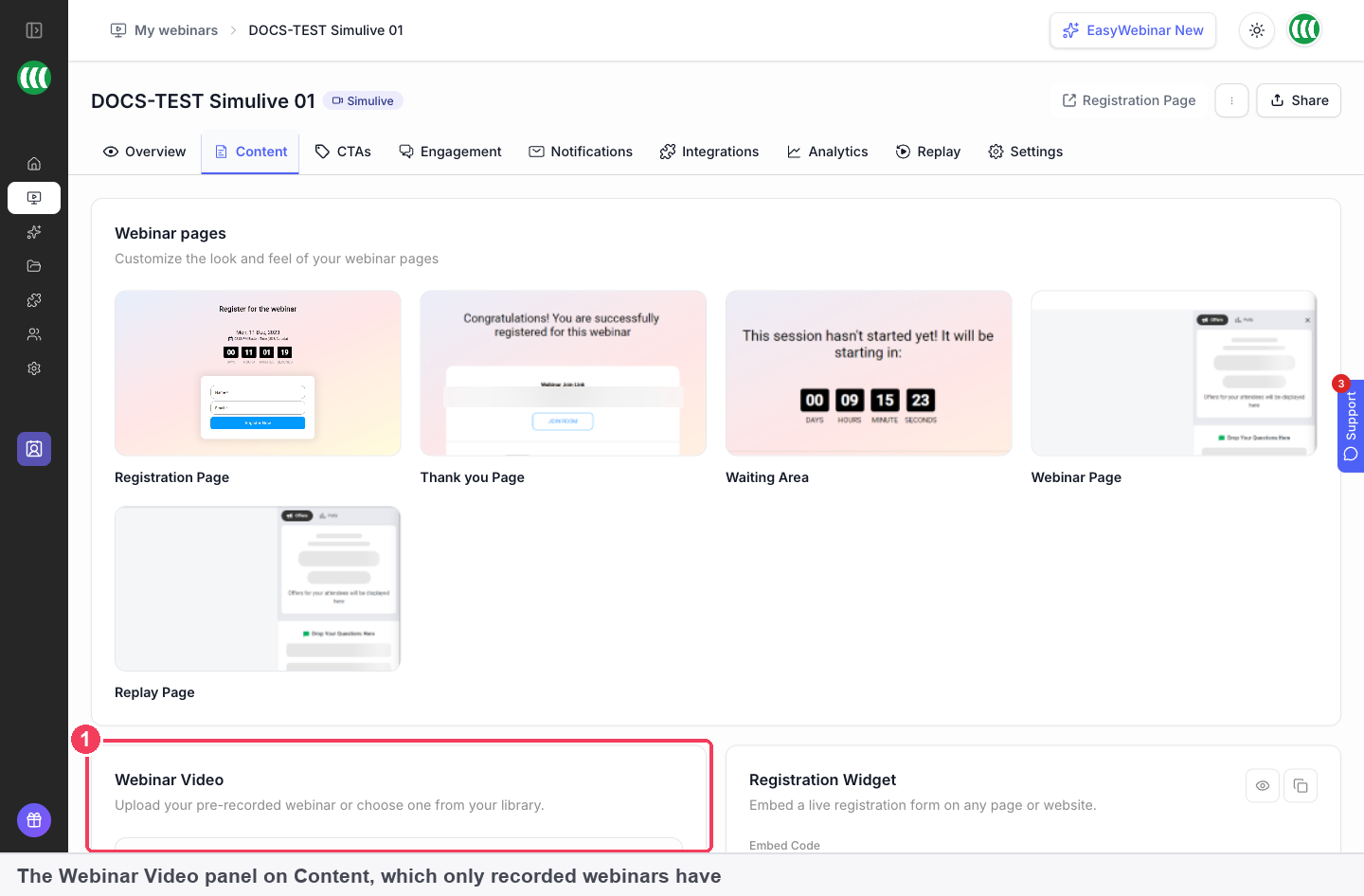
1 Webinar Video, the panel only recorded webinars have.
Change the recording later
The Webinar Video panel on the Content tab shows the selected recording and its length. Preview plays it back, and Change Video swaps it for another.
Swapping the video leaves your schedule, pages and registrations as they were. That makes it safe to replace a presentation with an improved cut while sessions are already booked.
What a simulive webinar is
EasyWebinar has three webinar types, and they differ only in how the content is delivered. Pages, emails, polls, offers and analytics are the same across all three.
| Live | Simulive | Evergreen | |
|---|---|---|---|
| Content | You present in real time | A recording | A recording |
| Timing | Dates you set | Dates and times you set | A repeating schedule each registrant chooses from |
| Who watches together | Everyone at the session | Everyone at the session, at the same point in the video | Each registrant at the session they picked |
| Needs a recording | No | Yes | Yes |
| Your role during a session | Presenting | Optional: answering in the chat | Optional |
The short version: simulive is a broadcast of a recording on a timetable. It sits between live, where you present every time, and evergreen, where the schedule runs continuously and each person picks their own time. For the evergreen setup, see Create an evergreen webinar.
Why simulive matters
What it's for
Simulive is for a presentation you give again and again, or a session at an hour you'd rather not be awake for. You record the talk once. EasyWebinar then broadcasts it at the times you choose, like a scheduled programme.
How it helps
- Same delivery every time. A recording doesn't lose its place, run over or forget a point.
- A shared room. Everyone in a session is at the same moment of the video, so chat messages make sense to all.
- You can still be there. You and your moderators answer questions in the chat while the video plays.
- It runs without you if needed. The recording plays on schedule whether or not your team joins.
What happens without it
Without simulive, a repeated presentation means presenting live each time, at whatever hour suits the audience. A fully on-demand recording avoids that. But viewers then arrive at different points, so there is no shared conversation to join.
Why buyers care
It matters to teams that repeat one webinar on a cycle, such as a weekly walkthrough or a monthly onboarding session. They want the same polished delivery each time, with a real audience and a chat they can staff.
The EasyWebinar approach to simulive webinars
Take a typical case. A small Spanish language school with five teachers offers a free taster lesson for adult beginners before each term. Around 40 people join each sitting, held on Saturday mornings and Wednesday evenings for the six weeks before enrolment closes.
A common approach is for a teacher to give the taster live every time, which can mean twelve sittings a term. Teachers may end up repeating the same lesson and fielding the same questions. In a busy week, the lesson can come out rushed or uneven.
The lesson itself barely changes from one sitting to the next. What differs is the questions people ask afterwards about levels and class times. So the teaching can be recorded once, and the teacher's time can move into the chat, while learners still start together.
EasyWebinar runs this as one simulive webinar. The school records its strongest taster lesson, uploads it with Local import, and sets a Weekly schedule for Saturday and Wednesday. A teacher joins each sitting's chat and answers questions about levels, class times and placement while the recording plays.
When the school improves the lesson, it swaps the file with Change Video in the Webinar Video panel on the Content tab. Registrations, pages and the schedule stay exactly as they were. How this compares with other recorded-webinar tools is covered in How simulive webinars compare, below.
How simulive works with other features
Chat and Q&A
Chat and Q&A are set up on the Engagement tab, as on a live webinar. You and your moderators reply in real time while the recording plays. See Live chat and Questions and answers.
Recorded webinars also have chat options a live webinar lacks: Third party embeds an external chat tool, No Chat hides the panel, and the EW Contact Box collects attendee questions by email even when chat is off.
Chat Simulation
Chat Simulation, under Engagement, fills the chat on simulive and evergreen webinars, either with AI Simulation or with a scripted CSV in Manual Simulation. Only one can be active at a time. See Chat simulation.
Emails and reminders
Confirmation, reminder and follow-up emails live on the Notifications tab. Reminders are timed relative to the webinar rather than at a fixed clock time, so they follow a recurring simulive schedule. See Reminder emails.
Replays
A simulive session can have a replay page for people who missed it, set on the Replay tab. See Replay pages.
The Library
Every video you add, and every recording of a past webinar, lands in the Library. Recordings appear there automatically when Auto Recording is on in the live room. See The Library.
Plan usage
The Plan tab, under Settings → Manage Plan, counts people watching simulive and evergreen sessions on its Automated attendees meter, separately from Live attendees.
People
People in the sidebar can filter registrants by webinar Type, so you can look at simulive audiences on their own. See People.
Who uses simulive webinars, and how
These are typical patterns, shown to illustrate how the type fits different teams.
B2B marketing teams
A marketing team records its strongest product presentation and runs it as a weekly simulive session. A product specialist joins the chat for each sitting and answers questions while the recording plays, so prospects get a consistent pitch and real answers.
SaaS and product teams
A product team serving several regions schedules the same recorded walkthrough at times that suit each one. Each session runs in the webinar's timezone, so the team sets times for each region accordingly.
Customer success teams
A customer success team turns its onboarding talk into a recurring simulive session. New customers register for a date, and a team member covers the chat to pick up account-specific questions.
Coaches and consultants
A coach records a signature talk once and broadcasts it on a regular schedule, joining the chat when they can. Polls and offers work as they would live, so the session still ends with a next step.
How simulive webinars compare
EasyWebinar plays your recording at the times you set while you staff the chat. It hosts an uploaded video itself, plays one linked from YouTube, Vimeo or Wistia, and lists recordings of your past webinars as ready-made content. EasyWebinar is the only platform in this table that does all four.
Simulive set-up, from each platform's public documentation:
| Platform | Recording at set times, chat staffed live | Video hosted in the product | Past live session as the video | YouTube, Vimeo or Wistia link as the video |
|---|---|---|---|---|
| EasyWebinar | Yes | Yes | Yes | Yes |
| EverWebinar | Yes (Hybrid mode) | External video required | Partly (needs WebinarJam subscription) | Yes |
| Demio | Yes | Yes | Yes | Not in docs |
| Zoom | Partly (extra licence needed) | Partly (extra licence needed) | Yes (cloud recordings) | Not in docs |
| eWebinar | Yes (when a host is free) | Yes | Partly (Zoom cloud recordings only) | Yes |
Yes: documented and built in. Partly: documented with a limit, shown in brackets. Not in docs: not found in the vendor's public documentation.
Why EasyWebinar is the stronger choice for simulive webinars
- The video lives with the webinar. With Local import, EasyWebinar stores and serves the file, so no YouTube or Vimeo account is involved. EverWebinar's help centre lists an external video as its primary source. See EasyWebinar vs EverWebinar.
- Your live sessions become content. The Recordings filter on the video step lists your past EasyWebinar sessions. EverWebinar needs an active WebinarJam subscription to import a live session. See EasyWebinar vs WebinarJam and EverWebinar.
- No add-on licence. Simulive Webinar is one of the three type cards in EasyWebinar's create dialog. Zoom's simulive needs a Zoom Events or Zoom Webinars Plus licence on top of a webinar licence. See EasyWebinar vs Zoom.
- Recordings from your own room. EasyWebinar reuses recordings made in its own live room. eWebinar builds from imported Zoom cloud recordings. See EasyWebinar vs eWebinar.
Competitor details checked against each vendor's public documentation on 21 October 2026. Features and plans change, so confirm with the vendor before you decide.
Limits and things to know
- The type is fixed. You can't convert a simulive webinar to live or evergreen. Clone it and choose the new type on the copy. See Clone a webinar.
- A recording is required. Simulive and evergreen both play a video; live webinars don't.
- Sessions run in the webinar's timezone, whatever the in-app message on the schedule step says.
- You can't schedule a session in the past.
- Imported videos need an accurate duration. EasyWebinar uses it to time sessions.
- Removing a linked video at its source breaks the webinar. If a YouTube video is deleted on YouTube, the webinar that plays it stops working. An uploaded video is contained in EasyWebinar.
- Don't remove a video a webinar is using. The webinar plays it.
- Uploads count towards storage. Imported links use none. Extra storage is available as an add-on.
Common questions
Do I have to be in the room during a simulive session?
No. The recording plays on schedule either way. Being in the chat is what gives simulive its edge over evergreen, so join when you can.
Can I use the recording of a webinar I've already run?
Yes. The Recordings filter on the video step lists recordings of your past webinars.
Does my video need to be on YouTube or Vimeo first?
No. Upload it with Local import and EasyWebinar hosts it. Importing from YouTube, Vimeo or Wistia is optional.
Which file formats can I upload?
MP4, up to 4 GB.
Can I run the same simulive webinar more than once?
Yes. Add sessions on the schedule step, or switch the frequency to Daily or Weekly.
Do attendees see session times in their own timezone?
No. Simulive sessions run at the times you set, in the webinar's timezone, so everyone watches together.
Can I swap the recording after people have registered?
Yes. Use Change Video in the Webinar Video panel on the Content tab. Schedule, pages and registrations stay as they are.
Can I turn a simulive webinar into an evergreen one?
Not in place. Clone it and choose Evergreen on the copy.
Why does EasyWebinar ask for a duration on an imported video?
It can't read the length of a video hosted elsewhere, and it needs that length to schedule sessions and end the webinar at the right time.
Can I charge for a simulive webinar?
Yes. Choose Paid on the pricing step, which comes just before video selection.
Related
Create and schedule a live webinar
Create a live webinar, set a one-time or recurring schedule, choose free or paid registration and pick a registration template.
Create an evergreen webinar
Build an evergreen webinar in EasyWebinar that plays a recording on a continuous schedule, with just-in-time sessions, On Demand viewing and recurring daily or weekly times your registrants choose from.