
 Product documentation
Team members and roles
Give colleagues their own EasyWebinar login, choose Admin or User, and understand how team members differ from presenters, moderators and client workspaces.
- Applies to
- All plans · seats depend on your plan · Owner or Admin
- Status
- Live
- Verified
- Page type
- How-to guide
Give each colleague who builds webinars or reads your analytics their own EasyWebinar login, as an Admin or a User. Sharing one login means you can't tell who did what, and only one of you can be in the live room as host. When you finish, the new member is listed under Settings → Team and can sign in with the details you give them.
At a glance
| Where | Settings → Team |
| Roles | Owner (one per account), Admin or User |
| Seats | Part of your plan; the Settings overview shows seats used |
| Invitation | None. You set the password and pass the login on yourself |
| Changing a role | The Actions column on the member's row |
| Guests on one webinar | Join with a Co-presenter or Moderator link, with no account |
| Agency clients | A client workspace, which doesn't use a team seat |
Before you begin
- Check your seat allowance on the Settings overview, for example 2 of 10 seats used. Seats are part of your plan.
- Each member needs their own email address.
- Decide on a role for each person. The Roles section below explains the difference.
Open the Team screen
Click Settings in the sidebar, then Team.
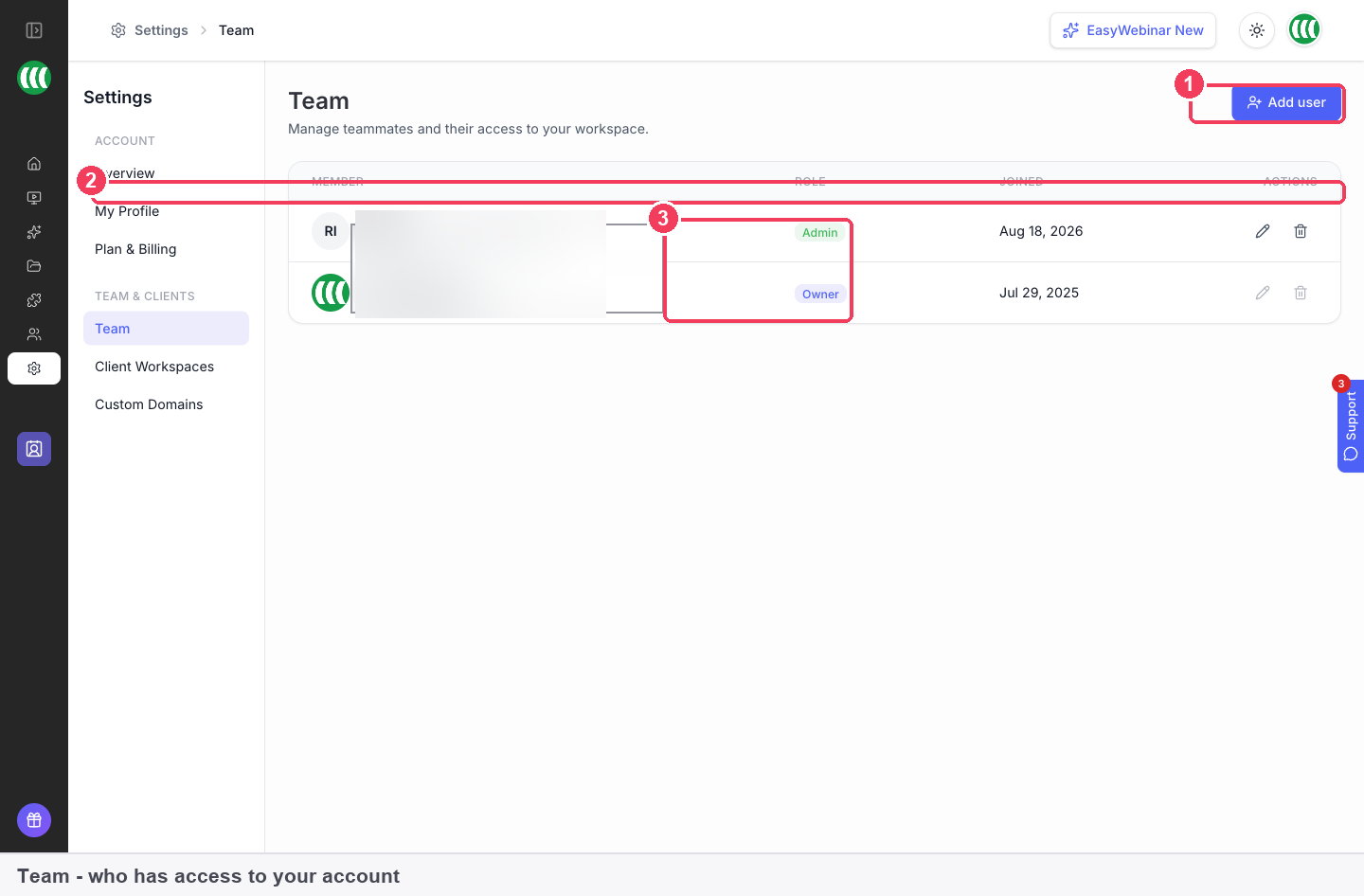
| Area | What it shows | |
|---|---|---|
| 1 | Add user | Creates a new teammate |
| 2 | Column headings | Member, Role, Joined, Actions |
| 3 | Role | Owner, Admin or User |
Add a team member
- Click Add user.
- Enter their Name and Email, and optionally a Photo.
- Set a Password and Confirm password.
- Choose a Role: Admin or User.
- Click Add user.
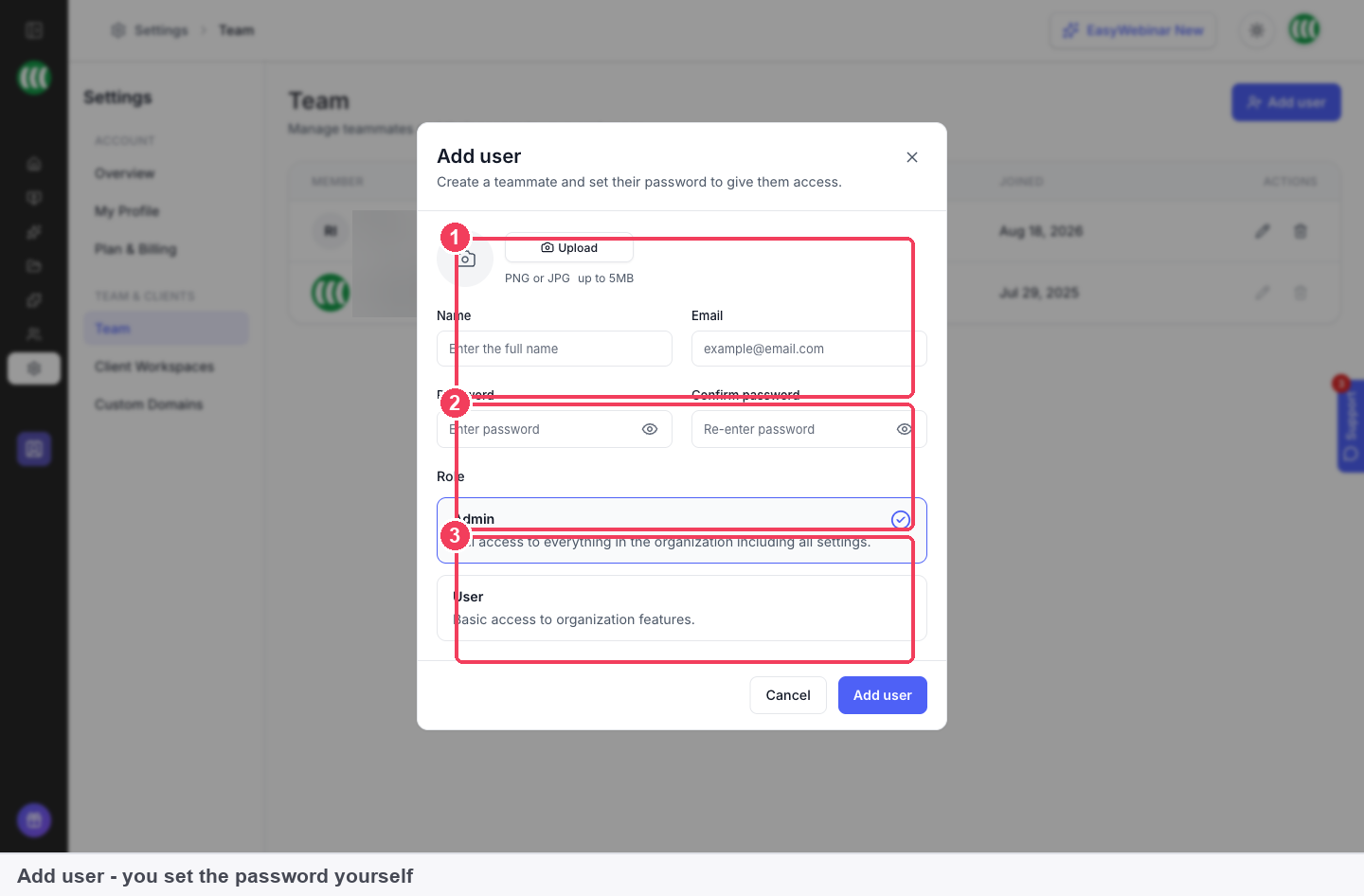
No invitation email is sent
You set their password and nothing is emailed to them. There is no invitation to accept, so pass the login details on yourself and ask them to change the password once they are in.
Roles
| Role | Access |
|---|---|
| Owner | The account holder. One per account |
| Admin | "Full access to everything in the organization including all settings." |
| User | "Basic access to organization features." |
Which role to give
Give Admin to people who need to change billing, team or account settings. User suits presenters and moderators and anyone who works on webinars without touching the account.
Changing roles and ownership
Change someone's role from the Actions column on their row. The Owner can't be changed from this screen; contact support if ownership needs to move.
Team members, presenters and moderators
A team member has a login. A presenter or moderator runs a specific webinar and is added on that webinar's Overview tab. Presenters and moderators can join with a link, without an account.
- Add someone to your team when they work in EasyWebinar regularly.
- Send a Co-presenter or Moderator join link from the Share dialog when they are a guest on one session.
Verify the result
The new member appears in the Team list with their role and joined date, and the seat count on the Settings overview goes up by one.
What team members are
A team member is a person with their own login on your EasyWebinar account. Their role sets how much of the account they can change. Admin reaches every setting, billing included, while User gets basic access to features. Access is set by role alone, with no per-permission matrix.
Team members are one of three ways to bring people in:
| What it is | Use it for | |
|---|---|---|
| Team member | A login on your account | A colleague who works across your webinars |
| Presenter or moderator | Someone on one webinar | A guest speaker, who needs no account |
| Client workspace | A separate account with its own plan | An agency client whose work stays separate |
Why team members matter
What it's for
Team members let colleagues work in your account under their own names. Each person signs in separately, so nobody passes a password around. The role you pick decides whether they can reach billing and settings.
How it helps
- You know who did what. Separate logins replace a shared one, which leaves you guessing.
- More than one person can host. With one shared login, only one of you can be in the live room as host.
- Access fits the job. Admin suits people who handle billing and settings. User suits people who build and run webinars.
- Guests stay guests. A speaker on one session joins by link and needs no account.
What happens without it
Everyone works from one login. Nobody can tell who changed a webinar or a setting, and only one person can host the live room at a time. Anyone holding that password can also reach billing and every account setting, whether their job needs it or not.
Why buyers care
This starts to matter when a second person joins the webinar work. That might be a producer building pages, a moderator in the chat, or a manager checking results. It matters most to agencies, whose own staff and each client's work need clear lines between them.
The EasyWebinar approach to team members
Take a typical case. A six-person digital marketing agency runs monthly lead-generation webinars for four accounting firms. Two producers build the registration pages, an account manager hosts, and a junior marketer moderates the chat. Each firm expects its own leads and settings to stay private.
A common approach is to share one login and keep every client's webinars in the same account. That tends to hold until two people need the room at once, or someone edits the wrong firm's webinar. Billing sits one click away from everyone, and nobody can say who changed what. The cost is usually small at first, then grows with every new client.
The webinars themselves don't need to change. What changes is who signs in, and where each client's work lives. Staff need their own names on their own logins, and each firm needs a space of its own.
EasyWebinar handles both from Settings. The agency owner adds the producers and the moderator with Add user as User, and gives the account manager Admin. Each accounting firm then gets a client workspace: a separate account the agency manages, on its own plan. Workspaces don't use team seats, so adding a fifth firm leaves the staff logins as they are.
The Team screen pictured under Open the Team screen lists each member with a Role column reading Owner, Admin or User. How other platforms handle team logins, guest presenters and client accounts is covered in How team members compares, below.
How team members work with other features
The Overview tab
Each webinar's Team & Moderators panel shows everyone who can run that webinar. Add presenter adds someone who appears on camera and presents. Invite sends an invitation to join the webinar team. The Overview page explains how presenters differ from team members.
Join links
The Share dialog holds a Co-presenter Join Link for a presenter and a Moderator Join Link for Live room for someone who handles chat and questions. Treat both as private. Anyone holding one can join your room in that role.
The live room
Co-hosts and moderators who join land backstage, not on stage. Your audience doesn't see or hear them until you bring them on. That lets a colleague join early and sort out their audio before they speak.
Chat and Q&A moderation
Moderators work with the settings on the Engagement tab. With Private Q&A, questions are visible only to hosts and moderators. With chat set to Hosts only, each attendee talks privately to your team. AI Moderation (Beta) doesn't replace a human moderator on a live session; someone still spots the question worth answering on air.
Your plan
Seats come with your plan. Change plan, on the Plan tab under Settings → Manage Plan, moves you up or down, so compare plans and seats before you add people in bulk.
Client workspaces
If you run webinars for clients, a client workspace gives each one a separate EasyWebinar account that you manage, on its own plan. It is the setup for marketing agencies running client webinars. Unlike adding a team member, the client does get an email confirmation to set their password, so use an address they read.
Who uses team members, and how
These are typical patterns, showing how different teams set up their logins.
Agencies
An agency webinar team gives its staff User logins on the agency account. Each client gets a client workspace, so that client's webinars, registrants and settings stay apart from everyone else's.
Marketing teams
A marketing team gives Admin to the person who owns the plan and settings. Colleagues who build registration pages and follow up on registrants work as User.
Sales teams
A sales team running demos gives a login to each sales engineer who presents every week. A partner presenting once joins with the Co-presenter link instead.
Customer success teams
A customer success team adds a colleague who handles questions during onboarding sessions. On a one-off session, the Moderator Join Link for Live room does the same job without a login.
How team members compares
EasyWebinar gives each colleague their own login, lets a guest present or moderate one webinar from a link with no account, and keeps each agency client in a separate workspace on its own plan. EasyWebinar is the only platform in this table that does all three.
Team and client access, from each platform's public documentation:
| Platform | Own login for each team member | Guests join by link, no account | Separate account for each client |
|---|---|---|---|
| EasyWebinar | Yes | Yes | Yes |
| Demio | Yes | Yes (Guest Event Admins) | Not in docs |
| Livestorm | Yes | Yes (external speakers) | Partly (multiple workspaces mentioned) |
| WebinarJam and EverWebinar | Yes | Yes (unique access link) | Not in docs |
| Kajabi | Yes | Not in docs | Not in docs |
Yes: documented and built in. Partly: documented with a limit, shown in brackets. Not in docs: not found in the vendor's public documentation.
Why EasyWebinar is the stronger choice for team members
- A separate account for each client. EasyWebinar's client workspaces give each client their own account that you manage, on its own plan. Demio's team article describes inviting Team Members to your one Demio account. See EasyWebinar vs Demio.
- Client work set up for agencies. Each EasyWebinar workspace keeps a client's webinars, registrants and settings apart. Livestorm's help centre mentions multiple workspaces only in its HubSpot connection article. See EasyWebinar vs Livestorm.
- Logins ready as you add them. EasyWebinar's Add user sets the password when you create the member. WebinarJam's team article says the user must accept an invitation and create a password first. See EasyWebinar vs WebinarJam and EverWebinar.
- Guests without a login. EasyWebinar's Co-presenter and Moderator join links bring a speaker into one webinar with no account. Kajabi's account users article covers people who help run the account, each with their own login. See EasyWebinar vs Kajabi.
Competitor details checked against each vendor's public documentation on 21 October 2026. Features and plans change, so confirm with the vendor before you decide.
Limits and things to know
- Seats depend on your plan. Adding a member costs more only if you have used all the seats your plan includes. Seat and role rules are also listed under team and account limits.
- There is no per-permission matrix. Access is set by role alone; custom roles were not available at the time of checking.
- No invitation email. You set the password and pass the login on yourself.
- The Owner can't be changed from the Team screen. Contact support if ownership needs to move.
- Client workspaces are separate from team seats; adding a workspace doesn't use a seat.
Common questions
How do I invite someone to my account?
You don't invite; you create their account with Add user, including their password, then pass the details to them.
Does a new team member get an email?
No. Nothing is emailed when you add a team member, so share the login yourself and ask them to change the password.
Can someone join a webinar as a presenter without an account?
Yes. Use the Co-presenter or Moderator join link from the Share dialog.
What's the difference between Admin and User?
Admin can change everything, including settings and billing. User gets basic access to the features.
Can I set custom permissions for one person?
No. Access is set by role alone, and no per-permission matrix is shown. Pick Admin or User to match the job.
How many team members can I have?
It depends on your plan. The Settings overview shows seats used out of your allowance.
Can I change someone's role later?
Yes, from the Actions column on their row in the Team list.
Can I hand the Owner role to someone else?
Not from the Team screen. Contact support if ownership of the account needs to move.
Where do co-hosts appear when they join the room?
Backstage. Move them to the stage when you want them seen and heard, and back again when they're done.
Does a client workspace use one of my team seats?
No. Seats and workspaces are separate, and each workspace is billed on its own plan.
Does my client get an email when I create their workspace?
Yes. The client gets an email confirmation to set their password and join your workspace, so use an address they read.
Related pages
- Limits and defaults: seats, roles and workspaces next to every other account limit.
- Run a live webinar: the host's path from the device check to ending the session.
- Moderators in the Q&A queue: how a moderator works through questions during a session.
- Connect a CRM and map your webinar data: send registrants your team brings in to the CRM you already use.
Connect a CRM and map your webinar data
Connect one of EasyWebinar's 14 CRM and email integrations, tag contacts by what they did, and send webinar details into your CRM's own fields.
Limits and defaults
Every limit, allowance and default setting in EasyWebinar in one place, with its unit and where it applies.