
 Product documentation
Registration confirmation emails
The email EasyWebinar sends the moment someone registers, carrying their join link, and the Email Settings that control the sender name, reply-to address and admin copies.
- Applies to
- Every webinar · set per webinar on the Notifications tab
- Status
- Live
- Verified
- Page type
- Feature
The Registration Confirmation email is the first message a new registrant gets from your webinar. EasyWebinar sends it immediately after someone registers, and it carries their attendee join link, which makes it the email that actually gets people into the session. It sits on the webinar's Notifications tab, and the Email Settings button on the same screen decides whose name your emails show, where replies go, and whether an admin address receives a copy of each registration.
At a glance
| What it is | The email each registrant receives when they sign up |
| When it sends | Immediately after someone registers |
| Who receives it | The registrant |
| What it carries | The registrant's join link |
| Where you set it | Webinar → Notifications → Emails → Registration Confirmation |
| What you can change | The subject and the content of the email |
| Sender settings | Sender name, Reply-to email and Notify admin, under Email Settings |
| Scope | Per webinar: each webinar keeps its own emails |
| On AI-built webinars | A welcome email sent on registration is drafted for you |
What a registration confirmation is
Every webinar's Notifications tab has three channels: Emails, SMS and Whatsapp. SMS and WhatsApp are in Beta. The Emails channel groups everything your webinar sends into five kinds of email:
| Email group | When it sends |
|---|---|
| Registration Confirmation | Immediately after someone registers |
| Webinar Reminders | Before the webinar starts |
| Webinar Follow-ups | After the webinar, to registrants, attendees or no-shows |
| Attendee Action Follow-ups | Based on what someone did, such as engagement and offer clicks |
| Paid Offer — Transaction Success | After a successful purchase |
The confirmation is the only one of the five tied to the moment of sign-up. Reminders count down to the session, follow-ups react to what happened in it, and the transaction email answers a purchase. The confirmation answers a registration.
It is a different thing from the Thank you Page. The thank-you page is what the browser shows straight after registering, with confirmation and what happens next. The email is what stays in the registrant's inbox after they have closed that tab, and it is where they go looking for the link on the day.
Why the confirmation email matters
What it's for
The confirmation does two jobs at once. It tells the registrant that signing up worked, and it hands them the join link they need later. EasyWebinar's guidance calls it the one email you shouldn't turn off. Every other step of getting someone into the room depends on that link.
How it helps
- It arrives at the moment of highest interest. It lands the moment someone registers, while the webinar is still on their mind.
- It gives the join link a permanent home. The registrant can search their inbox for it instead of hunting for your page.
- It sets the sender early. The Sender name shown here is the one they'll see on every reminder.
- It opens a reply channel. The Reply-to email is an address you choose, so a registrant with a question can simply reply.
What happens without it
A registrant without a confirmation has only what they saw on the thank-you page. If they closed it, they may have nothing to come back to. The first email they see may then arrive days later, from a name they don't connect with signing up.
Why buyers care
Registrations only turn into attendance if people can find their way into the session. This matters most to teams whose registrants sign up days or weeks ahead, and to anyone who sells after the webinar. For them, the confirmation is the first message in the whole relationship.
The EasyWebinar approach to confirmation emails
Take a typical case. A mortgage broker with a two-person office runs a free monthly webinar for first-time buyers. Around 60 people register from local ads and estate agent referrals. The broker's aim is a follow-up call with anyone ready to apply.
A common approach is to rely on a default email sent from a generic address. It may land in a promotions folder, from a name the buyer doesn't know. Replies may go to an inbox nobody reads. The broker may not even see who signed up until the day.
Signing up is the moment a buyer cares most. An email from a name they know, with a reply that reaches a real person, can turn that moment into a chat. Knowing who signed up also lets the broker prepare.
EasyWebinar handles this on the webinar's Notifications tab. In Email Settings, the broker sets the Sender name to their own name and the Reply-to email to the office inbox. Notify admin sends them a copy of each sign-up. The Registration Confirmation then goes out at once, with each person's join link.
The screenshot under Choose who your emails come from shows the Sender name, Reply-to email and Notify admin settings in one dialog. How other platforms handle the sender, replies and admin copies is covered in How confirmation emails compare, below.
Set it up
Open the Notifications tab
Open your webinar and click the Notifications tab. The Emails channel opens first.
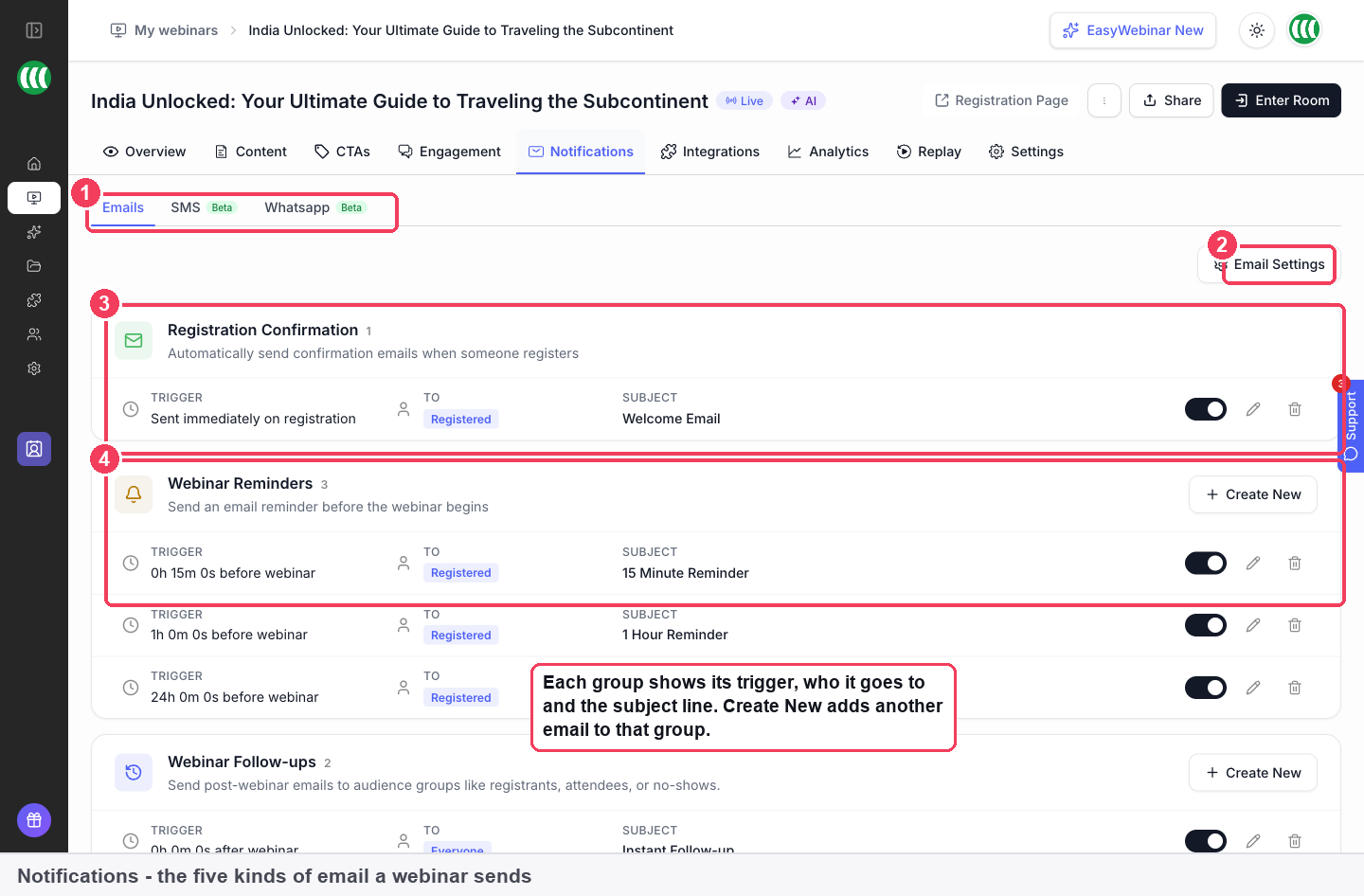
1 Channel tabs · 2 Email Settings · 3 An email group · 4 Create New.
| Area | What it does | |
|---|---|---|
| 1 | Channel tabs | Emails, SMS and Whatsapp |
| 2 | Email Settings | Sender name, reply-to address and admin copies |
| 3 | An email group | Its trigger, audience and subject |
| 4 | Create New | Adds another email to that group |
Review the confirmation email
- Find the Registration Confirmation group at the top of the list.
- Read the entry. Each one shows its trigger, the audience it goes to, and its subject line, so you can check what it does without opening it.
- Open the email to change its subject and content. Every email on the tab is editable in the same way.
- Keep the join link in the body. It is the reason the email exists.
A webinar built with Create with AI arrives with its emails already written, starting with a welcome email sent on registration. Those AI drafts come with merge tags already in place, so dates, times and join links fill themselves in. Read the wording before you publish, and edit it like any other email.
Choose who your emails come from
- On the Emails channel, click Email Settings.
- Enter a Sender name.
- Enter a Reply-to email.
- Turn on Notify admin if you want a copy of each registration sent to an admin address, and give it that address.
- Save your changes.
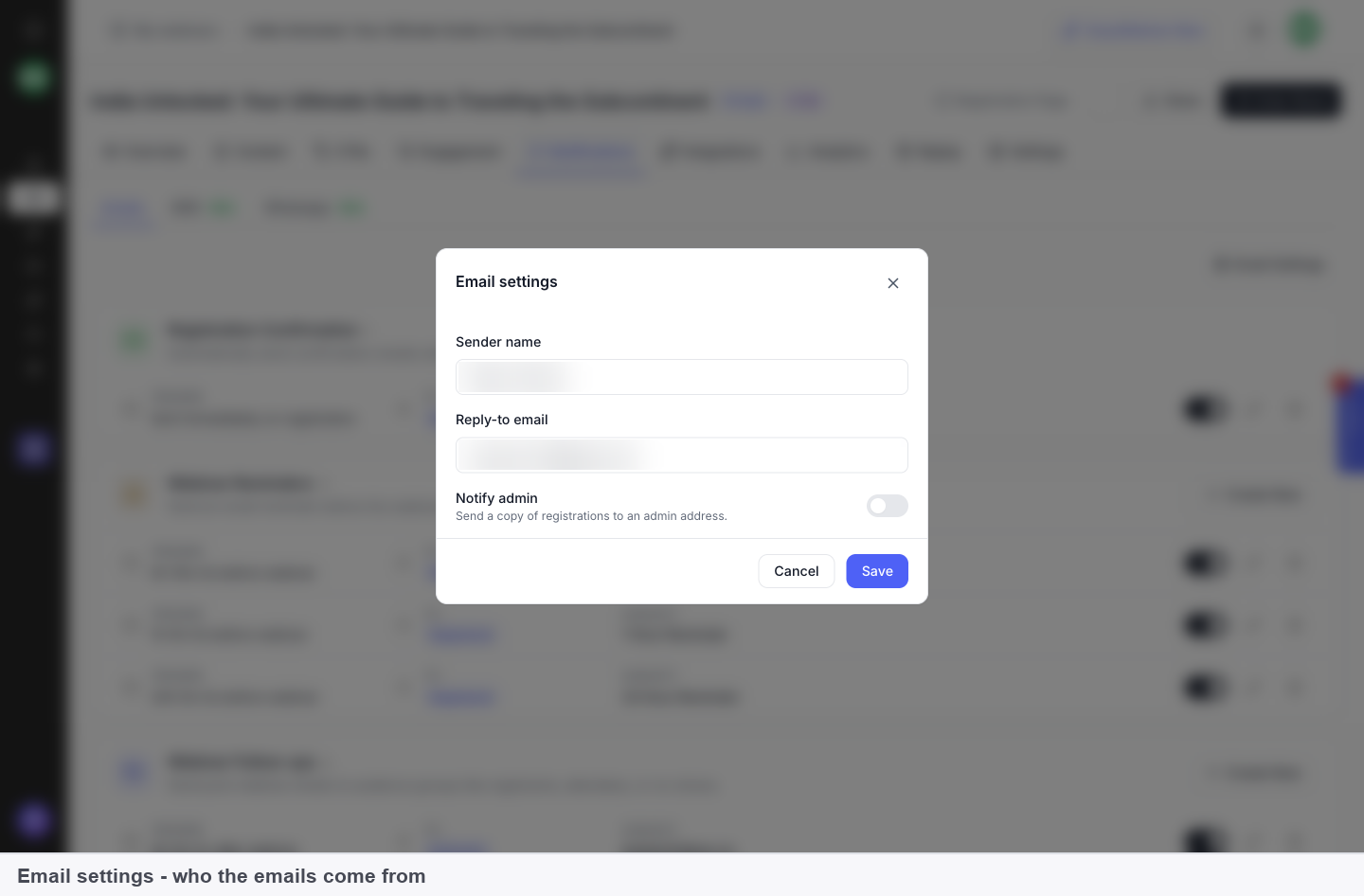
| Setting | What it does | What to put in it |
|---|---|---|
| Sender name | The name recipients see in their inbox | Your name or your company's, so a registrant recognises it |
| Reply-to email | Where replies go | An address somebody actually reads, because people do reply to webinar emails |
| Notify admin | Sends a copy of registrations to an admin address | A shared or personal inbox for whoever needs to see sign-ups as they happen |
Make sure people can register
A confirmation only goes out when someone registers, and your registration link doesn't work until the registration page is published. Saving the page alone isn't enough. Open the Registration Page from the Content tab and click Publish before you promote the link. See Registration page builder.
How it works with other features
Reminder emails
The confirmation starts the email sequence and Webinar Reminders carry it to the session. Reminders share the same Email Settings, so the sender a registrant learns from the confirmation is the one they see again before the webinar. See Reminder emails.
The thank-you page
The Thank you Page is one of the five pages on the Content tab and appears straight after registering. On a paid webinar, it shows the attendee's Webinar join link with a Join Room button, and the session Date with Add to Calendar buttons for Google, Outlook and Apple. The page and the email cover the same moment from two sides: one in the browser, one in the inbox.
SMS and WhatsApp welcome messages (Beta)
Both Beta channels have their own message for the moment of registration: Welcome SMS on the SMS tab and Welcome Message on the Whatsapp tab, each sent immediately after someone registers. They need a phone number, so the Phone field has to be on your registration form, and they come from an EasyWebinar number rather than your own. Both work alongside email rather than replacing it.
Create with AI
The emails step of Create with AI drafts a full email sequence, beginning with a welcome email on registration and followed by reminders and follow-ups. After the build, the emails sit on the Notifications tab like any others. See Create a webinar with AI.
Paid registration
On a paid webinar, the attendee is registered once payment goes through and is then sent to your thank-you page. Purchases of an offer inside the webinar have their own email, Paid Offer — Transaction Success, the receipt-style confirmation for anyone who bought. See Paid webinars.
CRM and email tools
A connected CRM or email tool can act on the same moment through the Registered event, for example tagging every new registrant. On the Custom fields side, the Webinar Join Link can be mapped into a CRM field so each contact holds their own working link. See Connect a CRM and map your webinar data.
Cloning
When you clone a webinar, Email notifications is one of the items you can bring across, in the Engagement group with polls and offers. A copied confirmation keeps your wording and sender choices, so check it still names the right webinar. See Clone a webinar.
Analytics and People
The Registered metric in a webinar's Analytics counts unique sign-ups, which is the number of people your confirmation should have reached. The People view lists each registrant with a Registered on column. See Webinar analytics and People.
Who uses it, and how
These are typical patterns, shown to illustrate how the confirmation fits different kinds of webinar.
Coaches and consultants
A coach sets the Sender name to their own name and the Reply-to email to the inbox they check every day. Registrants often reply to the confirmation with a question about the session, and that reply becomes the first real conversation with a prospect.
B2B marketing teams
A marketing team running a webinar for pipeline turns on Notify admin and points it at a team address, so sales can see registrations as they arrive. In the connected CRM, the Registered event tags each new contact for the campaign.
Agencies
An agency running webinars for several clients sets each webinar's Sender name to the client's company and the Reply-to email to the client's own address. Because the settings are held per webinar, each client's registrants hear from the client, not the agency.
Course creators
A course creator uses Create with AI to draft the sequence, then rewrites the welcome email in their own voice and sets the sender to a name their students already know. See selling online courses with webinars.
How confirmation emails compare
EasyWebinar's confirmation goes out from a sender name and reply-to address you set for each webinar, and Notify admin can copy every registration to your inbox. A WhatsApp welcome message, in Beta, can go out at the same moment. EasyWebinar is the only platform in this table that does all four.
Confirmation features, from each platform's public documentation:
| Platform | Confirmation sent on registration | Your sender name and reply-to address | Copy of each registration to an admin | WhatsApp welcome message (Beta) |
|---|---|---|---|---|
| EasyWebinar | Yes | Yes | Yes | Yes |
| Demio | Yes | Partly (sender name only) | Not in docs | Not in docs |
| Livestorm | Yes | Partly (reply-to is account-wide) | Not in docs | Not in docs |
| WebinarKit | Yes | Yes | Not in docs | Not in docs |
| WebinarJam and EverWebinar | Yes | Partly (sender is the host's name) | Not in docs | Not in docs |
Yes: documented and built in. Partly: documented with a limit, shown in brackets. Not in docs: not found in the vendor's public documentation.
Why EasyWebinar is the stronger choice for confirmation emails
- A copy of every sign-up. EasyWebinar's Notify admin sends a copy of each registration to an address you choose. Demio's help centre doesn't document an admin copy of registrations, as EasyWebinar vs Demio shows.
- Reply-to set per webinar. EasyWebinar keeps Email Settings with each webinar. Livestorm's reply-to address is the account owner's email, changed in team settings, covered in EasyWebinar vs Livestorm.
- A sender name you choose. EasyWebinar's Sender name can be you, your company or a client. WebinarJam shows the webinar host's full name as the sender, as EasyWebinar vs WebinarJam and EverWebinar sets out.
- A WhatsApp welcome, in Beta. EasyWebinar's Beta Welcome Message on the Whatsapp tab sends the moment someone registers. WebinarKit's help centre covers confirmation and reminder texts only, detailed in EasyWebinar vs WebinarKit.
Competitor details checked against each vendor's public documentation on 21 October 2026. Features and plans change, so confirm with the vendor before you decide.
Limits and things to know
- Emails are set per webinar. Each webinar has its own confirmation and its own Email Settings; cloning is how you carry them to a new webinar.
- The sender name is a display name. Replies go to the Reply-to email you set.
- Notify admin needs an address. It sends a copy of registrations to the admin address you give it.
- The registration page must be published. Until it is, the registration link doesn't work and no confirmations go out.
- Merge tags come pre-filled on AI-built emails. If you rewrite an AI draft, keep the tags that carry the date, time and join link.
- SMS and WhatsApp welcome messages are in Beta and need the Phone field on your registration form.
Common questions
When is the confirmation email sent?
Immediately after someone registers. The entry on the Notifications tab shows this as its trigger.
Can I turn the confirmation off?
It's the email that carries the join link, so EasyWebinar's guidance is to keep it on. Without it, a registrant who closes the thank-you page has no copy of their link in their inbox.
Can I change what the confirmation says?
Yes. Open the email on the Notifications tab to change its subject and content.
How do I change who the emails come from?
Click Email Settings on the Emails channel and set the Sender name and Reply-to email.
Where do replies to the confirmation go?
To the Reply-to email in Email Settings. Use an address someone reads, because people do reply.
Can I get told when someone registers?
Yes. Turn on Notify admin in Email Settings and give it an address. It sends a copy of registrations there.
Does a webinar built with AI have a confirmation email?
Yes. Create with AI drafts a welcome email sent on registration, with merge tags for dates, times and join links already in place. Edit it on the Notifications tab.
Can registrants get a text or WhatsApp confirmation too?
Both are in Beta: Welcome SMS and the WhatsApp Welcome Message send immediately after someone registers. Each needs the Phone field on your registration form.
Why did nobody receive a confirmation?
Check the registration page is published. The registration link doesn't work until you click Publish, so nobody can register and no confirmation is sent.
Is the confirmation the same as the thank-you page?
No. The Thank you Page shows in the browser straight after registering. The confirmation is the email that stays in the registrant's inbox.
Related
- Reminder emails: the emails that follow the confirmation, using the same Email Settings.
- Registration page builder: publish the page, or no confirmations go out.
- Create a webinar with AI: drafts the welcome email with its merge tags in place.
- Paid webinars: registration happens only after payment, so that is when the confirmation sends.
- Clone a webinar: carry the confirmation and sender settings to a new webinar.
- Connect a CRM and map your webinar data: act on the Registered event and store each join link.
- People: check who registered and when.
Chat simulation
Fill the chat on a simulive or evergreen webinar with a conversation generated by AI from a cast of simulated attendees, or scripted by you in a timed CSV.
Webinar reminder emails
How EasyWebinar's Webinar Reminders work, how to time them relative to the session, how many to send, and how to tell from Analytics whether they are getting people to attend.