
 Product documentation
Replay pages
Turn on a webinar's replay page, decide how long it stays available, send viewers somewhere when it ends, choose between Webinar Replica and Custom Build, and tell a replay apart from instant replay.
- Applies to
- Every webinar, from its Replay tab · instant replay is a separate evergreen setting
- Status
- Live
- Verified
- Page type
- Feature
A replay page is where people watch the recording of a webinar session after it has happened. In EasyWebinar every webinar has a Replay tab that turns the page on, gives you its link, sets how long the replay stays available, decides where viewers go when the recording finishes, and chooses whether the page copies the live webinar or is designed separately. Most people who register don't make the live session, so the replay is often how the webinar reaches the rest of its audience.
At a glance
| What it is | A page for watching the recording of a session that has already happened |
| Where you set it | Webinar → Replay |
| Turn it on | Enable replay page |
| Who can watch | Anyone with the link, while the page is enabled |
| Availability | Always Available, Expire after days or Specific date |
| When it ends | After the replay ends under Redirects sends viewers to a URL you choose |
| Experience | Webinar Replica (same video, offers, polls and chat replay) or Custom Build |
| Where to find the link | Replay Page Link on the Replay tab, and Attendee Replay link in the Share dialog |
| Styling | The Replay Page is one of the five pages on the Content tab |
| Not the same as | Instant replay (On Demand), an evergreen schedule setting |
What a replay page is
The Replay tab holds everything about the page people use to catch up on a past session. It has five parts:
| Section | What it does | |
|---|---|---|
| 1 | Replay Settings | Turns the replay page on or off |
| 2 | Replay Page Link | The URL you send people, with Copy and Open |
| 3 | Availability | How long the replay stays accessible |
| 4 | Redirects | Where viewers go when the recording finishes |
| 5 | Experience | What the replay page looks like |
The replay page is also the fifth of the five webinar pages on the Content tab, after the registration page, thank-you page, waiting area and webinar page. The Replay tab decides how the page behaves; the Content tab is where you can style it in the page builder.
Why replay pages matter
What it's for
A replay gives everyone who registered a second chance at the session. It serves people who couldn't make the live time, people who left early and people who want to watch again. For a webinar that ends in an offer, it also extends the window to act on the offer.
How it helps
- It reaches the larger audience. Missed, people who registered and never showed up, is the group most worth emailing.
- It can keep selling. With Webinar Replica, the replay carries the same offers and polls as the live session.
- It can carry a deadline. Expire after days or Specific date give the replay a closing point.
- It hands viewers a next step. After the replay ends sends them to an offer or a booking page.
What happens without it
Without a replay page, the session is over for everyone who wasn't there. No-shows get a follow-up with nothing to watch. An offer made live never reaches a second audience. EasyWebinar's guidance is to leave live recording on because the replay is usually watched by more people than the live session.
Why buyers care
Replays matter most to anyone running webinars to generate leads or sales, because the replay decides how much one session produces. They matter in the days after each session, when the people who missed it decide whether to catch up.
The EasyWebinar approach to replay pages
Take a typical case. A personal-finance educator runs a free live class on clearing credit card debt, on the first Thursday of each month at 19:30. About 250 people register, many of them parents and shift workers. The class ends with an offer to join an eight-week budgeting programme.
A common workaround is to upload the recording to a video site and email the link the next morning. That probably reaches some of the people who missed the evening. Yet the offer and the polls tend to stay behind in the live room, so the recording teaches without selling. Viewers may also keep watching for months, long after enrolment has closed.
The class itself doesn't need to change. The people who missed it need the same session, with the same offer, and a clear point where the chance ends. The replay should finish where the live class finished: on the next step.
EasyWebinar handles this on the webinar's Replay tab. The educator switches on Enable replay page and keeps Webinar Replica, so the offer and polls play as they did live. Expire after days gives the replay a closing point, and After the replay ends sends viewers to the programme's enrolment page. A Webinar Follow-up to no-shows carries the link.
The screenshot under Set up a replay page shows Availability beside Redirects and Experience on one tab. How other platforms handle replay deadlines, offers and page design is covered in How replay pages compare, below.
Set up a replay page
- Open your webinar and click the Replay tab.
- Switch on Enable replay page. The page then reads Replay page is live, anyone with the link can watch.
- Under Availability, choose how long the replay stays open.
- Under Redirects, set After the replay ends if you want viewers sent somewhere when the recording finishes.
- Under Experience, choose Webinar Replica or Custom Build.
- Copy the Replay Page Link with Copy, or check the page with Open.
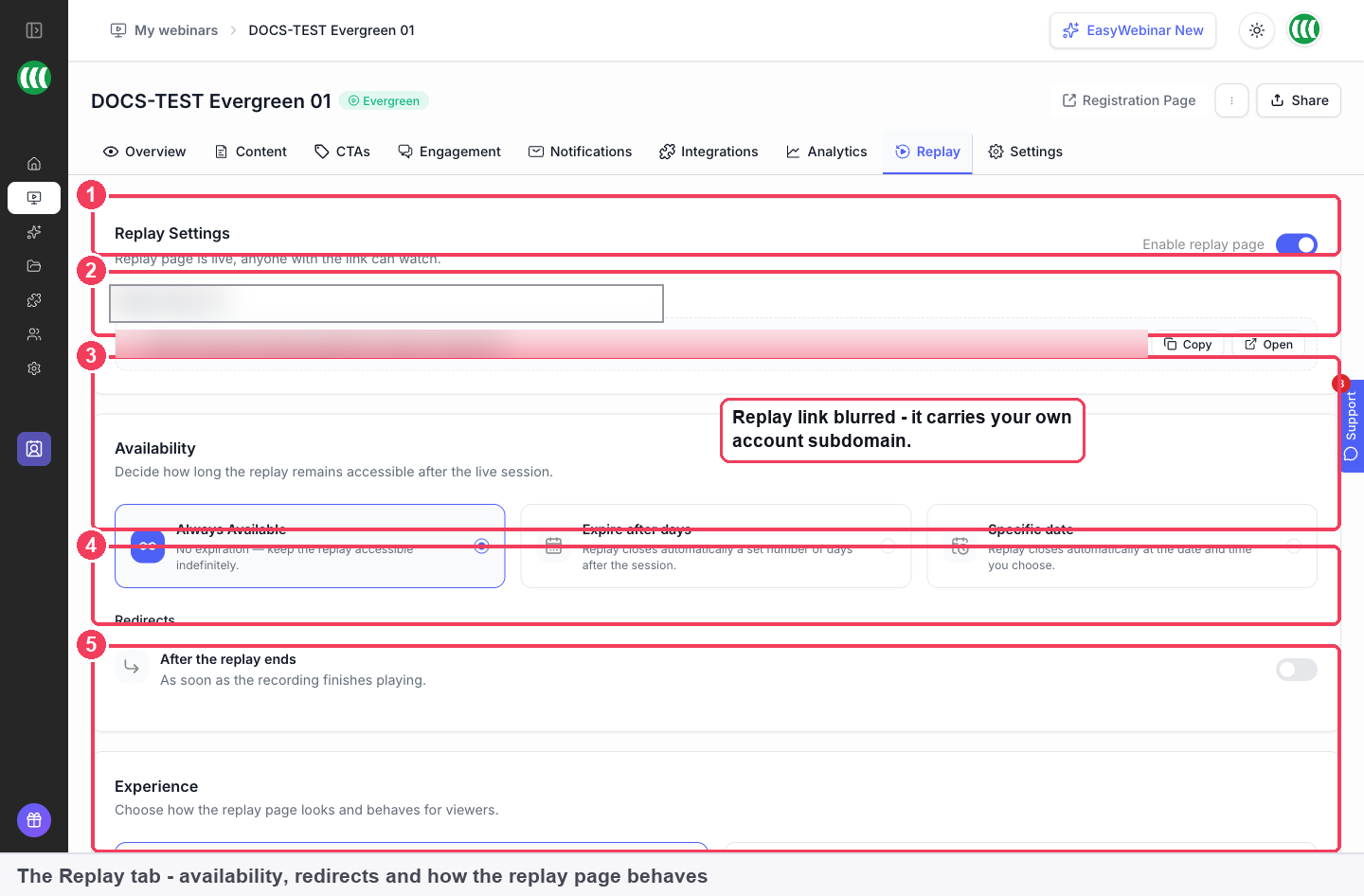
1 Replay Settings · 2 Replay Page Link · 3 Availability · 4 Redirects · 5 Experience. The replay link is blurred because it contains the account's own subdomain.
The replay link is public
While Enable replay page is on, anyone with the link can watch. Treat the Replay Page Link as something that can be shared beyond the people you send it to.
Choose how long it stays available
| Option | What happens | When it suits |
|---|---|---|
| Always Available | No expiry. The replay stays up indefinitely | Training, onboarding and evergreen content that keeps its value |
| Expire after days | The replay closes a set number of days after the session | A rolling deadline, for example a few days after each session |
| Specific date | The replay closes at a date and time you choose | A fixed deadline, such as the end of a launch |
A deadline creates urgency, which is why most offers sit behind one. If your offers or follow-up emails mention when the replay closes, make sure they match the option you chose here.
Send viewers somewhere when it ends
After the replay ends, under Redirects, sends viewers on as soon as the recording finishes playing. Point it at your offer, a booking page, or the next step you want people to take. Without it, viewers aren't sent anywhere when the recording ends.
Choose what the replay page looks like
| Option | What viewers get | When to choose it |
|---|---|---|
| Webinar Replica | A duplicate of your live webinar: the same video, offers, polls and chat replay | The quicker choice; keeps offers and polls working exactly as they did live |
| Custom Build | A page you design yourself, with its own layout, CTAs and branding | When the replay needs a different pitch from the live session |
Style the page in the builder
- On the Content tab, click Edit on the Replay Page card.
- Select blocks to change them, use the device toggle to check the mobile layout, and click Preview to see the real page.
- Click Save to keep a draft and Publish to make it public. Each page has its own Publish button.
If you only have time to style two of the five pages, EasyWebinar's guidance is to make them the registration page and the replay page: one carries your signups, the other carries the long tail of views.
Replay or instant replay?
The two are easy to confuse, and they answer different needs.
| Replay | Instant replay (On Demand) | |
|---|---|---|
| What it is | The recording of a session that has already happened | An evergreen setting that lets someone watch immediately instead of waiting for a session |
| Where you set it | The Replay tab | The evergreen webinar's schedule |
| Which webinars | Every webinar has a Replay tab | Evergreen webinars |
| Who it's for | People who missed a session and want to catch up | People who want to watch the moment they register |
| Button wording | Not applicable | Instant replay text, Watch instant replay by default |
If you want people to watch the moment they register, you want On Demand on an evergreen webinar. If you want people who missed a session to catch up, you want the replay page. See On Demand.
How it works with other features
Offers and polls
Offers and polls carry over to the replay when the replay uses Webinar Replica. If an offer's headline or countdown talks about a deadline, check it still makes sense to someone watching later, and use Preview on the replay page to see what viewers get. See Offers and Polls.
Recording
On a live webinar, the room header shows Auto Recording Enabled when recording is on, and recorded sessions land in Library → Recordings. Recording can be changed in the room under Settings → Recording Settings. See Run a live webinar and The Library.
Follow-up emails
Replay emails are set up on the Notifications tab, not on the Replay tab. Add a Webinar Follow-up after the session, set its audience (everyone who registered, only attendees, or only no-shows) and include the replay link. No-shows are usually the biggest group, and the replay link is what they want. See Reminder emails for the rest of the email sequence.
Sharing
The replay link also appears in the webinar's Share dialog as Attendee Replay link, alongside the registration and attendee join links meant for your audience. See Sharing links.
Paid webinars
A paid webinar can sell a Live + Replay bundle, a second option that includes the replay recording with its own price. If you sell replay access, set the replay's Availability to match what the bundle promises. See Paid webinars.
Analytics and People
| Where | What it shows about the replay |
|---|---|
| Analytics → Replay Watched | People who watched the recording |
| Analytics → Total Attended | Unique people, live or replay, split into Live only, Replay only and Both |
| Overview → Total Attended | Live attendees plus replay viewers |
| People → Replay watch percentage | How much of the replay each person watched |
Replay views are counted separately from live attendance, and someone who did both shows under Both. See Webinar analytics and People.
CRM and email tools
A connected CRM can act on replay behaviour with the Watched replay and Didn't watch replay events, and receive each contact's Webinar Replay Link or Webinar Replay Short Link in a custom field. See Connect a CRM and map your webinar data.
Tracking code
On the webinar's Settings tab, the Tracking Code sub-tab lets you add scripts to each of the five pages, including the Replay Page, so your analytics or ad platform can count people who watched afterwards.
Cloning
Replay settings are one of the webinar assets you can bring across when cloning a webinar. See Clone a webinar.
Who uses it, and how
These are typical patterns, shown to illustrate how the replay page fits different kinds of webinar.
Course creators
After a live launch webinar, a creator sets the replay to Expire after days, keeps Webinar Replica so the enrolment offer stays on the page, and points After the replay ends at the course checkout. A follow-up to no-shows carries the replay link. See selling online courses with webinars.
B2B marketing teams
A marketing team runs a live panel, then uses Custom Build to give the replay its own layout and a call to action aimed at people who weren't in the room. Replay Watched in Analytics shows how much of the audience came through the replay.
Customer success teams
A customer success team records an onboarding session and leaves the replay on Always Available, so new customers can watch it whenever they join. The Replay Page Link goes into the team's welcome material.
Coaches and consultants
A coach runs a free masterclass and closes the replay on a Specific date that matches the deadline on their offer. The Watched replay event in their CRM tags people who caught up, so the follow-up matches what each person saw.
How replay pages compare
EasyWebinar lets the replay close after a set number of days or on a date, repeat the live offers and polls, run as a separately designed page, and report replay viewers apart from live attendees. EasyWebinar is the only platform in this table that does all four.
Replay features, from each platform's public documentation:
| Platform | Replay closes after set days or on a date | Replay repeats the live offers and polls | Replay page designed separately | Replay viewers counted apart from live |
|---|---|---|---|---|
| EasyWebinar | Yes | Yes | Yes | Yes |
| Demio | Not in docs | Partly (one call to action) | Yes (Replay Page Editor) | Yes (unique and total views) |
| WebinarJam and EverWebinar | Partly (hours after the session) | Yes (Replica replay) | Partly (custom video or redirect) | Yes |
| eWebinar | Partly (days after the session) | Yes (video with its interactions) | Not in docs | Partly (replay as a session type) |
| Livestorm | Not in docs | Not in docs | Not in docs | Yes (number of replay viewers) |
Yes: documented and built in. Partly: documented with a limit, shown in brackets. Not in docs: not found in the vendor's public documentation.
Why EasyWebinar is the stronger choice for replay pages
- A deadline in days or on a date. EasyWebinar offers Expire after days and Specific date. WebinarJam's help centre sets replay access as a number of hours after the live session. See EasyWebinar vs WebinarJam and EverWebinar.
- The whole offer, not one button. Webinar Replica repeats the live video, offers, polls and chat replay. Demio's replay page carries a single Call-to-Action window. See EasyWebinar vs Demio.
- A replay page with its own pitch. Custom Build gives the replay its own layout, CTAs and branding. eWebinar's help centre doesn't describe designing a separate replay page. See EasyWebinar vs eWebinar.
- A closing point you control. EasyWebinar's Availability setting closes the replay when you choose. Livestorm's help centre doesn't document a replay expiry setting. See EasyWebinar vs Livestorm.
Competitor details checked against each vendor's public documentation on 21 October 2026. Features and plans change, so confirm with the vendor before you decide.
Limits and things to know
- The link is public while the page is enabled. Anyone with the Replay Page Link can watch.
- Instant replay is set elsewhere. On Demand belongs to an evergreen webinar's schedule, not to the Replay tab.
- Viewers go nowhere at the end unless you set After the replay ends.
- Offers and polls carry over only with Webinar Replica. A Custom Build page has its own layout and CTAs.
- Replay emails live on the Notifications tab, as follow-ups that include the replay link.
- Changes to the page design need publishing. Each of the five pages has its own Publish button.
Common questions
How do I give people the replay?
Switch on Enable replay page and send the Replay Page Link. It's also in the Share dialog as Attendee Replay link.
Can I make the replay expire?
Yes. Choose Expire after days for a rolling deadline, or Specific date for a fixed one.
Can the replay stay up permanently?
Yes. Always Available has no expiry, which suits training, onboarding and evergreen content.
Will my offers and polls show on the replay?
Yes, with Webinar Replica: the replay shows the same video, offers, polls and chat replay.
Where do viewers go when the recording ends?
Nowhere, unless you set After the replay ends under Redirects.
Can I design the replay page differently from the webinar?
Yes. Choose Custom Build to design a page with its own layout, CTAs and branding.
What's the difference between a replay and instant replay?
A replay is the recording of a past session. Instant replay, or On Demand, is an evergreen option that lets someone watch straight away without waiting for a session.
Is the replay link private?
No. While the replay page is enabled, anyone with the link can watch.
How do I email the replay to people who missed the session?
Add a Webinar Follow-up on the Notifications tab, set its audience to no-shows, and include the replay link.
How do I see how many people watched the replay?
Replay Watched in the webinar's Analytics, and Replay watch percentage per person in People.
Related
- On Demand: instant replay on evergreen webinars, which is often confused with the replay page.
- The Library: where the recordings your replay pages play are kept.
- Reminder emails: the rest of the email sequence around your replay follow-up.
- Offers: the offers that carry onto a Webinar Replica replay.
- Webinar analytics: Replay Watched and the Live only, Replay only and Both split.
- Paid webinars: sell replay access with a Live + Replay bundle.
- Clone a webinar: bring your replay settings to a new webinar.
The Library
Find, add and manage the videos, webinar recordings, images and documents your webinars use, see which files count towards your storage, and put a library video to work in a simulive or evergreen webinar.
Run a live webinar
Enter the EasyWebinar webinar room, prepare in the green room, go live, present with chat, polls, offers and Q&A, then end the session and find your recording.