
 Product documentation
People
The People view in EasyWebinar lists every registrant and attendee across all your webinars, with watch percentage, offer clicks and lead score, and lets you filter by behaviour or campaign and export the result.
- Applies to
- Live, simulive and evergreen webinars
- Status
- Live
- Verified
- Page type
- Feature
People is a single table of everyone who registered for or attended any of your EasyWebinar webinars. Each row shows one person on one webinar, with what they did: their attendance status, how much of the live session and the replay they watched, whether they clicked your offer, and a lead score for how engaged they were. You can filter the table by webinar, dates, behaviour, campaign source, device or location, and export exactly the segment you need.
At a glance
| Where to find it | People in the sidebar |
| What it covers | Every registrant and attendee across all your webinars |
| One row is | One person on one webinar |
| Key columns | Status, Lead score, Watch percentage, Replay watch percentage, Offer clicked |
| Choose columns | Columns |
| Filter categories | Webinar, Dates, User, Behavior, Source & UTM, Device & Location |
| Export | Export downloads the filtered list |
| Campaign data | Needs UTM Params turned on in your registration form |
What the People view is
A webinar's own Analytics tab gives you counts: how many registered, how many attended, how many missed. People gives you the names behind those counts, for every webinar in your account at once.
That changes what you can do after a session. Instead of knowing that a large share of registrants missed the webinar, you can see who they are, narrow the list to one webinar, and export it for a replay email. Instead of knowing that some people clicked your offer, you can find the ones who watched most of the session, clicked, and still haven't bought.
Why the People view matters
What it's for
People is the follow-up list. It turns webinar behaviour into segments you can act on. Think of no-shows to send the replay to, or engaged viewers to invite to a call. It also shows which campaigns brought attendees rather than just sign-ups.
How it helps
- It shows behaviour, not just registration. Watch percentage, Replay watch percentage and Offer clicked separate interested people from casual sign-ups.
- It ranks engagement for you. Lead score rates how engaged each person was, which makes a long list quick to sort.
- It ties campaigns to attendance. With UTM capture on, Source & UTM shows which campaign produced people who actually watched.
- It exports segments, not everything. Export downloads the filtered list, so the work the filters did comes with it.
What happens without it
Without a behaviour-level list, every registrant gets the same follow-up. The person who watched to the end and clicked your offer gets the same email as someone who never turned up. The people closest to buying are treated like everyone else.
Why buyers care
The People view matters to whoever owns the follow-up after a webinar, whether that's sales, marketing or a solo host. It matters most in the first day or two after a session, when per-person engagement data decides who gets a call first.
The EasyWebinar approach to the People view
Take a typical case. An independent insurance agency with a six-person sales team runs a fortnightly live webinar on choosing life cover for young families. About 180 people register through social ads and a partner newsletter. Each session ends with an offer to book a quote call.
A common workaround is to download the full registrant list after each session and split it between agents alphabetically. Every name then gets the same call, in the same order. Warm prospects may wait behind people who never turned up, and nobody can say which channel produced the viewers.
The session doesn't need to change. What changes is the order of the calls. Someone who watched most of the webinar and clicked the offer should hear from an agent first. The ad budget should follow the channel that brought them.
EasyWebinar handles this in the People view. The team filters Behavior for high watch time and offer clicks, then adds Source & UTM to see which campaign each person came from. Lead score sorts the result, and Export hands the filtered list to the agents.
The screenshot under Filter the list shows the six filter categories, from Webinar to Device & Location, with Apply Filter marked. How other platforms handle people lists, filters and exports is covered in How the People view compares, below.
Use the People view
1. Open People
Click People in the sidebar. The table lists registrants and attendees across every webinar, and the result count below the table shows how many rows match.
2. Read the table
Each row is one person on one webinar, with columns including:
| Column | What it tells you |
|---|---|
| Name and email | Who they are |
| Phone | Their phone number, if you collected it |
| Status | Attendance status, such as Attended or No Show |
| Lead score | How engaged they were, for example Hot |
| Webinar and Type | Which webinar, and whether it was live, simulive or evergreen |
| Session date & time | The session they registered for |
| Attendee timezone | Where they are |
| Registered on | When they signed up |
| Watch percentage | How much of the live session they watched |
| Replay watch percentage | How much of the replay they watched |
| Country | Their country |
| Polls | How many polls they answered |
| Offer clicked | Whether they clicked your offer |
Use Columns to choose which of these appear. Watch percentage and Offer clicked are the two most worth sorting by: someone who watched most of the session and clicked your offer is a very different prospect from someone who left in the first few minutes.
3. Filter the list
Click Add Filter.
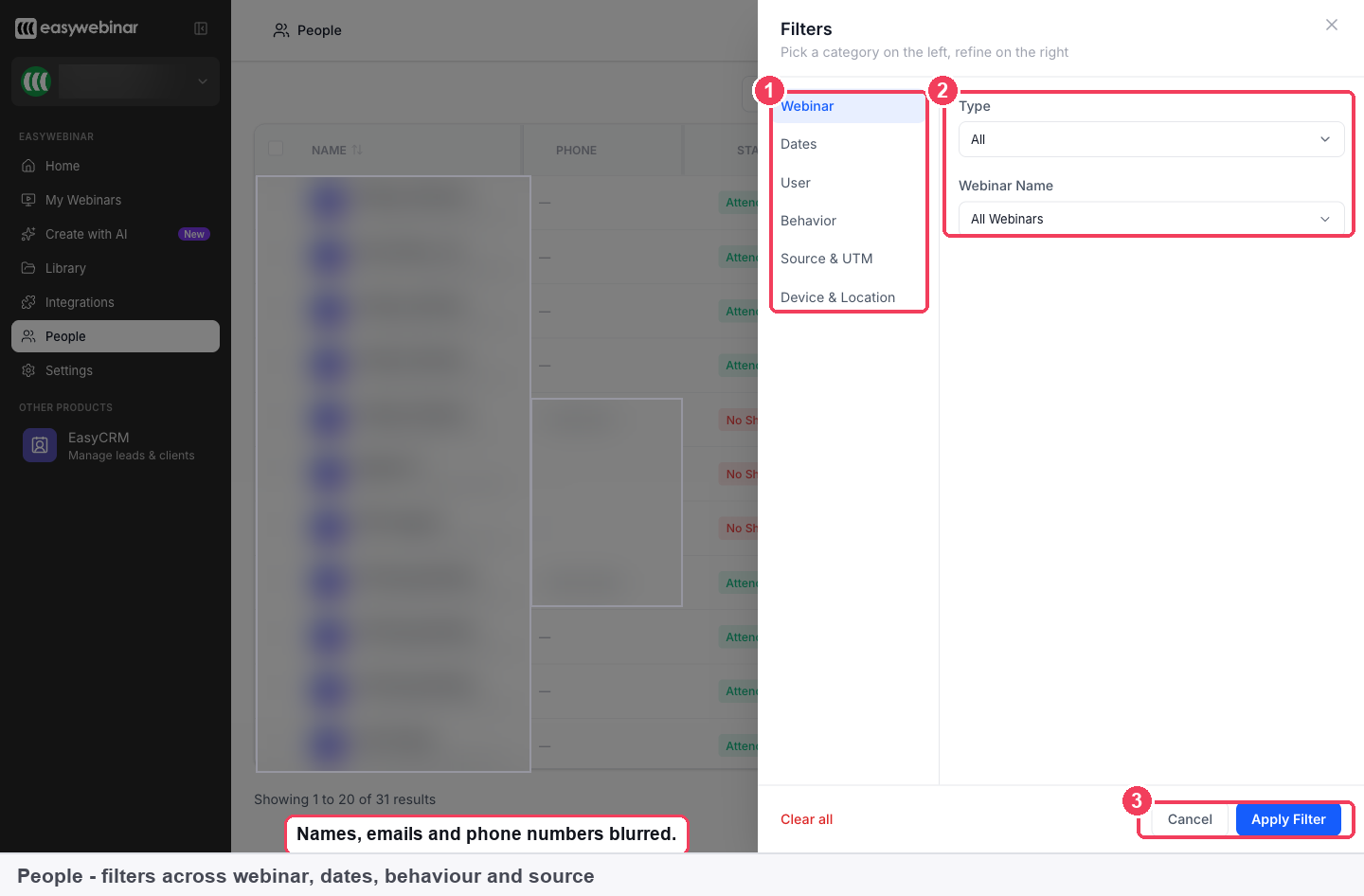
1 Categories · 2 Refinements · 3 Apply Filter.
Pick a category on the left, refine it on the right, then click Apply Filter.
| Category | Filter by |
|---|---|
| Webinar | A specific webinar, or a webinar type |
| Dates | When people registered or attended |
| User | Attributes of the person |
| Behavior | What they did: attendance, watch time and offer clicks |
| Source & UTM | The campaign that brought them, if you capture UTMs |
| Device & Location | What they watched on, and where they watched from |
Clear all resets every filter. The result count below the table shows how far a filter narrowed the list.
4. Combine filters for common follow-ups
| You want | Filter |
|---|---|
| Everyone to send the replay to, for one webinar | Behavior → no-show, plus Webinar |
| Interested people who didn't buy | Behavior → high watch time and offer clicked |
| Which campaign produced attendees, not only registrations | Source & UTM |
| How your automated funnel compares with your live sessions | Webinar → Evergreen |
5. Export the result
Click Export to download the filtered list. Use it to take a segment into another tool or to hand a list to someone who doesn't work in EasyWebinar.
Filter first, then export. Exporting everything and cutting it down in a spreadsheet repeats work the filters already do, and Export respects whatever filters are applied.
Capture campaign data first
Source & UTM only has something to filter if your registration form records it. To set that up:
- Open the webinar's Content tab and edit the Registration Page.
- Select the form block and turn on UTM Params, so each registration records the campaign that brought it in.
- Tag the links in your ads, emails and posts as you normally would.
- Filter People by Source & UTM to see which campaign each registrant came from.
Because People also holds attendance and watch time, this gives you campaign attribution against real viewing, not just clicks. UTM capture is easy to miss; without it, you'll know how many people registered but not which ad, email or post sent them. See Registration page builder.
Lead score
Lead score is calculated from engagement: attendance, watch time and interaction. It rates how engaged someone was, for example Hot, so you can sort a long list and start with the most engaged people. It's a quick way to prioritise. For the detail, read it alongside Status, Watch percentage, Polls and Offer clicked on the same row.
How People works with other features
Webinar analytics
The Analytics tab on a single webinar shows the funnel and offer numbers; People shows the individuals across all webinars. Use Analytics to find where a webinar is leaking, then People to find who is in that gap. See Webinar analytics.
Follow-up emails
If you only need to email no-shows or attendees of one webinar, Webinar Follow-ups on the Notifications tab can target those audiences directly, and Attendee Action Follow-ups send based on engagement and offer clicks. People is for when you want to see the list, combine conditions, or take it elsewhere.
CRM and email tools
A connected CRM can receive the same behaviour as tags: Missed, Watched full, Clicked offer and more. People complements that by letting you look back across webinars and export a segment on demand. See Connect a CRM and map your webinar data.
Registration fields
The Phone column fills only if your form collects it. Add the Phone field, or your own fields, on the registration form block. See Custom fields.
Who uses the People view, and how
These are typical patterns, shown to illustrate how different teams use the same table.
B2B marketing teams
A marketing team running paid campaigns turns on UTM Params for every webinar, then filters People by Source & UTM each month to compare which channels produce attendees with high Watch percentage, not just sign-ups.
Course creators
A creator filters for high watch time plus Offer clicked after each evergreen session and exports the list for a personal follow-up, since those viewers were interested enough to click but didn't enrol. See Course creators.
Customer success teams
A customer success team runs recurring onboarding webinars and filters Behavior for no-shows on the latest session, then sends that group the replay so new customers don't fall behind.
Agencies
An agency running webinars for a client filters by Webinar, exports the attendees with their Lead score and Offer clicked columns, and hands the file to the client's sales team, who don't use EasyWebinar.
How the People view compares
EasyWebinar puts everyone from every webinar in one table, filters it by what people did and which campaign brought them, and exports exactly the filtered list. EasyWebinar is the only platform in this table that does all four.
People list features, from each platform's public documentation:
| Platform | One list across every webinar | Filter by watch time and offer clicks | Campaign source (UTM) per person | Export the filtered list |
|---|---|---|---|---|
| EasyWebinar | Yes | Yes | Yes | Yes |
| Demio | Partly (inside each event's activity) | Partly (attended or no-show) | Yes (UTM data in registrant export) | Yes (CSV by email) |
| Livestorm | Yes (People page export) | Partly (filter by session) | Partly (source, medium and campaign) | Yes (current view) |
| WebinarJam and EverWebinar | Yes (registrants from all events) | Partly (attended, replay or purchase) | Partly (through an API call) | Yes |
| eWebinar | Yes (with Universal Dashboard) | Not in docs | Yes (tracked per registrant) | Yes (filtered date range) |
Yes: documented and built in. Partly: documented with a limit, shown in brackets. Not in docs: not found in the vendor's public documentation.
Why EasyWebinar is the stronger choice for the People view
- Filters on how people watched. EasyWebinar's Behavior filter covers attendance, watch time and offer clicks. WebinarJam's registrant filter covers who attended, watched the replay or made a purchase. See EasyWebinar vs WebinarJam and EverWebinar.
- One table for every webinar. People sits in the sidebar and spans all your webinars. Demio's People section sits under each event's activity. See EasyWebinar vs Demio.
- Every UTM value you capture. Source & UTM filters the table by the campaign that brought each person. Livestorm's registrant export says utm_term and utm_content are not exported. See EasyWebinar vs Livestorm.
- Watch time as a filter. EasyWebinar filters people by watch time and offer clicks. eWebinar's help centre doesn't describe filtering people by watch time. See EasyWebinar vs eWebinar.
Competitor details checked against each vendor's public documentation on 21 October 2026. Features and plans change, so confirm with the vendor before you decide.
Limits and things to know
- People spans every webinar, unlike a webinar's own Analytics tab.
- Each row is one person on one webinar. Someone who registered for two webinars appears twice.
- UTM filtering needs UTM capture turned on in your registration form.
- Phone appears only if you collected it.
- Export respects your filters.
- Lead score is calculated from engagement. It's a guide for sorting, not a replacement for the underlying columns.
Common questions
How do I get a list of everyone who didn't turn up?
Filter by Behavior for no-shows, add a Webinar filter for a single event, then click Export.
Can I see how much of the webinar someone watched?
Yes. Watch percentage covers the live session and Replay watch percentage covers the recording.
How do I know which campaign a registrant came from?
Filter by Source & UTM. You need UTM Params turned on in your registration form first.
Can I choose which columns I see?
Yes. Use Columns.
Does Export include only the filtered people?
Yes. Filter first, then export.
What does lead score mean?
A rating of how engaged someone was, based on attendance, watch time and interaction.
Can I see people from all my webinars at once?
Yes. People covers every webinar. Add a Webinar filter to narrow it to one.
Can I find people who clicked my offer but didn't buy?
Filter Behavior for high watch time and offer clicks. Those are people who were interested and haven't bought yet.
Why is the Phone column empty?
Phone numbers only appear if your registration form collects them. Add the Phone field to the form block.
How do I see how many people match my filters?
The result count is shown below the table.
Related
- Map webinar behaviour to CRM tags: send the same behaviour People shows into your CRM automatically.
- Reminder emails: fewer no-shows means a shorter replay list to export.
- Write polls people will answer: the Polls column only tells you something if people answer them.
- Follow up after a course webinar: how a course creator acts on the people who clicked but didn't enrol.
Webinar analytics
What the Analytics tab on an EasyWebinar webinar measures, from visitors and registrations to live attendance, replay views, offer performance and revenue, and how to read each number.
Create with AI
How EasyWebinar's Create with AI builds a webinar from a description, writing the script, registration pages, email sequence, polls and offers, and what each step costs in credits.