
 Product documentation
The Library
Find, add and manage the videos, webinar recordings, images and documents your webinars use, see which files count towards your storage, and put a library video to work in a simulive or evergreen webinar.
- Applies to
- Your whole account · recordings come from live sessions with Auto Recording on
- Status
- Live
- Verified
- Page type
- How-to (multi-feature)
Use the Library to find and manage everything your webinars play or display: videos you uploaded or imported, recordings of sessions you have already run, images for your pages, and documents. When you're done, you'll know where each item lives, whether it is using your storage allowance, and how to put a video or recording to work in a simulive or evergreen webinar.
At a glance
| Where it is | Library in the main sidebar |
| Tabs | Videos, Recordings, Images and Files |
| Adding media | Add Media, with Local import or Import from URL |
| Where a video lives | The badge on each card: EasyWebinar, or the platform's own logo |
| Storage | Shown at the top of every tab. Only EasyWebinar-hosted files count |
| Recordings | Live sessions land on Recordings automatically when recording is on |
| Reuse | Pick any video or recording on the Video Selection step of a simulive or evergreen webinar |
Before you begin
- Find it in the sidebar. The Library sits in the main sidebar, alongside My Webinars, Create with AI and Integrations. It isn't inside a single webinar, so anything you add can be reused across your webinars.
- Know what uses storage. Only files uploaded to EasyWebinar count towards your storage. Videos imported from a URL use none.
- Keep live recording on if you want your sessions to land here. Recording is on by default in the live room, where the header reads Auto Recording Enabled.
- Know your upload limit. Upload video as MP4, up to 4 GB per file. See video and storage limits.
Manage your media
1. Open the Library
Click Library in the sidebar. It has four tabs, and your storage is shown at the top of every one of them.
| Tab | What it holds |
|---|---|
| Videos | Videos you added yourself, uploaded from your computer or imported from a URL |
| Recordings | Recordings of webinars you have already run |
| Images | Images you uploaded, for use on your pages |
| Files | Documents such as PDFs |
2. Check your videos and where each one is hosted
Open the Videos tab. Each card shows the video's duration and when it was added, with a menu for renaming, previewing or removing it.
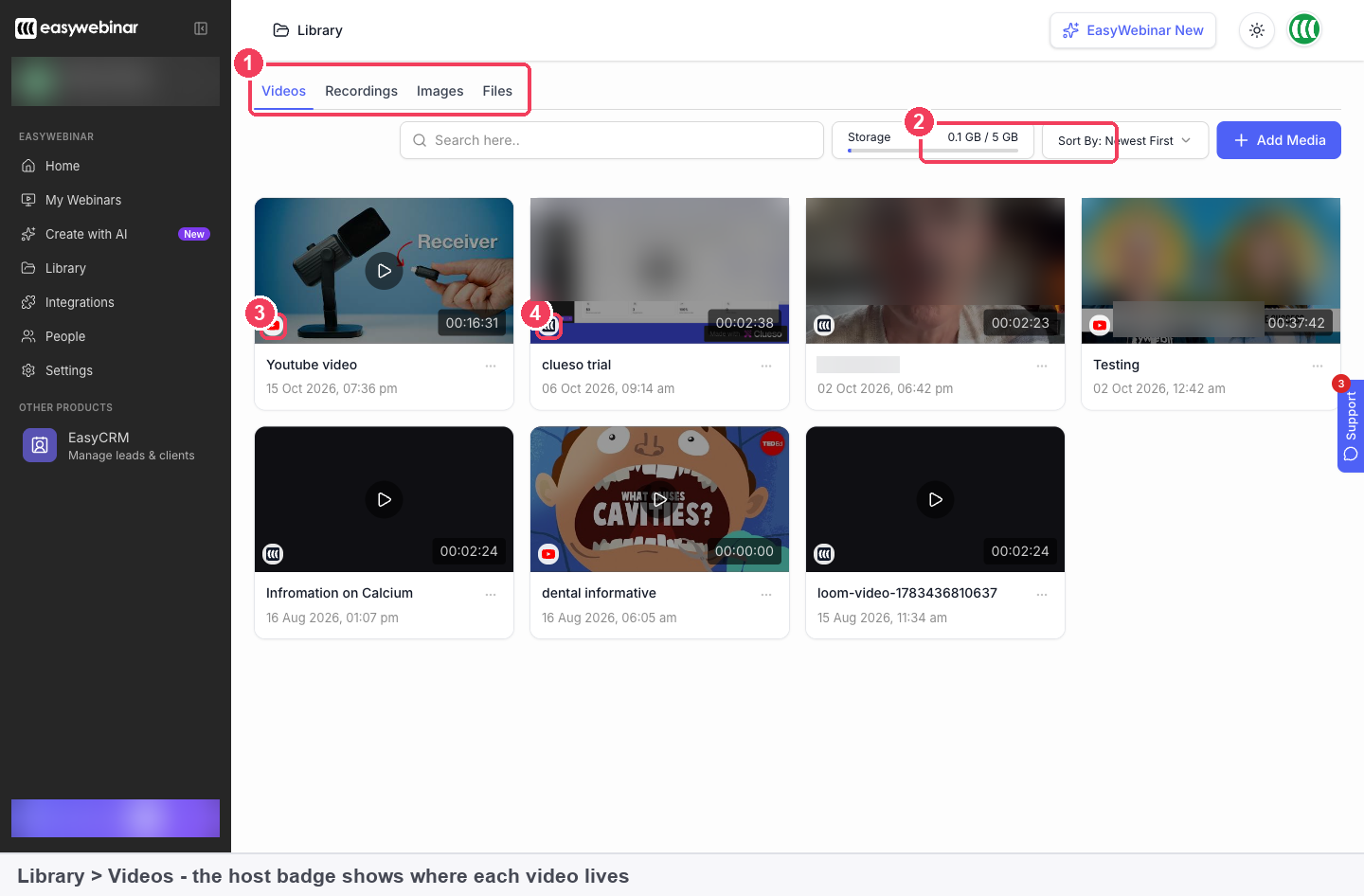
1 The four tabs · 2 Your storage allowance · 3 A YouTube badge · 4 An EasyWebinar badge. Account details and some thumbnails are blurred.
The small badge in the corner of each card shows where the video is hosted:
| Badge | What it means | Uses your storage? |
|---|---|---|
| EasyWebinar | The file is stored on EasyWebinar | Yes |
| YouTube, Vimeo or Wistia | You imported a link; the video stays on that platform | No |
Check the badge before you delete anything on another platform. Removing a YouTube video breaks the webinar that plays it, while removing an EasyWebinar-hosted video is contained within EasyWebinar.
3. Find recordings of webinars you've run
Open the Recordings tab. Each recording is named after its webinar, with the duration and the date it was recorded.
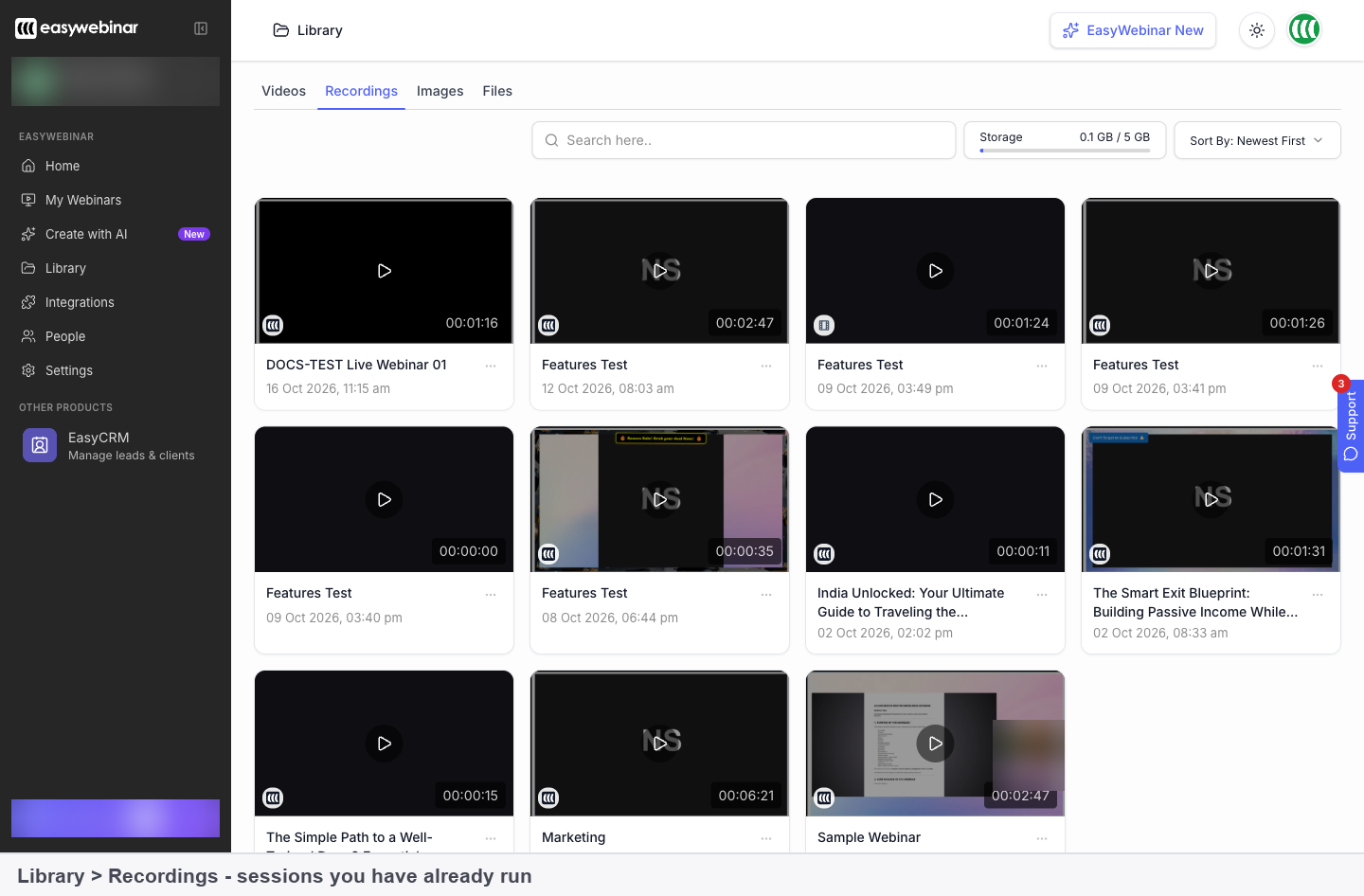
Recordings of sessions already run, each named after its webinar. Account details are blurred.
Recordings are captured automatically when Auto Recording is on in the live room, and appear here after the session. They also show on the Recordings tab of the video picker when you set up a simulive or evergreen webinar.
4. Add images for your pages
Open the Images tab to see images you've uploaded for your pages. Click Add Media to upload more.
5. Keep documents in Files
Open the Files tab for documents, such as PDFs. Each file shows its name, its upload date and its page count.
The Files tab is also where the AI Moderator's documents live. The AI Moderator is in Beta: it answers attendee questions from documents you give it, reading PDF, DOCX or PPTX files up to 25MB each, and it retrains every time you add a source.
6. Add new media
Click Add Media. It works the same on every tab and offers two routes:
| Route | What happens |
|---|---|
| Local import | Uploads from your computer, and EasyWebinar hosts it |
| Import from URL | Points at YouTube, Vimeo, Wistia or a direct MP4 link |
For an imported video you also enter its length, because EasyWebinar needs the duration to schedule sessions. See Video hosting for both routes step by step.
7. Use a video or recording in a webinar
Simulive and evergreen webinars play a video from your library:
- When you create the webinar, the Video Selection step shows your library, filtered by All, Videos or Recordings.
- Click the video you want, or use Add Video to add a new one without leaving the step.
- To change it later, open the webinar's Content tab and use the Webinar Video panel. Preview plays the current video and Change Video swaps it.
Changing the video doesn't affect the webinar's schedule, pages or registrations.
Verify the result
- A new upload appears on the Videos tab with the EasyWebinar badge, and your storage figure at the top of the Library goes up.
- An imported video appears with its platform's badge, and your storage figure doesn't change.
- A live session you recorded appears on the Recordings tab after the session, named after its webinar.
- A new document appears on the Files tab with its name, upload date and page count.
- A library video in use shows in the Webinar Video panel on that webinar's Content tab.
What the Library is
The Library is the account-wide store for everything you upload or record. Simulive and evergreen webinars get their content from it, finished live sessions end up in it, and your storage allowance is spent there.
| Question | Library answer |
|---|---|
| Is it per webinar? | No. It sits in the sidebar, so anything in it can be reused on any webinar |
| What does it hold? | Videos, recordings of past webinars, images and documents |
| What uses storage? | Only files uploaded to EasyWebinar. Imported links use none |
| How do recordings get there? | Automatically, after a live session with recording on |
Why the Library matters
What it's for
The Library is the shared store behind your webinars. It is where simulive and evergreen webinars get their content, and where finished live sessions end up. A video added once can be used by any webinar that needs it.
How it helps
- One place for every recording. Live sessions with recording on land in Recordings, with no exporting or uploading.
- Live sessions become reusable content. You can pick a recording as the video for a simulive or evergreen webinar.
- Storage is visible. The figure at the top of each tab, and the badge on each video, show what uses your allowance.
- Safer deletions. The badge tells you whether a video depends on another platform before you remove anything.
What happens without it
Without a shared library, each recorded webinar needs its video added again. Recordings of live sessions sit apart from the webinars that could reuse them. It also gets harder to see which videos depend on an outside platform.
Why buyers care
It matters most to teams that run recorded webinars and train or sell with the same content again and again. The question tends to come up once the first few sessions are recorded and someone asks where they all went.
The EasyWebinar approach to the Library
Take a typical case. The operations team at a franchise with 40 bakery outlets runs a live training session each month for new store managers. It covers opening checks, food safety and the till system. Managers who join later need the same training, usually in their first week.
The usual workaround is to download the recording from a meeting tool, upload it to a shared drive and email the link around. That can work, but copies end up in several places and nobody is quite sure which one is current. A link held in one person's account may stop working when they leave.
What changed is that the training became a standing library rather than a one-off event. New managers start every month, so the recordings have to be easy to find and reuse, not just stored somewhere.
EasyWebinar keeps recordings, uploads and documents in one Library for the whole account. EasyWebinar saves each recorded live session to the Recordings tab, named after its webinar, with its duration and date. The team can then pick that recording as the video for an evergreen webinar, so each new manager registers and watches in their first week.
One fact is easy to check. Start a simulive or evergreen webinar, and the Video Selection step lists your past live sessions under Recordings. That reuse is one of the capabilities covered in How the Library compares, below.
How it works with other features
Video hosting
Add Media is where you choose between hosting a video on EasyWebinar and importing it from YouTube, Vimeo, Wistia or a direct MP4 link. The choice decides whether the video uses your storage. See Video hosting.
The live room
The live room's header shows Auto Recording Enabled when recording is on, and the badge changes to Recording once you're live. Recording can be changed under Settings → Recording Settings, and recorded sessions land in Library → Recordings. See Run a live webinar.
Turning a live webinar into an evergreen one
A webinar's type can't be changed, so the route from live to automated is cloning. Clone the live webinar, choose Evergreen for the copy, and pick the live session's recording on the new webinar's Content tab. The recording is already in your library. See Clone a webinar.
Simulive and evergreen webinars
Both types play a recording, and both choose it from the library on the Video Selection step. See Create a simulive webinar and Create an evergreen webinar.
Storage and your plan
Under Settings → Manage Plan, the Plan tab has a Storage meter for space used by your videos and recordings, with Buy More, and the Add-ons tab offers Additional Storage (5GB). Both are covered in Your plan, billing and add-ons.
AI Moderator (Beta)
The AI Moderator's knowledge base documents live on the Files tab. Because the moderator retrains with each new source, give it a moment after an upload before you test it.
Who uses it, and how
These are typical patterns, shown to illustrate how the Library fits different kinds of work.
Course creators
A creator runs a launch webinar live with recording on. Afterwards, the session sits in Recordings, and the creator clones the webinar as evergreen and picks that recording, so the version that sold well live keeps running. See selling online courses with webinars.
SaaS and product teams
A product team uploads its demo with Local import rather than publishing it on YouTube, so the video stays private to the webinar. The EasyWebinar badge confirms where it is hosted, and the storage meter shows the space it takes.
Agencies
An agency managing webinars that play videos from a client's YouTube channel checks the badges on the Videos tab before the client tidies up their channel, because removing a YouTube video breaks the webinar that plays it.
Customer success teams
A customer success team keeps its product FAQ and onboarding guides on the Files tab as the AI Moderator's knowledge base (Beta), so questions on an unattended evergreen onboarding webinar can be answered from the team's own documents.
How the Library compares
EasyWebinar records your live sessions into the same Library that holds your uploads and imported links. Any of those recordings can then become the video for a simulive or evergreen webinar.
Library and recording features, from each platform's public documentation:
| Platform | Live sessions recorded automatically | Recordings reused as an automated webinar's video | Uploads and imported links in one library |
|---|---|---|---|
| EasyWebinar | Yes | Yes | Yes |
| Demio | Yes | Yes | Not in docs |
| WebinarKit | Yes (live webinars) | Yes | Partly (uploads depend on plan) |
| eWebinar | Not in docs | Partly (Zoom cloud recordings) | Yes |
| WebinarNinja | Yes | Yes | Partly (only YouTube documented) |
Yes: documented and built in. Partly: documented with a limit, shown in brackets. Not in docs: not found in the vendor's public documentation.
Why EasyWebinar is the stronger choice for the Library
- Recordings sit next to your videos. In EasyWebinar, Recordings is a Library tab beside Videos, and it appears in the video picker too. Demio's help centre sends you to the Schedule page, filtered to All Past, to reach recordings. See EasyWebinar vs Demio.
- Your own live sessions, kept. EasyWebinar saves recordings of your live webinars straight into the Library. eWebinar imports cloud recordings from a connected Zoom account, and notes that Zoom only surfaces recordings under a month old. See EasyWebinar vs eWebinar.
- Larger uploads. EasyWebinar takes video uploads up to 4 GB per file. WebinarNinja's help centre lists a 2 GB limit for its video files. See EasyWebinar vs WebinarNinja.
- Uploads and links side by side. Add Media offers Local import and Import from URL on every tab. WebinarKit says direct uploads apply if your plan includes them. See EasyWebinar vs WebinarKit.
Competitor details checked against each vendor's public documentation on 21 October 2026. Features and plans change, so confirm with the vendor before you decide.
Limits and things to know
- Only EasyWebinar-hosted files count towards storage. Imported URLs use none.
- Upload video as MP4, up to 4 GB. The Video Selection screen lists MP4, MOV or WebM, but the Upload media dialog says it supports MP4 files only, so upload MP4 to be safe.
- More storage is an add-on. Additional Storage (5GB), or Buy More beside the storage meter.
- Recordings appear only if recording was on. Recording is on by default; check the room header before you go live.
- Don't delete a video a webinar is using. The webinar plays it.
- Removing a video on YouTube, Vimeo or Wistia breaks any webinar that plays the imported link.
- AI Moderator documents are PDF, DOCX or PPTX, up to 25MB each, and the AI Moderator is in Beta.
Common questions
Where are my webinar recordings?
On the Recordings tab of the Library. Each is named after its webinar, with its duration and recording date.
Why isn't my live session in Recordings?
Recordings are captured when Auto Recording is on in the live room. If the header didn't read Auto Recording Enabled, the session wasn't recorded.
How can I tell if a video is hosted on EasyWebinar or YouTube?
By the badge on its card: EasyWebinar, or the platform's own logo.
Do imported videos use my storage?
No. Only files uploaded to EasyWebinar count towards your storage.
How much storage do I have?
It's shown at the top of every Library tab. More is available with the Additional Storage (5GB) add-on or Buy More.
Can I use a recording as the content for an evergreen webinar?
Yes. Pick it from the Recordings tab when choosing the video, or swap it in later from the Webinar Video panel.
Can I delete a video a webinar is using?
You shouldn't. The webinar plays that video, so removing it leaves the webinar without its content.
Where do I upload documents?
On the Files tab. It's also where the AI Moderator (Beta) keeps the documents it answers from.
What file types can the AI Moderator read?
PDF, DOCX or PPTX, up to 25MB per file. The AI Moderator is in Beta.
Can I rename a video?
Yes. Each video card has a menu for renaming, previewing or removing it.
Related
- Clone a webinar: the route from a live recording in the Library to an evergreen webinar.
- Replay pages: another place a recorded session is watched after the event.
- Webinars overview: which webinar types play a video from the Library.
- Limits and defaults: the Additional Storage add-on alongside the others.
Video hosting
Host a webinar video on EasyWebinar with Local import, or play one from YouTube, Vimeo, Wistia or a direct MP4 link, with the formats, size limit, storage rules and duration setting for each route.
Replay pages
Turn on a webinar's replay page, decide how long it stays available, send viewers somewhere when it ends, choose between Webinar Replica and Custom Build, and tell a replay apart from instant replay.