
 Product documentation
Chat simulation
Fill the chat on a simulive or evergreen webinar with a conversation generated by AI from a cast of simulated attendees, or scripted by you in a timed CSV.
- Applies to
- Simulive and evergreen webinars
- Status
- Beta
- Verified
- Page type
- Feature
Chat simulation plays a conversation in the chat of a recorded webinar, so a session doesn't open to an empty room. In EasyWebinar you set it up on a simulive or evergreen webinar's Engagement tab, under Chat Simulation, in one of two ways. AI Simulation builds a cast of simulated attendees and generates their chat and questions. Manual Simulation plays a script you write in a CSV, with each message timed against your video. The Chat Simulation section carries a Beta label in the app.
At a glance
| What it does | Plays a simulated chat during a recorded webinar |
| Webinar types | Simulive and evergreen. Live webinars have real chat |
| Where you set it | Webinar → Engagement → Chat Simulation |
| Two modes | AI Simulation or Manual Simulation; turning one on disables the other |
| AI Simulation | A cast of simulated attendees, each with name, country, engagement, knowledge, language and behaviour |
| Manual Simulation | A CSV with four columns: HH:MM:SS,Name,Role,Message |
| Message timing | Measured from the start of the video |
| Roles in a script | Attendee or Admin; Admin messages appear as host replies |
| Chat required | Easywebinar Chat; third-party chat replaces the built-in panel |
| Status | Beta |
What chat simulation is
A live webinar has a shared room: everyone is there at the same time, so the chat fills itself. An evergreen webinar doesn't. Each registrant picks their own session, attendees arrive at different times, and a genuinely shared chat isn't possible. Without anything in it, the chat panel looks abandoned.
Chat simulation solves that by playing messages into the chat at set points in the video. You choose how those messages are made:
- AI Simulation: you describe a cast of attendees, and the AI generates what they say.
- Manual Simulation: you write every line yourself, with a timestamp, a name and a role.
Only one can be active on a webinar at a time.
Why chat simulation matters
What it's for
Chat simulation gives a recorded webinar the feel of an attended session. A greeting in the first seconds, a question a few minutes in and a host reply tell a newcomer the room is active. That impression keeps people watching long enough for the content to work.
How it helps
- The room never opens empty. Messages can appear within seconds of the video starting.
- It plays in every session. On an evergreen webinar that runs all day, the same setup plays each time without you.
- You choose how much control to keep. AI Simulation fills a room naturally, while Manual Simulation plays exactly what you wrote.
- Common questions get answered in view. A scripted question with an
Adminreply puts an objection and its answer in front of everyone.
What happens without it
On a recorded webinar with an empty chat, the first impression is a room nobody else came to. Attendees already suspect they may be watching a recording, and a silent panel confirms it. Many leave before the content has had a chance to work.
Why buyers care
It matters to anyone who relies on evergreen webinars inside a funnel, where nobody presents live. Those teams need the automated session to hold attention the way a live one does, most of all when it plays many times a day.
The EasyWebinar approach to chat simulation
Take a typical case. A novelist is launching a monthly online book club for readers of literary fiction. She records a 30-minute introduction to the club and runs it as an evergreen webinar, linked from her newsletter. She expects around 40 viewers a day, spread across several sessions.
A common approach is to leave the chat on and hope viewers start talking. In practice, people who arrive alone tend to stay quiet, so each one sees an empty panel. Questions about reading pace and meeting times may go unasked, and some readers leave unsure whether the club suits them.
Nothing about the video has to change. What helps is a chat that raises the questions readers usually ask, at the moment the video covers them, with an answer from the host. A room with a few voices also reads as a club that people actually join.
EasyWebinar handles this with Chat Simulation (Beta) on the webinar's Engagement tab. The author picks Manual Simulation and uploads a CSV of timed messages. In the script, Attendee lines ask about pace and meeting times, and Admin lines answer as the host. Preview Simulated Chat shows the whole conversation before she saves.
The screenshot under Set up Manual Simulation shows the CSV upload beside Preview Simulated Chat and Attendees on Event Page. How other platforms handle simulated chat is covered in How chat simulation compares, below.
Before you begin
- Use a simulive or evergreen webinar. Chat simulation isn't available on live webinars.
- Select Easywebinar Chat on Engagement → Chat. Simulated chat works with EasyWebinar's own chat panel; Third party replaces it.
- Know your video. For a manual script, you'll time messages against the recording, so have it to hand.
Set up AI Simulation
- Open your simulive or evergreen webinar and click Engagement, then Chat Simulation.
- Under AI Simulation, use Add New to create a simulation, or pick a saved one from the selector.
- Turn the simulation on with its Active toggle. This disables Manual Simulation.
- Review the attendee list and adjust each simulated attendee.
- Click Add Attendee to add more people to the cast.
- Check the counts for attendees, chat messages and questions.
- Click Save Changes.
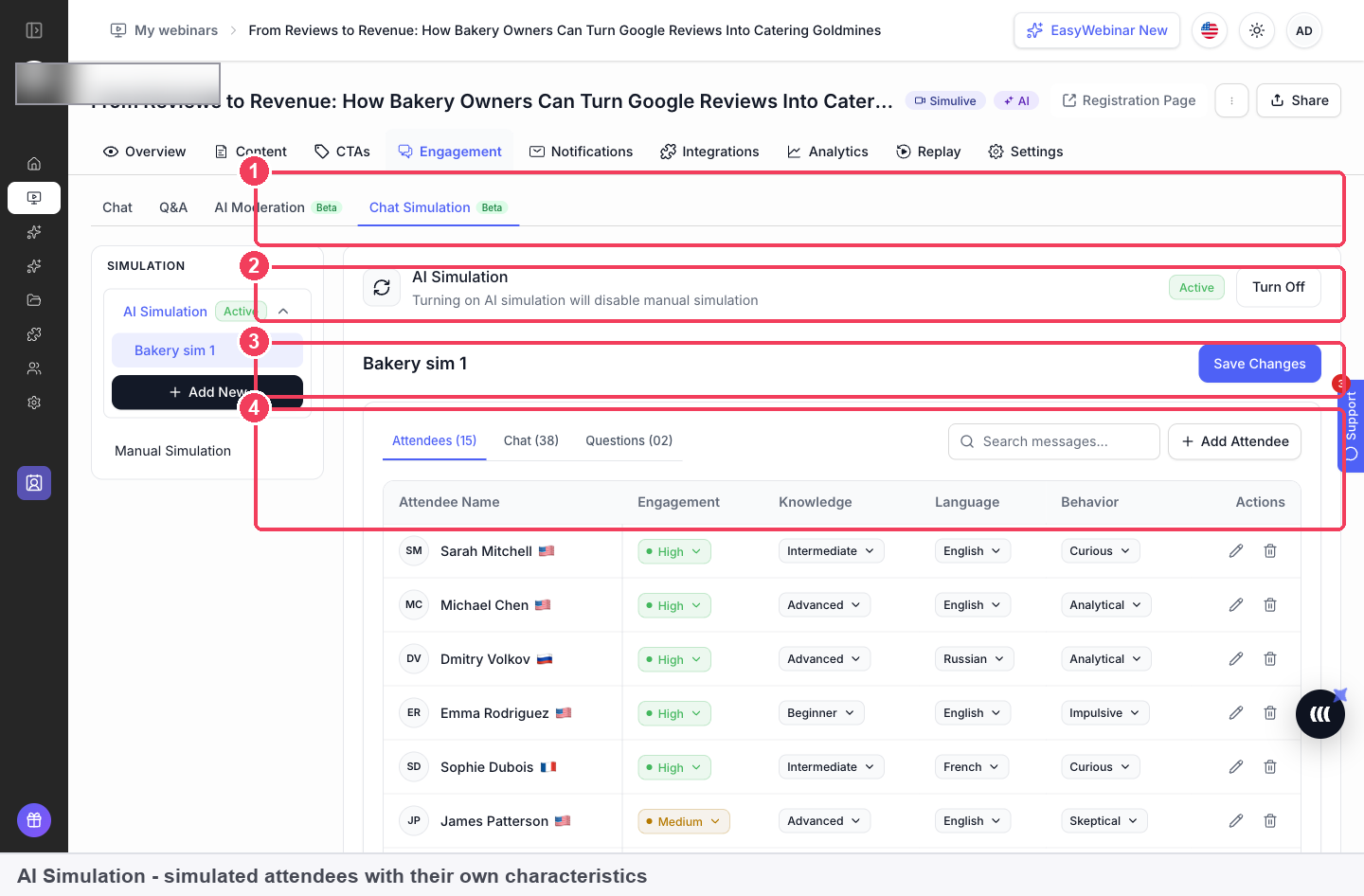
1 Simulation selector · 2 Active toggle · 3 Attendees · Chat · Questions · 4 The attendee list.
| Area | What it does | |
|---|---|---|
| 1 | Simulation selector | Your saved simulations, with Add New |
| 2 | Active toggle | Turns this simulation on |
| 3 | Attendees · Chat · Questions | How much has been generated |
| 4 | The attendee list | Each simulated person and how they behave |
What each simulated attendee has
| Attribute | What it controls |
|---|---|
| Name and country | Who they appear to be |
| Engagement | How often they post: High, Medium or Low |
| Knowledge | How expert they sound, from Beginner through Expert |
| Language | What they write in |
| Behavior | Their character, such as Curious, Sceptical or Enthusiastic |
Build a believable cast
The mix of attendees decides whether the chat reads as real. A room full of enthusiastic experts posting constantly looks staged. A few beginners asking basic questions, one sceptic, a couple of quiet observers on low engagement and some mid-level regulars looks like an audience.
A useful check: look down the attendee list as a newcomer would meet that room. If almost everyone is an enthusiastic expert on high engagement, add curious and sceptical attendees, and move some of the most active ones to Medium or Low.
Set up Manual Simulation
- Open your simulive or evergreen webinar and click Engagement, then Chat Simulation.
- Select Manual Simulation and make it active. This disables AI Simulation.
- Click Download sample CSV to get the template.
- Write your script in the four columns and save the file as CSV (UTF-8).
- Drag the file onto the upload area, or use Choose File.
- Add the names for Attendees on Event Page, separated by commas.
- Read through Preview Simulated Chat.
- Click Save Changes.
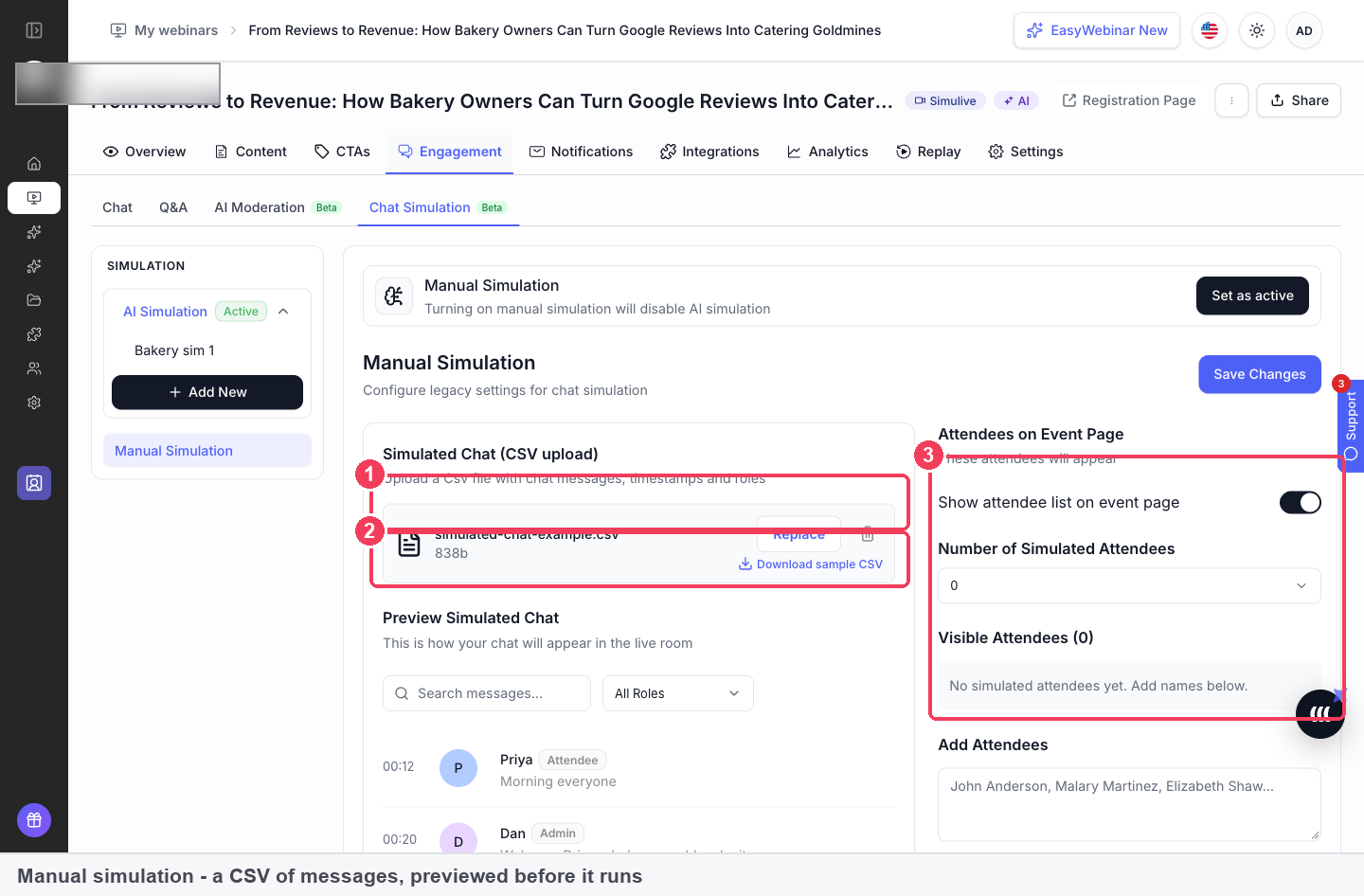
| Area | What it does |
|---|---|
| Simulated Chat (CSV upload) | Your scripted messages |
| Preview Simulated Chat | Exactly how the chat will appear in the room |
| Attendees on Event Page | Names shown in the attendee list, added comma-separated |
The CSV format
| Column | What it holds |
|---|---|
| HH:MM:SS | When the message appears, measured from the start of the video |
| Name | Who posts it |
| Role | Attendee or Admin. Admin messages appear as host replies |
| Message | The text. Wrap it in double quotes if it contains a comma |
A short script looks like this:
HH:MM:SS,Name,Role,Message
0:00:12,Priya,Attendee,Morning everyone
0:00:20,Dan,Admin,"Welcome Priya, glad you could make it"
0:02:30,Aisha,Attendee,We get maybe 3 reviews a month. Is that normal?
0:02:51,Dan,Admin,"More common than you'd think Aisha"
Write a script that reads like a real room
- Line messages up with the video. A question about a slide should land while that slide is on screen.
- Open early. A message in the first few seconds tells new arrivals the room is active.
- Mix the roles. Attendee questions answered by
Adminreplies read as a conversation. Attendee messages alone read as a wall. - Let it breathe. Real chat comes in bursts with quiet stretches, not one message every thirty seconds.
- Check the preview. It shows timestamps, names and roles as attendees will see them.
AI or manual: which to use
| AI Simulation | Manual Simulation | |
|---|---|---|
| Setup time | Minutes | Longer, because you write every line |
| Control | The AI decides what is said | Exactly what you wrote |
| Varies per session | Yes | No, identical every time |
| Best for | Filling a room naturally | A rehearsed, scripted run |
Use simulated chat honestly
Simulated chat is there to stop an automated room looking empty. It isn't a place for social proof that didn't happen.
- No invented testimonials. Simulated attendees shouldn't claim results or endorse your product.
- Don't impersonate real customers. A simulated message shouldn't pass itself off as something a real customer said.
- Keep host answers accurate. An
Adminreply is read as your answer, so it should be one you'd give live.
How chat simulation works with other features
The Chat setting
With Easywebinar Chat selected, a recorded webinar's Chat screen offers Simulated Chat, which plays back a pre-written chat during the webinar, and Simulated Attendees, which shows a simulated attendee list in the room. The script, attendee count and names are set on the Chat Simulation tab. Choosing Third party replaces the built-in chat, so simulation stops applying.
The attendee list
Simulated attendees can show in the attendee list too, with Show attendee list on event page. The webinar-wide Show Attendees setting on the Settings tab controls whether attendees see the list at all.
Q&A
For an automated webinar that should still feel busy, pair Everyone chat and Chat Simulation with Private Q&A, so real questions reach your team in a queue.
Evergreen schedules
Chat simulation suits evergreen webinars running just-in-time or on demand sessions, where attendees arrive in ones and twos at all hours.
Simulive webinars
On a simulive webinar, everyone in a session watches the same moment, so real chat works and you can answer live while the recording plays. Chat Simulation is available on simulive webinars as well as evergreen ones.
Who uses chat simulation, and how
These are typical patterns, to show how the two modes fit different automated webinars.
Course creators
A creator turns their best live session into an evergreen webinar and writes a manual script from the questions people really asked live, with Admin replies that match the answers they gave. Every session plays the same tested conversation.
Small businesses and solo operators
A solo operator without time to script uses AI Simulation, builds a cast with a mix of beginners, a sceptic and quieter observers, and reviews the cast before turning the simulation on.
SaaS and product teams
A product team runs an on-demand demo. A manual script places a short exchange about integrations at the point in the video where integrations come up, so the answer appears just as viewers are wondering.
Agencies
An agency building evergreen funnels for several clients uses AI Simulation to set up each room quickly, then switches individual webinars to Manual Simulation once a client wants a fixed, approved script.
How chat simulation compares
EasyWebinar's Chat Simulation (Beta) can write the chat with AI or play a script you upload as a CSV. It can also add simulated names to the attendee list. EasyWebinar is the only platform in this table that does all three.
Simulated chat features, from each platform's public documentation:
| Platform | Chat written by AI | Scripted chat from a CSV | Simulated names in the attendee list |
|---|---|---|---|
| EasyWebinar | Yes | Yes | Yes |
| WebinarJam and EverWebinar | Not in docs | Yes (EverWebinar) | Not in docs |
| WebinarKit | Partly (marketing page only) | Yes | Not in docs |
| StealthSeminar | Not in docs | Yes (Chat Replay import) | Yes |
| Demio | Not in docs | Not in docs | Not in docs |
Yes: documented and built in. Partly: documented with a limit, shown in brackets. Not in docs: not found in the vendor's public documentation.
Why EasyWebinar is the stronger choice for chat simulation
- A chat the AI writes for you. EasyWebinar's AI Simulation (Beta) generates chat and questions from a cast with set engagement, knowledge, language and behaviour. StealthSeminar's Chat Replay is built from messages you add or import. More detail in EasyWebinar vs StealthSeminar.
- Host replies inside the script. EasyWebinar's CSV has a Role column, so
Adminlines appear as host replies. WebinarKit's chat simulator documents a username, message text and display time for each message. More detail in EasyWebinar vs WebinarKit. - Names in the attendee list as well. Attendees on Event Page adds simulated names to the list attendees see. EverWebinar's help centre covers preloaded chat messages, with no simulated attendee list documented. More detail in EasyWebinar vs WebinarJam and EverWebinar.
- Part of the webinar itself. Chat Simulation (Beta) sits on the same Engagement tab as chat and Q&A. Demio's help centre doesn't document simulated chat. More detail in EasyWebinar vs Demio.
Competitor details checked against each vendor's public documentation on 21 October 2026. Features and plans change, so confirm with the vendor before you decide.
Limits and things to know
- Recorded webinars only. Live webinars have real chat.
- One mode at a time. Turning on AI Simulation disables Manual Simulation, and the reverse.
- It needs the built-in chat. Third-party chat replaces EasyWebinar's panel.
- AI chat varies between sessions; a manual script doesn't.
- CSV files must be UTF-8, with commas inside messages wrapped in double quotes.
- Timestamps run from the start of the video, not from the clock time of the session.
- Changes apply when you click Save Changes.
- It's labelled Beta in the app.
Common questions
Why would I simulate chat?
On an automated webinar, attendees arrive at different times, so a genuine shared chat isn't possible. An empty panel makes the room look deserted.
Does chat simulation work on a live webinar?
No. Live webinars have real chat.
Can I use AI and manual simulation together?
No. Turning one on disables the other.
What format does the CSV need?
Four columns, HH:MM:SS,Name,Role,Message, saved as UTF-8 CSV. Download sample CSV gives you the exact layout.
What roles can I use in the script?
Attendee and Admin. Admin messages appear as host replies.
When do scripted messages appear?
At the timestamp you set, measured from the start of the video.
Can I see the chat before attendees do?
Yes. Preview Simulated Chat shows the conversation exactly as it will appear in the room.
What can I set for each AI-simulated attendee?
Name and country, Engagement, Knowledge, Language and Behavior.
Will the AI chat be the same in every session?
No. AI Simulation varies per session. A manual script is identical every time.
Can simulated attendees appear in the attendee list?
Yes, with Show attendee list on event page.
Does it work with a third-party chat tool?
No. Simulated chat works with Easywebinar Chat only.
Related
- Live chat: the Easywebinar Chat setting that simulation depends on.
- Questions and answers: give real questions a private queue beside the simulated chat.
- Create an evergreen webinar: the format where attendees arrive at different times.
- Create a simulive webinar: the other recorded format that offers Chat Simulation.
- Just-in-time sessions: the evergreen schedule where attendees arrive in ones and twos.
- Course creators: a scripted room on an automated course webinar.
Countdown timers
How EasyWebinar's countdown timers work on offers and registration pages, why they matter for selling with webinars, and how to set them up honestly.
Registration confirmation emails
The email EasyWebinar sends the moment someone registers, carrying their join link, and the Email Settings that control the sender name, reply-to address and admin copies.