
 Product documentation
Video hosting
Host a webinar video on EasyWebinar with Local import, or play one from YouTube, Vimeo, Wistia or a direct MP4 link, with the formats, size limit, storage rules and duration setting for each route.
- Applies to
- Simulive and evergreen webinars · videos are added to your account's Library
- Status
- Live
- Verified
- Page type
- Feature
Simulive and evergreen webinars play a recording, so before you can run one you need a video in your library. EasyWebinar gives you two ways to get it there. Local import uploads the file and EasyWebinar hosts it for you, so you don't need a separate video host. Import from URL plays a video that already lives on YouTube, Vimeo, Wistia or at a direct MP4 link. The route you pick decides whether the video uses your storage and whether you need to tell EasyWebinar how long it runs.
At a glance
| Host on EasyWebinar | Import from a URL | |
|---|---|---|
| How | Local import | Import from URL |
| Where the video lives | Stored and served by EasyWebinar | Stays on YouTube, Vimeo, Wistia or the MP4 link's host |
| Format and size | MP4, up to 4 GB | Not stored on EasyWebinar |
| Storage | Counts towards your account's allowance | None used |
| Duration | Read automatically from the file | You enter it in hours, minutes and seconds |
| Library badge | EasyWebinar | The platform's own logo |
| Good when | The video isn't published anywhere, or you want it kept private | It's already on YouTube, Vimeo or Wistia |
Both routes start from Library → Add Media, or from Add Video while you set up a simulive or evergreen webinar. Either way the video lands in your library and can be reused on other webinars.
What video hosting is
Video hosting answers a practical question: where does the file your automated webinar plays actually live?
With Local import, the answer is EasyWebinar. You upload the file, EasyWebinar stores and serves it in the same way a dedicated video host would, and nothing else is needed to play it in a webinar. The upload uses part of your storage allowance, shown at the top of the Library.
With Import from URL, the answer is somewhere else. You give EasyWebinar the platform, a link and the video's length, and the webinar plays the video from that platform. Nothing is stored on EasyWebinar, so no storage is used, but the webinar now depends on the video staying where it is.
Live webinars don't need either. You supply their content by presenting, and recordings of those live sessions land in your library automatically when recording is on.
Why video hosting matters
What it's for
Hosting is what lets a recorded webinar run. Simulive webinars play the video at times you set. Evergreen webinars play it whenever a registrant's session comes round, and neither works until the video is in the library.
How it helps
- No extra video host. With Local import, a recorded webinar runs with nothing outside EasyWebinar.
- Private videos stay private. A recording you don't want public can live on EasyWebinar, not on a public site.
- Existing videos work as they are. If the video is already on YouTube, Vimeo or Wistia, you import the link and use no storage.
- One library, many webinars. You add a video once and reuse it on other webinars.
- Easy to swap. The Webinar Video panel changes the video without touching the schedule, pages or registrations.
What happens without it
Without a video in place, a simulive or evergreen webinar has nothing to play. Registrants turn up at their session and there is no class to watch. Every webinar you meant to run on its own waits on a file.
Why buyers care
It matters most to people who teach or sell through automated webinars, such as trainers and course creators. The question comes up early, usually before the first recording is made, because it decides where the file will live.
The EasyWebinar approach to video hosting
Take a typical case. A cooking instructor films a 45-minute sourdough class in her home kitchen. She wants it to run as an evergreen webinar for the 2,000 people on her newsletter, ending with a link to her paid six-week course. The class is part of what she sells, so she doesn't want it sitting free on a public channel.
The usual workaround is to upload the class to a public video site as an unlisted video, then paste the link into a webinar tool. That can work, but unlisted links may be shared onwards, and the class now depends on a second account. If the video is removed there, the webinar may stop playing.
What changed is the role of the recording. Once the class is the thing you sell, where the file sits matters as much as the webinar around it. Keeping the two together removes one account to manage and one place for things to break.
EasyWebinar hosts the video itself. EasyWebinar lets her upload the file with Local import, then stores and serves it the way Vimeo or Wistia would. EasyWebinar reads the length from the file, so she has no duration to type, and the class sits in her Library ready for any webinar.
One fact is easy to check. On the Videos tab of the Library, each card carries a badge, and EasyWebinar means the file is stored here. That built-in hosting is one of the capabilities covered in How video hosting compares, below.
Host a video on EasyWebinar
- Click Library in the sidebar, then Add Media.
- Choose Local import.
- Give the video a title. This is the name you'll see in your library.
- Drop your file onto the box, or click it to browse.
- Click Upload.
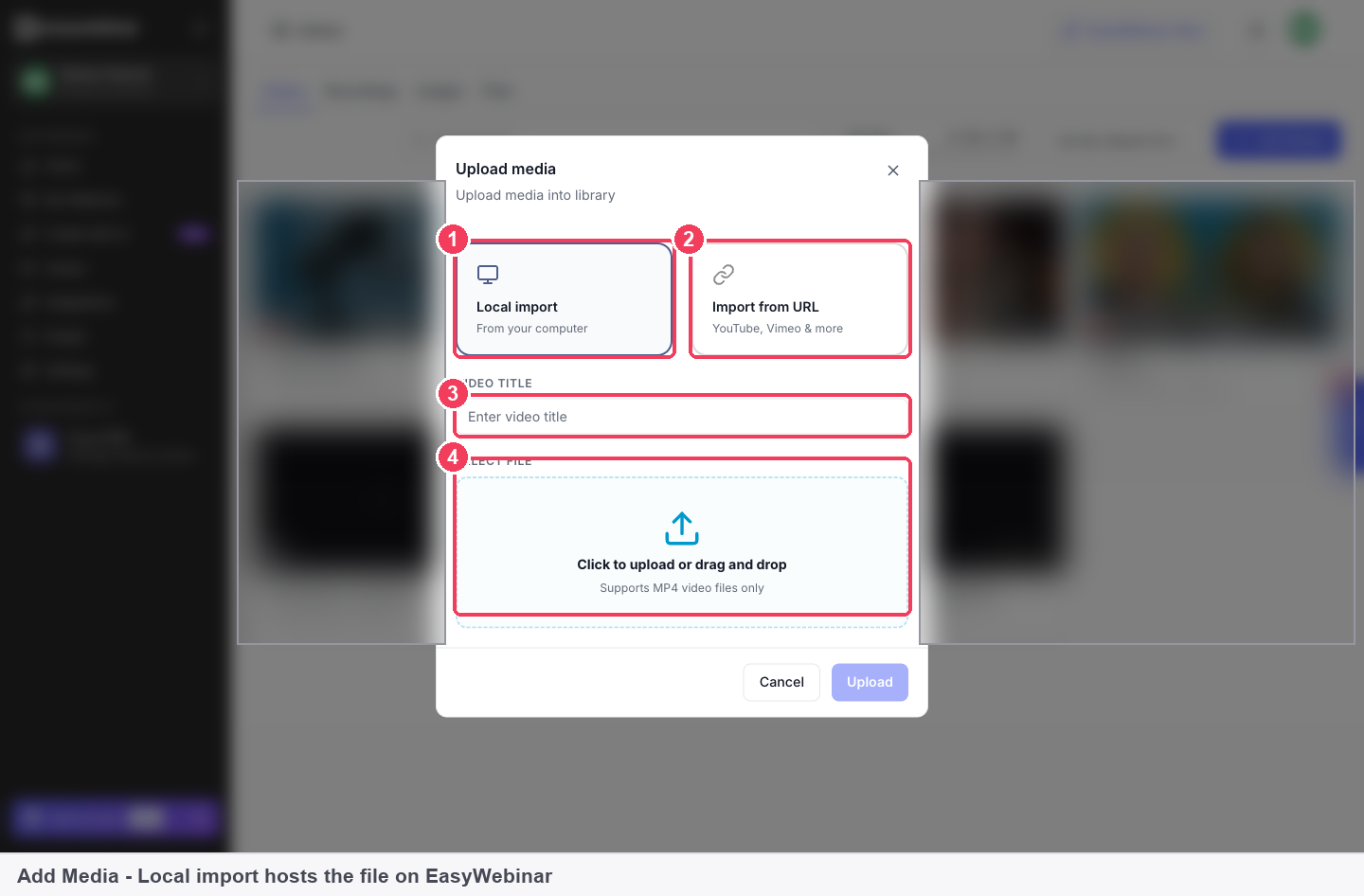
| Control | What it does | |
|---|---|---|
| 1 | Local import | Uploads from your computer. EasyWebinar stores and serves the video |
| 2 | Import from URL | Plays a video hosted somewhere else |
| 3 | Video title | The name you'll see in your library |
| 4 | Select file | Click to browse, or drag a file onto the box |
EasyWebinar hosts the file from then on. Upload MP4 files up to 4 GB, and EasyWebinar reads the video's length automatically.
Import from YouTube, Vimeo, Wistia or an MP4 link
- Click Library in the sidebar, then Add Media.
- Choose Import from URL.
- Choose the Platform: YouTube, Vimeo, Wistia or MP4 link.
- Give the video a title and paste the Video URL.
- Enter the Video duration in hours, minutes and seconds.
- Click Upload.
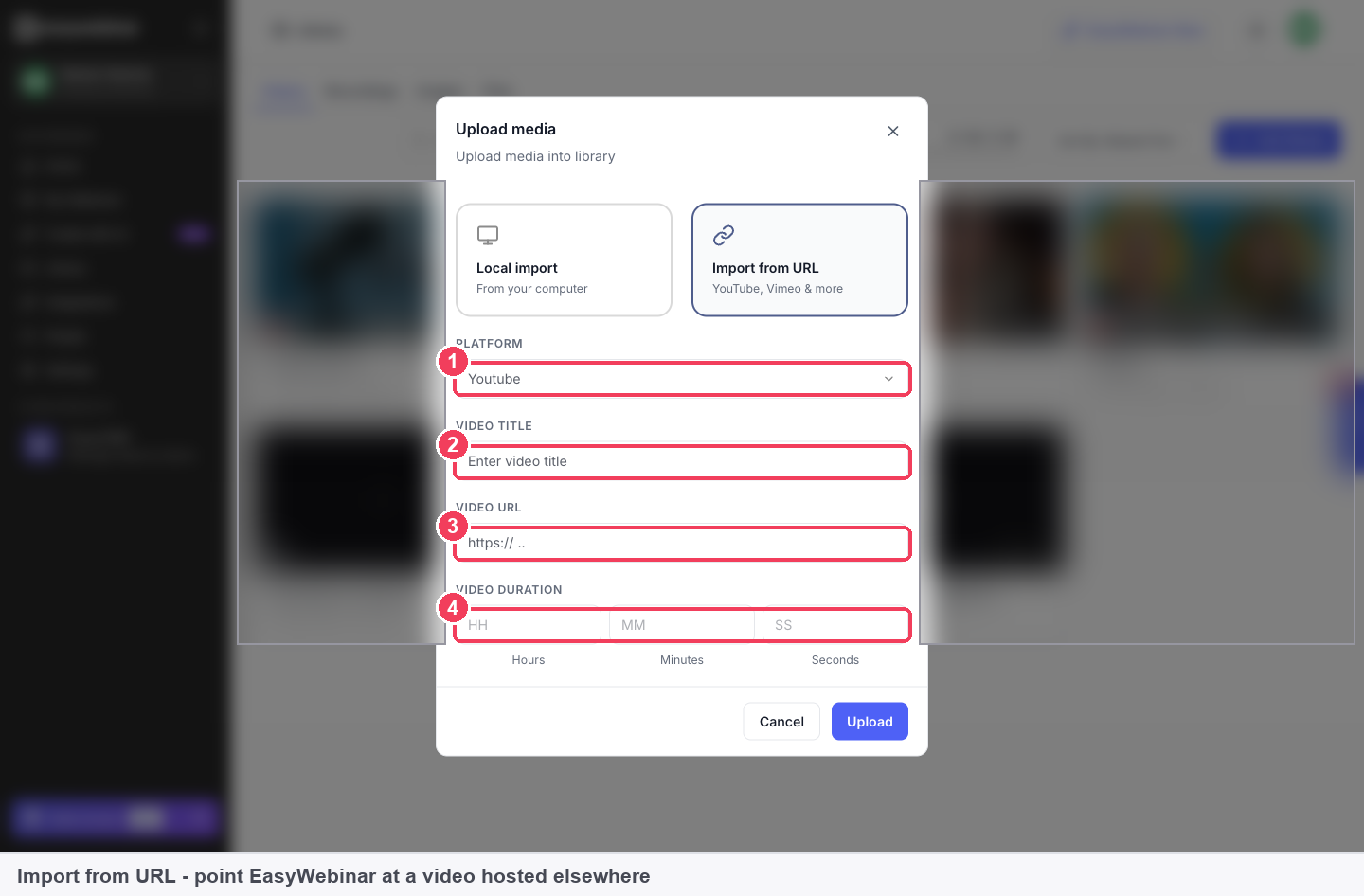
| Field | What to enter | |
|---|---|---|
| 1 | Platform | Where the video lives |
| 2 | Video title | The name for your library |
| 3 | Video URL | The link to the video |
| 4 | Video duration | The length, in hours, minutes and seconds |
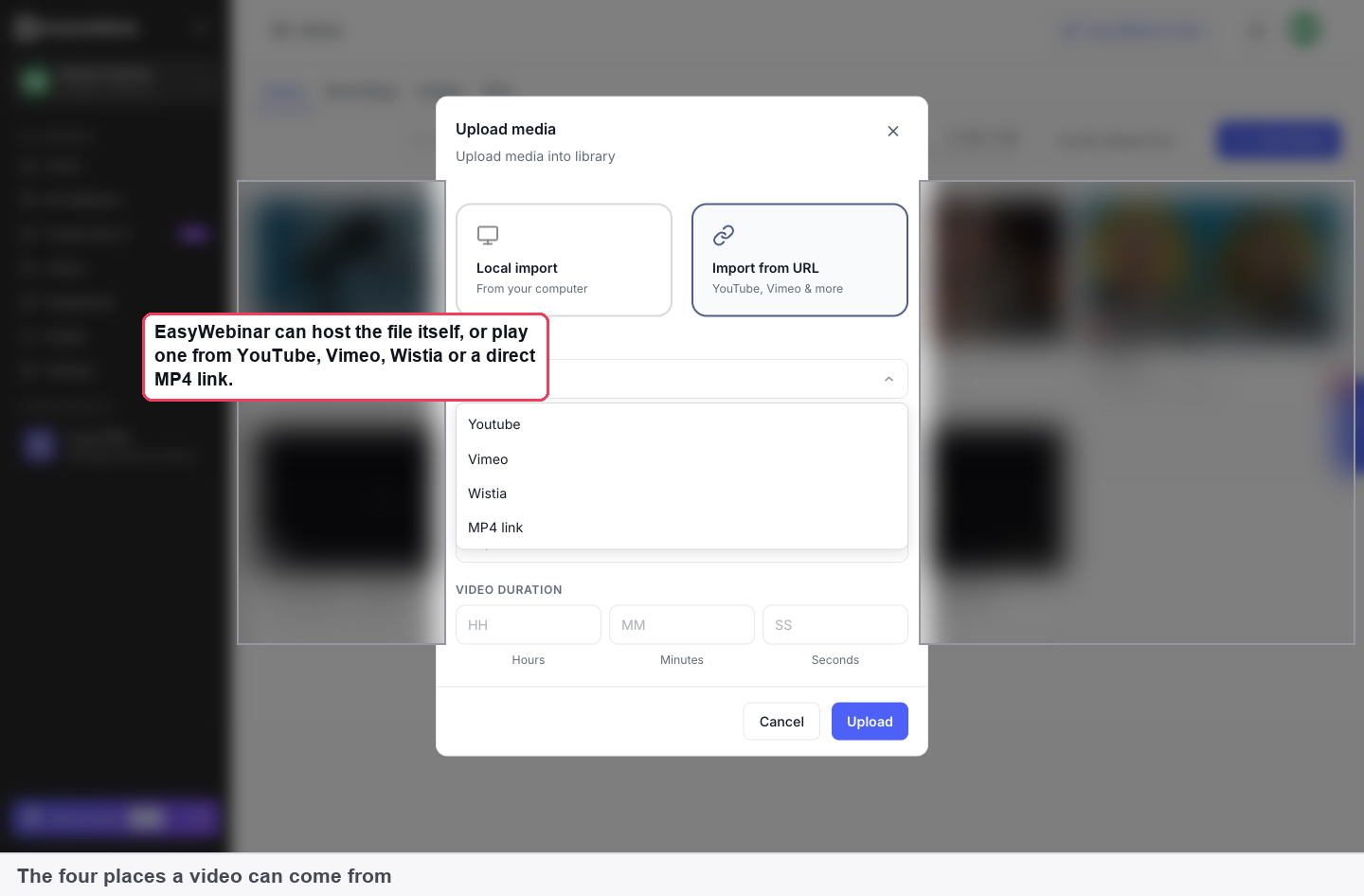
The four places a video can come from: EasyWebinar itself, or YouTube, Vimeo, Wistia or a direct MP4 link.
Enter the duration accurately
EasyWebinar can't read the length of a video hosted elsewhere, and it uses the duration to schedule sessions and work out when the webinar ends. A wrong figure cuts the video short or leaves attendees waiting on a finished one.
Add a video while you set up a webinar
You don't have to visit the Library first. Simulive and evergreen webinars have a Video Selection step, after pricing, where you choose the recording the sessions will play.
| Control | What it does | |
|---|---|---|
| 1 | All · Videos · Recordings | Filters between videos you've added and recordings of past webinars |
| 2 | Search and sort | Finds a video by name |
| 3 | Add Video | Adds a new one without leaving this step |
| 4 | Drag and drop | Drop a file straight onto the page to upload it |
| 5 | Your library | Click any video to select it |
- On the Video Selection step, click the video you want.
- If it isn't there yet, click Add Video for both routes, Local import and Import from URL, or drop a file onto the page.
- Click Continue to Registration Template.
See choose a simulive recording and choose an evergreen video for the rest of each setup.
Change a webinar's video later
A recorded webinar has a Webinar Video panel on its Content tab that live webinars don't. It shows the video you chose and its length.
- Open the webinar and click the Content tab.
- In the Webinar Video panel, click Preview to play the current video.
- Click Change Video to swap it for another from your library.
Changing the video doesn't affect the webinar's schedule, pages or registrations, so you can replace a recording with an improved cut while the webinar keeps running.
Which route to choose
| Situation | Route |
|---|---|
| The recording isn't published anywhere | Local import |
| You want the webinar recording kept private | Local import |
| The video is already on YouTube, Vimeo or Wistia | Import from URL |
| You want to keep storage free for other files | Import from URL |
| The file is a direct MP4 link | Import from URL, platform MP4 link |
Hosting on EasyWebinar is the simpler route for a webinar recording you don't want public. Importing is the quicker route when the video already lives on a platform you control.
How it works with other features
The Library
Every video you add, by either route, appears on the Library's Videos tab with a badge in its corner: EasyWebinar for a hosted file, or the platform's logo for an imported link. Recordings of live sessions appear on the Recordings tab.
Simulive and evergreen webinars
Both types play a video from your library. Simulive plays it at times you set, so everyone in a session watches together; evergreen runs continuously and lets each registrant pick a time.
Live recordings and cloning
A live session recorded with Auto Recording on lands in Library → Recordings, already hosted on EasyWebinar. To run it as an automated webinar, clone the live webinar, choose Evergreen or Simulive for the copy, and pick the recording. See Clone a webinar and Run a live webinar.
Storage and your plan
Hosted videos and recordings count towards your storage, metered on the Plan tab under Settings → Manage Plan, with Buy More. Additional Storage (5GB) is available as an add-on. See storage and upload limits.
Who uses it, and how
These are typical patterns, shown to illustrate how each route fits different kinds of webinar.
SaaS and product teams
A product team records a demo for an evergreen webinar and uploads it with Local import. The demo isn't published anywhere else, and hosting it on EasyWebinar keeps it private to the webinar.
Course creators
A creator already has a teaching video on YouTube. They import it with Import from URL, enter its exact duration, and use no storage. Later they replace it with a recording of a live session through the Webinar Video panel. See selling online courses with webinars.
Agencies
An agency builds automated webinars from videos its clients keep on Vimeo or Wistia. Importing the links leaves the files where the clients manage them, and the platform badge in the Library shows which videos depend on an outside host.
Small businesses and solo operators
A solo consultant without a video platform account records a training, uploads it with Local import, and runs it as a simulive webinar. Nothing outside EasyWebinar is needed.
How video hosting compares
EasyWebinar hosts your uploads itself, imports links from YouTube, Vimeo and Wistia, and keeps recordings of your live webinars ready to reuse. EasyWebinar is the only platform in this table that does all three.
Video sources for recorded webinars, from each platform's public documentation:
| Platform | Upload and host the video itself | Import from YouTube, Vimeo or Wistia | Reuse recordings of past live webinars |
|---|---|---|---|
| EasyWebinar | Yes | Yes | Yes |
| EverWebinar | External video required | Partly (YouTube, Vimeo, MP4 links) | Yes (past WebinarJam sessions) |
| eWebinar | Yes (re-hosted through Vimeo) | Yes | Partly (Zoom cloud recordings) |
| WebinarKit | Partly (on Pro plans) | Partly (YouTube and direct Vimeo links) | Yes |
| Demio | Yes (up to 5 GB) | Partly (registration page video only) | Yes |
Yes: documented and built in. Partly: documented with a limit, shown in brackets. Not in docs: not found in the vendor's public documentation.
Why EasyWebinar is the stronger choice for video hosting
- Hosting comes with the webinar. Local import uploads the file and EasyWebinar serves it. EverWebinar's help centre lists an external video as required for its primary video source. See EasyWebinar vs EverWebinar.
- Wistia links work as well. EasyWebinar imports from YouTube, Vimeo, Wistia or a direct MP4 link. WebinarKit's help asks for direct Vimeo file links rather than regular Vimeo links, and its built-in hosting is a Pro feature. See EasyWebinar vs WebinarKit.
- Your own live sessions, ready to reuse. Recordings of your live webinars land in Library → Recordings and appear in the video picker. eWebinar's import route lists recent cloud recordings from a connected Zoom account. See EasyWebinar vs eWebinar.
- The webinar video itself, from a link. In EasyWebinar, an imported link becomes the video your sessions play. Demio's docs describe YouTube, Vimeo and Wistia URLs for the registration page video. See EasyWebinar vs Demio.
Competitor details checked against each vendor's public documentation on 21 October 2026. Features and plans change, so confirm with the vendor before you decide.
Limits and things to know
- Upload MP4, up to 4 GB. The Video Selection screen lists MP4, MOV or WebM, but the Upload media dialog says it supports MP4 files only, so upload MP4 to be safe.
- Imports come from four sources: YouTube, Vimeo, Wistia or a direct MP4 link.
- Imported videos need their duration entered. EasyWebinar reads the length automatically only for uploaded files.
- Hosted files count towards storage; imported links don't.
- Imported videos depend on the other platform. Removing a YouTube video breaks the webinar that plays it.
- A YouTube video stays discoverable unless you've unlisted it on YouTube.
- Live webinars don't need a video. Simulive and evergreen webinars are the types that play one.
- Changing the video later doesn't affect the schedule, pages or registrations.
Common questions
Does EasyWebinar host videos, or do I need YouTube or Vimeo?
EasyWebinar hosts them. Local import uploads your file and serves it, with no other video host involved. Importing from a URL is an option, not a requirement.
Which platforms can I import from?
YouTube, Vimeo, Wistia, or a direct MP4 link.
What file formats can I upload, and how big?
MP4, up to 4 GB per file. The Video Selection screen lists MP4, MOV or WebM, but the Upload media dialog says it supports MP4 files only, so upload MP4 to be safe.
Why does it ask for the duration on an imported video?
EasyWebinar reads the length of an uploaded file automatically, but not of one hosted elsewhere. It needs the duration to schedule sessions correctly.
Do imported videos use my storage?
No. Only files uploaded to EasyWebinar count towards your storage.
How much storage do I have?
It's shown at the top of the Library. More is available with Additional Storage (5GB) or Buy More.
Can I use a recording of a webinar I already ran?
Yes. It's on the Recordings tab, and you can pick it when setting up a simulive or evergreen webinar.
Can I change the video on a webinar later?
Yes, from the Webinar Video panel on that webinar's Content tab. The schedule, pages and registrations are unaffected.
Can I add a video without leaving webinar setup?
Yes. Add Video on the Video Selection step offers both routes, and you can drop a file straight onto the page.
Is a YouTube-hosted webinar video private?
It's still a YouTube video, discoverable unless you've unlisted it. Host it on EasyWebinar with Local import if you want it kept private.
Related
- Webinars overview: which of the three webinar types play a video and which don't.
- Clone a webinar: turn a hosted live recording into a simulive or evergreen webinar.
- Paid webinars: the pricing step that comes just before Video Selection.
- Replay pages: where a live session's recording is watched after the event.
Paid webinars and paid registration
Charge people to register for a webinar in EasyWebinar, take payment through Stripe, sell a live-plus-replay bundle, and track every paid registration and transaction.
The Library
Find, add and manage the videos, webinar recordings, images and documents your webinars use, see which files count towards your storage, and put a library video to work in a simulive or evergreen webinar.