
 Product documentation
The green room and backstage
How EasyWebinar's green room lets you prepare a live webinar with nothing broadcast, and how backstage holds co-presenters and moderators until you bring them on stage.
- Applies to
- Live webinars
- Status
- Live
- Verified
- Page type
- Feature
The green room is the private state of the EasyWebinar live room before a broadcast starts. You and your team can test cameras, microphones and screen sharing and arrange the stage, while the header reads Not Live and nothing reaches attendees. Backstage is the waiting area inside the room: co-presenters and moderators arrive there, off stage, and appear to the audience only when you move them on.
At a glance
| Green room | Backstage | |
|---|---|---|
| What it is | The room before Go Live, with nothing broadcast | A holding area for presenters who aren't on stage |
| Who is there | You and anyone who has joined to present or moderate | Co-hosts and moderators who have joined but aren't on stage yet |
| What attendees see | Nothing until you go live | Nothing of people waiting backstage |
| How you get there | Enter Room on the webinar's Overview, then Continue to Green Room | Joining presenters and moderators land here automatically |
| How you leave | Go Live to start broadcasting, or Exit | You move a person to the stage, and back again when they're done |
| Where it sits on screen | The whole room, with the status badge at top left | The Backstage panel on the left edge |
What the green room is
When you enter the room for a live webinar, you don't go straight on air. You land in the green room: the full webinar room with every control working, but in a Not Live state. Your camera preview, the stage layout, the side rail and the EasyCast controls are all there, so you prepare in the same room your attendees will see once you start.
Backstage is the part of the room for people who are present but not presenting yet. Anyone joining as a co-host or moderator arrives backstage rather than on stage. From there you move them onto the stage when it's their turn, and back off when they've finished. This works the same before and after you go live.
The two together are what EasyWebinar's glossary calls the green room: a presenter backstage before the broadcast starts.
Why the green room matters
What it's for
The green room separates getting ready from being seen. Live presenting has a few things that can go wrong in the first minute, such as a muted microphone or the wrong window shared. The green room lets you find them while nobody is watching.
How it helps
- Mistakes stay private. Audio checks and false starts happen before the broadcast, not at the top of the recording.
- Guests arrive quietly. A co-host can join early, sort out their audio and wait backstage without being shown.
- The stage changes on your cue. You decide when each person appears, so handovers between speakers look planned.
- The start is deliberate. The broadcast begins only when you click Go Live and confirm.
What happens without it
Without a staging area, the first minutes of a webinar become the rehearsal. Attendees who arrived on time watch presenters ask whether they can be heard. The recording behind your replay page then opens with the same fumbling.
Why buyers care
It matters most to teams that run live webinars with several speakers, such as panels, interviews and demos with a moderator. Those sessions depend on guests joining without interrupting, and on handovers that look rehearsed.
The EasyWebinar approach to the green room
Take a typical case. An employment law firm runs a quarterly live panel for HR directors on new workplace rules. Two partners host, and two guest speakers join from outside the firm. Around 180 people attend, and the session is recorded for clients who miss it.
A common approach is to send every speaker the same link and start at the advertised time. In practice, the first minutes tend to go on sound checks and guests asking whether they can be heard. Those minutes also open the recording that clients watch later.
The panel itself doesn't need to change. What matters is where the speakers wait and when the audience starts watching. If the checks happen out of view, the session can open on the first question instead of a sound test.
EasyWebinar handles this with the green room and backstage. The partners click Enter Room and land in the room in a Not Live state. Each guest joins with the Co-presenter Join Link, waits backstage, and moves to the stage when their topic comes up. The broadcast starts only when a partner clicks Go Live.
The screenshot under Read the room shows the Not Live status, the Backstage panel and Go Live in one view. How other platforms handle a pre-show room for speakers is covered in How the green room compares, below.
Set it up and use it
1. Add your presenters and moderators
Before the session, decide who will present and who will moderate. You have two routes.
From the Overview tab. The Team & Moderators panel lists the presenters and moderators who can run this webinar. A new webinar shows "No presenters or moderators added yet." Use Add presenter for someone who appears on camera and presents, or Invite to send an invitation to join the webinar team.
With a join link. Click Share on the webinar and copy the link for the role:
| Link | Who it's for |
|---|---|
| Co-presenter Join Link | A presenter, so they can join the room |
| Moderator Join Link for Live room | A moderator, to handle chat and questions |
A presenter or moderator joining by link doesn't need an EasyWebinar account. Treat both links as private: anyone holding one can join your room in that role. The registration, attendee and replay links are the ones meant for your audience.
2. Enter the green room
- On the webinar's Overview, click Enter Room.
- Choose your camera, microphone and speakers.
- Click Continue to Green Room.
The button stays greyed out until the room can see a camera and a microphone. If you see "Not able to access selected media device", see Camera not detected.
3. Read the room
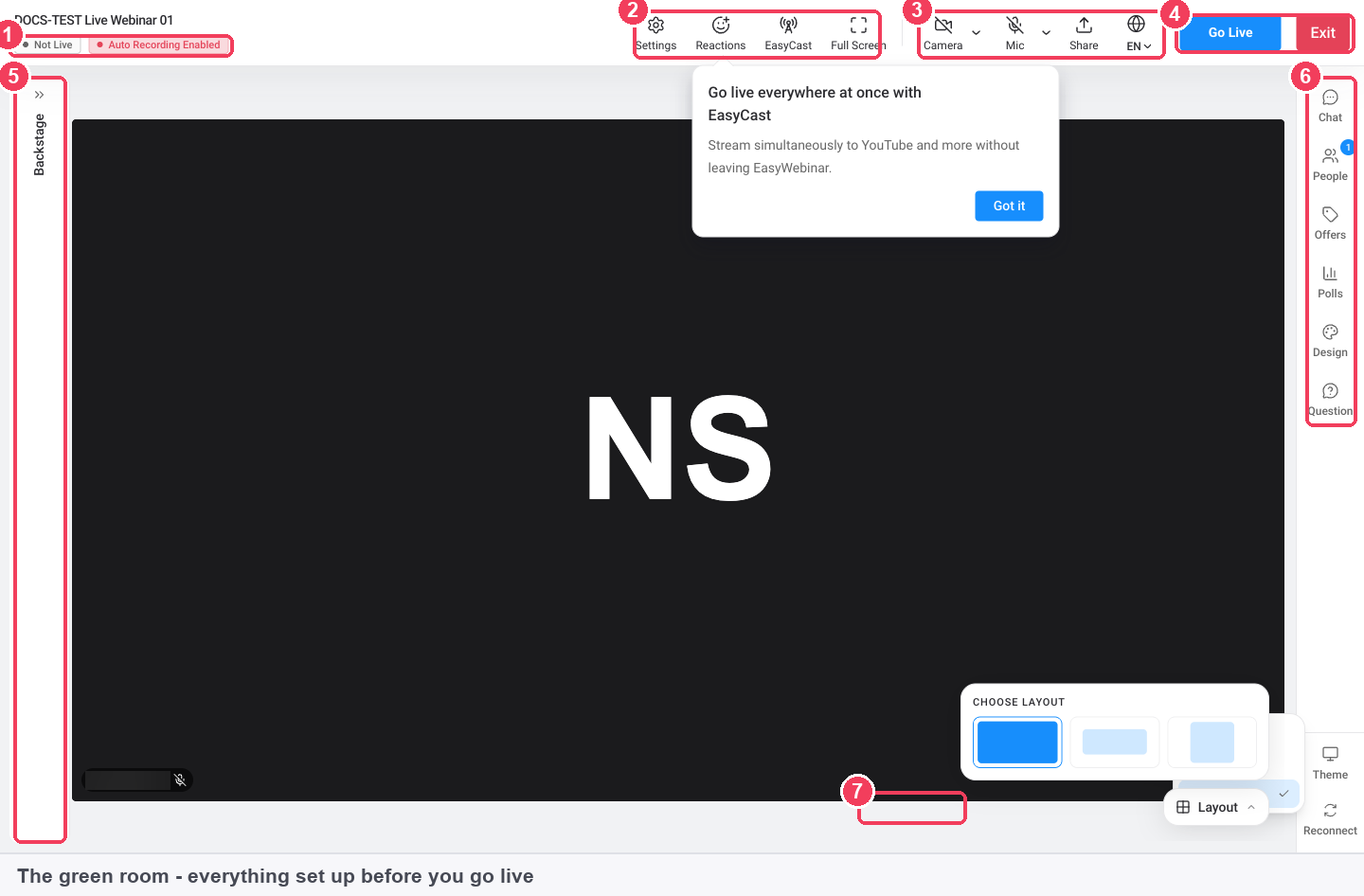
1 Status · 2 Settings, Reactions, EasyCast and Full Screen · 3 Camera, Mic and Share · 4 Go Live and Exit · 5 Backstage · 6 Side rail · 7 Layout.
| Area | What to check here | |
|---|---|---|
| 1 | Status | Not Live, and whether recording is on |
| 2 | Settings · Reactions · EasyCast · Full Screen | Room setup and multistreaming |
| 3 | Camera · Mic · Share | Your own devices and a test of screen sharing |
| 4 | Go Live · Exit | Start the broadcast, or leave the room |
| 5 | Backstage | Presenters waiting off stage |
| 6 | Side rail | Chat, People, Offers, Polls, Design, Question and Theme |
| 7 | Layout | How presenters are arranged on stage |
4. Bring people backstage and onto the stage
As co-hosts and moderators join, they appear backstage. Expand the Backstage panel on the left edge of the room to see who's waiting. To see everyone at once, open People on the side rail.
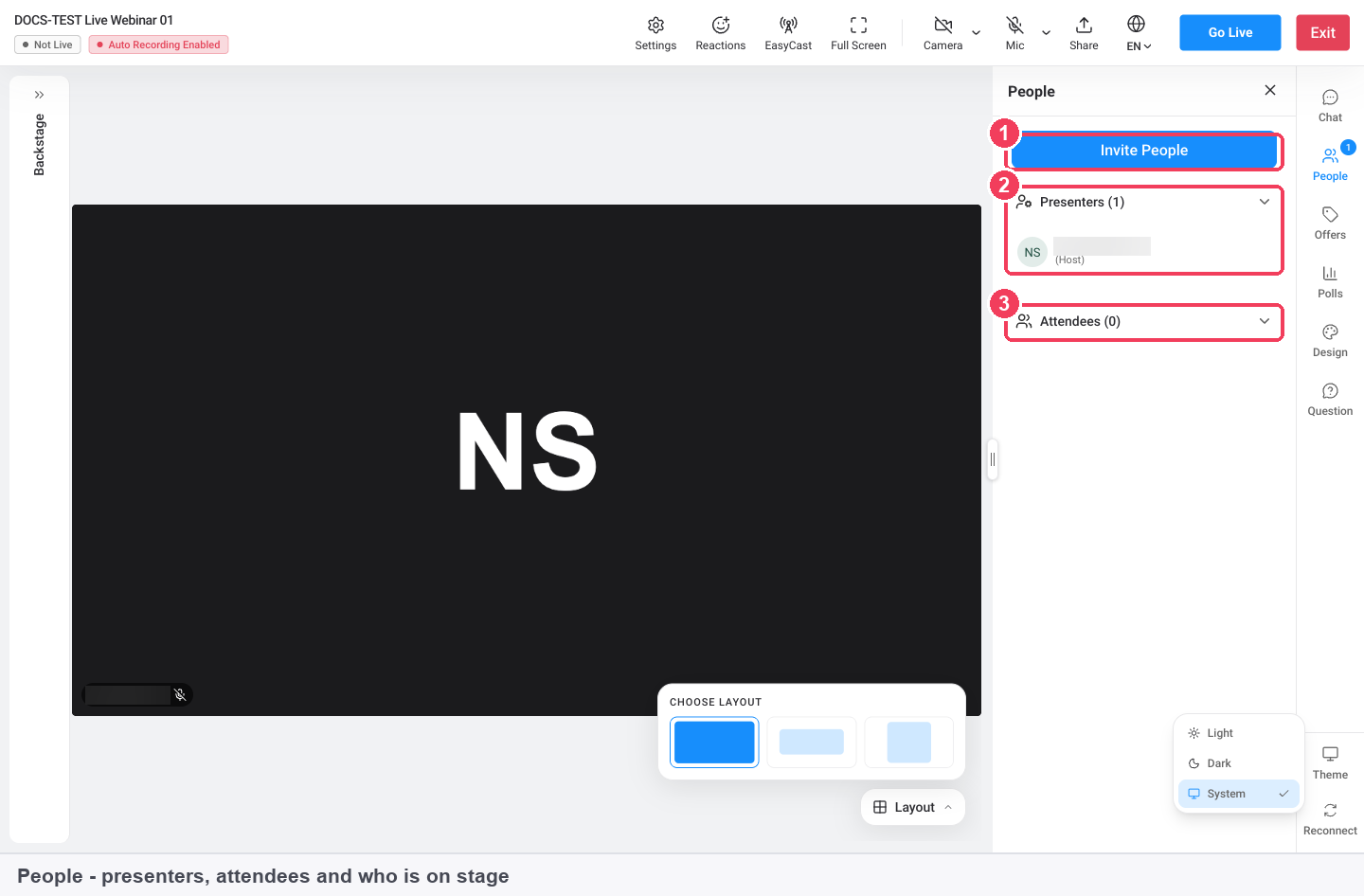
| Area | What it shows | |
|---|---|---|
| 1 | Invite People | Join links for presenters and moderators, ready to share |
| 2 | Presenters | Everyone who can appear on stage, with the Host marked |
| 3 | Attendees | Everyone watching |
- Move someone to the stage when it's their turn to speak.
- Move them back when they're done.
If a guest hasn't received their link, Invite People gives you the presenter and moderator links from inside the room.
5. Finish your checks
Use the time before going live to:
- Test Share with the window or screen you'll actually present.
- Confirm recording. Auto Recording Enabled in the header means the session will be recorded; Settings → Recording Settings changes it.
- Set the look. Backgrounds, blur, frame overlays and layout are on Design. Changes apply immediately, so set them here rather than mid-broadcast.
- Switch on any EasyCast destinations. Click EasyCast in the top bar and turn Stream on for each channel this session should reach.
- Decide on camera and mic. You can switch Camera and Mic off in the green room and still go live, for a session built on slides or video.
6. Leave the green room
Click Go Live when everyone is ready. The confirmation reminds you that anyone in the waiting area will be moved in automatically, and that offers and polls should already exist. Confirm, and the header changes from Not Live to LIVE with a timer.
To leave without broadcasting, click Exit. For what happens once you're live, see Run a live webinar.
How the green room works with other features
Team members and roles
A team member is someone with their own EasyWebinar login, created under Settings → Team as an Admin or User. A presenter or moderator is someone running a specific webinar. Add a person to your team when they work in EasyWebinar regularly; send a join link when they're a guest on one session. Sharing one login between hosts means only one of you can be in the live room as a host. See Team members.
Share links
The Share dialog on the webinar holds seven links, including the presenter and moderator ones above. Shorten URL's gives you shorter versions. See Sharing links.
EasyCast
EasyCast destinations are switched on in the green room, before you go live. Once the broadcast starts, a platform icon for each destination appears in the top bar. Connections are made once, under Integrations → EasyCast in the sidebar, and work across every webinar.
Room design
The Design panel sets the background, a frame overlay and the stage layout. Layout matters most when several presenters are on stage or someone is sharing a screen.
Who uses the green room, and how
These are typical patterns, shown to illustrate how the green room and backstage fit different webinars.
B2B marketing teams
A marketing team runs a panel with two guest speakers from partner companies. Each guest gets the Co-presenter Join Link, joins fifteen minutes early, and checks their audio backstage. The host introduces the topic alone, then moves each guest onto the stage in turn.
Customer success teams
A customer success manager presents a customer training session while a colleague joins with the Moderator Join Link for Live room to handle questions. The moderator never needs to appear on stage, so they stay off it for the whole session.
Coaches and consultants
A coach runs an interview-style masterclass with a guest expert who has no EasyWebinar account. The guest joins by link, waits backstage during the coach's opening, and comes on stage for the interview segment.
SaaS and product teams
A product team rehearses a product launch demo in the green room: they test the screen share of the product, pick a layout that gives the demo most of the stage, and switch on a LinkedIn Organisation destination in EasyCast before going live.
How the green room compares
EasyWebinar gives you a private green room before the broadcast and a backstage where guests wait, both before and during the session. From the same room you can switch on several streaming destinations at once. EasyWebinar is the only platform in this table that does all three.
Green room features, from each platform's public documentation:
| Platform | Private room before going live | Backstage before and during the session | Stream to several platforms at once |
|---|---|---|---|
| EasyWebinar | Yes | Yes | Yes |
| Zoom | Yes (Backstage) | Yes | Not in docs |
| ON24 | Yes (presenters backstage) | Partly (before the start) | Not in docs |
| Demio | Not in docs | Not in docs | Yes |
| WebinarJam and EverWebinar | Not in docs | Not in docs | Partly (one service chosen per webinar) |
Yes: documented and built in. Partly: documented with a limit, shown in brackets. Not in docs: not found in the vendor's public documentation.
Why EasyWebinar is the stronger choice for the green room
- Guests held backstage during the session too. In EasyWebinar, co-hosts and moderators land backstage and move to the stage and back as needed. ON24's guide describes presenters talking backstage before the webinar starts. More detail in EasyWebinar vs ON24.
- A rehearsal room inside the webinar. EasyWebinar's green room is the full webinar room in a Not Live state. Demio's help centre describes a waiting room for attendees, with no presenter green room documented. More detail in EasyWebinar vs Demio.
- Several streams from one room. EasyCast broadcasts to YouTube, LinkedIn or a custom RTMP destination at the same time, switched on in the green room. Zoom's help centre covers livestreaming webinars to YouTube, with no multi-destination streaming documented. More detail in EasyWebinar vs Zoom.
- Checks before the broadcast starts. EasyWebinar keeps you in Not Live until you click Go Live and confirm. WebinarJam's help centre doesn't document a green room or backstage for presenters. More detail in EasyWebinar vs WebinarJam and EverWebinar.
Competitor details checked against each vendor's public documentation on 21 October 2026. Features and plans change, so confirm with the vendor before you decide.
Limits and things to know
- A camera and microphone are needed to get past the device check, even if you switch them off in the green room.
- The green room broadcasts nothing. The header reads Not Live until you go live.
- Co-hosts and moderators arrive backstage, never straight onto the stage.
- Presenter and moderator links grant that role to whoever holds them. Keep them private.
- Joining by link needs no account, but a person with a team login can also join as a presenter.
- Design changes apply as you make them. Anything you change after going live is visible.
- Only one event can be live at a time. If another webinar is live, Enter Room shows "You can only have one event live at a time."
Common questions
Does anything I do in the green room get broadcast?
No. The header reads Not Live, and nothing is sent to attendees until you click Go Live and confirm.
Where do my co-hosts appear when they join?
Backstage. Expand the Backstage panel on the left edge to see them, and move them to the stage when you want them seen.
How do I invite a guest speaker?
Send them the Co-presenter Join Link from the Share dialog, or add them under Team & Moderators on the Overview tab.
Does a guest presenter need an EasyWebinar account?
No. Presenters and moderators can join with their link without an account.
What's the difference between a team member and a presenter?
A team member has their own login to your EasyWebinar account. A presenter or moderator is running a specific webinar, and may be a guest with only a join link.
Can I invite people from inside the room?
Yes. Invite People at the top of the People panel shares the presenter and moderator join links.
Can I take someone off the stage?
Yes. Move them back off the stage when they've finished, and they return to backstage.
Can I leave the green room without going live?
Yes. Click Exit.
Should I set up EasyCast in the green room?
Yes. Switch Stream on for each destination before you click Go Live.
Is the green room the same as the waiting area?
No. The green room is for you and your presenters. The waiting area is where attendees wait before the session, and they're moved into the webinar automatically when you go live.
Related
- Create and schedule a live webinar: the session has to exist and be scheduled before you can enter its green room.
- The Overview tab: where Enter Room opens the green room for a session.
- Live chat settings: decide how chat behaves before your moderator joins backstage.
- Set up Q&A: set up the question queue a moderator will work through.
Run a live webinar
Enter the EasyWebinar webinar room, prepare in the green room, go live, present with chat, polls, offers and Q&A, then end the session and find your recording.
Webinar analytics
What the Analytics tab on an EasyWebinar webinar measures, from visitors and registrations to live attendance, replay views, offer performance and revenue, and how to read each number.